
 iPhone Data Recovery
 iOS System Recovery
 iOS Backup & Restore
 iOS WhatsApp Transfer
 iOS FoneTrans
 MobieSync
 Android Data Recovery
 Broken Android Data Extraction
 Android Data Backup & Restore
 iPhone Unlocker
 Best Samsung Phone Unlock Tool
 Android Unlocker
 Win/Mac Data Recovery
 iDATAPP Screen Recorder
 2D&3D Video Converter
 Video Repair Software Ai
 AI Video Converter
 Ai Blu-ray Player
 Can't Find Recently Deleted Photos on iPhone? Don't Worry
Missing Recently Deleted photos on iPhone do not always mean permanent loss. Check iCloud, backups, and selective recovery tools quickly to improve your chances of getting your pictures back.

You open the Photos app, head to Albums, scroll down to Recently Deleted—and it is missing, empty, or not showing the pictures you need. For many iPhone users, this feels contradictory. If Apple says deleted photos stay for 30 days, why can’t you find them? And if the Recently Deleted photos on iPhone folder is gone, does that mean the images are gone forever?
Not always.
This problem usually has a practical cause: the photos may have been permanently deleted, iCloud Photos may have synced the deletion across devices, Screen Time restrictions may be hiding album changes, the device may be signed into the wrong Apple ID, or the files may never have been in the Photos library in the first place. In some cases, the album is there but the photos were removed after the 30-day retention period. In others, users confuse deleted photos with images stored in Messages, Files, WhatsApp, or cloud apps that do not appear in the Photos app’s Recently Deleted folder.
So the real question is not just “Where is Recently Deleted on iPhone?” but “What kind of deletion happened?” Once you identify that, recovery becomes much easier.
This article breaks the issue down in a practical way: first, why Recently Deleted is missing on iPhone, then three effective recovery methods, and finally an additional related solution for users dealing with broader iPhone data problems. If you need to recover deleted photos on iPhone without Recently Deleted, this guide is designed to help.
Guide List
- Why you can’t find Recently Deleted photos on iPhone
- First, verify the basics before recovery
- Method 1: Recover photos from Recently Deleted or synced iCloud library
- Method 2: Recover deleted iPhone photos with iDATAPP iOS Data Recovery
- Method 3: Restore photos from an iPhone backup without relying on Recently Deleted
- A related issue many iPhone users face: data loss after an iOS system crash
- Small but important recovery tips people often ignore
- 5 common questions answered
Why you can’t find Recently Deleted photos on iPhone
Before trying recovery, it helps to understand the failure points. The Recently Deleted album on iPhone can seem unreliable, but in reality it follows a strict logic.
Common reasons include:
The 30-day window expired
- Photos in Recently Deleted are automatically erased after 30 days.
The photos were manually deleted twice
- If someone opened Recently Deleted and tapped Delete All or removed selected images permanently, they will not stay in that folder.
iCloud Photos synced the deletion
- When iCloud Photos is enabled, deleting a photo on one Apple device can remove it everywhere.
Wrong Apple ID or sync mismatch
- If your iPhone is signed into a different Apple ID, your expected photos may not appear.
- The album is hidden by restrictions or software behavior
- Rarely, interface changes, content restrictions, or iOS glitches make users think the folder disappeared.
The images were never saved to Photos
Pictures from chat apps, email attachments, or temporary downloads may not be stored in the photo library.
That means recovery should follow a sequence:
- Confirm whether the album is actually unavailable or just empty.
- Check whether the photos may still exist in iCloud or backups.
- If neither works, use a reliable iPhone photo recovery solution.
First, verify the basics before recovery
A quick check can save a lot of time.
- Open Photos > Albums > Utilities and look for Recently Deleted
- Use Face ID / Touch ID / passcode if prompted, since newer iOS versions protect this album
- Check Settings > [your name] > iCloud > Photos
- Confirm you are signed into the correct Apple account
- Visit iCloud Photos on another Apple device or via web access if available
- Review whether the deletion happened more than 30 days ago
- Restart the iPhone and update iOS if the Photos app behaves abnormally
If the folder is still missing or empty, move on to targeted recovery.
Method 1: Recover photos from Recently Deleted or synced iCloud library
This is the most direct and safest approach when the photos were deleted recently and have not been permanently erased. Even if users say “I can’t find Recently Deleted photos on iPhone,” the album may simply be overlooked, locked, or synced differently across devices. Since iCloud Photos mirrors your library, checking another Apple device or the cloud version of your account can uncover images that are not visible on the current iPhone. This method is best when deletion happened recently, iCloud sync is enabled, and no manual permanent deletion was done afterward. It is fast, free, and avoids overwriting the phone.
Steps
- Open Photos on your iPhone.
- Tap Albums and scroll to Recently Deleted.
- Authenticate with Face ID, Touch ID, or passcode if requested.
- Select the photos you want and tap Recover.
- If the album is empty, check another signed-in Apple device.
- Go to Settings > [your name] > iCloud > Photos and verify whether iCloud Photos is on.
- Wait on Wi-Fi for syncing to complete.
- If photos were stored in shared libraries or synced devices, review those locations too.
Important details
- Photos remain there for up to 30 days, not indefinitely.
- If you press Delete All in Recently Deleted, they usually disappear from this route.
- iCloud syncing can also remove photos everywhere if the deletion already synced.
- If the album itself does not show, restart the phone and make sure you are not under restrictions or using a different Apple ID.
Method 2: Recover deleted iPhone photos with iDATAPP iOS Data Recovery
If the Recently Deleted folder is gone, empty, or the photos were permanently removed, a deeper recovery tool is the next logical step. iDATAPP iOS Data Recovery is useful because it is designed specifically for extracting lost iPhone data from the device itself and from Apple backup sources, depending on the situation. This method is especially valuable when users need to recover permanently deleted photos from iPhone, when a deletion happened beyond the Recently Deleted stage, or when the Photos app no longer shows the expected media. Compared with blind restoration, it gives you a more selective, recovery-focused workflow.
Steps
1.Download and install iDATAPP iOS Data Recovery on your computer.
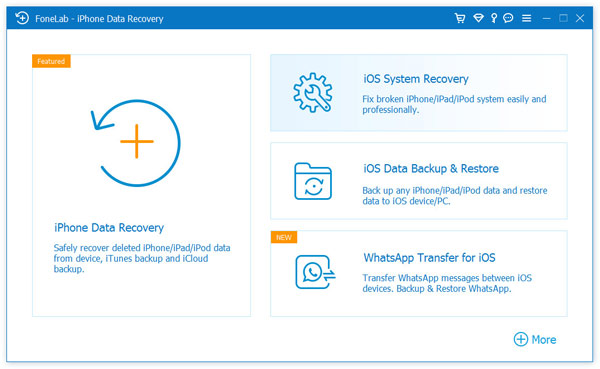
2.Launch the software and connect your iPhone with a USB cable.
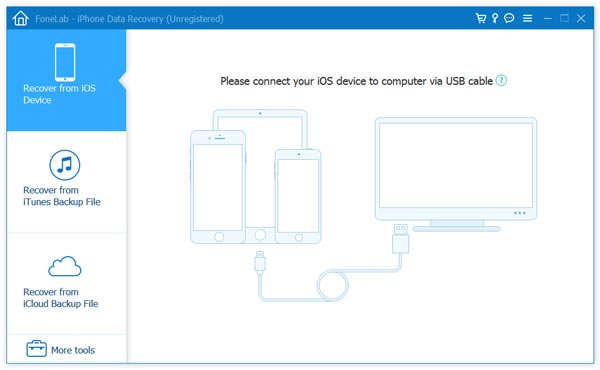
3.Choose a recovery mode, such as recover from the iOS device or from an available backup source.
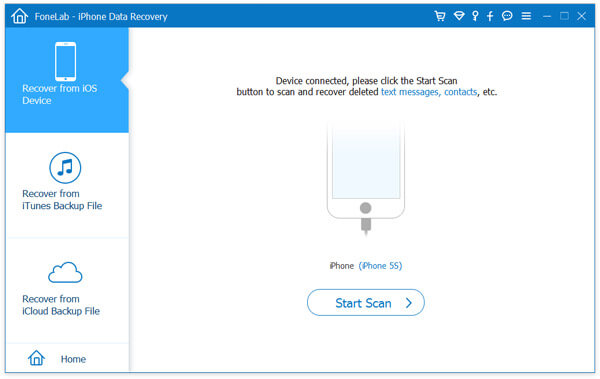
4.Start the scan and allow the software to analyze deleted and existing photo data.
5.Preview the scan results carefully.
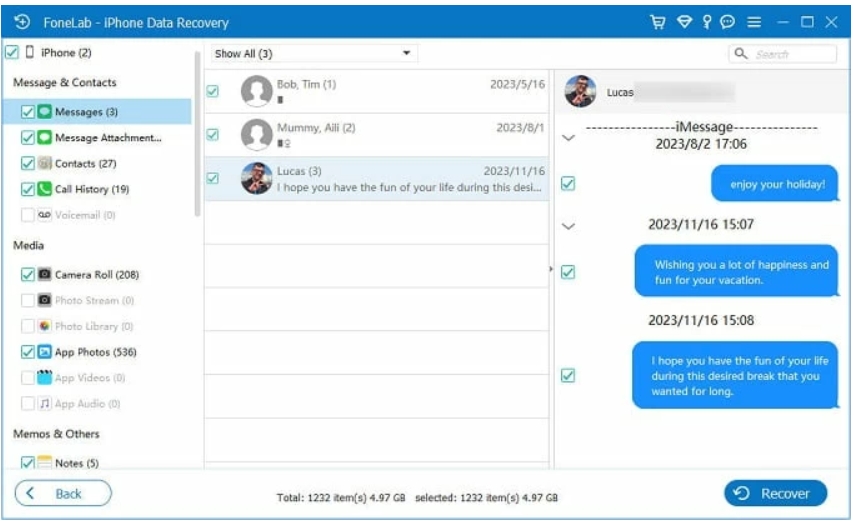
6.Select the photos you want to recover.
7.Export and save them to your computer in a safe location.
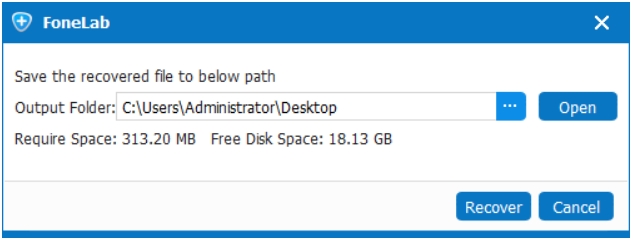
8.Re-import them to your iPhone if needed.
Important details
- Stop taking new photos or installing large apps before recovery; new data can reduce recoverability.
- Use an original or stable cable connection to avoid scan interruption.
- Preview is important because it lets you recover only the files you actually need.
- This is a strong option when Recently Deleted photos are not showing on iPhone and Apple’s visible folders no longer help.
Method 3: Restore photos from an iPhone backup without relying on Recently Deleted
When the photos are not in Recently Deleted and direct scanning does not fit your situation, backup restoration becomes the practical fallback. Many users have older copies of their Photos library preserved in an iCloud or computer backup without realizing it. This works best if the missing pictures existed at the time of the backup and were deleted later. The advantage is that you may recover images from a point before the deletion occurred. The drawback is that a full restore can replace current device content, so preparation matters. This method is more strategic than immediate, but often highly effective.
Steps
- Check whether you have a relevant backup dated before the photo loss.
- On iPhone, go to Settings > General > Transfer or Reset iPhone > Erase All Content and Settings only if you are ready for full restoration.
- Restart the setup process.
- On the Apps & Data screen, choose Restore from iCloud Backup or restore from a computer backup through Finder/iTunes.
- Sign in and select the backup with the most suitable date.
- Wait for the restore process to complete.
- Open Photos and verify whether the deleted images returned.
Important details
- A full restore may overwrite current data, so back up your present iPhone first.
- Choose the correct backup date; restoring the wrong version may not help.
- If you only need a few pictures, selective recovery software may be more efficient than a complete device restore.
- This is ideal when deleted iPhone photos cannot be found but a prior backup exists.
A related issue many iPhone users face: data loss after an iOS system crash
Not every photo-loss problem begins with deletion. A surprisingly common iPhone scenario is this: the device gets stuck on the Apple logo, enters a boot loop after an iOS update, freezes on a black screen, or becomes unresponsive after storage overload. The first concern is usually getting the phone working again. The second—and often more painful—concern is whether photos, messages, contacts, and notes will survive the repair process.
This matters because many people unintentionally create a second data-loss event while trying to fix the first one. They force repeated restores, switch recovery modes without understanding the consequences, or erase the device before securing important content. In photo-related cases, users often say they originally lost access to pictures not because they deleted them, but because the iPhone itself failed and the Photos app became inaccessible.
For this broader kind of problem, a relevant solution from idatapp.com is to use one of its iPhone repair or recovery-oriented tools designed for Apple device issues. On the site, the focus is not only on deleted files but also on system-related data loss, backup access, and practical recovery workflows for damaged or malfunctioning devices. That makes it useful for users whose “missing photos” problem is actually tied to an iOS failure rather than a normal deletion event.
A good example is when an iPhone crashes during an update and never boots properly again. In that situation, the user may not even reach the Photos app, let alone open Recently Deleted. The sensible recovery path is to first stabilize the device or recover data through a tool built for iPhone repair and extraction, rather than randomly resetting the phone. The main benefit of using a dedicated solution from idatapp.com is that it creates a more controlled process: diagnose the issue, attempt data-safe repair if possible, and recover important content before doing anything destructive.
This is particularly relevant for iPhone users because Apple’s ecosystem is tightly synced. A mistaken restore can affect local content, backups, and cloud consistency. So if your missing photos are linked to a system crash, boot issue, update failure, or device malfunction, it makes sense to look beyond the Recently Deleted folder and consider a system-level iPhone solution from the same website ecosystem. That approach reduces guesswork and protects against making the problem worse.
Small but important recovery tips people often ignore
If you want the best chance to recover deleted photos on iPhone, the timing and your actions right after deletion matter more than most people realize.
Do this immediately
- Stop taking new photos and videos
- Avoid editing or syncing the Photos library aggressively
- Do not factory reset unless recovery planning is complete
- Keep the phone charged and stable
- Check all Apple devices using the same account
Check these hidden sources
- Messages attachments
- WhatsApp or social app media
- Files app
- Shared albums
- Mac Photos app sync
- Old backups on a computer
Prevention for the future
- Turn on regular iCloud backup
- Export important photos monthly
- Keep enough storage space on iPhone
- Avoid blindly confirming deletion prompts
- Review synced devices before deleting images
5 common questions answered
Why is the Recently Deleted album missing on my iPhone?
It may be hidden by interface changes, account mismatch, restrictions, or because you are not looking in the correct Albums section. In newer iOS versions, it may also require authentication before opening.
Can I recover permanently deleted photos from iPhone after 30 days?
Yes, sometimes. If the photos are no longer in Recently Deleted, you may still recover them from backups or by using a recovery tool such as iDATAPP iOS Data Recovery.
Does iCloud keep deleted photos forever?
No. With iCloud Photos enabled, deleted photos usually move through the same 30-day Recently Deleted logic. If deletion syncs across devices and time passes, they may be removed there too.
Will restoring an iPhone backup erase my current data?
Yes, a full device restore can replace current data with the backup version. That is why you should back up the current state first before restoring.
What is the safest method if I only need a few deleted pictures back?
A selective recovery method is usually safest. Start with Recently Deleted, then use a targeted recovery solution like iDATAPP iOS Data Recovery to preview and recover only the photos you need.
Conclusion
If you can’t find Recently Deleted photos on iPhone, the cause is usually expiration, permanent deletion, iCloud sync, or account mismatch. Check visible recovery options first, then use backups or iDATAPP iOS Data Recovery for deeper recovery.
 English
 Nederlands
 Tiếng Việt
 日本
日本 Español
 Português
 Deutsche
 Français
 Italiano
 Norsk
Norsk Suomalainen
 Svenska
 Dansk
Dansk Ελληνικά
 Türk
Türk русский
 हिंदी
हिंदी தமிழ்
தமிழ் Bahasa Melayu
 ไทย
ไทย 한국어
한국어 Română
 Polskie
 қазақ
қазақ Gaeilge
 繁體中文
繁體中文