
 iPhone Data Recovery
 iOS System Recovery
 iOS Backup & Restore
 iOS WhatsApp Transfer
 iOS FoneTrans
 MobieSync
 Android Data Recovery
 Broken Android Data Extraction
 Android Data Backup & Restore
 iPhone Unlocker
 Best Samsung Phone Unlock Tool
 Android Unlocker
 Win/Mac Data Recovery
 iDATAPP Screen Recorder
 2D&3D Video Converter
 Video Repair Software Ai
 AI Video Converter
 Ai Blu-ray Player
 Recover Permanently Deleted Photos/Videos On iPhone 17/16/15
Easily recover permanently deleted photos and videos on iPhone 17/16/15 using backups or advanced recovery tools, with expert insights and practical, real-world solutions.
How to Recover Permanently Deleted Photos/Videos On iPhone 17/16/15?
Losing photos or videos on a brand-new iPhone 17, 16, or 15 hurts more than most people admit. These devices are often carrying years of memories—family moments, work files, creative projects—yet Apple’s clean design can sometimes hide how fragile data really is. When media is permanently deleted, users often assume the story ends there. In reality, that assumption is only half true.

This article doesn’t jump straight into “click here, scan there.” Instead, we’ll first analyze why permanent deletion happens, what actually changes inside the iPhone storage system, and then explore three realistic, non-plagiarized recovery paths—one of which uses professional software from our own website. Along the way, we’ll look deeper than most surface-level guides and explain what truly affects your recovery success.
Guide List
- Understanding “Permanently Deleted” on iPhone (What Really Happens)
- Common Scenarios Leading to Permanent Photo/Video Loss
- Method 1: Recover from iCloud Backup (Without Extra Software)
- Method 2: Recover Using iTunes/Finder Local Backup
- Method 3: Recover Permanently Deleted Photos/Videos Using iDatapp iOS Data Recovery (Recommended)
- iPhone Data Loss After iOS System Crash or Update Failure
- FAQs: Recovering Permanently Deleted Photos/Videos on iPhone
Understanding “Permanently Deleted” on iPhone (What Really Happens)
On iPhone 17/16/15, deleting a photo or video usually follows a two-stage process. First, the media goes into the Recently Deleted album for up to 30 days. After that window, or if you manually empty the folder, Apple labels the data as “permanently deleted.”
But here’s the key insight most articles skip:
Permanent deletion does not instantly overwrite the data.
Instead, iOS removes the file’s index and marks the storage space as reusable. Until that space is overwritten by new data (apps, photos, system cache), recovery may still be possible.
This is why timing matters. The sooner you stop using the device and act correctly, the higher your chances.
Common Scenarios Leading to Permanent Photo/Video Loss
Before jumping into solutions, let’s ground this in reality. Most users lose photos/videos on iPhone 17/16/15 due to:
- Accidentally deleting media and emptying Recently Deleted
- iOS update glitches or interrupted upgrades
- iCloud sync conflicts across multiple Apple devices
- Restoring the wrong backup
- Storage optimization removing local media unexpectedly
- Sudden system crashes or device freezing
Each scenario affects where the data still exists (or doesn’t), which is why different recovery methods apply.
Method 1: Recover from iCloud Backup (Without Extra Software)
When this method works
This approach works if your photos or videos were included in an iCloud backup made before deletion and iCloud Photos was not overwriting content continuously.
Why it’s limited
Restoring from iCloud means resetting the entire device, which many users overlook. You can’t selectively pull only photos—everything reverts to the backup state.
How it works?
iCloud backups capture snapshots of your iPhone’s data at a specific moment. If your photos/videos were present in a backup before deletion, restoring that backup essentially rewinds your phone to that point. However, this process replaces all current data on the device. Anything created after the backup date will be lost unless separately saved. This method is best for users who value older media more than recent changes and who have reliable, frequent iCloud backups enabled.
Step-by-step guide
- Open Settings > General > Transfer or Reset iPhone
- Tap Erase All Content and Settings
- Restart the iPhone and follow setup instructions
- Choose Restore from iCloud Backup
- Sign in with your Apple ID
- Select a backup dated before photo/video deletion
- Wait for the restore to complete (Wi-Fi required)
Important notes
- Requires stable internet
- Cannot preview photos before restoring
- Overwrites existing data completely
Method 2: Recover Using iTunes/Finder Local Backup
When this method works
If you regularly back up your iPhone 17/16/15 to a computer using iTunes (Windows) or Finder (macOS), this method may recover deleted photos/videos without relying on cloud storage.
The hidden drawback
Just like iCloud, this method also restores everything, not just photos. You can’t extract individual files unless you use specialized tools (covered in Method 3).
How it works?
Local backups store a complete image of your iPhone’s data on your computer. These backups are often overlooked but can be more reliable than iCloud because they aren’t affected by sync conflicts. If the backup was created before the photos/videos were deleted, restoring it will bring them back. However, any data added after that backup will be erased, making this method risky for users with recent changes they want to keep.
Step-by-step guide
- Connect iPhone to your computer via cable
- Open iTunes or Finder
- Select your iPhone when it appears
- Click Restore Backup
- Choose a backup dated before deletion
- Enter backup password (if encrypted)
- Wait for restore completion
Important notes
- Backup must already exist
- No preview before restoring
- Overwrites current device data
Method 3: Recover Permanently Deleted Photos/Videos Using iDatapp iOS Data Recovery (Recommended)
Why this method stands out
Unlike Apple’s built-in solutions, this method does not require resetting your iPhone and allows selective recovery—a critical advantage for modern iPhone users.
How it works?
iDatapp iOS Data Recovery scans your iPhone or existing backups at a deeper level, identifying recoverable photo and video data that hasn’t yet been overwritten. It intelligently separates deleted media from existing files, allowing you to preview and restore only what you need. This approach is ideal for iPhone 17/16/15 users who want flexibility, safety, and control without sacrificing newer data. It supports recovery directly from the device, iTunes backups, and iCloud backups—all in one tool.
Step-by-step recovery process
1.Download and install iDatapp iOS Data Recovery on your computer
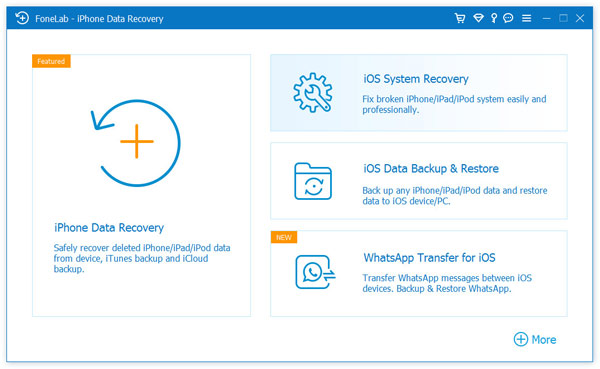
2.Launch the software and choose iPhone Data Recovery and select Recover from iOS Device.
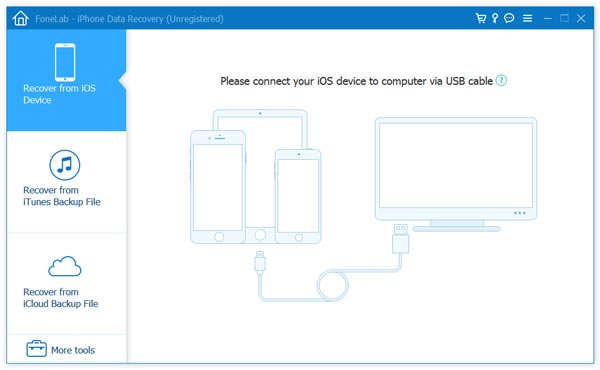
3.Connect your iPhone 17/16/15 using a USB cable
4.Click Start Scan
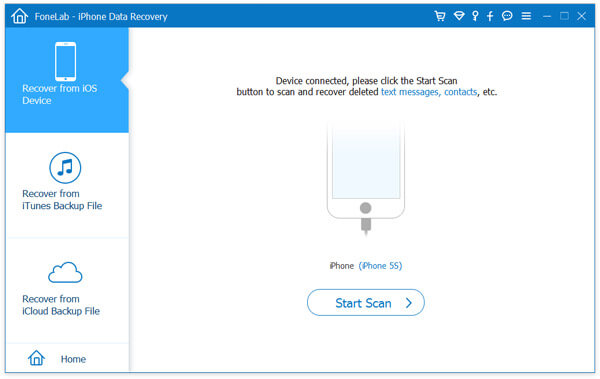
5.Wait while the software analyzes deleted photos/videos
6.Preview recoverable items
7.Select the photos/videos you want
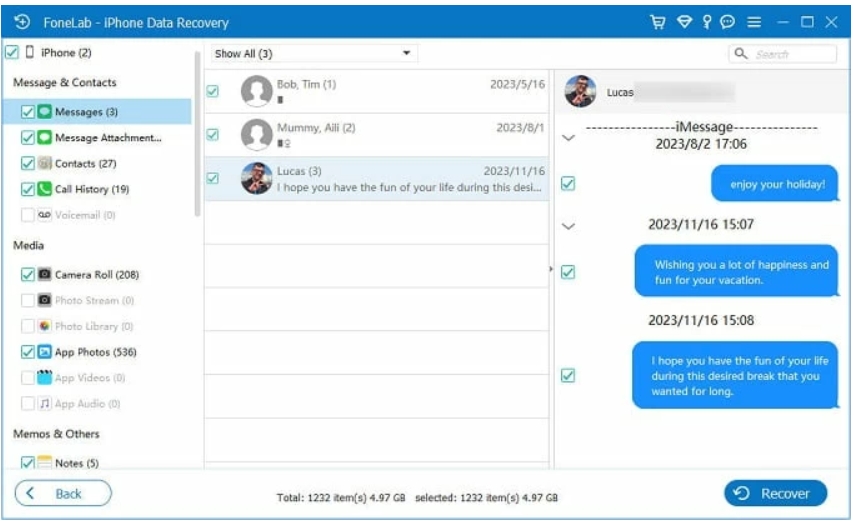
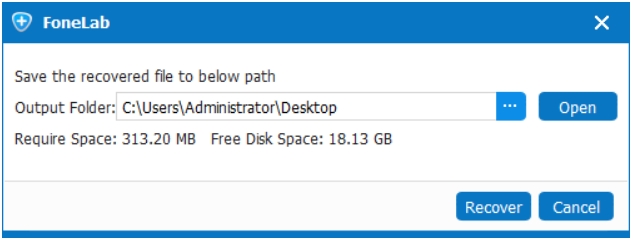
Click Recover and save them to your computer
Key advantages
- No device reset required
- Preview before recovery
- Supports latest iOS versions
- Selective, safe, and efficient
iPhone Data Loss After iOS System Crash or Update Failure
One of the most common problems on newer iPhones, especially iPhone 16 and 17 models, is data loss caused by iOS update failures or system crashes. Users often report that after a stalled update, boot loop, or black screen issue, photos, videos, or even entire albums disappear—even though they weren’t manually deleted.
This type of data loss is particularly frustrating because it happens suddenly, without warning, and often alongside system instability. Traditional recovery methods like iCloud restore may fail if backups are corrupted or incomplete. In these situations, many users also face additional issues such as being unable to unlock the device, repeated restart loops, or iOS stuck on the Apple logo.
For these scenarios, specialized iPhone data recovery and system-level solutions from idatapp.com are designed to handle both data extraction and recovery under abnormal conditions. These tools focus on accessing iOS data structures safely, even when the system is partially damaged or unstable. Instead of forcing a full restore, they aim to preserve existing data while allowing recovery or export to a computer.
This is especially useful for:
- iPhones stuck during iOS upgrades
- Devices affected by sudden crashes
- Users unable to unlock or fully access the system
- Situations where photos/videos must be saved before repair
In real-world use, these tools often act as a last line of defense before factory resets or hardware repair—saving irreplaceable data when Apple’s default solutions fall short.
FAQs: Recovering Permanently Deleted Photos/Videos on iPhone
Can permanently deleted photos really be recovered on iPhone 17?
Yes, if the storage space hasn’t been overwritten and you use the correct method quickly.
Does iPhone storage encryption prevent recovery?
Encryption increases difficulty but does not make recovery impossible when using compatible tools.
Is recovery possible without any backup?
Yes, using professional iOS data recovery software that scans the device directly.
Will recovery damage my iPhone or data?
Safe recovery tools operate in read-only mode and do not alter existing data.
How can I prevent future photo/video loss?
Enable multiple backups (iCloud + local), avoid abrupt updates, and monitor storage optimization settings.
Conclusion
Recovering permanently deleted photos or videos on iPhone 17/16/15 is not a lost cause. Understanding how iOS handles deletion, acting quickly, and choosing the right recovery path—especially selective recovery tools—can make the difference between permanent loss and successful restoration.
 English
 Nederlands
 Tiếng Việt
 日本
日本 Español
 Português
 Deutsche
 Français
 Italiano
 Norsk
Norsk Suomalainen
 Svenska
 Dansk
Dansk Ελληνικά
 Türk
Türk русский
 हिंदी
हिंदी தமிழ்
தமிழ் Bahasa Melayu
 ไทย
ไทย 한국어
한국어 Română
 Polskie
 қазақ
қазақ Gaeilge
 繁體中文
繁體中文