
 iPhone Data Recovery
 iOS System Recovery
 iOS Backup & Restore
 iOS WhatsApp Transfer
 iOS FoneTrans
 MobieSync
 Android Data Recovery
 Broken Android Data Extraction
 Android Data Backup & Restore
 iPhone Unlocker
 Best Samsung Phone Unlock Tool
 Android Unlocker
 Win/Mac Data Recovery
 iDATAPP Screen Recorder
 2D&3D Video Converter
 Video Repair Software Ai
 AI Video Converter
 Ai Blu-ray Player
 How to Recover Camera Roll Photos On iPhone?
Lost iPhone Camera Roll photos aren’t always gone. This guide explains why photos disappear and shows three effective recovery methods, including professional iOS data recovery without overwriting data.

Losing photos from your iPhone Camera Roll feels personal. These aren’t just files — they’re birthday moments, travel memories, work screenshots, and random life fragments you didn’t realize mattered until they were gone. And unlike Android, iOS hides a lot of its internal logic, which makes photo recovery feel confusing, even intimidating.
The good news? Camera Roll photos are rarely “gone forever” immediately. iOS has multiple hidden safety layers, and even when those fail, data traces often remain recoverable if you act correctly.
This article doesn’t repeat generic advice. Instead, we’ll break down why Camera Roll photos disappear, analyze how iOS stores images, and then walk through three practical, proven recovery methods — from built-in Apple mechanisms to professional-grade recovery using your own software solution.
Guide List
- Why Do Camera Roll Photos Disappear on iPhone?
- Method 1: Recover Camera Roll Photos from the “Recently Deleted” Album (Fastest & Safest)
- Method 2: Restore Camera Roll Photos from iCloud (Without Third-Party Software)
- Method 3: Recover Camera Roll Photos Using iDATAPP iOS Data Recovery (No Data Overwrite)
- Can’t Recover Photos Because iPhone Is Locked?
- Frequently Asked Questions
Why Do Camera Roll Photos Disappear on iPhone?
Before jumping into recovery, it’s critical to understand how photos are lost. The cause determines the recovery path.
Common real-world reasons include:
- Accidental deletion (taps happen fast)
- iOS updates that re-index the Photos library
- iCloud sync conflicts across multiple devices
- Storage optimization removing local photo copies
- Factory reset or iPhone upgrade without proper backup
- Failed iOS restore or interrupted data transfer
What most users don’t realize is this:
Deleting a photo doesn’t instantly destroy the data. iOS simply removes the reference. Until new data overwrites that storage space, recovery is often possible.
That’s the core principle behind all recovery methods below.
Method 1: Recover Camera Roll Photos from the “Recently Deleted” Album (Fastest & Safest)
- Best for: Photos deleted within the last 30–40 days
- Risk level: None
- Success rate: Very high (if time limit hasn’t passed)
When you delete photos on an iPhone, they don’t vanish immediately. Apple stores them in a hidden buffer — the Recently Deleted album — giving users a safety net against accidental loss.
This method works because the photo database entry still exists, just flagged for scheduled removal.
How to Recover Using Recently Deleted
- Open Photos
- Scroll down and tap Recently Deleted
- Unlock using Face ID/Touch ID
- Select the photos you want to recover
- Tap Recover
The photos will instantly return to your Camera Roll, including original resolution and metadata.
Important Details You Should Know
- Photos remain for 30 days (videos sometimes less)
- If you manually “Delete All,” this method won’t work
- Storage optimization does not affect this album
- Works even without iCloud enabled
If your photos are missing but not older than a month, always check this first before trying advanced recovery.
Method 2: Restore Camera Roll Photos from iCloud (Without Third-Party Software)
- Best for: Users with iCloud Photos or iCloud Backup enabled
- Risk level: Medium (can overwrite current data)
- Success rate: High, depending on backup timing
Apple’s iCloud system stores Camera Roll photos in two different ways:
- iCloud Photos (sync-based)
- iCloud Backup (snapshot-based)
Understanding the difference is crucial.
Option A: iCloud Photos Sync Recovery
If iCloud Photos was enabled, missing photos may simply not be synced locally.
Steps:
- Go to Settings → Apple ID → iCloud → Photos
- Turn iCloud Photos OFF
- Restart your iPhone
- Turn iCloud Photos ON
- Connect to Wi-Fi and wait
This forces a re-sync, often restoring photos that disappeared after updates or device switches.
Option B: iCloud Backup Restore (More Drastic)
If photos were deleted long ago but exist in a backup:
- Go to Settings → General → Transfer or Reset iPhone
- Tap Erase All Content and Settings
- Set up iPhone again
- Choose Restore from iCloud Backup
- Select a backup dated before the photo loss
Critical Warnings
- This replaces all current data
- No preview of photos before restoring
- Not ideal if you don’t want to lose recent files
iCloud recovery is powerful but blunt. If you need precision, Method 3 is more surgical.
Method 3: Recover Camera Roll Photos Using iDATAPP iOS Data Recovery (No Data Overwrite)
- Best for: Permanently deleted photos, failed backups, selective recovery
- Risk level: Low
- Success rate: High if data not overwritten
When iOS deletes photos, it doesn’t immediately wipe the underlying data blocks. iDATAPP iOS Data Recovery takes advantage of this by scanning the device’s internal storage structure directly.
Unlike iCloud restores, this method allows preview and selective recovery, making it ideal for users who only need specific Camera Roll photos back.
How This Method Works (Behind the Scenes)
- Deep-scans SQLite photo databases
- Extracts cached image fragments
- Reconstructs photos using metadata and thumbnails
- Works even if iTunes/iCloud backups are unavailable
Step-by-Step Recovery Guide
1.Download and install iDATAPP iOS Data Recovery
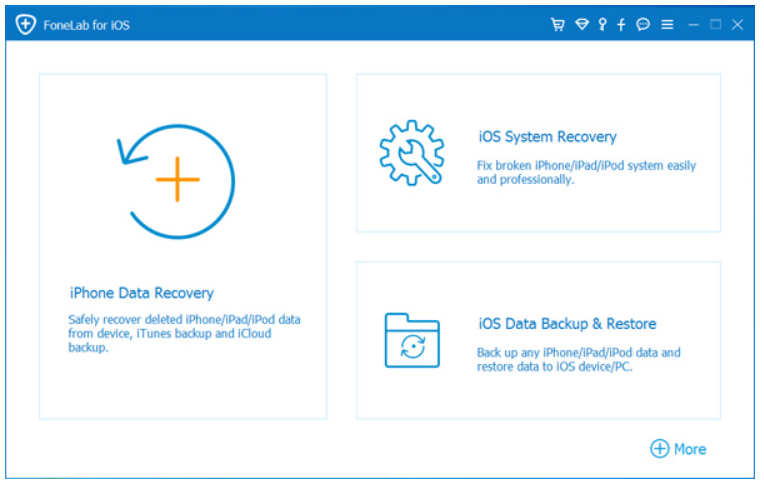
2.Connect your iPhone to a computer via USB and choose Recover from iOS Device
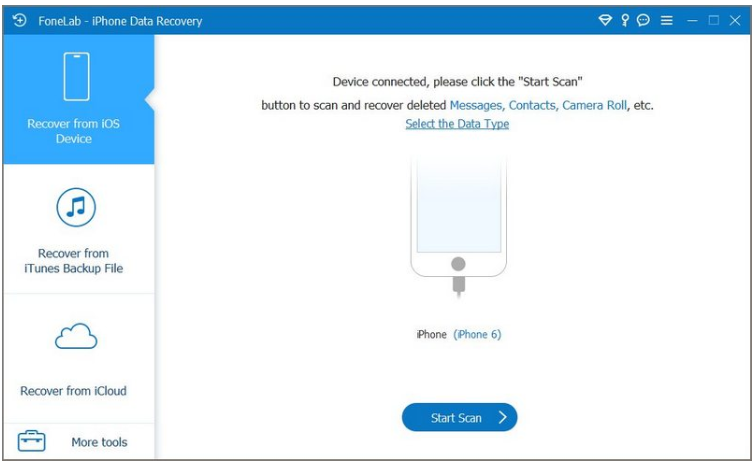
3.Select Photos/Camera Roll and start scanning
4.Preview recoverable photos
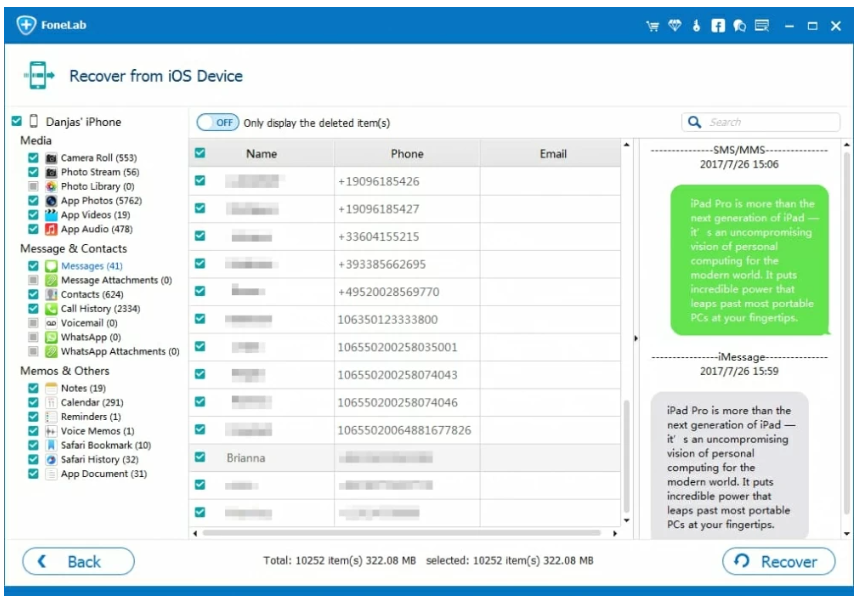
5.Select and recover to your computer

Why This Method Is Different
- No factory reset required
- No data overwrite
- Works after permanent deletion
- Supports latest iOS versions
- Recovers photos lost due to system crashes or updates
For users who care about specific memories, this is often the most practical solution.
Can’t Recover Photos Because iPhone Is Locked?
Photo recovery often hits a wall for one reason: the iPhone is locked, disabled, or inaccessible.
This situation happens more often than you think, especially when:
- Face ID stops working
- Passcode is forgotten after long inactivity
- iPhone is disabled due to multiple failed attempts
- Old device with photos but unknown password
- Screen damage prevents input
In these cases, even professional recovery software cannot scan the device unless access is restored.
Why iPhone Lock Issues Block Photo Recovery
iOS encryption ties user data directly to the device passcode. Without unlocking:
- Internal storage remains encrypted
- USB data access is blocked
- iTunes and recovery tools fail authentication
- iCloud sync may be frozen
This is why unlocking becomes a prerequisite, not a separate problem.
Practical Solution: Unlock iPhone Before Recovery
On idatapp.com, there are dedicated tools designed to handle this scenario by safely removing:
- Screen passcodes
- Face ID/Touch ID locks
- Disabled iPhone states
- Apple ID restrictions (under supported conditions)
Once access is restored, photo recovery tools like iOS Data Recovery can work normally again.
Real Example Scenario
A user upgrades to a new iPhone, leaves the old device unused for months, then remembers it contains family photos not synced to iCloud. The passcode is forgotten.
Without unlocking, those photos are unreachable.
Unlock first → recover selectively → preserve memories.
This workflow mirrors what professional repair shops do internally — now accessible to regular users.
Frequently Asked Questions
Are permanently deleted iPhone photos really recoverable?
Yes, if the storage space hasn’t been overwritten. iOS doesn’t erase data immediately.
Does updating iOS delete Camera Roll photos?
Usually no, but indexing errors or iCloud sync conflicts can hide photos temporarily.
Can I recover photos without a backup?
Yes. Device-level scanning methods can recover photos even without iCloud or iTunes backups.
Will recovery software damage my iPhone?
No. Reputable recovery tools operate in read-only mode and don’t modify device data.
How can I prevent photo loss in the future?
Enable iCloud Photos, keep local backups, and avoid interrupting iOS updates or restores.
Conclusion
Recovering Camera Roll photos on iPhone depends on timing and method. From Recently Deleted and iCloud to advanced recovery tools, most photo loss scenarios are solvable with the right approach.
 English
 Nederlands
 Tiếng Việt
 日本
日本 Español
 Português
 Deutsche
 Français
 Italiano
 Norsk
Norsk Suomalainen
 Svenska
 Dansk
Dansk Ελληνικά
 Türk
Türk русский
 हिंदी
हिंदी தமிழ்
தமிழ் Bahasa Melayu
 ไทย
ไทย 한국어
한국어 Română
 Polskie
 қазақ
қазақ Gaeilge
 繁體中文
繁體中文