
 iPhone Data Recovery
 iOS System Recovery
 iOS Backup & Restore
 iOS WhatsApp Transfer
 iOS FoneTrans
 MobieSync
 Android Data Recovery
 Broken Android Data Extraction
 Android Data Backup & Restore
 iPhone Unlocker
 Best Samsung Phone Unlock Tool
 Android Unlocker
 Win/Mac Data Recovery
 iDATAPP Screen Recorder
 2D&3D Video Converter
 Video Repair Software Ai
 AI Video Converter
 Ai Blu-ray Player
 How to Recover All Data On Broken Screen iPhone 17/16/15?
Learn how to recover all data from a broken-screen iPhone 17, 16, or 15 using software recovery, iCloud backups, and trusted computer methods—without risking permanent data loss.
When the Screen Breaks, the Panic Begins
A shattered iPhone screen is more than a cosmetic disaster. For iPhone 17, 16, and 15 users, a broken or unresponsive display often means instant loss of access to photos, videos, messages, notes, app data, and even work files. The real fear isn’t the glass—it’s the data trapped behind it.
Modern iPhones are highly secure. Face ID, passcodes, encrypted storage, and iOS sandboxing all protect your privacy, but those same protections make data recovery harder when the screen no longer responds. You can’t tap “Trust This Computer,” enable backups, or even see what’s happening.
This article breaks down how data loss really happens after a screen failure, why some “obvious” fixes don’t work, and—most importantly—three realistic, safe, and effective ways to recover data from a broken-screen iPhone 17/16/15. Each method is analyzed honestly, with strengths, limits, and step-by-step guidance. No recycled tricks. No vague promises. Just real solutions.
Guide List
- When the Screen Breaks, the Panic Begins
- Broken Screen ≠ Dead Data
- Method 1: Recover Data Using iOS Data Recovery Software (For Severe Screen Damage)
- Method 2: Restore Data from iCloud Backup Without Using the Screen
- Method 3: Extract Data via iTunes/Finder Backup on a Trusted Computer
- A Related iPhone Problem Many Users Face After Screen Damage (Extended Analysis)
- Frequently Asked Questions
Broken Screen ≠ Dead Data
Before jumping into solutions, it’s important to clarify something many articles get wrong:
A broken screen does not mean data is deleted.
In most cases, your data is still fully intact inside the iPhone’s encrypted storage. The problem is access, not existence. Screen damage usually falls into one of these categories:
- Screen displays nothing but the phone still powers on
- Touch function is completely unresponsive
- Screen shows content but random “ghost touches” make control impossible
- Screen is black, but iPhone still vibrates, rings, or connects to a computer
Each scenario requires a different recovery strategy. That’s why “one-click fixes” rarely work—and why choosing the right method matters more than speed.
Method 1: Recover Data Using iOS Data Recovery Software (For Severe Screen Damage)
When the screen is completely unresponsive or unusable, software-based extraction is often the most efficient path. A dedicated tool like iOS Data Recovery from iDatapp is designed to communicate directly with the iPhone’s system layer, bypassing the need for on-screen interaction in many scenarios.
This approach is especially useful when the device still powers on but cannot be controlled normally. Unlike generic backup tools, it allows selective recovery—you can preview and extract photos, messages, contacts, WhatsApp data, notes, and more without overwriting existing content. For iPhone 17/16/15 models, this method aligns well with current iOS security structures and minimizes further risk to the device.

Steps & Key Details
1.Install the iOS Data Recovery software on your computer (Windows or macOS).
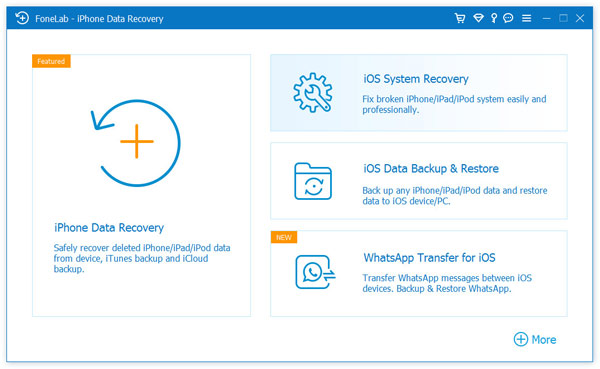
2.Connect the broken-screen iPhone via a certified Lightning/USB-C cable.
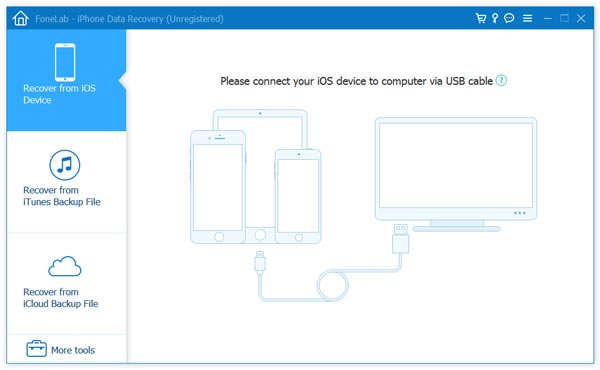
3.Choose Recover from iOS Device based on your situation (device scan or backup extraction).
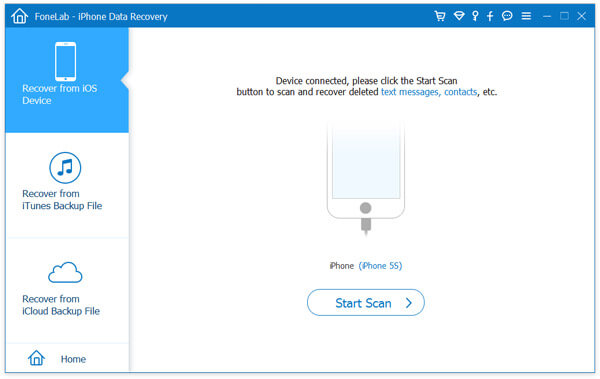
4. After your broken iPhone connected, click Start Scan to scan and recover your data.
5.Preview recoverable data categories (photos, messages, app data, etc.).
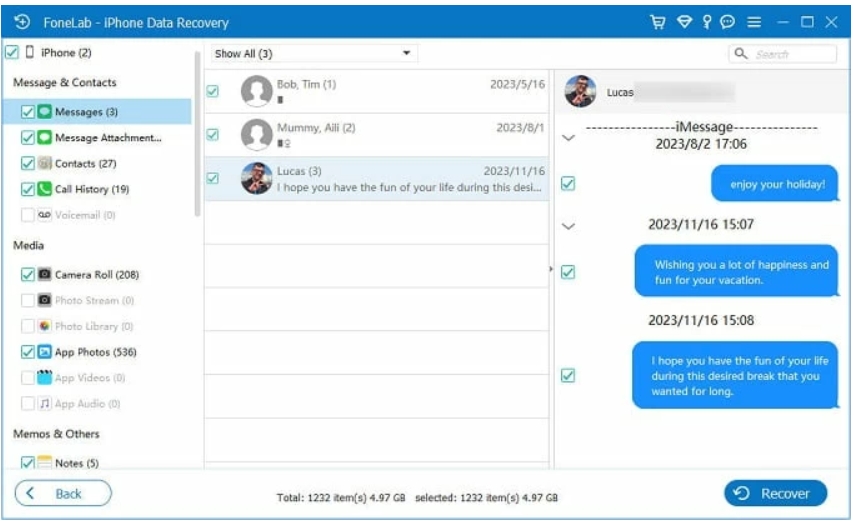
6.Select and export the data safely to your computer.
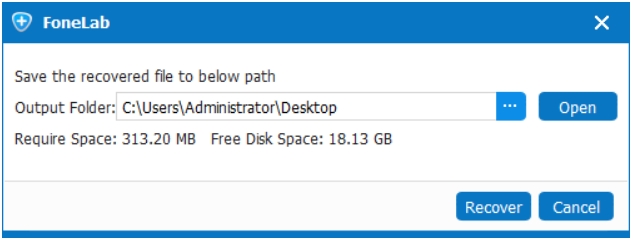
Important notes:
- Works best if the device is recognized by the computer
- Does not erase existing data
- Ideal when screen repair is delayed or impossible
Method 2: Restore Data from iCloud Backup Without Using the Screen
If iCloud Backup was enabled before the screen broke, Apple’s cloud ecosystem becomes a silent safety net. This method doesn’t require the broken iPhone screen to function at all—as long as the backup already exists.
Many users overlook this option because they associate iCloud recovery with “resetting” a phone. In reality, your data can be restored onto another iPhone or accessed selectively after restoration. For users upgrading from a broken iPhone 15 to a new iPhone 16 or 17, this method fits naturally into the migration process.
Steps & Key Details
- Confirm your Apple ID and iCloud credentials are available.
- Power on a new or spare iPhone (or erase one if necessary).
- During setup, choose Restore from iCloud Backup.
- Sign in and select the most recent backup made before the screen damage.
- Wait for the restore process to complete over Wi-Fi.
Important notes:
- Only recovers data included in the backup
- Backup date determines data completeness
- Requires stable internet and sufficient iCloud storage
Method 3: Extract Data via iTunes/Finder Backup on a Trusted Computer
If your broken iPhone was previously connected to a computer and marked as “trusted,” iTunes (Windows/macOS Mojave) or Finder (macOS Catalina and later) may still access it—even without screen interaction.
This method works best when the screen is broken after trust authorization was established. While it doesn’t allow selective preview by default, it can create a full encrypted backup that later becomes a data source for deeper extraction.
Steps & Key Details
- Connect the broken iPhone to the previously trusted computer.
- Open iTunes or Finder.
- If the device is detected, choose Back Up Now.
- Enable encrypted backup to include Health and Keychain data.
- Once completed, use backup extraction tools or restore to another device.
Important notes:
- Won’t work if “Trust” was never confirmed before damage
- Backup size can be large
- Best for full data preservation rather than selective recovery
A Related iPhone Problem Many Users Face After Screen Damage (Extended Analysis)
Data Loss After iOS System Crashes and Failed Updates
Broken screens often trigger a chain reaction of problems. One of the most common—and least discussed—issues is system-level data loss after forced restarts, failed iOS updates, or boot loops.
Here’s how it typically happens:
After screen damage, users repeatedly force-restart the iPhone, attempt updates through a computer, or plug it into random chargers hoping for signs of life. If the device encounters an interrupted iOS update or corrupted system process, it may become stuck on the Apple logo, enter recovery mode, or loop endlessly.
At this point, many users choose “Update” or “Restore” in iTunes without fully understanding the consequences. A restore can erase everything.
This is where specialized recovery tools from idatapp.com become relevant beyond screen damage alone. Their broader data recovery solutions are designed to handle system crashes, boot failures, and update-related data loss without requiring a working display. These tools analyze low-level system data, rebuild corrupted indexes, and extract user files that iOS itself can no longer access normally.
For iPhone 17/16/15 users, this is especially important because newer iOS versions are more aggressive with security checks. Traditional “DIY fixes” often make things worse. Having a recovery path that respects encryption, avoids overwriting storage, and works alongside system repair processes can mean the difference between full recovery and permanent loss.
In short: screen damage is rarely the only problem. System instability frequently follows—and planning for that reality is essential.
Frequently Asked Questions
Can I recover data from an iPhone with a completely black screen?
Yes. As long as the iPhone still powers on and is recognized by a computer, data recovery is often possible using software-based or backup-based methods.
Does repairing the screen erase my data?
No. Screen replacement alone does not erase data. However, failed repairs or system restores during troubleshooting can cause data loss.
What data types can usually be recovered?
Photos, videos, contacts, messages, call logs, notes, WhatsApp data, Safari history, and app documents are commonly recoverable.
Is it safe to connect a broken-screen iPhone to a computer?
Yes, if you use certified cables and trusted software. Avoid repeated forced restarts or unknown tools that may overwrite data.
Which method has the highest success rate?
Using dedicated iOS data recovery software generally offers the highest success rate, especially when the screen is unresponsive and no recent backups exist.
Final Thoughts: Data Recovery Is About Strategy, Not Luck
Recovering data from a broken-screen iPhone 17/16/15 isn’t about rushing—it’s about choosing the right path based on how the device failed. Whether your screen is dead, partially responsive, or completely unusable, your data is usually still there.
The key is not making the situation worse. Avoid unnecessary restores, understand your backup status, and use tools designed for modern iOS systems. With the right approach, even a shattered screen doesn’t have to mean shattered memories.
 English
 Nederlands
 Tiếng Việt
 日本
日本 Español
 Português
 Deutsche
 Français
 Italiano
 Norsk
Norsk Suomalainen
 Svenska
 Dansk
Dansk Ελληνικά
 Türk
Türk русский
 हिंदी
हिंदी தமிழ்
தமிழ் Bahasa Melayu
 ไทย
ไทย 한국어
한국어 Română
 Polskie
 қазақ
қазақ Gaeilge
 繁體中文
繁體中文