
 iPhone Data Recovery
 iOS System Recovery
 iOS Backup & Restore
 iOS WhatsApp Transfer
 iOS FoneTrans
 MobieSync
 Android Data Recovery
 Broken Android Data Extraction
 Android Data Backup & Restore
 iPhone Unlocker
 Best Samsung Phone Unlock Tool
 Android Unlocker
 Win/Mac Data Recovery
 iDATAPP Screen Recorder
 2D&3D Video Converter
 Video Repair Software Ai
 AI Video Converter
 Ai Blu-ray Player
 Easily Recove Text Messages From Samsung S26 Series
The way to recover deleted text messages from Samsung S26 Series using three proven methods, including recovery software, Samsung Cloud backup, and Google backup, with step-by-step instructions and expert tips.
Text messages remain one of the most important forms of communication on modern smartphones. Even with messaging apps like WhatsApp and Telegram dominating social conversations, SMS still carries essential information such as verification codes, banking notifications, delivery updates, business messages, and personal conversations.
For users of the latest Samsung S26 Series, accidentally deleting text messages can become a stressful situation—especially if those messages contain important business details, personal memories, or legal evidence.
Unlike photos stored in cloud albums or documents backed up automatically, SMS messages often disappear instantly once deleted. Many users assume that deleted messages are permanently gone. In reality, this is not always true.

In most cases, deleted SMS messages are not immediately erased from the phone’s internal storage. Instead, the system simply marks the space as “available for reuse.” Until new data overwrites that space, there is still a chance to recover the deleted messages.
Guide List
- Why Do Text Messages Disappear on Samsung S26?
- Method 1: Recover Deleted SMS Using Android Data Recovery Software
- Method 2: Restore Deleted Messages from Samsung Cloud Backup
- Method 3: Recover Messages from Google Backup
- What If Your Samsung S26 Is Locked and You Can’t Access Messages?
- Frequently Asked Questions
- Conclusion
This means that timing and the right recovery method are critical.
In this guide, we’ll explore three effective ways to recover deleted text messages from the Samsung S26 Series, ranging from built-in backup features to professional recovery tools. Each solution works under different conditions, so you can choose the best approach based on your situation.
Why Do Text Messages Disappear on Samsung S26?
Before jumping into recovery solutions, it helps to understand why SMS messages disappear in the first place. This understanding also improves the success rate of recovery.
Common reasons include:
- Accidental deletion
- System updates or firmware glitches
- Factory reset
- Storage cleanup apps
- Malware or software conflicts
- Manual deletion during message management
The good news is that Samsung’s Android system stores SMS data in structured databases. When messages are deleted, they are typically marked as inactive rather than destroyed immediately.
Therefore, fast action increases the chances of full message recovery.
Method 1: Recover Deleted SMS Using Android Data Recovery Software
If you don’t have a backup available, the most reliable solution is to use a professional recovery tool designed to scan your phone’s internal database. One effective solution is Android Data Recovery from iDATAPP, which is designed specifically for retrieving deleted data from Android devices including the Samsung S26 Series.
This method works by deeply scanning the phone’s storage and identifying recoverable message fragments. Unlike basic backup restoration, it allows users to preview and selectively recover messages without overwriting existing data.
This is particularly useful when the deleted messages were removed recently and have not yet been overwritten by new data.
Steps to Recover Deleted Messages
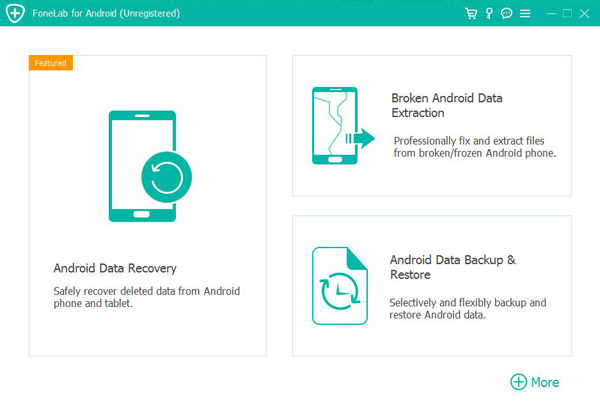
Step 1 – Install the Recovery Software
- Download and install the Android Data Recovery tool from the official website,
- Install the program on your computer.
Step 2 – Connect the Samsung S26
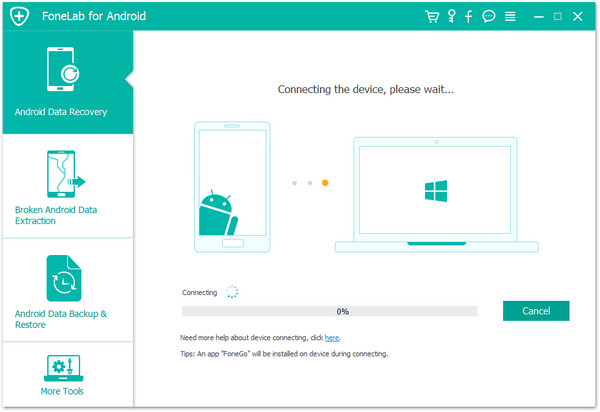
- Use a USB cable to connect your phone to the computer.
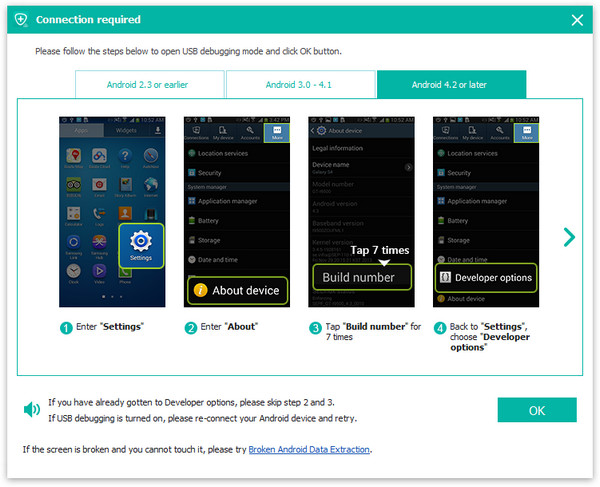
- Enable USB Debugging Mode when prompted.
- The software will detect your Samsung device automatically.
Step 3 – Select Data Types
- Choose Messages and Message Attachments from the scan options.
- This ensures the software focuses on recovering SMS and MMS content.
Step 4 – Deep Scan the Device
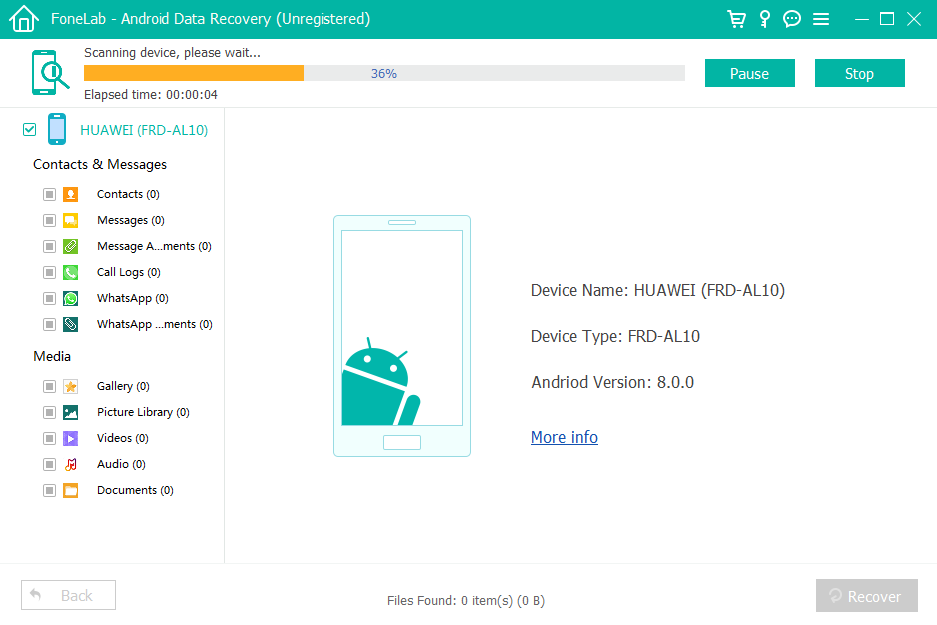
- Start the scanning process.
- The program analyzes internal databases and temporary storage areas where deleted messages may still exist.
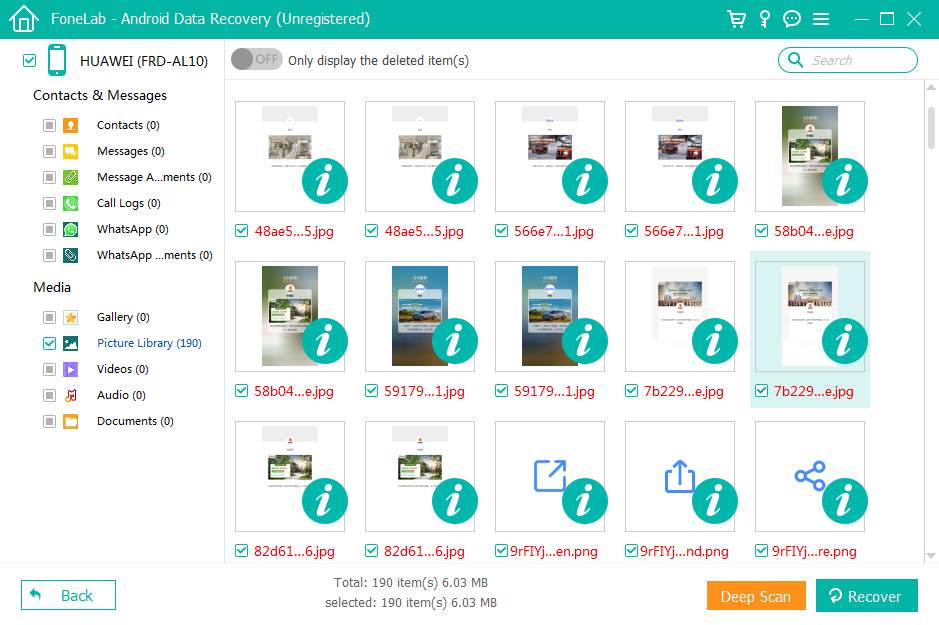
Step 5 – Preview and Recover Messages
- After scanning, the software displays all recoverable messages.
- You can preview conversations and select specific messages to restore.
- Click Recover to save them to your computer.
Important Tips
- Stop using the phone immediately after message deletion
- Avoid installing new apps before recovery
- Deep scan usually finds more messages than quick scan
This method offers the highest recovery success rate when backups are unavailable.
Method 2: Restore Deleted Messages from Samsung Cloud Backup
Many Samsung users unknowingly enable automatic backups through Samsung Cloud. If your device had SMS backup enabled before deletion occurred, recovering messages becomes much easier.
Samsung Cloud periodically stores copies of device data, including text messages. Restoring from a backup simply replaces the current SMS database with a previously saved version.
This approach works best when the messages were deleted after the last backup was created.
Steps to Restore Messages from Samsung Cloud
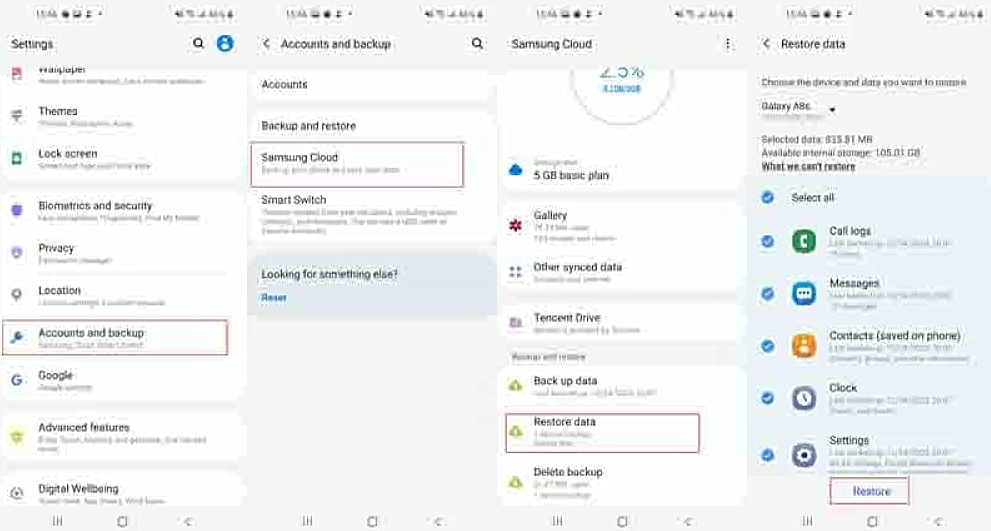
Step 1 – Open Settings
- On your Samsung S26 device, open Settings.
Step 2 – Access Samsung Cloud
- Accounts and Backup → Samsung Cloud
Step 3 – Choose Restore Data
- Tap Restore Data.
- Select your Samsung S26 device from the list.
Step 4 – Select Messages
- Check the Messages option in the backup data categories.
Step 5 – Start Restoration
- Tap Restore.
- The system will download the backup and restore your deleted messages.
Important Notes
- The process may overwrite current messages
- Only messages included in the backup will return
- Backup date determines how recent the recovered messages are
Although this method is simple, its success depends entirely on whether SMS backup was enabled earlier.
Method 3: Recover Messages from Google Backup
Google automatically backs up Android devices if the feature is enabled during setup. This backup may include SMS messages, call history, and app data.
However, unlike selective recovery tools, restoring Google backups typically requires resetting the device first. This method is best used when setting up a new phone or after a factory reset.
Steps to Restore SMS from Google Backup
Step 1 – Verify Backup Availability
- Visit Settings → Google → Backup and confirm that SMS backup was previously enabled.
Step 2 – Factory Reset the Device
- Settings → General Management → Reset → Factory Data Reset
Step 3 – Start Device Setup
- After reset, restart the phone and begin the setup process.
Step 4 – Sign in to Google Account
- Log in with the Google account used for backups.
Step 5 – Restore Backup
- Choose the most recent backup that includes SMS data.
- The system will automatically restore your messages during setup.
Important Considerations
- This method requires resetting the device
- All current data will be erased first
- Only backed-up messages will be restored
Although less flexible than recovery software, it can be effective when backups exist.
What If Your Samsung S26 Is Locked and You Can’t Access Messages?
Sometimes recovering messages isn’t the only problem. A common scenario reported by Samsung users is being locked out of the phone entirely. This can happen after forgetting a password, PIN, pattern lock, or fingerprint authentication failure.
If your Samsung S26 becomes locked, accessing messages—even existing ones—can become impossible. This situation often occurs when:
- A user forgets their lock screen password
- The device is purchased second-hand with a lock enabled
- Children accidentally change the password
- Too many incorrect unlock attempts disable the device
Without unlocking the phone, retrieving SMS data or performing backups becomes extremely difficult.
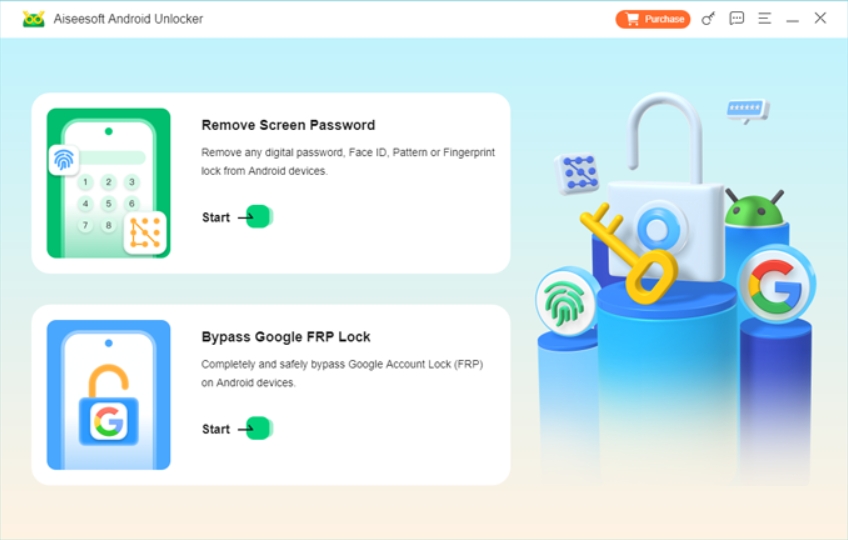
Fortunately, there are dedicated unlocking solutions designed to bypass Android lock screens without requiring technical expertise. Tools designed for Samsung devices can remove different types of locks, including:
- Pattern lock
- PIN lock
- Password lock
- Fingerprint lock
- Face ID lock
Some unlocking utilities can also remove Samsung Galaxy FRP (Factory Reset Protection), which appears after resetting a device without the original Google account.
For Samsung S26 users experiencing lock problems, specialized unlocking tools available on idatapp.com provide solutions that allow users to regain access to their devices safely.
Once the phone is unlocked, you can then proceed with normal data recovery processes—such as restoring messages from backups or scanning the device with recovery software.
In many real-world cases, users first need to unlock the device before attempting message recovery, especially if the phone was locked after a system update or security change.
This combination of unlocking tools + data recovery software provides a comprehensive approach to solving common Samsung device issues.
Frequently Asked Questions
Can deleted text messages be recovered on Samsung S26 without backup?
Yes. If the messages were recently deleted and the storage space has not been overwritten, recovery software can scan the device and restore the messages.
Are deleted SMS messages stored somewhere on Android?
Deleted messages are usually marked as inactive in the phone’s internal database. They remain recoverable until new data replaces them.
How long do I have before deleted messages become unrecoverable?
There is no exact time limit. Recovery depends on how quickly the storage space is overwritten by new data.
Does airplane mode help protect deleted messages?
Yes. Turning on airplane mode prevents background data from overwriting storage and can increase recovery success.
Can I recover SMS messages after a factory reset?
It is possible if the messages were backed up to Google or Samsung Cloud before the reset occurred.
Conclusion
Losing text messages on a Samsung S26 Series phone can be frustrating, but in most cases the data is not permanently lost. By acting quickly and choosing the right recovery method, you can often restore important conversations.
The three most effective solutions include:
- Using professional Android recovery software
- Restoring from Samsung Cloud backups
- Recovering messages from Google account backups
Among these options, recovery software offers the highest success rate when no backups exist, while cloud backups provide the simplest restoration process when available.
The key takeaway is simple: stop using the device immediately after deletion and attempt recovery as soon as possible.
 English
 Nederlands
 Tiếng Việt
 日本
日本 Español
 Português
 Deutsche
 Français
 Italiano
 Norsk
Norsk Suomalainen
 Svenska
 Dansk
Dansk Ελληνικά
 Türk
Türk русский
 हिंदी
हिंदी தமிழ்
தமிழ் Bahasa Melayu
 ไทย
ไทย 한국어
한국어 Română
 Polskie
 қазақ
қазақ Gaeilge
 繁體中文
繁體中文