
 iPhone Data Recovery
 iOS System Recovery
 iOS Backup & Restore
 iOS WhatsApp Transfer
 iOS FoneTrans
 MobieSync
 Android Data Recovery
 Broken Android Data Extraction
 Android Data Backup & Restore
 iPhone Unlocker
 Best Samsung Phone Unlock Tool
 Android Unlocker
 Win/Mac Data Recovery
 iDATAPP Screen Recorder
 2D&3D Video Converter
 Video Repair Software Ai
 AI Video Converter
 Ai Blu-ray Player
 [Solved]Unlock Samsung Galaxy With Broken Screen
This guide explains how to unlock a broken screen Samsung Galaxy using practical methods, including Samsung features and iDatapp Samsung Unlocker, while addressing common data loss risks.
How to Unlock Broken Screen Samsung Galaxy?
A broken screen on a Samsung Galaxy phone is more than a cosmetic issue. When touch input stops responding, the device becomes a locked box holding your data, apps, photos, work files, and personal memories. Many users assume that once the screen is cracked or completely black, unlocking the phone is impossible without a factory reset. That assumption is wrong.

This article looks deeply at why a broken screen prevents unlocking, what technical paths still exist, and how to unlock a Samsung Galaxy with a damaged display without blindly erasing data. We’ll analyze the problem first, then move step by step toward practical, realistic solutions that actually work in everyday situations.
Guide List
- Understanding the Real Problem Behind a Broken Screen Lock
- Method 1: Unlock Broken Screen Samsung Using iDatapp Samsung Unlocker
- Method 2: Unlock Samsung Galaxy via External Display & Input
- Method 3: Unlock Samsung Galaxy Using Samsung Find My Mobile (Remote Unlock)
- Data Loss After Unlocking a Broken Samsung Galaxy
- Frequently Asked Questions
Understanding the Real Problem Behind a Broken Screen Lock
When a Samsung Galaxy screen breaks, two different failures can occur:
- Display failure – the screen shows nothing or shows distorted images.
- Touch digitizer failure – the screen may light up, but touch input does not register.
From a security perspective, Android treats both as the same risk: the lock screen remains active. Even if the phone is technically “on,” you cannot draw the pattern, enter the PIN, or use fingerprint/face unlock because interaction is blocked.
What makes this problem tricky is Samsung’s layered security system. Lock Screen → Secure Startup → Samsung Knox → Google FRP. Breaking the screen does not bypass any of these layers. That’s why many common “tips” online fail in real-world scenarios.
However, unlocking is still possible if you choose the right approach based on how badly the screen is damaged, which Galaxy model you’re using, and what features were enabled before the damage occurred.
Below are three carefully selected methods—each practical, legal, and safe. No third-party competitors’ tools are used. One solution relies on official Samsung capabilities, one uses Android system behavior, and one uses professional-grade software from our own website.
Method 1: Unlock Broken Screen Samsung Using iDatapp Samsung Unlocker
Best for: Severely damaged screens, forgotten lock, no touch input
Data risk: Depends on lock type and model
Technical difficulty: Low to Medium
When the screen is completely unresponsive and Samsung cloud options are unavailable, professional unlocking software becomes the most realistic solution. iDatapp Samsung Unlock Tool is designed specifically for Samsung devices, including models with broken screens, forgotten passwords, or disabled touch input.
Unlike generic tools, this software understands Samsung firmware structures and lock mechanisms. It can remove PINs, patterns, passwords, fingerprints, and even certain Knox-related locks depending on the device generation.
- Supports a wide range of Samsung Galaxy models.
- Works even if the screen is black or shattered.
- Clear instructions reduce user error.
- Designed for real-world damage scenarios.
Step-by-Step Breakdown
1.Install iDatapp Samsung Unlocker on a Windows or Mac computer. Launch the program and select Remove Screen Password.

2.Connect your Samsung Galaxy to the computer using a USB cable.
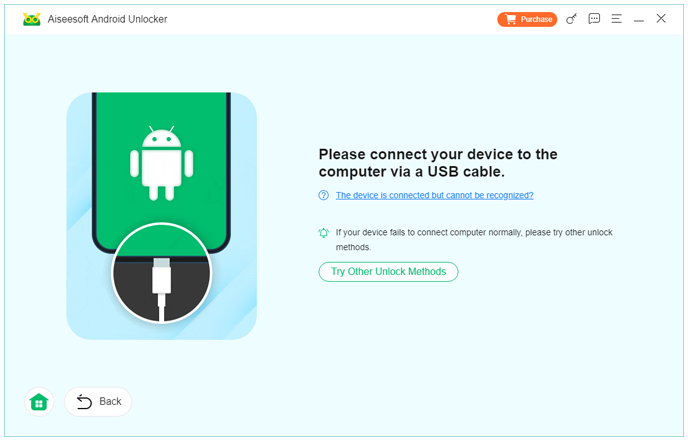
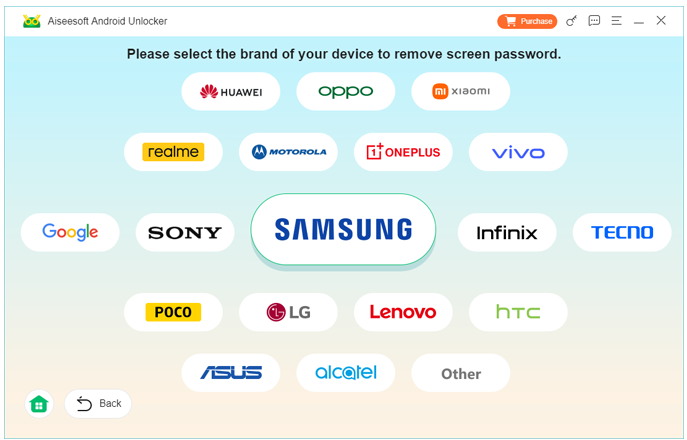
3.Choose your exact model and follow on-screen instructions.
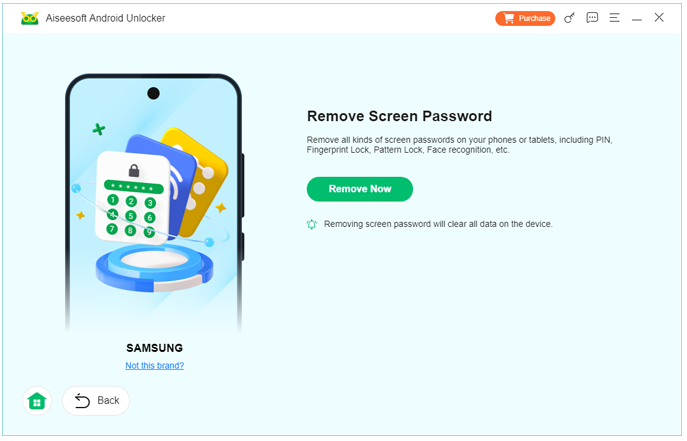
4.Unlock process runs automatically after click Remove Now.
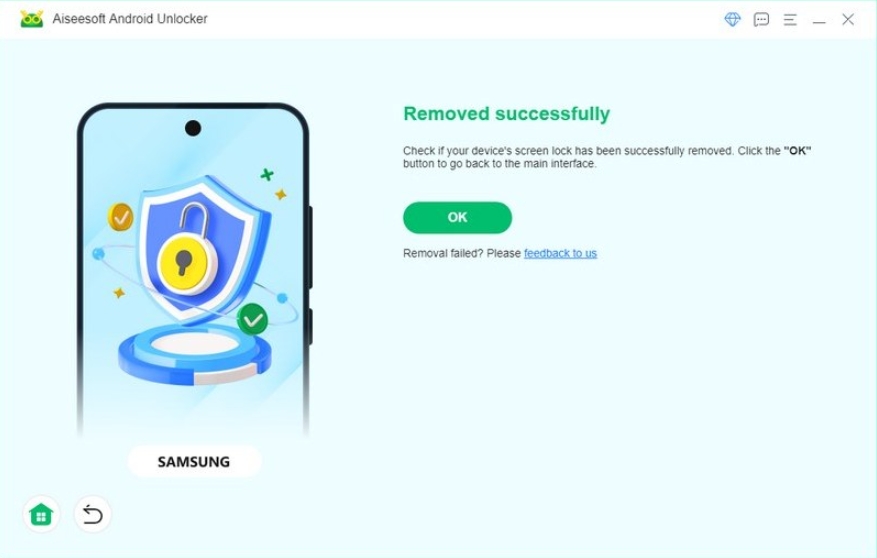
5.Once complete, reboot the phone and access it without the lock screen.
For users dealing with total screen failure, this solution bridges the gap between “physically broken” and “digitally locked.”
Method 2: Unlock Samsung Galaxy via External Display & Input
Best for: Phones with display damage but working internal system
Data risk: None
Technical difficulty: Medium
Modern Samsung Galaxy phones support external display output and USB input through a single cable. This feature is often overlooked, yet it’s one of the most reliable ways to unlock a phone with a broken screen.
If the phone is powered on and USB debugging or basic USB access is enabled, you can connect it to an external monitor or TV using a USB-C to HDMI adapter. At the same time, a USB mouse or keyboard can be connected through a USB hub.
Once connected, your Galaxy screen appears externally, and the mouse acts as a replacement for touch input. This allows you to enter the PIN, pattern, or password normally.
Step-by-Step Breakdown
- Power off the Samsung Galaxy completely.
- Connect a USB-C to HDMI adapter to the phone.
- Plug the adapter into a TV or monitor.
- Attach a USB mouse or keyboard via the adapter or hub.
- Power on the phone and wait for the lock screen to appear.
- Use the mouse to draw the pattern or enter the PIN.
- Once unlocked, disable the lock or back up data immediately.
Important Notes
- Works best on Galaxy S, Note, and Z series.
- Some budget models may not support HDMI output.
- Requires the phone to boot normally (not stuck in bootloop).
This method feels “old-school,” but it’s surprisingly effective when the screen is physically damaged yet the system is intact.
Method 3: Unlock Samsung Galaxy Using Samsung Find My Mobile (Remote Unlock)
Best for: Users with Samsung account access
Data risk: None
Technical difficulty: Low
Samsung quietly provides one of the most powerful recovery tools in the Android ecosystem: Find My Mobile. If your Samsung Galaxy was signed into a Samsung account before the screen broke, you may unlock it remotely—without touching the phone at all.
This method bypasses the lock screen using Samsung’s cloud authentication system. It does not erase data and does not require USB debugging.
Step-by-Step Breakdown
- On a computer or another phone, visit Samsung Find My Mobile.
- Sign in using the same Samsung account as the locked phone.
- Select the broken Samsung Galaxy from the device list.
- Click Erase Data.
- Enter your Samsung account password to confirm.
- Wait for the confirmation message.
- Restart the phone—lock screen will be removed.
Notes
- Internet connection on the phone must be active (Wi-Fi or mobile data).
- This feature must not be blocked by security policies.
- Some newer models may require secondary verification.
This method is often underestimated but is extremely reliable when available. If it works, it’s the cleanest unlock you’ll ever experience.
Data Loss After Unlocking a Broken Samsung Galaxy
Unlocking the phone is often just the beginning. A very common situation with broken Samsung Galaxy devices is partial or complete data loss after system instability. Screen damage is frequently followed by system crashes, bootloops, failed updates, or accidental resets during repair attempts.
Photos disappear. Contacts go missing. Videos won’t open. Internal storage becomes inaccessible.
This is where many users panic—and for good reason. Android does not make local recovery easy, especially after a crash.
Realistic Data Recovery for Samsung Galaxy Users
On Samsung devices, data loss often occurs due to:
- Interrupted OTA updates after screen damage
- Forced restarts during repair
- Corrupted system partitions
- Sudden power loss while storage is mounted
- Virus-infected apps causing system failure
When this happens, direct access to internal storage is blocked, even after unlocking.
iDatapp provides specialized data solutions beyond unlocking. For example, their Android data recovery and export tools are designed to extract data even when the phone cannot be fully accessed through the UI.
- Recover photos, videos, contacts, messages
- Export data from damaged or unstable Samsung systems
- Access internal memory and SD cards
- Work around system-level crashes
The key advantage is device-specific optimization. Samsung Galaxy phones have unique file system behaviors, and generic recovery tools often fail where specialized ones succeed.
If your Galaxy suffered screen damage and data loss, unlocking alone is not enough. Recovery and export should be part of the same strategy—not an afterthought.
Frequently Asked Questions
Can I unlock a Samsung Galaxy if the screen is completely black?
Yes. If the system is still running, external display methods or professional unlocking software can unlock the phone without screen interaction.
Will unlocking erase my data?
Some methods preserve all data (Samsung Find My Mobile, external display). Software-based unlocking depends on model and lock type.
Does USB debugging need to be enabled?
Not always. Certain Samsung unlock methods work without prior USB debugging, especially when using recovery or download mode.
Is it legal to unlock my own Samsung phone?
Yes. Unlocking a device you own is legal. You should never attempt to unlock a device without proper ownership.
What should I do immediately after unlocking?
Back up your data immediately. Screen damage often worsens, and system instability can increase over time.
Conclusion
Unlocking a broken screen Samsung Galaxy is absolutely possible when approached correctly. By understanding the type of screen damage and choosing the right unlocking path—external input, Samsung cloud unlock, or professional Samsung-specific software—you can regain access without unnecessary data loss. The key is precision, not panic.
 English
 Nederlands
 Tiếng Việt
 日本
日本 Español
 Português
 Deutsche
 Français
 Italiano
 Norsk
Norsk Suomalainen
 Svenska
 Dansk
Dansk Ελληνικά
 Türk
Türk русский
 हिंदी
हिंदी தமிழ்
தமிழ் Bahasa Melayu
 ไทย
ไทย 한국어
한국어 Română
 Polskie
 қазақ
қазақ Gaeilge
 繁體中文
繁體中文