
 iPhone Data Recovery
 iOS System Recovery
 iOS Backup & Restore
 iOS WhatsApp Transfer
 iOS FoneTrans
 MobieSync
 Android Data Recovery
 Broken Android Data Extraction
 Android Data Backup & Restore
 iPhone Unlocker
 Best Samsung Phone Unlock Tool
 Android Unlocker
 Win/Mac Data Recovery
 iDATAPP Screen Recorder
 2D&3D Video Converter
 Video Repair Software Ai
 AI Video Converter
 Ai Blu-ray Player
 [Solved]Recover Deleted Contacts On Samsung S26 Series
This guide explains how to recover deleted contacts from Samsung S26 devices using Android data recovery software, Google Contacts sync, and Samsung Cloud backups, plus tips to prevent future contact loss.
How to Recover Deleted Contacts From Samsung S26 Series?
Losing contacts on a smartphone is more frustrating than losing almost any other file. Photos can often be retaken, apps can be reinstalled, but a phone number from a client, coworker, or old friend may disappear forever. If you’re using a Samsung S26 Series device—such as the S26, S26+, or S26 Ultra—you might suddenly notice contacts missing after a system update, accidental deletion, sync error, or factory reset.
The good news: deleted contacts on Samsung phones are often not permanently erased immediately. In many cases, the information still exists in cloud backups, system caches, or internal storage databases. This means that with the right approach, you can recover them.
In this guide, we’ll walk through three practical methods to recover deleted contacts from Samsung S26 devices, including a direct recovery solution using professional recovery software. Each solution targets a different scenario, so you can choose the one that fits your situation.
Guide List
- Why Contacts Disappear on Samsung S26 Phones?
- Method 1: Recover Deleted Samsung Contacts Using Android Data Recovery Software
- Method 2: Restore Deleted Contacts from Google Contacts Sync
- Method 3: Recover Deleted Contacts from Samsung Cloud
- How to Backup and Recover Samsung S26 Data Safely?
- Frequently Asked Questions
- Conclusion
Why Contacts Disappear on Samsung S26 Phones?
Before attempting recovery, it helps to understand why contacts disappear in the first place. Several common triggers include:
- Accidental deletion while editing the contact list
- Sync conflicts between Samsung Cloud and Google accounts
- System updates resetting contact storage
- Malware or software glitches
- Factory reset without backup
- SIM card switching or data transfer issues
Samsung devices typically store contacts in multiple locations:
- Phone internal storage
- Google account
- Samsung Cloud
- SIM card
If one of these storage locations becomes unsynced or deleted, contacts may appear lost even though they are still recoverable.
Now let’s explore the solutions.
Method 1: Recover Deleted Samsung Contacts Using Android Data Recovery Software
One of the most reliable methods for recovering deleted contacts from Samsung S26 phones is using a dedicated recovery tool such as Android Data Recovery from iDATAPP.
Unlike basic recovery options that depend on backups, this software scans the device’s internal storage and identifies recoverable contact records that haven't been overwritten yet. This is particularly useful if contacts were deleted recently and there is no available cloud backup.
The software works by establishing a secure connection with your Samsung device and performing a deep scan of the database where Android stores contact information. It then reconstructs recoverable entries and allows you to restore them selectively.

- Recovers deleted contacts without existing backup
- Preview recoverable data before restoring
- Compatible with most Samsung devices including the S26 series
- Supports recovery of other data like messages, photos, and call logs
Steps to Recover Deleted Contacts
1.Download and install Android Data Recovery from the official website. Launch the program on your computer.
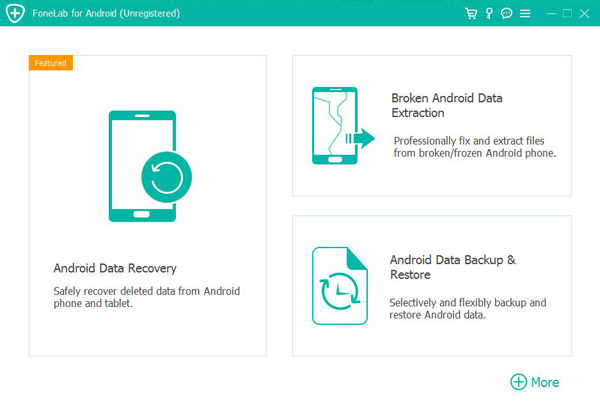
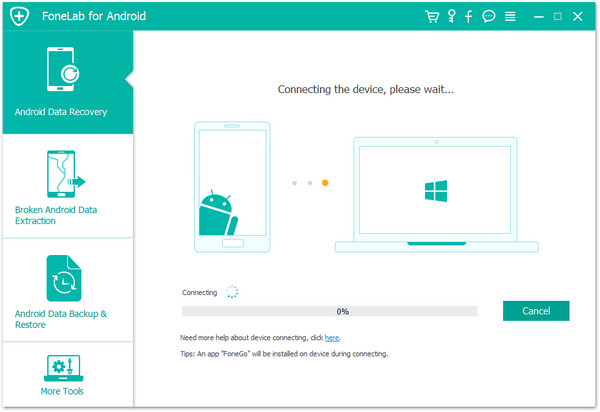
2.Connect your Samsung S26 device using a USB cable.
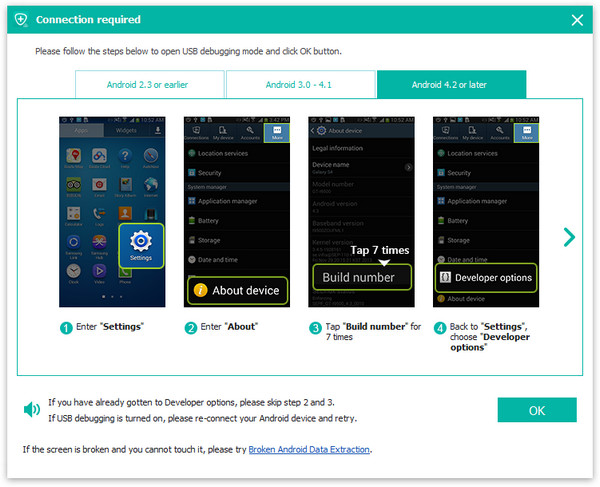
3.Enable USB Debugging when prompted.
4.Select Contacts from the list of recoverable file types and start the device scan.
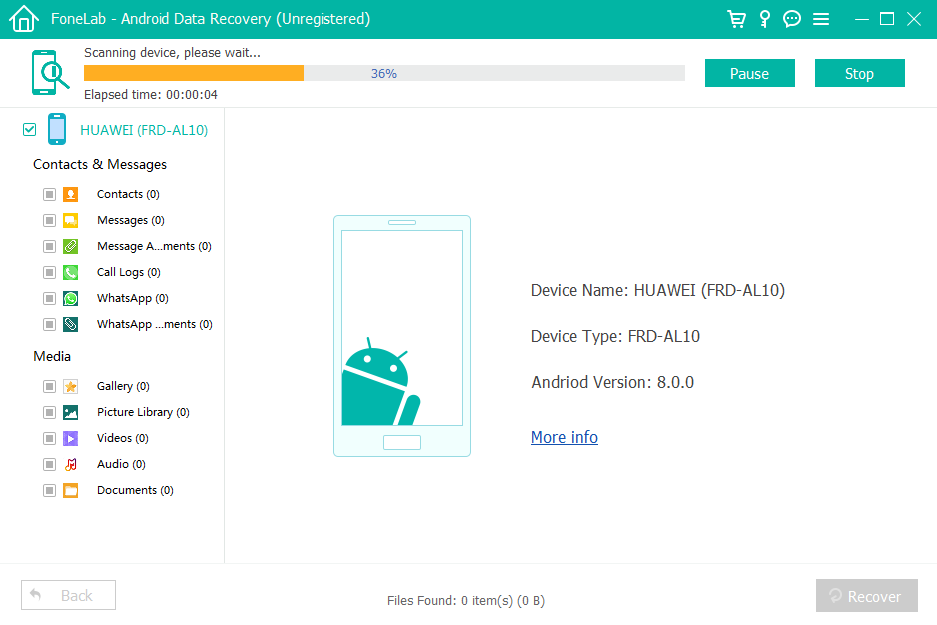
5.Preview all detected contacts and choose the contacts you want to restore.
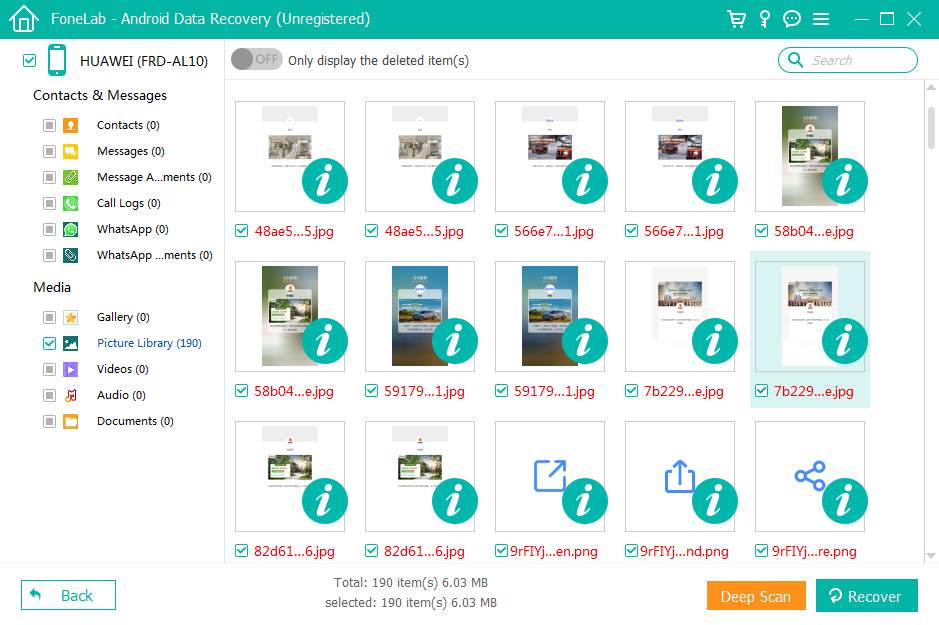
6.Click Recover and save them to your device or computer.

Tips
- Stop using your phone heavily after deletion to avoid overwriting data.
- Keep the USB connection stable during scanning.
- Always preview results before recovery.
Method 2: Restore Deleted Contacts from Google Contacts Sync
Many Samsung users unknowingly rely on Google Contacts synchronization. If your Samsung S26 was logged into a Google account, there’s a high chance your contacts were automatically synced to Google’s servers.
Google actually stores previous versions of contact lists and allows users to restore contacts from up to 30 days earlier. This feature works well if contacts were deleted recently.
This method does not require any software installation and is one of the fastest ways to recover lost contacts.
Why This Works
Google maintains a cloud-based database of contact information and periodically records change history. When contacts are deleted or modified, the system retains a previous version temporarily.
Steps to Restore Contacts via Google
- Open a web browser and visit contacts.google.com.
- Sign in using the Google account linked to your Samsung S26.
- Click Settings or Undo Changes.
- Select a restore period (10 minutes, 1 hour, yesterday, or custom).
- Confirm the restoration.
- On your Samsung S26, open Settings → Accounts → Google.
- Enable Contacts Sync.
- Wait for the phone to synchronize restored contacts.
Notes
- This method only works if contact sync was enabled before deletion.
- Restoring contacts may revert other recent contact changes.
- Internet connection is required for syncing.
Method 3: Recover Deleted Contacts from Samsung Cloud
Samsung devices often back up contacts automatically through Samsung Cloud, especially if the user enabled device backup during setup.
If your Samsung S26 was previously backed up, restoring contacts from Samsung Cloud can bring them back quickly.
This method is ideal for users who regularly use Samsung’s ecosystem services.
How Samsung Cloud Backup Helps
Samsung Cloud periodically backs up device data including:
- Contacts
- Messages
- Calendar entries
- Settings
If contacts are deleted locally, restoring a backup snapshot can bring them back.
Steps to Restore Contacts from Samsung Cloud
- Open Settings on your Samsung S26 phone.
- Tap Accounts and Backup.
- Select Samsung Cloud.
- Tap Restore Data.
- Choose your device backup.
- Select Contacts from the list.
- Tap Restore.
- Wait for the process to complete.
Things to Remember
- Only contacts included in the backup will be restored.
- You must be logged into the same Samsung account.
- Restoring data may replace existing contact entries.
How to Backup and Recover Samsung S26 Data Safely?
Recovering contacts is helpful, but a better strategy is preventing permanent data loss in the future. Many Samsung S26 users ask another important question:
How can I back up and restore all phone data—including contacts—without relying only on cloud services.
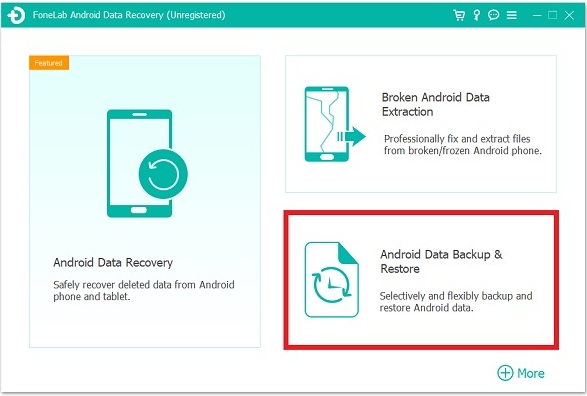
A practical approach is using a dedicated data management tool such as Android Data Recovery from iDATAPP- Android Data Backup & Restore, which also includes backup and restore functions.
Unlike typical cloud backups that only store limited categories of data, advanced recovery tools allow users to create full device backups stored locally on a computer. This method offers several advantages.
First, it provides more control over personal data. Instead of relying on online accounts or subscription services, the user keeps a complete copy of their phone’s information stored securely on a local drive. For professionals who manage large contact databases, this can be extremely valuable.
Second, the backup process is selective. Users can choose exactly what to back up—contacts, messages, call logs, photos, videos, WhatsApp data, and more. This saves storage space and simplifies restoration.
Third, restoring data becomes far easier when switching phones. Imagine upgrading from a Samsung S26 to a newer Samsung device. Instead of manually transferring contacts or relying on Google synchronization, users can restore the entire backup file in minutes.
Here is a simple workflow many Samsung users follow:
- Install the data recovery and management software on a computer.
- Connect the Samsung device via USB.
- Choose the backup option.
- Select data categories such as contacts and messages.
- Create a secure backup file.
- Restore the backup anytime if data is lost.
This approach significantly reduces the risk of losing important information again. For business users, sales professionals, and anyone who relies heavily on phone contacts, maintaining regular device backups should be part of their digital routine.
Frequently Asked Questions
Can permanently deleted contacts be recovered on Samsung S26?
Yes, in many cases. If the data has not been overwritten, recovery tools can scan the phone’s internal database and retrieve deleted contact entries.
How long do deleted contacts stay recoverable?
It depends on device usage. Contacts may remain recoverable for days or weeks until new data overwrites the storage area.
Are contacts automatically backed up on Samsung phones?
They can be if Google Contacts Sync or Samsung Cloud backup is enabled. Otherwise, contacts stored only in device memory may not be backed up.
Can I recover contacts after a factory reset?
Yes, but it depends on whether a backup exists. Without backup, professional recovery tools offer the best chance of retrieving data.
What is the safest way to prevent contact loss?
Enable automatic syncing with Google or Samsung Cloud and create regular local backups using data management software.
Conclusion
Losing contacts on a Samsung S26 Series phone can feel alarming, especially when those numbers are essential for work or personal communication. Fortunately, deleted contacts are rarely gone forever.
Depending on your situation, you can recover them through:
- Android Data Recovery software for deep device scanning
- Google Contacts synchronization for cloud-based restoration
- Samsung Cloud backup for previously saved data
Each method targets a different recovery scenario, making it possible to restore contacts whether or not you created a backup.
Most importantly, implementing a reliable backup strategy ensures that even if contacts are deleted again, recovering them will only take a few minutes.
 English
 Nederlands
 Tiếng Việt
 日本
日本 Español
 Português
 Deutsche
 Français
 Italiano
 Norsk
Norsk Suomalainen
 Svenska
 Dansk
Dansk Ελληνικά
 Türk
Türk русский
 हिंदी
हिंदी தமிழ்
தமிழ் Bahasa Melayu
 ไทย
ไทย 한국어
한국어 Română
 Polskie
 қазақ
қазақ Gaeilge
 繁體中文
繁體中文