
 iPhone Data Recovery
 iOS System Recovery
 iOS Backup & Restore
 iOS WhatsApp Transfer
 iOS FoneTrans
 MobieSync
 Android Data Recovery
 Broken Android Data Extraction
 Android Data Backup & Restore
 iPhone Unlocker
 Best Samsung Phone Unlock Tool
 Android Unlocker
 Win/Mac Data Recovery
 iDATAPP Screen Recorder
 2D&3D Video Converter
 Video Repair Software Ai
 AI Video Converter
 Ai Blu-ray Player
 How to Bypass FRP Lock On Samsung S26 Series?
Learn three effective ways to bypass FRP lock on the Samsung S26 series, including a professional unlocking tool, Samsung account solutions, and manual methods, plus tips for recovering data after reset.

Samsung’s flagship devices continue to push hardware and security boundaries, and the Samsung S26 Series is no exception. While these devices offer powerful processors, improved AI features, and enhanced security layers, one protection mechanism often creates frustration for legitimate users: Factory Reset Protection (FRP).
FRP is designed to prevent unauthorized access to a device after a factory reset. When a Samsung phone is reset without first removing the linked Google account, the system will request the previous Google credentials before allowing access again. From a security standpoint, this is excellent. However, real-world situations can quickly turn this feature into a problem.
Guide List
Imagine these common scenarios:
- You purchased a second-hand Samsung S26 and the previous owner forgot to remove their Google account.
- You reset your phone but forgot the Google login credentials linked to the device.
- Your phone encountered a system crash, forcing a reset, and now the FRP lock blocks access.
In all these cases, the device becomes unusable even though the user may be the legitimate owner.
This guide explores three practical ways to bypass FRP on the Samsung S26 series, ranging from professional unlocking tools to built-in Android solutions. The goal is to help users regain access safely while understanding how Samsung’s security ecosystem works.
Method 1: Bypass Samsung S26 FRP Using iDatapp Samsung Unlocker (Recommended)
One of the most efficient ways to bypass FRP on modern Samsung devices is by using a dedicated unlocking tool. The software is designed specifically to remove various screen locks and FRP restrictions on Samsung devices without requiring the original Google account.
What makes this method particularly effective is its compatibility with new Samsung system architectures. Many manual bypass tricks stop working after system updates, but specialized software adapts to these changes. The tool communicates directly with the phone through a computer and removes the verification layer blocking the setup process.
This approach is ideal for users who want a quick and reliable FRP removal process without complex technical workarounds.
Step-by-Step Guide
1.Download and install the software and install the program on your computer.
2.Launch the program
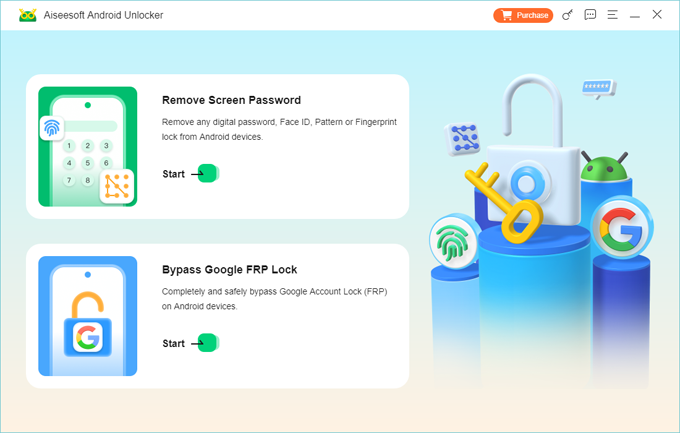
Open the software and select the Bypass Google FRP Lock option.
3.Connect your Samsung S26 device
Use a USB cable to connect the phone to the computer.
4.Select device information
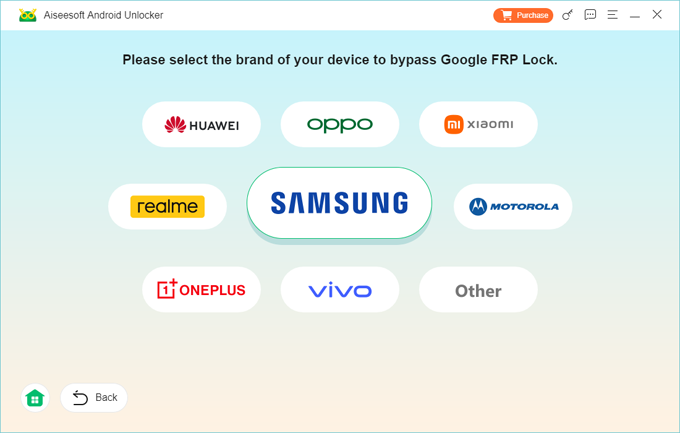
Choose the correct Samsung model and Android version.
5.Start the unlocking process
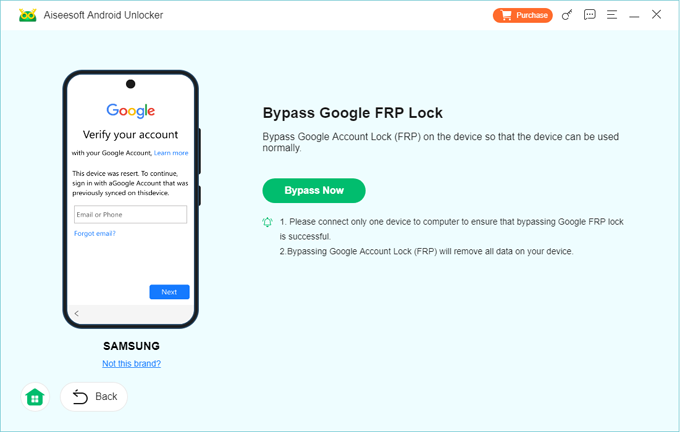
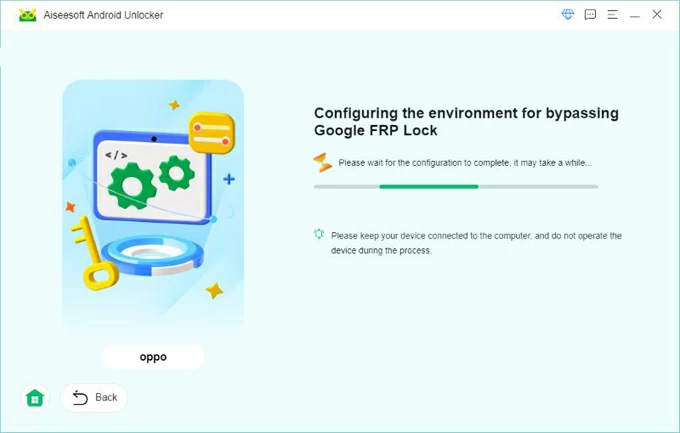
Click Bypass Now and allow the software to prepare the bypass environment.
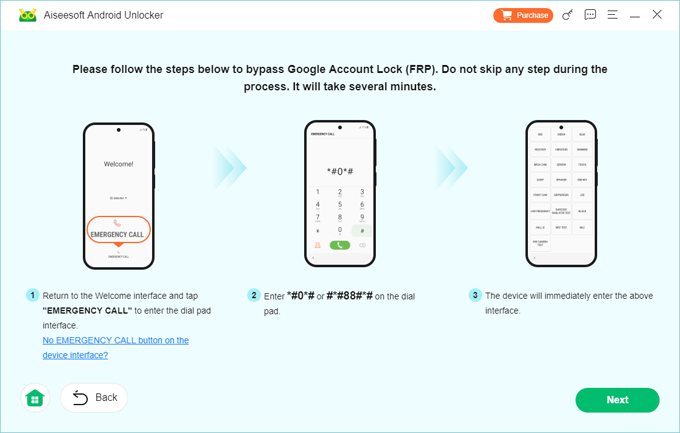
6.Follow the on-screen instructions
7.FRP lock removal
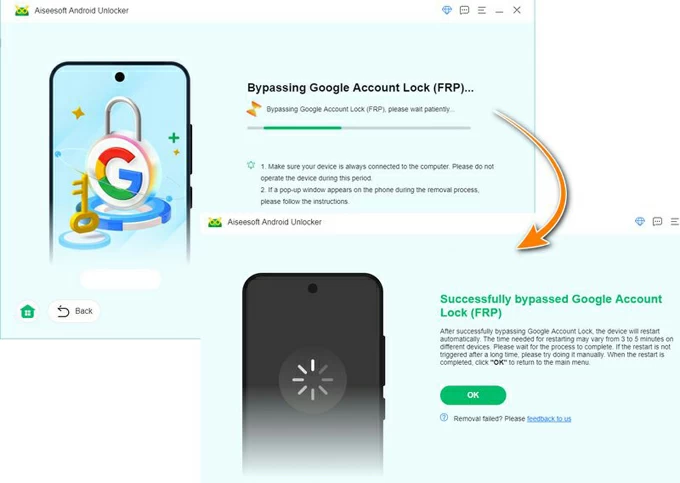
Within several minutes, the software will remove the Google account verification.
8.Restart the phone
Once the device restarts, the FRP lock should be gone and the phone can be set up normally.
Important Tips
- Ensure your USB cable connection remains stable during the process.
- Charge the phone to at least 50% battery before starting.
- This method works best when the device is already at the FRP verification screen.
Method 2: Bypass FRP Using Samsung Find My Mobile
Samsung provides its own remote device management system called Find My Mobile, which can sometimes help remove locks from devices connected to a Samsung account.
If the Samsung S26 was previously logged into a Samsung account and remote unlock was enabled, you may be able to remove the screen lock remotely. While this does not directly remove FRP, it can help regain control of the device in certain cases where the lock is tied to account verification.
This method is simple and requires no software installation. However, it only works when the device was previously registered with a Samsung account.
Steps to Try
- Open the Samsung Find My Mobile website in a browser.
- Sign in using the Samsung account linked to the phone.
- Select your Samsung S26 device from the device list.
- Choose the Unlock option.
- Enter your Samsung account password again to confirm.
- Wait for the command to be sent to the device.
- Once completed, restart the phone and proceed through the setup process.
Key Requirements
- The phone must have internet access (WiFi or mobile data).
- The device must already be linked to a Samsung account.
- Remote unlock must be enabled in device settings beforehand.
Method 3: Bypass Samsung S26 FRP Using the Emergency Call & Setup Trick
Android setup systems often include accessibility features and emergency functions. In some cases, these functions can be used creatively to open system settings and bypass the FRP verification stage.
This method relies on accessing hidden parts of the setup environment and launching device settings indirectly. While success can vary depending on the Android version installed on the Samsung S26, it remains a commonly attempted manual solution.
Unlike software tools, this method requires patience and precise steps.
Step-by-Step Instructions
- Turn on the Samsung S26 and reach the Google verification screen.
- Tap Emergency Call.
- Enter a code such as *#*#4636#*#* or access the dialer functions.
- If the system menu opens, navigate to Device Information.
- Attempt to access Settings from the menu interface.
- Once inside Settings, open Accounts.
- Remove any existing Google accounts if visible.
- Restart the device and go through the setup again.
Important Notes
- This trick may not work on all firmware versions.
- Samsung security patches frequently close these loopholes.
- If the method fails, consider using the dedicated unlocking software described earlier.
When FRP Bypass Causes Another Problem: Samsung Data Loss
While bypassing FRP restores device access, another issue often appears afterward: data loss.
Many Samsung users discover that the reset process erased photos, contacts, or important files stored on the device. This situation is particularly common with Samsung devices because users frequently perform factory resets while troubleshooting system problems such as freezing, boot loops, or update failures.
Recovering lost data becomes critical in these cases.
This is where the broader software ecosystem available at idatapp.com becomes useful.
One common example is data recovery after system reset or unlocking attempts.
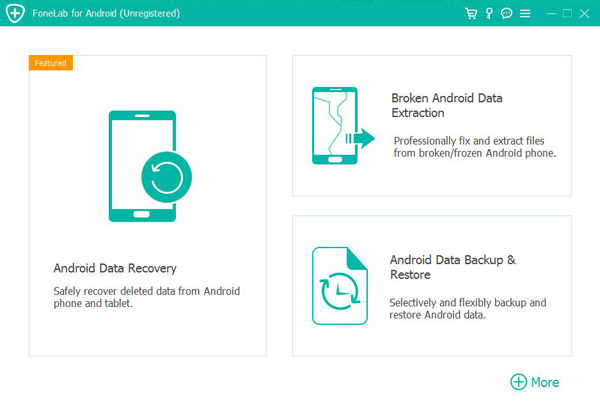
When users attempt FRP removal or system repairs, files may disappear due to:
- factory reset operations
- firmware repair procedures
- rooting mistakes
- system crashes
- malware or virus attacks
- accidental deletion during troubleshooting
A specialized Android data recovery tool from the iDatapp platform can scan Samsung storage and recover multiple file types, including:
- photos
- videos
- contacts
- messages
- WhatsApp chats
- documents
Unlike simple file restore apps, advanced recovery software communicates directly with the device’s internal storage structure, scanning both visible and hidden partitions for recoverable fragments.
Typical Data Recovery Process
- Install the Android data recovery tool from idatapp.com on a computer.
- Connect the Samsung S26 device using a USB cable.
- Enable USB debugging if the device allows it.
- Select the types of files to scan (photos, contacts, messages, etc.).
- Start a deep scan of the device storage.
- Preview recoverable files after scanning.
- Select the data you want to restore.
- Export the recovered files to your computer.
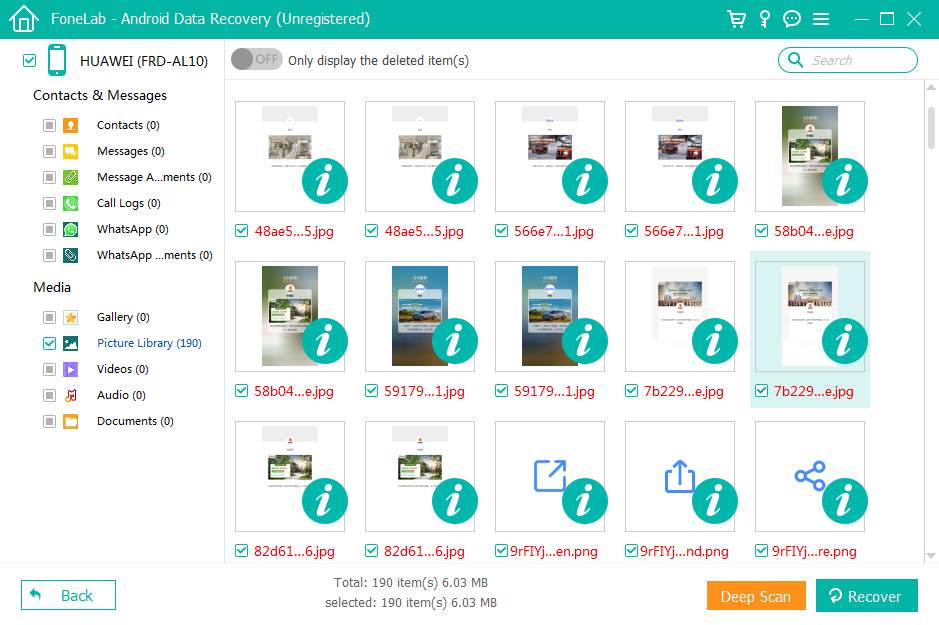
This approach is especially useful when important personal or work files disappear after unlocking procedures. Many users underestimate how often FRP-related resets lead to unexpected data loss, making recovery tools an important companion solution.
Frequently Asked Questions
What is Samsung FRP Lock?
FRP (Factory Reset Protection) is a security feature in Android devices that requires the previously synced Google account credentials after a factory reset.
Can FRP be removed without the original Google account?
Yes. Specialized unlocking tools or certain system workarounds can remove the verification step, allowing the device to be set up again.
Will bypassing FRP delete data?
Most FRP bypass processes occur after a factory reset, meaning the data may already be erased. Some unlocking methods may also wipe remaining files.
Is FRP bypass legal?
Bypassing FRP is legal when you are the legitimate owner of the device or have permission from the owner. It is intended to recover access to your own phone.
How can I avoid FRP problems in the future?
Before resetting your phone, always remove the Google account from Settings → Accounts. This prevents the FRP verification step during setup.
Conclusion
Learn three effective ways to bypass FRP lock on the Samsung S26 series, including a professional unlocking tool, Samsung account solutions, and manual methods, plus tips for recovering data after reset.
 English
 Nederlands
 Tiếng Việt
 日本
日本 Español
 Português
 Deutsche
 Français
 Italiano
 Norsk
Norsk Suomalainen
 Svenska
 Dansk
Dansk Ελληνικά
 Türk
Türk русский
 हिंदी
हिंदी தமிழ்
தமிழ் Bahasa Melayu
 ไทย
ไทย 한국어
한국어 Română
 Polskie
 қазақ
қазақ Gaeilge
 繁體中文
繁體中文