
 iPhone Data Recovery
 iOS System Recovery
 iOS Backup & Restore
 iOS WhatsApp Transfer
 iOS FoneTrans
 MobieSync
 Android Data Recovery
 Broken Android Data Extraction
 Android Data Backup & Restore
 iPhone Unlocker
 Best Samsung Phone Unlock Tool
 Android Unlocker
 Win/Mac Data Recovery
 iDATAPP Screen Recorder
 2D&3D Video Converter
 Video Repair Software Ai
 AI Video Converter
 Ai Blu-ray Player
 Best Way to Recover Deleted Google Pixel 7 Contacts
Discover how to recover deleted contacts on your Google Pixel 7 using Google sync, Google Drive backup, or Android Data Recovery software, along with tips to prevent future data loss.
How to Recover Deleted Contacts from Google Pixel 7?
Losing important contacts on your Google Pixel 7 can be frustrating. Whether it’s due to accidental deletion, a system glitch, or even a software update gone wrong, the good news is that there are several ways to recover those lost contacts. In this article, we’ll explore the problem in depth, explain why your contacts may have disappeared, and provide three effective methods to help you recover them. We’ll also include a solution using our Android Data Recovery software to make sure you don’t miss out on any crucial information.
Guide List
- Why Did My Contacts Disappear on Google Pixel 7?
- Solution 1: Recover Contacts Using Google Account Sync (Free)
- Solution 2: Restore Pixel 7 Contacts from Google Drive Backup
- Solution 3: Recover Contacts Using Android Data Recovery Software
- Unlocking Your Google Pixel 7 After Forgetting the Password
- Frequently Asked Questions
Why Did My Contacts Disappear on Google Pixel 7?
Before jumping into the solutions, it’s important to first understand the potential causes of contact loss on a Google Pixel 7. Here are some common reasons why contacts may go missing:
- Accidental Deletion: One of the most common reasons for contact loss is accidental deletion. You might have mistakenly deleted contacts while managing them.
- Sync Issues: Google Pixel devices sync contacts with your Google account. Sometimes, if there’s a sync issue, contacts may not appear correctly on your phone.
- System Glitch: Occasionally, bugs or system crashes can lead to the disappearance of contacts.
- Software Update: After a software update, your contacts might get temporarily misplaced due to syncing errors or data corruption during the update process.
Understanding these causes can help you pinpoint the most effective method to recover your contacts.
Solution 1: Recover Contacts Using Google Account Sync (Free)
The easiest and most common method to recover deleted contacts on your Google Pixel 7 is through Google Account Sync. If your contacts were synced to your Google account, you can easily restore them to your phone without needing any special software.
Steps to Recover Contacts via Google Account Sync:
1.Check if Sync is Enabled:
- Open the Settings app on your Pixel 7.
- Scroll down and tap on Accounts.
- Select your Google Account.
- Make sure Contacts Sync is enabled. If it’s off, turn it on.
2.Force Sync Contacts:
- Open the Contacts app on your phone.
- Tap the Menu icon (three lines) in the top-left corner.
- Scroll down and tap on Settings.
- Tap on Sync Contacts to ensure the sync process begins.
3.Check Google Contacts:
- Visit Google Contacts on your computer or another device and check if the deleted contacts are still available there.
- If they are, they should sync back to your Pixel 7 automatically.
This method works well when you’ve accidentally deleted contacts or if the phone was out of sync with your Google account. If your contacts were already stored in Google Contacts, you should be able to recover them without any hassle.
Solution 2: Restore Pixel 7 Contacts from Google Drive Backup
If you have set up Google Drive to back up your data, there’s a good chance your contacts were included in the backup. This method is useful if syncing didn’t help or if your contacts were lost due to a system error or factory reset.
Steps to Restore Contacts from Google Drive Backup:
1.Verify Google Drive Backup:
- Go to Settings on your Pixel 7 and tap on System.
- Select Backup.
- Ensure that Backup to Google Drive is enabled, and check that Contacts is included in the backup list.

2.Restore Your Backup:
- If you haven’t already, you can Factory Reset your Pixel 7 (only if necessary) to restore from the backup.
- Go to Settings → System → Reset Options → Erase All Data (Factory Reset).
- Once the reset is complete, choose Restore from Google Drive during the phone setup process and select the relevant backup that includes your contacts.
Important Tip: Keep in mind that restoring a Google Drive backup will erase all data on your phone, so use this option only if you don’t mind losing recent data and if the backup was made before the contacts were lost.
Solution 3: Recover Contacts Using Android Data Recovery Software
If the first two methods didn’t work, or you didn’t have a recent backup, you can use Android Data Recovery software to recover deleted contacts directly from your Google Pixel 7. This method works even if the contacts weren’t backed up or synced to your Google account.
Steps to Recover Contacts with Android Data Recovery:
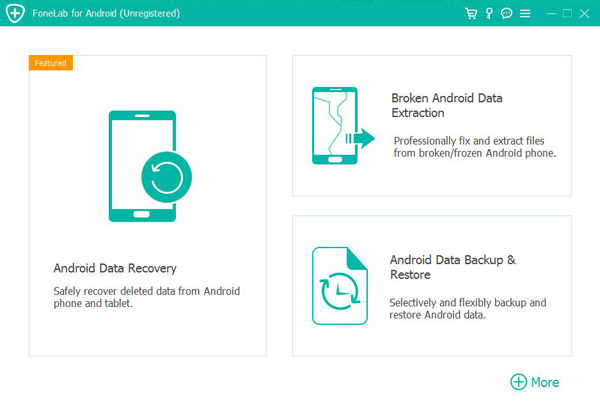
1.Download and Install the Software:
- Go to the Android Data Recovery page and download the software.
- Install the software on your computer.
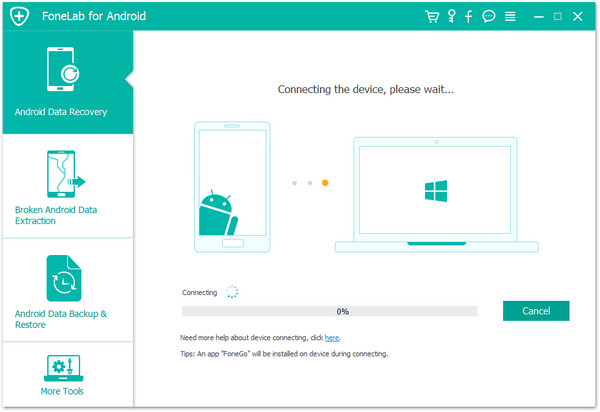
2.Connect Your Google Pixel 7 to the Computer:
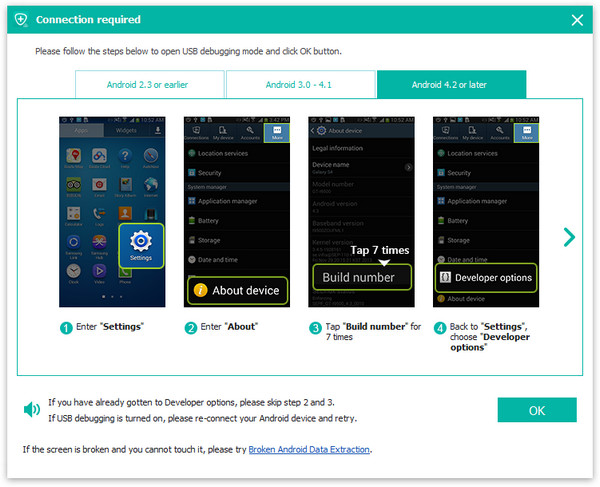
- Use a USB cable to connect your Pixel 6 to the computer. Make sure USB Debugging is enabled on your device:
- Go to Settings → About Phone → Tap Build Number 7 times to unlock Developer Options.
- Go back to Settings → Developer Options → Enable USB Debugging.
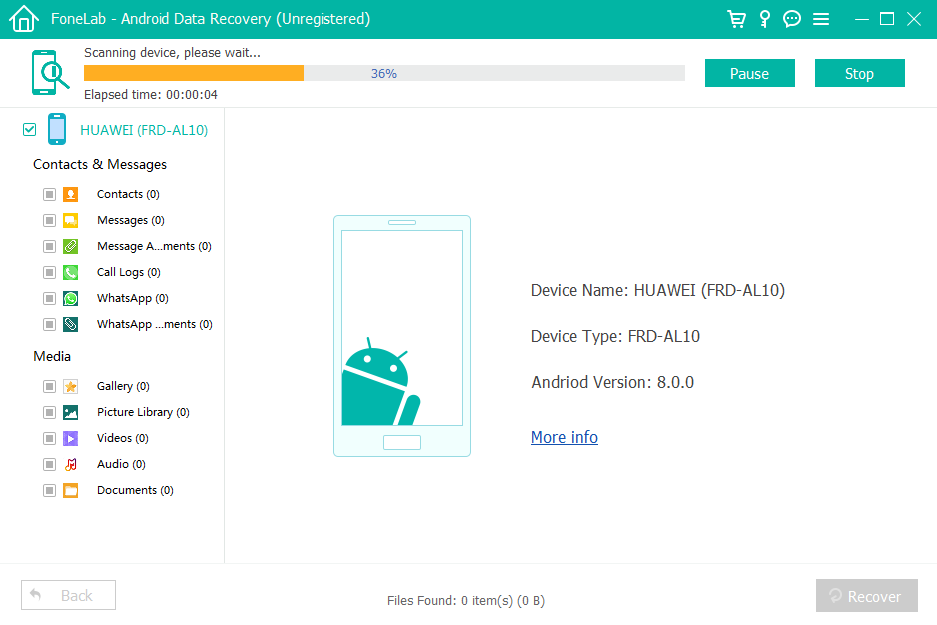
3.Scan for Deleted Contacts:
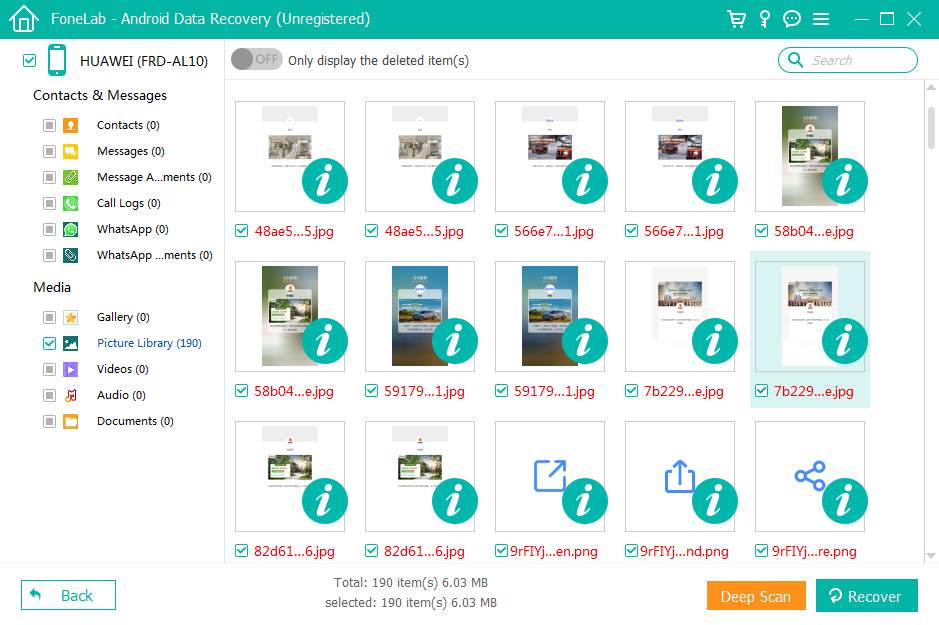
- Open the Android Data Recovery software and select Contacts as the type of data to recover.
- Click Start Scan, and the software will begin scanning your device for deleted contacts.
4.Preview and Recover Contacts:
- After the scan is complete, the software will display a list of deleted contacts.
- Select the contacts you wish to recover and click Recover to restore them to your device.

Why Choose Android Data Recovery Software?
- No Need for Backup: This method works even if you don’t have a backup or if the backup didn’t contain the contacts.
- High Success Rate: The software is designed to recover data from both internal memory and SD cards, giving you a higher chance of retrieving lost contacts.
- Easy-to-Use Interface: Even beginners can navigate the software without any technical expertise.
If your contacts aren’t found with Google sync or backup, Android Data Recovery provides a professional and reliable solution to recover them.
Unlocking Your Google Pixel 7 After Forgetting the Password
If you’ve been struggling with not only losing your contacts but also forgetting the password to unlock your Google Pixel 7, don’t worry—there’s a solution for that as well. Android Unlocker is a tool designed to help you unlock your phone without losing any data, even if you’ve forgotten the password or PIN.
How Android Unlocker Can Help:
- Unlock Screen Without Data Loss: With Android Unlocker, you can remove the screen lock (PIN, password, pattern, etc.) without worrying about losing your data.
- Supports Multiple Lock Types: Whether it’s a forgotten PIN, password, or even fingerprint lock, Android Unlocker can help bypass it.
- Easy Steps to Unlock: Just connect your device to the computer, and the software will guide you through unlocking your Google Pixel 7 step-by-step.
Visit Android Unlocker for more details on how to unlock your Pixel 7 quickly and safely.
Frequently Asked Questions
Can I recover deleted contacts without a backup?
Yes, using Android Data Recovery software, you can recover deleted contacts even if you don’t have a backup.
What should I do if contacts are not syncing properly?
Check your Google account’s sync settings and force a manual sync. If this doesn’t work, try restoring from a Google Drive backup.
Can I recover contacts from a factory reset?
Yes, if you have a Google Drive backup, you can restore contacts after a factory reset. Alternatively, Android Data Recovery can help if you didn’t back up your data.
How long does it take to recover contacts with Android Data Recovery?
The recovery time depends on the amount of data on your phone, but it generally takes 15-30 minutes to scan and recover contacts.
Will using Android Data Recovery overwrite my existing data?
No, the software doesn’t overwrite your current data; it simply retrieves the deleted contacts.
Conclusion
Accidentally deleting contacts on your Google Pixel 7 can be stressful, but it’s not the end of the world. By using Google’s sync feature, restoring from a backup, or utilizing Android Data Recovery software, you can recover your lost contacts. If you also encounter issues like a forgotten password, Android Unlocker can help you regain access to your phone without losing data. Keep your contacts safe by regularly backing up your device to avoid such mishaps in the future.
 English
 Nederlands
 Tiếng Việt
 日本
日本 Español
 Português
 Deutsche
 Français
 Italiano
 Norsk
Norsk Suomalainen
 Svenska
 Dansk
Dansk Ελληνικά
 Türk
Türk русский
 हिंदी
हिंदी தமிழ்
தமிழ் Bahasa Melayu
 ไทย
ไทย 한국어
한국어 Română
 Polskie
 қазақ
қазақ Gaeilge
 繁體中文
繁體中文