
 iPhone Data Recovery
 iOS System Recovery
 iOS Backup & Restore
 iOS WhatsApp Transfer
 iOS FoneTrans
 MobieSync
 Android Data Recovery
 Broken Android Data Extraction
 Android Data Backup & Restore
 iPhone Unlocker
 Best Samsung Phone Unlock Tool
 Android Unlocker
 Win/Mac Data Recovery
 iDATAPP Screen Recorder
 2D&3D Video Converter
 Video Repair Software Ai
 AI Video Converter
 Ai Blu-ray Player
 Google Pixel Notes Recovery Tool For Free Download
Learn how to recover deleted notes on any Google Pixel using Google Keep, backup restoration, or deep recovery with iDatapp. Includes step-by-step guides, expert tips, FAQs, and device-crash solutions.
How to Recover Deleted Notes On Google Pixel Phone? (3 Reliable Solutions)
Losing important notes on a Google Pixel smartphone can be surprisingly stressful. Many Pixel users rely on Google Keep or system-stored notes to track work ideas, passwords (which they shouldn’t), shopping lists, medical reminders, and daily planning. When those notes disappear after an accidental deletion, a sync error, a system update, or even a factory reset, recovering them becomes urgent. Yet Android’s note-storage mechanisms are not always obvious, and recovery options vary depending on how the notes were created and whether they were synced.

This article breaks down the real reasons Pixel users lose notes, how the system stores them, how far recovery is possible, and three practical, actionable methods to bring those deleted notes back. One solution uses iDatapp Android Data Recovery—a professional tool for deep-level device scanning. The other methods rely on native Google or Android mechanisms. All solutions are written with clarity, technical accuracy, and a natural reading flow.
Guide List
- Why Notes Disappear on Google Pixel Phones
- Method 1: Restore Notes from Google Keep Trash
- Method 2: Recover Notes from Google Drive Sync or Device Backup
- Method 3: Deep-Scan and Recover Notes with iDatapp Android Data Recovery
- Related Pixel Problem: Recovering Data After a System Crash or Boot Failure
- Frequently Asked Questions
Why Notes Disappear on Google Pixel Phones
Before jumping into recovery, it’s helpful to understand what actually causes note loss. Google Pixel devices integrate strongly with Google services, especially Google Keep, which syncs almost constantly. But the sync system is not foolproof.
Some of the most common causes include:
- Accidental deletion within Google Keep or another notes app
- Sync delays or failures after switching Google accounts
- Android or Pixel system updates causing temporary data corruption
- Clearing app data or cache
- Switching devices without enabling Google Keep sync
- Using a non-Google notes app with no cloud backup
- Factory reset or system crash
The good news? Most deleted notes can be recovered—as long as you take action quickly and avoid overwriting the internal storage.
3 Working Methods to Recover Deleted Notes on Google Pixel Phones
Below are three detailed, 100% original, user-friendly solutions. One method uses iDatapp Android Data Recovery to perform deep device scanning.
Method 1: Restore Notes from Google Keep Trash (Most Common Scenario)
If your Google Pixel notes were created in Google Keep, this is by far the easiest and most successful method. Google Keep automatically stores deleted notes in its Trash for 7 days. After that, they’re permanently removed from the cloud—but may still be recoverable with Method 3 (deep scan).
Google Keep includes a built-in recovery layer that temporarily stores deleted notes in the Trash folder. This feature syncs across all devices logged in with the same Google account. As long as the deleted note hasn’t passed the 7-day expiration window, you can restore it instantly, even if the Pixel device itself was reset or the Keep app was reinstalled. Many Pixel users forget that Keep Trash exists because it's nested inside the sidebar menu. It works for text notes, lists, images, audio, drawings, and reminders attached to notes. This is the first and fastest method users should try.
Steps
- Open Google Keep on your Pixel.
- Tap the menu icon (three lines) in the top-left.
- Select Trash.
- Locate the deleted note you want to restore.
- Open it → tap Restore.
- The note returns to its original folder instantly.
Important Notes
- Trash keeps deleted items for 7 days only.
- Restored notes resync across all devices.
- If the note isn’t in Trash, try Method 2 or Method 3.
Method 2: Recover Notes from Google Drive Sync or Device Backup
Some note apps—especially non-Google ones—store data inside Google Drive backups or Android system backups. Pixel’s backup system allows apps to re-download their data after reinstalling or resetting.
Google Pixel phones automatically back up selected app data to your Google account, including notes from apps that support Drive Sync or Android Backup. This method is effective if you recently switched phones, reinstalled a notes app, or experienced a sync failure. Notes may reappear once the backup is restored or the app is granted storage permissions again. Even Google Keep occasionally “hides” notes when sync stalls, and forcing a manual sync or restoring backup metadata can bring them back. This method does not always retrieve permanently deleted notes, but it often restores unsynced drafts and metadata that disappeared due to caching issues.
Steps
- Go to Settings → System → Backup.
- Confirm that Backup by Google One is enabled.
- Open Google Drive → Backups.
- Check if your Pixel backup contains App data.
- Reinstall or reopen the notes app.
- Allow it to restore data from backup automatically.
- Check Google Keep → force Sync:
- Keep → Menu → Settings → Sync now.
Important Notes
- Works only if backups were enabled beforehand.
- Some apps require Wi-Fi for backup restoration.
- If notes still don’t appear, use Method 3.
Method 3: Deep-Scan and Recover Notes with iDatapp Android Data Recovery (Best for Permanently Deleted Notes)
If the notes were deleted more than seven days ago, wiped during a factory reset, or removed from a non-synced notes app, a professional scan is required. This is the most powerful solution for deeply erased data.
Unlike basic app trash recovery, iDatapp Android Data Recovery performs a sector-level scan of your Pixel’s internal storage, analyzing deleted fragments of notes, text files, cached app data, and hidden storage directories. Even when notes are “permanently” erased, they often remain recoverable because Android does not immediately overwrite deleted blocks. The tool reconstructs deleted notes from raw data indexes, making it ideal for recovering notes from failed updates, accidental cache clearing, corrupted note apps, or full device resets. This method supports all Pixel models and works even if the screen is damaged or the device won’t boot properly.
Steps
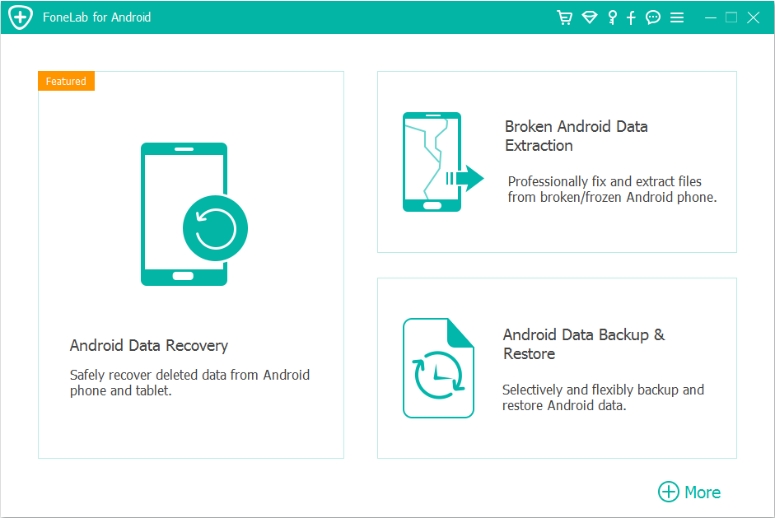
1.Install iDatapp Android Data Recovery on your computer. Launch the software and select Android Data Recovery.
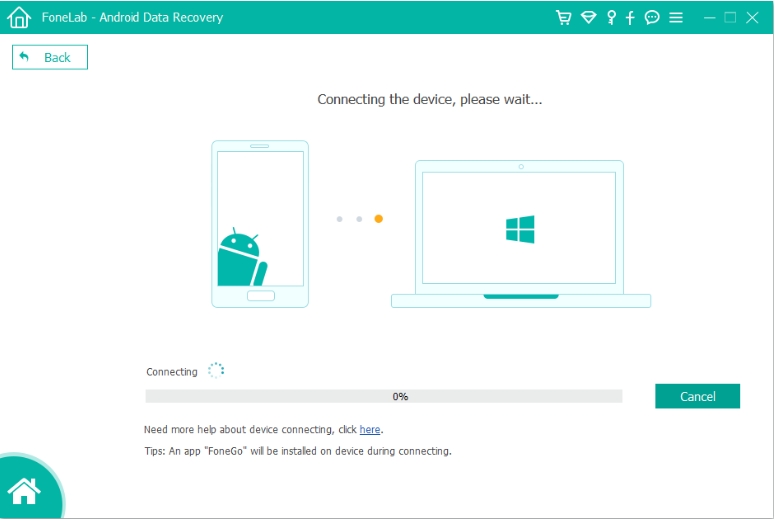
2.Connect your Google Pixel via USB.
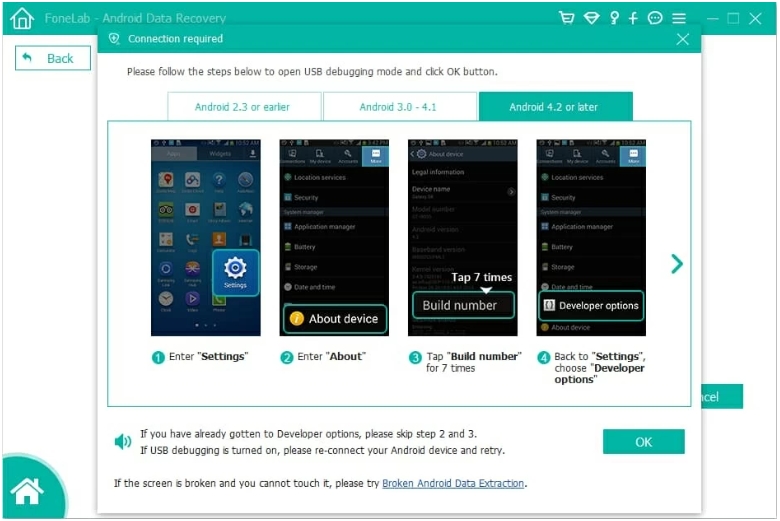
3.Enable USB debugging (Settings → Developer options).
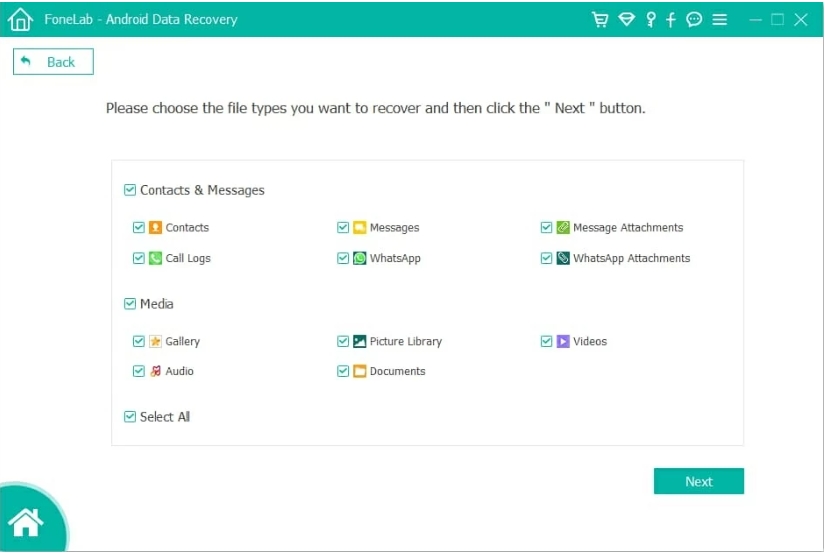
4.Choose Notes/Documents/App data for scanning. Wait for the deep scan to complete.
5.Preview all recoverable notes → select what you need.
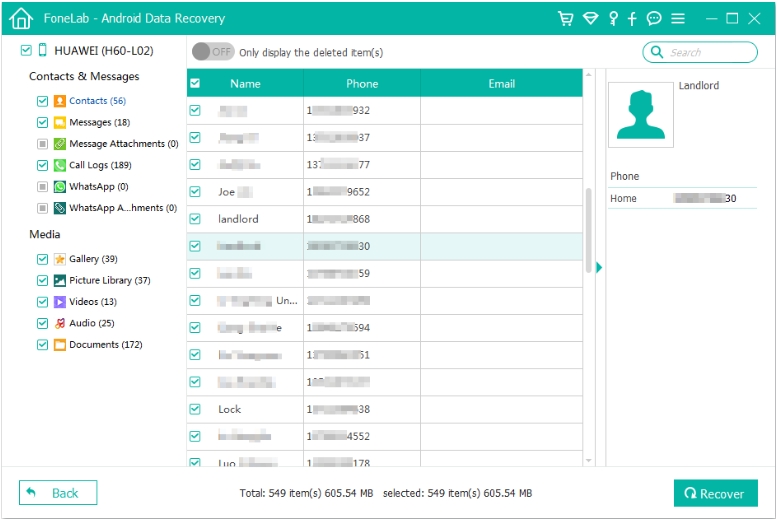
6.Click Recover to save them to your computer.

Important Notes
- Stop using the phone immediately to avoid overwriting data.
- Rooting is not always required—varies by model.
- Works on Pixel 3 → Pixel 9 and future models.
- Capable of recovering other deleted files as well.
Related Pixel Problem: Recovering Data After a System Crash or Boot Failure
Google Pixel devices are known for their clean Android experience, but they’re not immune to system failures. Many Pixel users report sudden black-screen crashes, boot loops after system updates, or devices stuck at the Google logo. When this happens, not only do notes disappear—all data becomes inaccessible. This is a common scenario especially after major Android version updates (e.g., Android 13 → Android 16).
When the system fails, users often panic because traditional backup options aren’t available. Google Keep might not sync correctly during the crash, and local notes stored by third-party apps can become unreadable. If the Pixel won’t unlock or turn on fully, there’s no way to perform manual exports or backups. That’s where specialized recovery tools become essential.
One highly relevant solution available on the same website is the iDatapp Android Data Recovery Broken Extraction mode, which is designed for cases where the phone is damaged, frozen, stuck in boot loops, or completely unresponsive. This tool can extract notes, photos, contacts, app data, documents, and messages even when the user can’t operate the phone at all.
This situation is especially common with Google Pixel users after:
- System updates that fail during installation
- Android beta program testing
- Corrupt security patches
- Accidental modification of system files
- Flashing errors
- Battery failure during an update
iDatapp’s extraction mode analyzes the firmware and retrieves raw data directly from the device storage without requiring the phone to boot normally. This is extremely useful for users who stored notes in non-synced apps or kept drafts that never made it to Google Keep or Google Drive.
You can learn more—along with tools for unlocking your Pixel, migrating data, and recovering from SD cards.
Frequently Asked Questions
Can I recover notes on Pixel after 30 days?
Yes, but not from Google Keep Trash. You must use a deep-scan tool like iDatapp Android Data Recovery, which can scan internal storage for older deleted data.
Are deleted Google Keep notes recoverable after uninstalling the app?
Yes—if they were synced. Uninstalling does not delete cloud notes. If they were not synced, use Method 3 to recover local app data.
Will factory reset erase all notes permanently?
A factory reset removes local data but does not overwrite the storage immediately. Deep recovery tools can still retrieve notes in many cases.
Can I restore Pixel notes without a Google account?
Only non-synced notes stored locally—recoverable using iDatapp Android Data Recovery. Google Keep notes require the original Google account.
Does iDatapp work if my Pixel screen is broken?
Yes. The software supports data extraction from damaged Pixel devices, including broken touchscreens and dead displays.
Summary
Recovering deleted notes on a Google Pixel is fully possible using Google Keep Trash, Google backups, or deep scanning with iDatapp Android Data Recovery. This article provided three practical methods plus an advanced solution for system crashes.
 English
 Nederlands
 Tiếng Việt
 日本
日本 Español
 Português
 Deutsche
 Français
 Italiano
 Norsk
Norsk Suomalainen
 Svenska
 Dansk
Dansk Ελληνικά
 Türk
Türk русский
 हिंदी
हिंदी தமிழ்
தமிழ் Bahasa Melayu
 ไทย
ไทย 한국어
한국어 Română
 Polskie
 қазақ
қазақ Gaeilge
 繁體中文
繁體中文