
 iPhone Data Recovery
 iOS System Recovery
 iOS Backup & Restore
 iOS WhatsApp Transfer
 iOS FoneTrans
 MobieSync
 Android Data Recovery
 Broken Android Data Extraction
 Android Data Backup & Restore
 iPhone Unlocker
 Best Samsung Phone Unlock Tool
 Android Unlocker
 Win/Mac Data Recovery
 iDATAPP Screen Recorder
 2D&3D Video Converter
 Video Repair Software Ai
 AI Video Converter
 Ai Blu-ray Player
 How to Unlock Google Pixel 7/8 Locked Screen Without Password?
Forgot your Pixel 7 or 8 lock screen password? This guide explains secure, practical unlocking methods, including professional software solutions and official reset options, with clear steps and expert insights.
For many Google Pixel 7 and Pixel 8 users, forgetting a lock screen password is not a rare accident—it’s a sudden interruption of daily life. One moment you’re setting a “more secure” PIN or pattern, the next moment your phone refuses to recognize it. Because Pixel devices run near-stock Android with tight security integration, unlocking them without the password is more complicated than it used to be years ago.

This article doesn’t jump straight into tools. Instead, it first explains why Pixel 7/8 locks are difficult to bypass, what options realistically exist, and which methods are safe, effective, and appropriate depending on your situation. Then, it walks you through three practical unlocking solutions, including one reliable method using official-grade unlocking software from our own website. Finally, we’ll expand the discussion to a common Pixel-related data problem many users face after unlocking failures.
Guide List
- Understanding the Pixel 7/8 Lock Screen Problem
- Method 1: Unlock Google Pixel 7/8 Using Android Unlocker (Recommended)
- Method 2: Unlock Pixel 7/8 via Google Find My Device (Official Reset)
- Method 3: Factory Reset via Recovery Mode (Manual Approach)
- Pixel Data Loss After Unlock Failure (A Common Problem)
- Frequently Asked Questions
Understanding the Pixel 7/8 Lock Screen Problem
Google Pixel 7 and Pixel 8 devices use advanced Android security mechanisms such as file-based encryption (FBE), Titan M2 security chip, and Google account verification (FRP). These features protect personal data, but they also mean:
- You cannot simply “bypass” the lock screen without authentication
- Repeated wrong attempts may lock the device for hours
- Factory reset often triggers Google account verification
- Data may become inaccessible even though it still exists on the device
In short, unlocking a Pixel without the password is no longer about guessing patterns—it’s about choosing the correct technical path.
The good news is that there are legitimate solutions, depending on whether you prioritize keeping your data, regaining access quickly, or resetting the device for reuse.
Method 1: Unlock Google Pixel 7/8 Using Android Unlocker (Recommended)
Best for: Users who want a professional, stable solution without complex commands
Data impact: Depends on selected mode
Difficulty: Beginner-friendly
When built-in Android methods fail, a dedicated unlocking tool becomes the most efficient option. Android Unlocker from iDATAPP is designed specifically for modern Android devices, including Google Pixel 7 and Pixel 8, and handles different lock types such as PIN, pattern, password, fingerprint, and face unlock.
Unlike manual recovery methods, this software guides you step by step and minimizes human error. It is especially helpful when the screen is partially unresponsive or when repeated attempts have locked the device for extended periods.
How It Works (Step-by-Step)
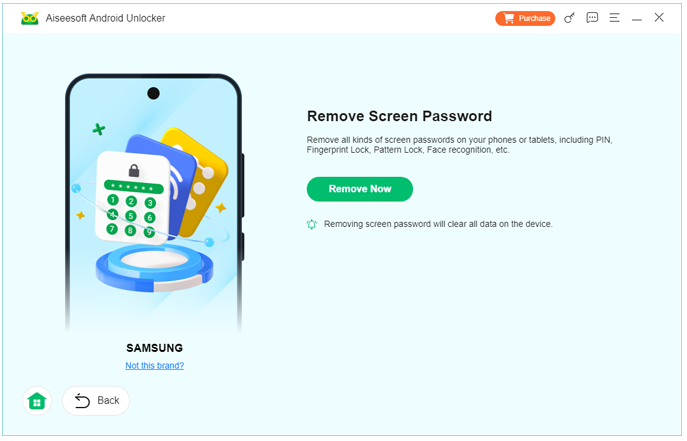
1.Install Android Unlocker on a Windows computer. Launch the program and choose “Remove Screen Password”

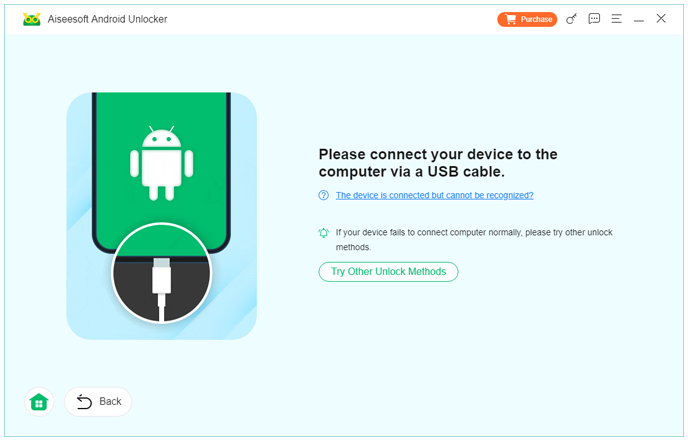
2.Connect your Pixel 7 or Pixel 8 using a USB cable
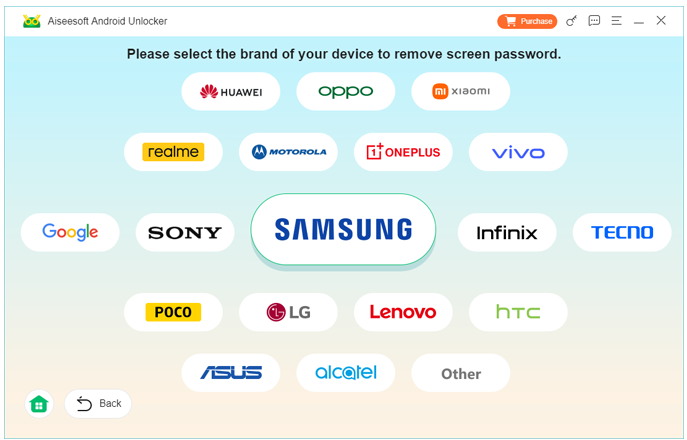
3.Select your device brand and model when prompted
4.Follow on-screen instructions to enter recovery/download mode
5.The software removes the lock screen automatically
Important Notes
- Supports Pixel devices running recent Android versions
- Clear interface—no ADB or command-line usage
- Suitable for users with no technical background
- Recommended when other methods fail or feel risky
This method is ideal if you want speed, clarity, and reliability without manually dealing with Android system layers.
Method 2: Unlock Pixel 7/8 via Google Find My Device (Official Reset)
Best for: Users who remember their Google account credentials
Data impact: Full data wipe
Difficulty: Easy
Google provides an official cloud-based option to reset locked devices through Find My Device. While this does not preserve data, it is a legitimate and safe method when regaining access is more important than recovering files.
This method works even if you don’t have the phone physically in hand at the moment, as long as it’s connected to the internet.
Step-by-Step Guide
- On another device, visit Google Find My Device
- Sign in with the same Google account used on the Pixel
- Select your locked Pixel 7 or Pixel 8
- Choose “Erase Device”
- Confirm the reset action
- After reset, set up the phone again
Important Notes
- All data on the device will be erased
- Google account verification will still be required after reset
- Useful if the phone is lost, stolen, or completely inaccessible
This solution is best when the Pixel is linked to your Google account and online, and you are prepared to start fresh.
Method 3: Factory Reset via Recovery Mode (Manual Approach)
Best for: Users without access to Google services
Data impact: Complete data loss
Difficulty: Moderate
Recovery Mode offers a direct way to reset a Pixel device from the hardware level. This approach does not require additional software but demands precision, as incorrect steps may lead to boot issues or FRP lock.
Step-by-Step Instructions
- Power off the Pixel 7/8 completely
- Press and hold Power + Volume Down until bootloader appears
- Use volume keys to navigate to Recovery Mode
- Press Power to confirm
- When Android robot appears, hold Power and tap Volume Up
- Select “Wipe data/factory reset”
- Confirm and reboot
Important Notes
- Requires Google account credentials after reset
- No data recovery possible without backup
- Suitable if the device is unresponsive or offline
This method works, but it’s less forgiving than software-based solutions and should be used carefully.
Pixel Data Loss After Unlock Failure (A Common Problem)
Unlocking issues on Google Pixel devices often lead to a more serious problem—unexpected data loss. Many Pixel 7 and Pixel 8 users report losing photos, messages, contacts, or app data after repeated unlock attempts, system crashes, or forced factory resets.
This happens because Pixel devices aggressively encrypt user partitions. Once a reset or system error occurs, data becomes inaccessible at the file level—even though it hasn’t been overwritten yet. Unfortunately, standard recovery options like Google Drive backups are often incomplete or outdated.
Real-World Example
A Pixel 8 user forgets their lock screen PIN, attempts multiple resets, and finally regains access—only to discover their local photos and WhatsApp chats are gone. The phone works again, but the memories don’t come back.
Practical Solution
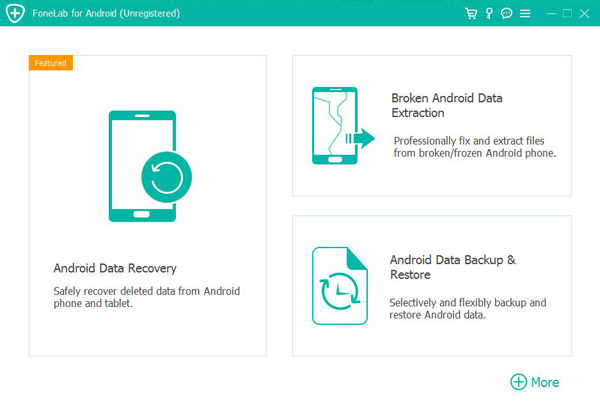
In these situations, Android Data Recovery tools from iDATAPP provide a way to scan device storage and retrieve recoverable data—even after system errors, accidental deletion, or reset-related loss.
These tools are especially useful for Pixel users dealing with:
- System crashes during unlock attempts
- Data loss after factory reset
- Accidental deletion during troubleshooting
- Device malfunction or rooting errors
The key advantage is targeted recovery—retrieving what still exists instead of relying solely on cloud backups.
Frequently Asked Questions
Can I unlock a Pixel 7 or 8 without losing data?
In most cases, no. Due to encryption, unlocking without data loss is extremely limited. Professional tools may offer safer handling, but backups are essential.
Will unlocking trigger Google FRP?
Yes. Factory resets usually require the original Google account afterward to prevent unauthorized use.
Is it legal to unlock my own Pixel phone?
Yes, as long as you are the rightful owner and comply with local laws.
What if my Pixel screen is broken?
Software-based unlocking methods are often more effective than hardware button combinations in this case.
Which method is safest for beginners?
Using Android Unlocker software is generally safer and easier than manual recovery mode operations.
Conclusion
Unlocking a Google Pixel 7 or 8 without the password is challenging, but not impossible. The right solution depends on your priorities—data safety, speed, or simplicity. By understanding Pixel security and choosing the correct method, you can regain access without unnecessary risks.
 English
 Nederlands
 Tiếng Việt
 日本
日本 Español
 Português
 Deutsche
 Français
 Italiano
 Norsk
Norsk Suomalainen
 Svenska
 Dansk
Dansk Ελληνικά
 Türk
Türk русский
 हिंदी
हिंदी தமிழ்
தமிழ் Bahasa Melayu
 ไทย
ไทย 한국어
한국어 Română
 Polskie
 қазақ
қазақ Gaeilge
 繁體中文
繁體中文