
 iPhone Data Recovery
 iOS System Recovery
 iOS Backup & Restore
 iOS WhatsApp Transfer
 iOS FoneTrans
 MobieSync
 Android Data Recovery
 Broken Android Data Extraction
 Android Data Backup & Restore
 iPhone Unlocker
 Best Samsung Phone Unlock Tool
 Android Unlocker
 Win/Mac Data Recovery
 iDATAPP Screen Recorder
 2D&3D Video Converter
 Video Repair Software Ai
 AI Video Converter
 Ai Blu-ray Player
 Easily Recover Deleted Files from Google Pixel 8 Series
Learn how to recover deleted files from Google Pixel 8 using cloud backups, manual checks, and professional Android data recovery software—safe, effective solutions for real-world data loss.
How to Recover Deleted Files from Google Pixel 8 Series?
Losing important files on a Google Pixel 8 or Pixel 8 Pro is one of those problems that always feels personal. It’s not just “data”—it’s photos you can’t retake, work documents you needed yesterday, or messages that mattered more than you realized at the time. The Pixel 8 series runs on clean, optimized Android with powerful AI features, but even the smartest phone can’t prevent human error, system glitches, or unexpected crashes.

This article takes a practical, real-world look at how deleted files disappear on Google Pixel 8 devices, why recovery is still possible in many cases, and—most importantly—how to recover them safely and effectively. Instead of vague tips, we’ll walk through three proven recovery methods, including one professional solution from our own software ecosystem, and explain exactly when each method works best.
By the end, you’ll know what to do, what not to do, and how to avoid permanent data loss on your Pixel 8 series phone.
Guide List
- Understanding Data Loss on Google Pixel 8 Series
- Method 1: Recover Deleted Files from Google Pixel 8 Using Android Data Recovery (Recommended)
- Method 2: Restore Deleted Files from Google Photos and Google Account Sync
- Method 3: Recover Deleted Files from Local App Caches and Temporary Storage
- Data Loss After System Crash or Android Update Failure
- FAQs
Understanding Data Loss on Google Pixel 8 Series
Before jumping into recovery methods, it helps to understand what “deleted” really means on modern Android phones.
When you delete a photo, video, or document on a Pixel 8, the file usually isn’t erased instantly. Android simply marks the storage space as “available.” Until new data overwrites that space, recovery is often possible. However, Pixel 8 devices use file-based encryption (FBE) and optimized storage management, which means timing matters more than ever.
Common causes of data loss on Google Pixel 8 include:
- Accidental deletion from Photos, Files, or Messages
- Factory reset during Android troubleshooting
- System updates causing unexpected data corruption
- App crashes or failed beta installations
- Malware or unstable third-party apps
The golden rule: stop using the device immediately after data loss. Continued use increases the chance of overwriting recoverable data.
Method 1: Recover Deleted Files from Google Pixel 8 Using Android Data Recovery (Recommended)
For deep-level recovery—especially when files are no longer visible in the system—professional Android recovery software offers the highest success rate. Our recommended solution is Android Data Recovery from iDATAPP, designed specifically to handle encrypted Android storage like that used in the Pixel 8 series.
This method is ideal when files are permanently deleted, missing after a system crash, or lost during updates. Unlike generic tools, it scans both internal storage and system databases to locate recoverable file fragments. It supports photos, videos, messages, documents, call logs, and app data without relying on cloud backups. Most importantly, it prioritizes data integrity and read-only scanning to avoid further damage.
Step-by-Step Guide & Key Details
1.Install Android Data Recovery on your computer (Windows or macOS).
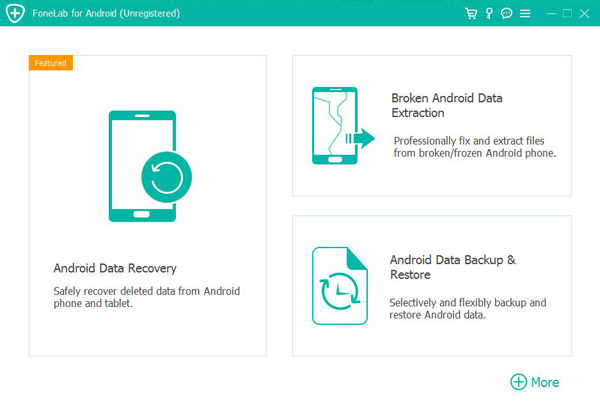
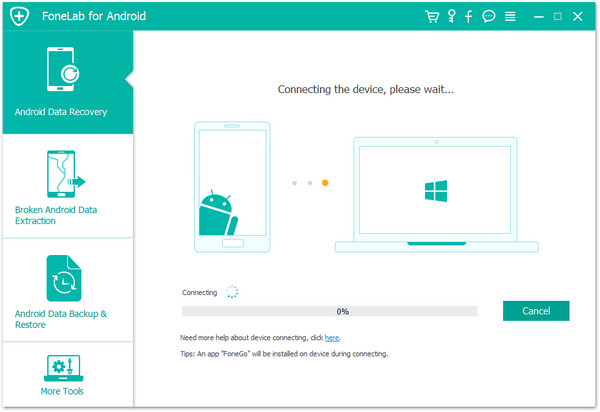
2.Connect the Pixel 8 via USB cable.
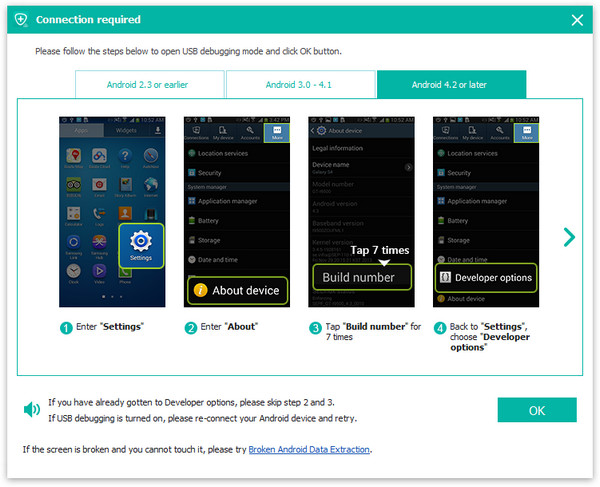
3.Enable USB debugging on your Pixel 8 (Settings → About Phone → tap Build Number 7 times).
4.Select the data types you want to recover.
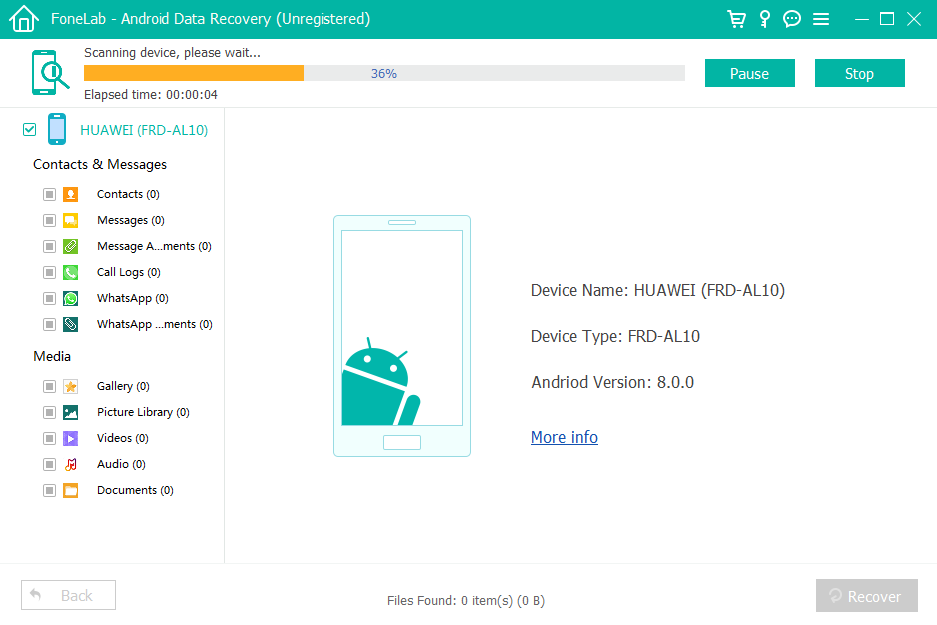
5.Run a deep scan of the device storage.
6.Preview recoverable files before restoring.
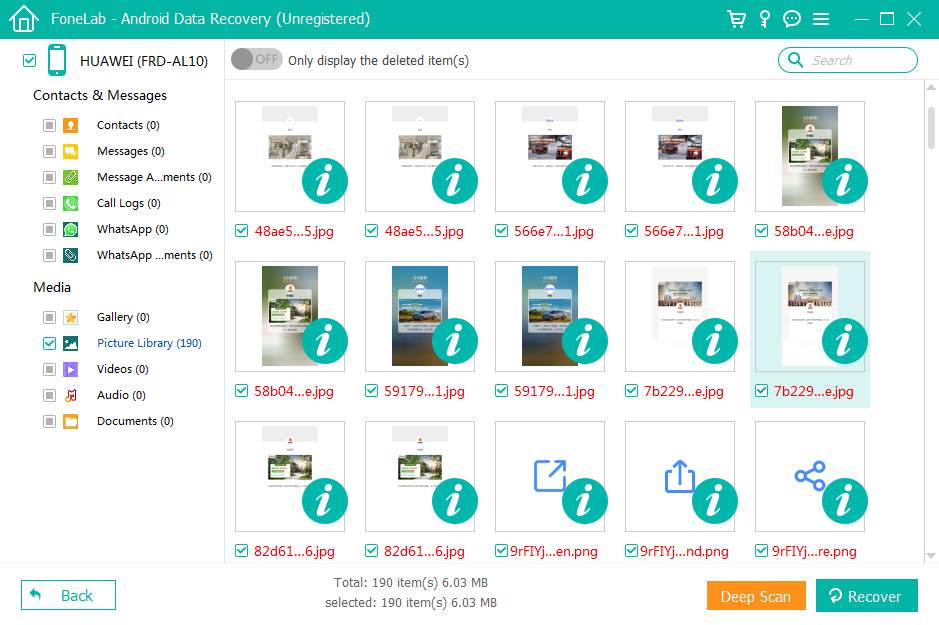
7.Export recovered data to your computer safely.

Important notes:
- Works best if the phone hasn’t been heavily used after deletion.
- No rooting required for standard file recovery.
- Compatible with Pixel 8 and Pixel 8 Pro running the latest Android versions.
Method 2: Restore Deleted Files from Google Photos and Google Account Sync
Google Pixel phones rely heavily on cloud integration, and that’s a major advantage when files go missing. If you had Google Photos or Google Drive sync enabled before deletion, your files might still be safely stored online.
Google Photos, for example, keeps deleted images and videos in the Trash folder for up to 60 days. Similarly, documents synced to Google Drive may still exist in version history or trash. This method is best for users who rely on automatic backups and haven’t disabled sync services.
While it doesn’t help with locally stored app data or unsynced files, it’s fast, free, and often overlooked.
Step-by-Step Guide & Key Details
- Open Google Photos on your Pixel 8.
- Tap Library → Trash.
- Select the deleted photos or videos.
- Tap Restore to return them to the original location.
- For documents, open Google Drive → Trash.
- Restore files or check file version history.
Important notes:
- Trash retention is time-limited (usually 30–60 days).
- Requires prior sync to be enabled.
- Does not recover SMS, call logs, or app-specific data.
Method 3: Recover Deleted Files from Local App Caches and Temporary Storage
This method doesn’t require software or cloud access, but it does require patience and realistic expectations. Some apps—especially messaging, file managers, and media editors—store temporary copies of files in cache folders before final deletion.
On Pixel 8 devices, these remnants may still exist under Android’s internal storage paths. While success rates vary, this approach can sometimes recover thumbnails, audio files, or documents that were recently accessed.
This method is best suited for technically curious users who want to try every possible avenue before moving to advanced recovery.
Step-by-Step Guide & Key Details
- Install a trusted file manager on your Pixel 8.
- Navigate to Internal Storage → Android → data.
- Look for app-specific folders (e.g., messaging or media apps).
- Check cache, temp, or media subfolders.
- Copy any found files to a secure folder.
Important notes:
- Android 13+ limits access to some system directories.
- Results are inconsistent.
- Not suitable for large-scale or critical recovery needs.
Data Loss After System Crash or Android Update Failure
One of the most common issues Pixel users face—especially those enrolled in Android beta programs—is system crashes during updates. A failed update can leave the phone stuck in a boot loop or force a factory reset, wiping all local data in the process.
This scenario is particularly frustrating because:
- The phone may be inaccessible
- Data is deleted without user confirmation
- Cloud backups may be incomplete or outdated
In these cases, advanced Android recovery solutions from iDATAPP can help extract data even when the system is unstable or partially damaged. The software is designed to communicate with Android devices at a deeper level, allowing data export even when normal access is unavailable.
For Pixel users who value their data, having a dedicated recovery solution ready before disaster strikes is no longer optional—it’s essential. Whether the issue is a system crash, rooting error, malware infection, or accidental factory reset, professional tools dramatically improve recovery outcomes compared to DIY attempts.
FAQs
Can I recover permanently deleted files from Google Pixel 8?
Yes, as long as the data hasn’t been overwritten. Professional Android recovery software offers the highest success rate.
Does Google Pixel 8 have a built-in recycle bin?
Only for certain apps like Google Photos and Files. Not all deleted data goes to Trash.
Is rooting required to recover data from Pixel 8?
No. Most standard data recovery can be done without rooting the device.
How long does Google Photos keep deleted files?
Typically 60 days in the Trash folder before permanent deletion.
What should I do immediately after data loss?
Stop using the phone, disable Wi-Fi and mobile data, and begin recovery as soon as possible.
Summary
Recovering deleted files from the Google Pixel 8 series is entirely possible if you act quickly and choose the right method. Cloud backups work for synced data, manual checks may recover remnants, but professional Android recovery software remains the most reliable solution for serious data loss. Understanding how Pixel storage works gives you the edge.
 English
 Nederlands
 Tiếng Việt
 日本
日本 Español
 Português
 Deutsche
 Français
 Italiano
 Norsk
Norsk Suomalainen
 Svenska
 Dansk
Dansk Ελληνικά
 Türk
Türk русский
 हिंदी
हिंदी தமிழ்
தமிழ் Bahasa Melayu
 ไทย
ไทย 한국어
한국어 Română
 Polskie
 қазақ
қазақ Gaeilge
 繁體中文
繁體中文