
 iPhone Data Recovery
 iOS System Recovery
 iOS Backup & Restore
 iOS WhatsApp Transfer
 iOS FoneTrans
 MobieSync
 Android Data Recovery
 Broken Android Data Extraction
 Android Data Backup & Restore
 iPhone Unlocker
 Best Samsung Phone Unlock Tool
 Android Unlocker
 Win/Mac Data Recovery
 iDATAPP Screen Recorder
 2D&3D Video Converter
 Video Repair Software Ai
 AI Video Converter
 Ai Blu-ray Player
 The Best Google Pixel Photos Recovery Tool|Your Data Manager
Lost Google Pixel photos can be restored using Google Photos, internal storage folders, or iDatapp Android Data Recovery. Even locked devices or deeply deleted files can often be fully recovered.
How to Recover Deleted/Lost Photos from Google Pixel Phone?
There’s a particular kind of panic that hits Google Pixel users when photos go missing. You open the gallery, expecting your Pixel’s crisp images to greet you—yet the folder feels emptier than it should. Maybe the loss happened seconds ago after an accidental tap, or maybe you only noticed it after an update, a restart, or clearing some storage. Regardless of the cause, losing photos on a Google Pixel phone feels personal, frustrating, and sometimes downright confusing.

Pixels are known for their exceptional camera capabilities, so losing those images is more than losing data—it’s losing memories. The good news? In most cases, your photos are not truly gone. Pixel devices handle storage in layers: local folders, cloud backups, app-specific media, internal caches, and hidden system directories. When something goes wrong, it often looks worse than it is. Understanding the root causes helps us choose the best recovery path.
So before worrying about permanent data loss, let’s walk through what actually happens when a Pixel photo disappears, why it happens, and most importantly—how to bring those photos back.
Guide List
- Why Do Photos Get Deleted or Lost on Google Pixel Phones?
- Method 1: Recover Photos Using Google Photos
- Method 2: Deep Recovery Using iDatapp Android Data Recovery
- Method 3: Recover Photos from Pixel Storage, App Media Folders & Local Caches
- When Pixel Photos Disappear Due to a Locked Phone—How iDatapp Android Unlocker Can Help
- Five Questions & Answers
Why Do Photos Get Deleted or Lost on Google Pixel Phones?
Photo loss on Pixel phones usually happens under one of these scenarios:
- Accidental deletion from the gallery or Google Photos.
- Google Photos sync issues after account switching or turning off backups.
- System crashes, forced resets, or incomplete updates.
- Damaged storage or corrupted file structures.
- Factory reset without proper backups.
- Cache cleaning apps mistakenly wiping media files.
The good news is that Pixel phones—powered heavily by Google Photos and Android’s storage architecture—leave recovery pathways open until overwritten. To maximize your chances, stop using your device immediately to avoid overwriting deleted data.
Below are the three most reliable methods to recover deleted or lost Pixel photos.
Method 1: Recover Photos Using Google Photos (Trash, Backup, & Hidden Locations)
Google Photos is the primary media manager for most Pixel users. Even when images disappear from your gallery, they’re often still retrievable from the Trash, cloud backups, or synced archives. This method is best when you recently deleted your photos or your phone was logged into a Google account with backup enabled. It doesn’t require technical skills and works across all Pixel models from Pixel 1 to Pixel 9.
How This Method Works?
Google Photos stores deleted pictures in a 60-day trash bin, meaning many “lost” photos are not truly gone yet. Even if the trash is empty, Google Photos backups may still contain synced images, sometimes stored under older device folders or archived albums users forget about. Pixel phones also auto-backup Live Photos, motion images, and edited copies separately, increasing recovery points. As long as your Google account wasn’t logged out or wiped, this method is a safe first attempt. It’s also useful when switching phones, resetting the device, or restoring pictures missing after an update.
Steps to Recover from Google Photos:
- Open the Google Photos app on your Pixel.
- Tap the Library tab → Trash.
- Locate the deleted photos → tap Restore.
- If not found, go to Library → Backup or Search → Recently Added/Albums.
- Tap Archive, Locked Folder, or Device Folders to see hidden albums.
- If using multiple Google accounts, switch accounts and recheck.
- For cloud-only photos, open photos.google.com on a browser and check Trash + Archive.
Important Details
- Trash items remain for 60 days.
- Locked Folder contents do not sync to the cloud; only device recovery applies.
- Archived items do not show in the main gallery.
- Sync must be enabled prior to deletion for cloud recovery to work.
Method 2: Deep Recovery Using iDatapp Android Data Recovery (For Permanently Deleted Photos)
Recommended when:
- Photos were deleted more than 60 days ago
- Trash folder is empty
- Google Photos backup was turned off
- Pixel was factory reset
- Files disappeared after system crash, update failure, or glitch
Why This Method Works?
When photos are permanently erased from a Pixel, fragments of the image files often remain in internal storage.
iDATAPP Android Data Recovery scans the storage partitions that Android doesn’t normally let users access, reconstructing recoverable media. Unlike basic apps, it doesn’t rely on backups or cloud sync—it performs a direct scan of the device’s underlying data structure. This tool is especially helpful when photos vanish unexpectedly after updates, crashes, or corrupted storage events. Because it performs a deep read-through of the system, it can restore photos that the Pixel’s gallery or Google Photos can no longer detect.
Steps to Recover Using iDatapp Android Data Recovery:
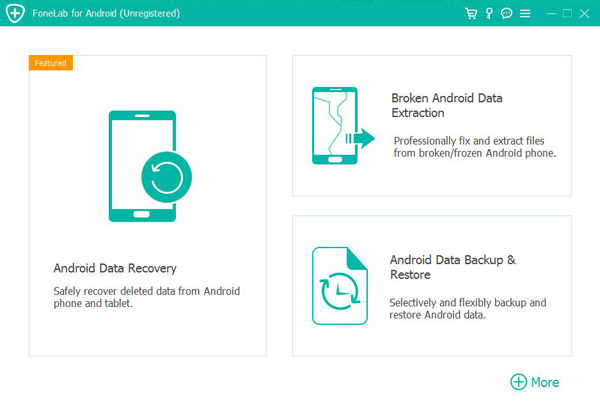
1.Download & install iDatapp Android Data Recovery on your computer. Launch the program and select Android Data Recovery.
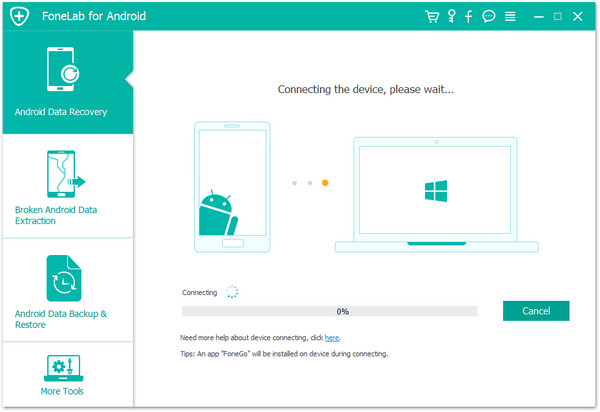
2.Connect your Google Pixel using a USB cable.
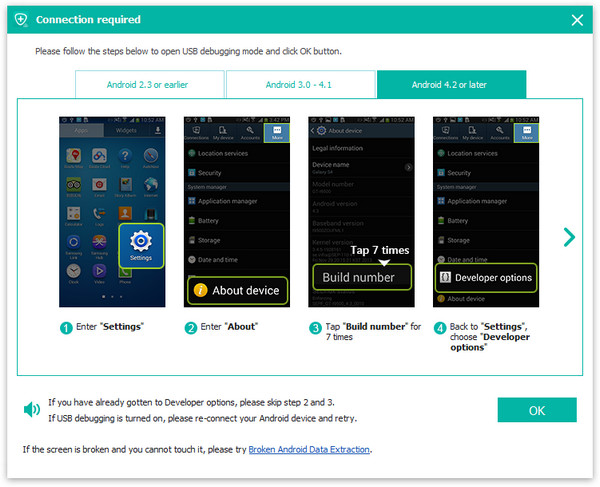
3.Enable USB debugging on the phone when prompted.
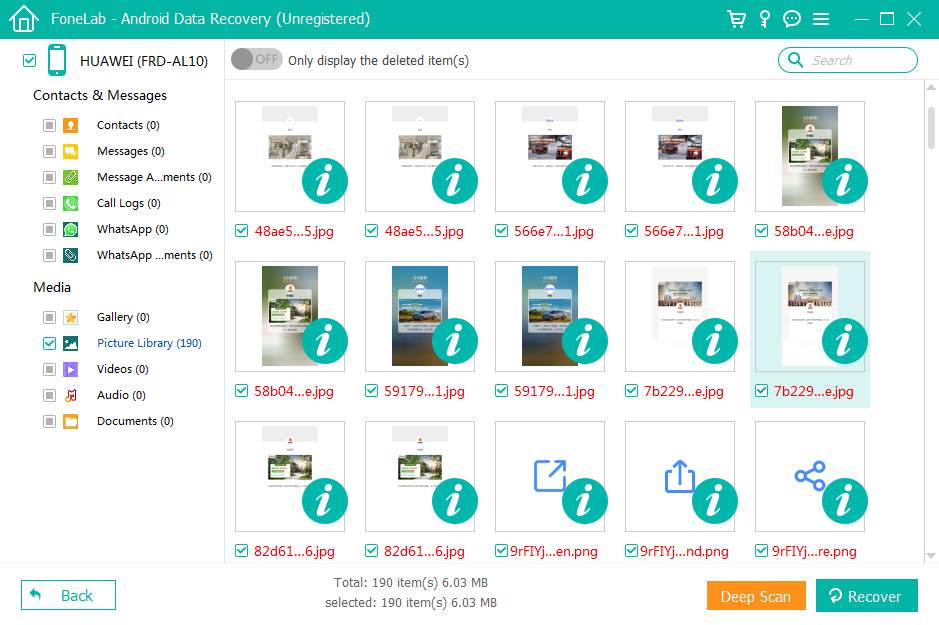
4.Choose Photos → click Next. Wait for deep scanning to complete; preview recoverable images.
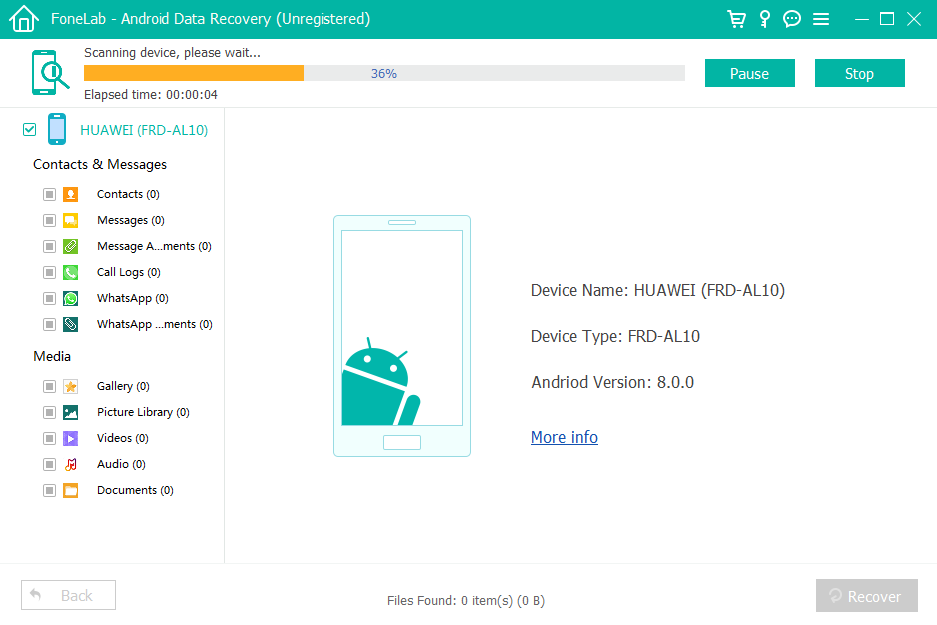
5.Select the photos you want → click Recover to save them.

Important Details
- Works with all Pixel models, including Pixel Fold.
- Deep scan mode can retrieve photos lost months ago.
- It can recover images even when the phone won’t boot (with advanced mode).
- Does not require root for basic scanning.
Method 3: Recover Photos from Pixel Storage, App Media Folders & Local Caches
Many Pixel owners assume all photos live inside one folder—but Pixel devices distribute media across multiple apps. Messaging platforms (WhatsApp, Telegram, Signal), social apps (Instagram, Snapchat), and editing programs save their own copies. Even thumbnails, cached versions, and auto-saved images remain buried in folders long after deletion. Manually searching the Pixel’s internal storage often reveals images you forgot existed. This approach works well if the photos were downloaded, shared via chat apps, edited, received from others, or generated by third-party apps.
Steps
- Open Files by Google or another file manager.
- Navigate to Internal Storage → DCIM → Camera.
- Explore Pictures, Screenshots, Edited, and Downloads folders.
- Check app folders inside Android/data/ (WhatsApp, Snapchat, Instagram, etc.).
- Look inside folders labeled Media, Images, Cache, and Thumbnails.
- Move any recovered images back into DCIM so your gallery recognizes them.
Important Notes
- Cache folders sometimes store small backups of deleted photos.
- Avoid clearing app data before searching.
- Gallery apps may not index all folders automatically.
When Pixel Photos Disappear Due to a Locked Phone—How iDatapp Android Unlocker Can Help
Not all photo-loss situations happen because the files were deleted. A surprisingly common problem among Google Pixel owners occurs when the phone becomes locked—either because the user forgot the password, fingerprint authentication fails, or a child repeatedly enters the wrong PIN. When locked out, you can’t open Google Photos, Files, or any app where your images might still exist. Many users think a factory reset is the only way in, but that would wipe even more data.
A locked phone means your photos aren’t gone; they’re just unreachable.
This is where iDatapp Android Unlocker becomes extremely useful. Available on idatapp.com, it allows users to regain access to their Pixel device without needing the original password. Once you’re back in, your photos can be recovered using any of the methods above—including the deep recovery tool if necessary.
Related: Unlock Pixel phone without password.
How This Situation Happens?
- After an update, the Pixel’s fingerprint sensor malfunctions.
- A forgotten PIN or pattern locks you out.
- FRP (Factory Reset Protection) activates after a reset and blocks access.
- A cracked screen prevents normal unlocking.
- Kids enter the wrong pattern multiple times, triggering auto-lock.
How iDatapp Android Unlocker Helps?
- Removes screen locks (PIN, pattern, password, fingerprint).
- Bypasses Google account verification during FRP lock.
- Restores access without requiring technical knowledge.
- Lets users reach photos, apps, and backups again.
Once the device is unlocked and usable, recovering photos becomes dramatically easier—Google Photos sync resumes, local folders reappear, apps become accessible, and deep recovery software can scan internal storage normally.
So while many Pixel users panic when they cannot access the device, it’s often a solvable problem. Unlock the device first, then recover the photos. This two-step approach prevents permanent data loss and avoids unnecessary resets.
Five Questions & Answers
Can I recover Pixel photos without enabling Google Photos backup?
Yes. If the photos were stored locally, deep scanning with iDatapp Android Data Recovery can retrieve them even without cloud backup.
Are deleted Pixel photos permanently gone after 60 days?
Only photos in Google Photos Trash are removed after 60 days. Deep recovery may still extract older deleted files if they haven’t been overwritten.
Will recovery harm my device or existing data?
No. Recovery tools scan the device without modifying your current data. Recovered images are saved externally.
What should I avoid after realizing photos are missing?
Avoid taking new photos, installing apps, or downloading large files—new data could overwrite the deleted images.
Can Pixel photos be recovered after a factory reset?
Yes, in many cases. Deep scan recovery software can still detect files if those sectors weren’t overwritten.
Conclusion
Recovering deleted or lost photos from a Google Pixel phone is achievable through built-in Google Photos tools, manual storage exploration, or deep scanning with iDatapp Android Data Recovery. Regardless of the cause—accidental deletion, sync issues, app crashes, or device lockouts—there’s almost always a workable solution. Pixel photo loss feels overwhelming, but with the right approach, your images can be restored safely and efficiently.
 English
 Nederlands
 Tiếng Việt
 日本
日本 Español
 Português
 Deutsche
 Français
 Italiano
 Norsk
Norsk Suomalainen
 Svenska
 Dansk
Dansk Ελληνικά
 Türk
Türk русский
 हिंदी
हिंदी தமிழ்
தமிழ் Bahasa Melayu
 ไทย
ไทย 한국어
한국어 Română
 Polskie
 қазақ
қазақ Gaeilge
 繁體中文
繁體中文