
 iPhone Data Recovery
 iOS System Recovery
 iOS Backup & Restore
 iOS WhatsApp Transfer
 iOS FoneTrans
 MobieSync
 Android Data Recovery
 Broken Android Data Extraction
 Android Data Backup & Restore
 iPhone Unlocker
 Best Samsung Phone Unlock Tool
 Android Unlocker
 Win/Mac Data Recovery
 iDATAPP Screen Recorder
 2D&3D Video Converter
 Video Repair Software Ai
 AI Video Converter
 Ai Blu-ray Player
 How to Recover WhatsApp Messages on Samsung S26 Series?
Easy way to recover WhatsApp messages on Samsung S26 using Google Drive, local backups, or deep recovery tools, plus solutions for locked devices and advanced data recovery scenarios.
Losing WhatsApp messages on a powerful device like the Samsung S26 Series feels strangely unfair. After all, you’re using one of the most advanced smartphones available—so how can something as important as chats, photos, or voice notes just disappear?

The truth is, data loss on Android devices (even premium ones) usually isn’t about hardware limitations. It’s about how data is stored, overwritten, or synced. Whether you accidentally deleted chats, reset your phone, or switched devices without proper backup, WhatsApp data can vanish quickly—but not always permanently.
In this guide, we’ll break down why WhatsApp messages get lost on Samsung S26, then walk through three practical recovery methods—including one advanced solution using your own recovery software. We’ll also explore a related issue many users face and how to fix it.
Why Do WhatsApp Messages Disappear on Samsung S26?
Before jumping into solutions, let’s look at the real causes:
- Accidental deletion (most common)
- App reinstallation without backup
- System update glitches
- Factory reset or device migration
- Google Drive sync failures
- Corrupted local backup files
Here’s the key insight:
WhatsApp data isn’t instantly erased—it’s often hidden or overwritten later.
That means recovery is possible—but timing and method matter.
Method 1: Recover WhatsApp Messages from Google Drive Backup
If you’ve enabled Google Drive backups, this is the simplest and most reliable way to restore WhatsApp messages. WhatsApp automatically saves chats daily, weekly, or monthly depending on your settings. However, many users don’t realize that restoring requires reinstalling the app and verifying the same phone number and Google account.
This method works best when:
- Backup is recent
- You haven’t overwritten it
- You remember your Google credentials
Steps to Recover from Google Drive
- Uninstall WhatsApp from your Samsung S26
- Reinstall it from the Google Play Store
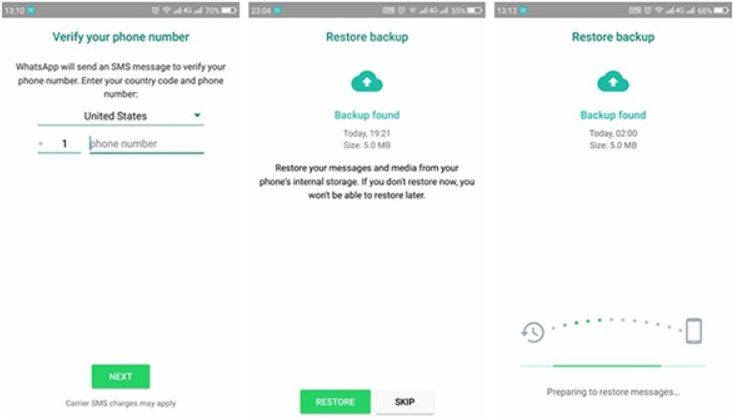
- Open WhatsApp and verify your phone number
- When prompted, tap Restore from Google Drive
- Wait for the process to complete
- Tap Next to access your chats
Important Tips
- Ensure you’re logged into the same Google account used for backup
- Use a stable Wi-Fi connection (restoration can be large)
- If no backup is found, it means it may not exist—or is linked to another account
Method 2: Restore WhatsApp Messages from Local Backup (Hidden Internal Storage)
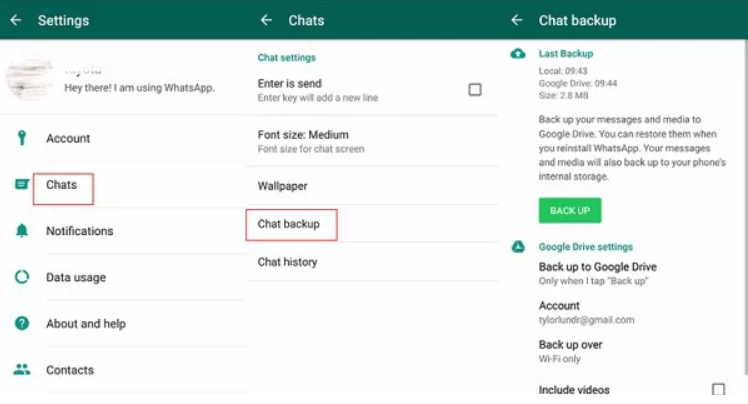
Not many users know this, but WhatsApp automatically creates local backups stored on your phone’s internal storage. These backups are usually saved for up to 7 days.
If you didn’t use Google Drive, this method can still help recover recently deleted messages—especially if the deletion happened within the past week.
Steps to Restore from Local Backup
1.Open File Manager on your Samsung S26
2.Navigate to:
- Internal Storage > Android > media > com.whatsapp > WhatsApp > Databases
3.Locate files named like:
- msgstore-YYYY-MM-DD.1.db.crypt14
4.Rename your preferred backup file to:
- msgstore.db.crypt14
5.Uninstall WhatsApp
6.Reinstall and verify your number
7.Tap Restore when prompted
Important Tips
- Choose the correct date before renaming
- Avoid opening WhatsApp before restoring
- Backup files may be deleted if storage is cleaned
Method 3: Deep Recovery Using iDATAPP Android Data Recovery
When both Google Drive and local backups fail, your best option is a deep scan recovery tool. The iDATAPP Android Data Recovery software is designed to retrieve deleted WhatsApp messages directly from your Samsung S26’s internal memory—even without backups.
Unlike simple restore methods, this solution scans hidden storage sectors to locate recoverable data fragments, including chats, attachments, and media.
Steps to Recover WhatsApp Messages
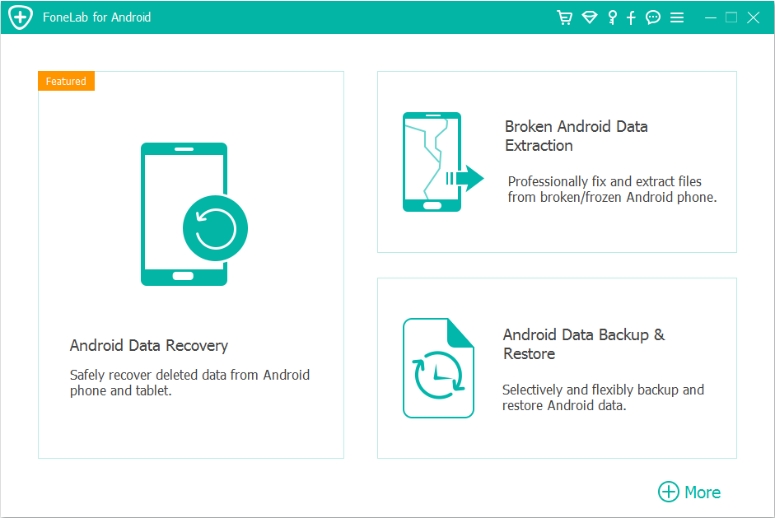
1.Download and install the software on your computer. Launch it and connect your Samsung S26 via USB.
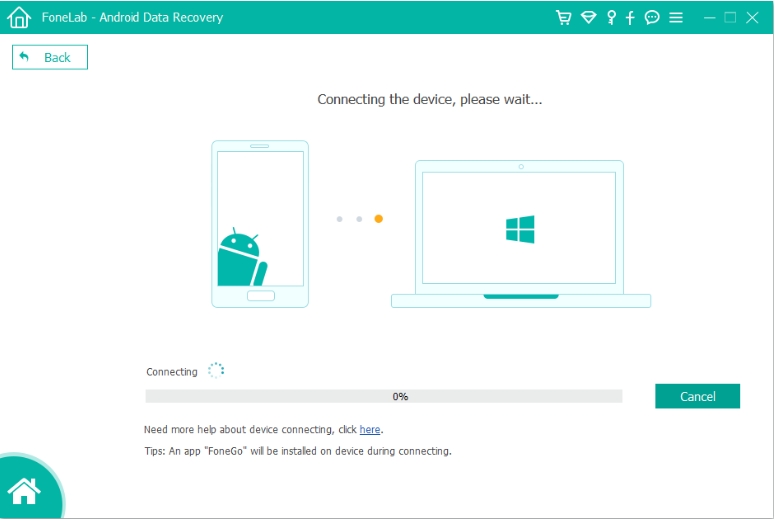
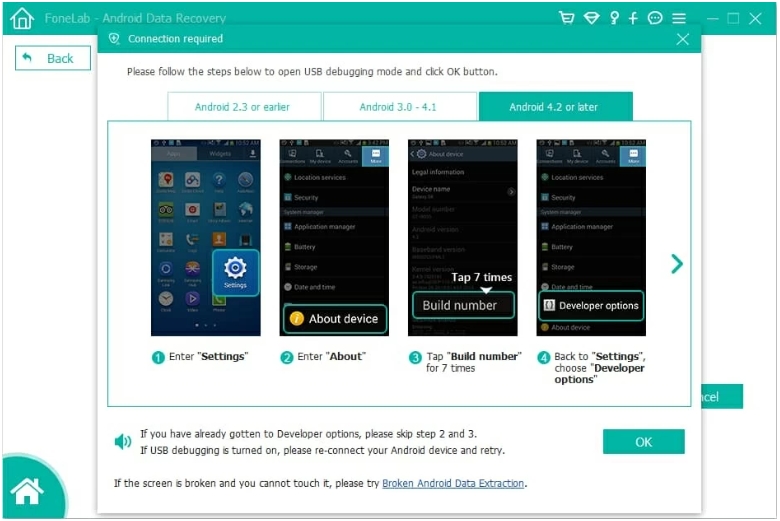
2.Enable USB Debugging on your phone
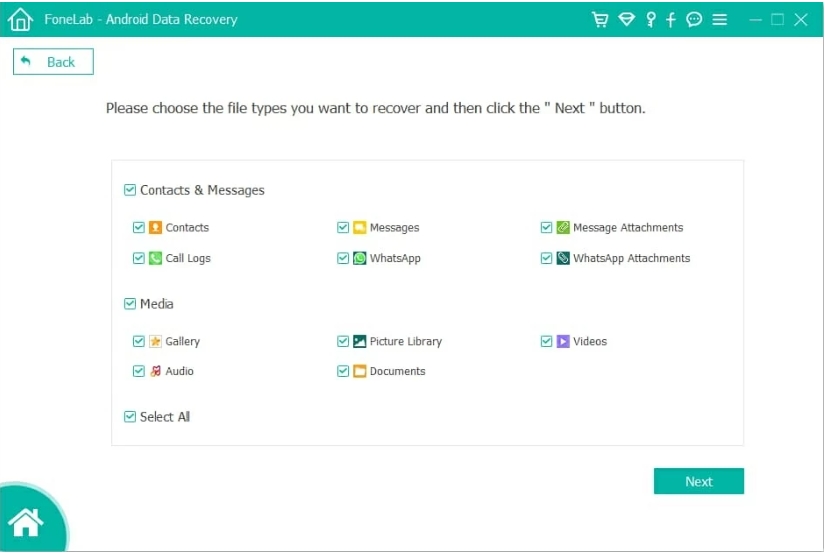
3.Select WhatsApp messages from the data types
4.Start scanning your device
5.Preview recoverable messages
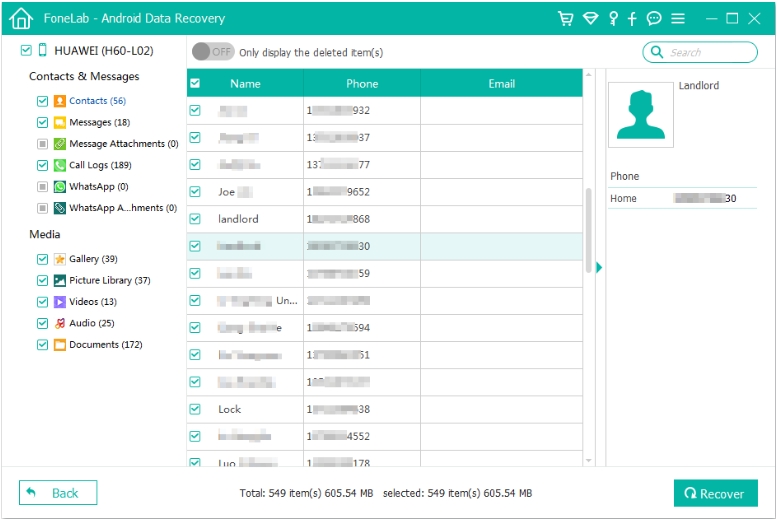
6.Select and click Recover

- Stop using your phone immediately after data loss
- Root access may improve recovery results
- Use original USB cable for stable connection
- Always preview before restoring to avoid unnecessary data recovery
What If You Can’t Access WhatsApp Because Your Samsung S26 Is Locked?
Here’s a scenario many users don’t anticipate:
You want to recover WhatsApp messages—but your Samsung S26 is locked, broken, or inaccessible.
This often happens when:
- You forgot your PIN/password
- Your screen is cracked or unresponsive
- The device is stuck in a boot loop
- Fingerprint/face unlock fails
In these situations, data recovery becomes impossible unless you first unlock the device.
The Real Problem Behind Locked Devices
Modern Samsung phones use strong encryption. Without access:
- WhatsApp data remains encrypted
- USB debugging may be disabled
- Recovery tools cannot scan the device
This creates a frustrating cycle:
You can’t recover data because the phone is locked—and you can’t unlock it without losing data.
A Smarter Approach
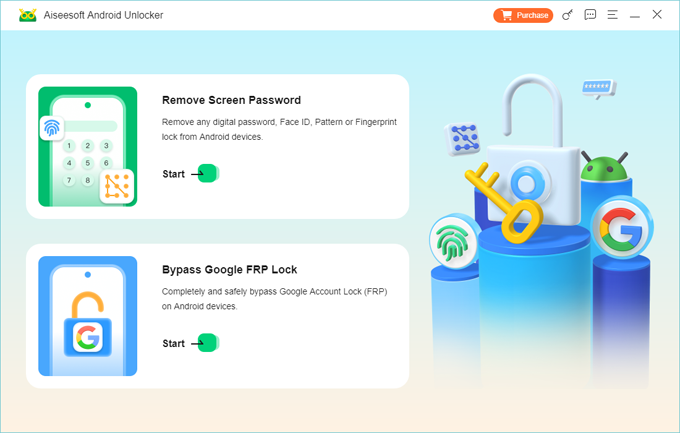
Instead of rushing into a factory reset (which wipes everything), you can use a dedicated unlocking solution like:
This type of tool is designed to:
- Remove screen locks (PIN, pattern, password)
- Bypass certain security restrictions
- Restore access without permanent damage (depending on situation)
Why This Matters for WhatsApp Recovery
Once the device is unlocked:
- You can enable USB debugging
- You can scan the device using recovery tools
- You can back up remaining WhatsApp data immediately
Practical Advice
- Always try unlocking before resetting
- Avoid repeated wrong attempts (can trigger security locks)
- If the screen is physically damaged, combine unlocking with data extraction tools
In short, unlocking your device is sometimes the missing step in successful WhatsApp message recovery.
FAQs
Can I recover WhatsApp messages without backup on Samsung S26?
Yes. You can use deep recovery tools like iDATAPP Android Data Recovery to scan internal storage and retrieve deleted messages even without backups.
How far back can WhatsApp messages be recovered?
- Google Drive: depends on your last backup
- Local backup: up to 7 days
- Deep recovery: depends on whether data has been overwritten
Will reinstalling WhatsApp delete my messages permanently?
Not necessarily. If backups exist, reinstalling allows restoration. Without backup, it may overwrite recoverable data—so proceed carefully.
Is WhatsApp local backup enabled by default?
Yes, WhatsApp creates automatic local backups daily, but many users don’t realize where they’re stored or how to use them.
Why can’t WhatsApp detect my Google Drive backup?
Possible reasons include:
- Wrong Google account
- Backup stored under different phone number
- Corrupted backup
- Google Drive sync disabled
Conclusion
Recovering WhatsApp messages on Samsung S26 is entirely possible if you act quickly and choose the right method. Whether using cloud backup, local storage, or deep recovery tools, each approach targets a different data-loss scenario.
The real key is understanding where your data still exists—and preventing it from being overwritten.
 English
 Nederlands
 Tiếng Việt
 日本
日本 Español
 Português
 Deutsche
 Français
 Italiano
 Norsk
Norsk Suomalainen
 Svenska
 Dansk
Dansk Ελληνικά
 Türk
Türk русский
 हिंदी
हिंदी தமிழ்
தமிழ் Bahasa Melayu
 ไทย
ไทย 한국어
한국어 Română
 Polskie
 қазақ
қазақ Gaeilge
 繁體中文
繁體中文