
 iPhone Data Recovery
 iOS System Recovery
 iOS Backup & Restore
 iOS WhatsApp Transfer
 iOS FoneTrans
 MobieSync
 Android Data Recovery
 Broken Android Data Extraction
 Android Data Backup & Restore
 iPhone Unlocker
 Best Samsung Phone Unlock Tool
 Android Unlocker
 Win/Mac Data Recovery
 iDATAPP Screen Recorder
 2D&3D Video Converter
 Video Repair Software Ai
 AI Video Converter
 Ai Blu-ray Player
 How to Unlock Samsung Galaxy A16 Without Password?
Forgotten your Samsung Galaxy A16 password? This guide explains two effective unlocking methods, compares their advantages, and explores data recovery solutions to help users regain access safely and efficiently.

Getting locked out of your Samsung Galaxy A16 can be surprisingly frustrating. It often happens at the worst possible moment—when you urgently need to answer a call, access important files, or verify a banking transaction. Whether you've forgotten your screen PIN, pattern, password, or purchased a second-hand Samsung Galaxy A16 with a lock screen still active, the result is the same: you can't access your device.
The Samsung Galaxy A16 includes multiple security layers designed to protect personal data. While these security measures are effective against unauthorized access, they can become a problem when the rightful owner loses access to the device. Many users immediately assume their phone is permanently locked or that expensive repair services are required. Fortunately, that's not always the case.
In this guide, we'll explore practical ways to unlock a Samsung Galaxy A16 without a password. We'll analyze why lockouts occur, explain the safest recovery options, and provide detailed step-by-step instructions. We'll also discuss an additional Samsung-related problem that many users face after unlocking their devices and how it can be solved.
Guide List
- Why Do Samsung Galaxy A16 Users Get Locked Out?
- Method 1: Unlock Samsung Galaxy A16 Using iDATAPP Samsung Unlocker
- Method 2: Use Samsung's Built-In Factory Reset Recovery Option
- Which Unlock Method Is Better?
- Lost Important Data On Samsung A16 After a System Crash?
- Tips to Avoid Future Samsung Lockouts
- Frequently Asked Questions
Why Do Samsung Galaxy A16 Users Get Locked Out?
Before discussing solutions, it's important to understand the most common reasons behind Samsung lockouts:
- Forgotten PIN, password, or pattern.
- Multiple incorrect attempts triggering temporary lockouts.
- Device inherited or purchased from another user.
- Children accidentally changing lock screen settings.
- Biometric authentication failure after a software update.
- Long periods of inactivity causing password memory loss.
The good news is that Samsung lock screens can usually be removed through legitimate recovery methods. The best approach depends on whether preserving existing data is important and whether you still have access to your Samsung account credentials.
Method 1: Unlock Samsung Galaxy A16 Using iDATAPP Samsung Unlocker
For users who cannot remember their screen password and need a straightforward solution, iDATAPP Samsung Unlocker offers a dedicated unlocking process designed specifically for Samsung devices. Unlike complicated manual procedures that require extensive technical knowledge, the software guides users through the unlocking process step by step.
The software is especially useful when standard password recovery methods are unavailable. It supports various screen locks, including PINs, passwords, patterns, fingerprints, and facial recognition locks. The guided interface reduces the risk of mistakes and helps users regain access to their devices more efficiently.
Steps to Unlock Samsung Galaxy A16 with iDATAPP Samsung Unlocker
Step 1: Download and install iDATAPP Samsung Unlocker on your computer.

Step 2: Launch the software and select the Samsung screen unlock feature.
Step 3: Connect your Samsung Galaxy A16 to the computer using a USB cable.
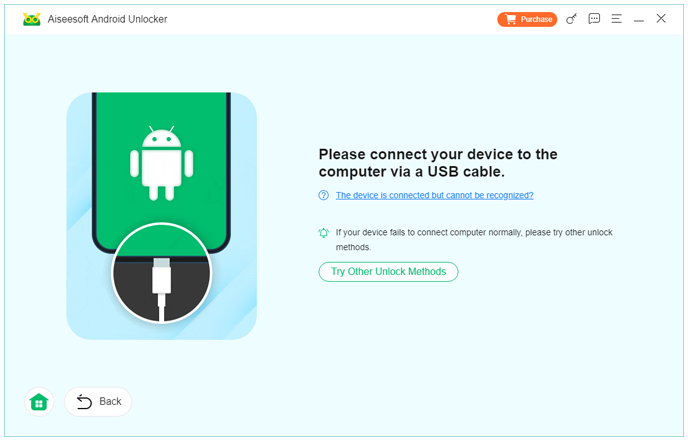
Step 4: Confirm the device information displayed by the software.
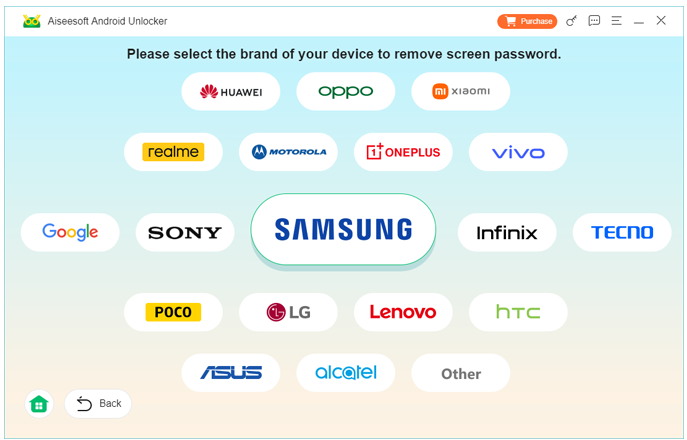
Step 5: Follow the on-screen instructions to place the phone into the required recovery mode.
Step 6: Allow the software to process the device and remove screen password.
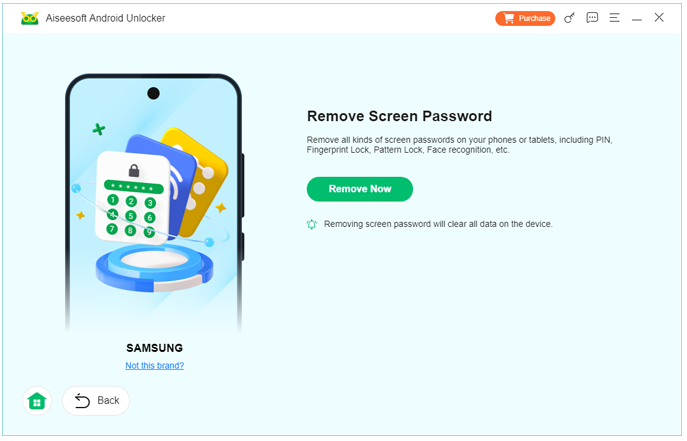
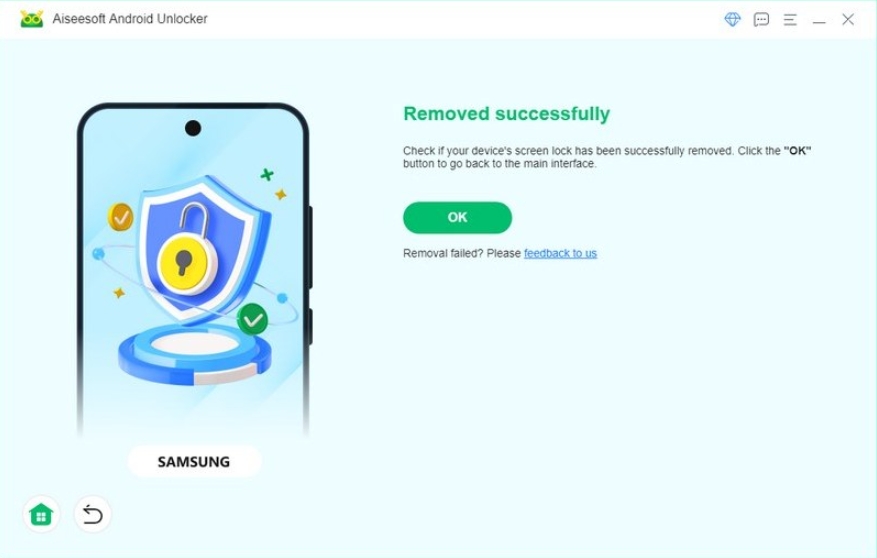
Step 7: Once the process is completed, restart the phone and set up a new password.
Notes
- Ensure the device battery is above 50%.
- Use the original USB cable whenever possible.
- Do not disconnect the phone during the unlocking process.
- Create a new secure password immediately after regaining access.
Method 2: Use Samsung's Built-In Factory Reset Recovery Option
If you are unable to access the device and don't have the necessary credentials for account recovery, Samsung's built-in recovery environment can be used to perform a factory reset. This method removes the screen lock because the device returns to its original system state.
While effective, this solution generally erases local data stored on the phone. Therefore, it should be considered when access is more important than preserving existing files or when data has already been backed up.
Steps to Factory Reset Samsung Galaxy A16
Step 1: Power off the Samsung Galaxy A16 completely.
Step 2: Press and hold the appropriate hardware button combination to enter Recovery Mode.
Step 3: Use the volume keys to navigate through the recovery menu.
Step 4: Select "Wipe Data/Factory Reset."
Step 5: Confirm your selection.
Step 6: Wait for the reset process to finish.
Step 7: Choose "Reboot System Now."
Step 8: Complete the setup process after restart.
Important Notes
- Factory resetting typically deletes locally stored files.
- You may need the Google account previously associated with the device during setup.
- Ensure you remember account credentials before performing the reset.
- Charge the phone sufficiently before starting.
Which Unlock Method Is Better?
Choosing the right solution depends on your situation.
If you're looking for a guided unlocking process with fewer technical steps, iDATAPP Samsung Unlocker is often the more convenient choice. The software simplifies the procedure and is designed specifically for Samsung lock-screen issues.
On the other hand, Samsung's factory reset method remains a built-in option for users who prefer not to install software and are prepared for the possibility of data loss.
The key is to evaluate your priorities. If maintaining device accessibility quickly is your main goal, a dedicated unlocking tool may save significant time and effort. If software installation isn't possible, the factory reset route remains a viable alternative.
Lost Important Data On Samsung A16 After a System Crash?
Unlocking issues are not the only challenge Samsung users encounter. Another common situation occurs after a system crash, failed update, boot loop, or accidental factory reset. Many Galaxy users regain access to their devices only to discover that photos, videos, contacts, documents, and messages have disappeared.
This issue is particularly common among users who perform a factory reset to remove a forgotten password. While the phone becomes accessible again, important personal data may no longer be visible. Family photos, work files, and chat histories can suddenly seem lost.
In many cases, however, deleted data isn't immediately overwritten. This creates an opportunity for recovery if the right tools are used quickly. The sooner recovery begins, the higher the chances of successfully restoring lost files.
For this type of situation, users can explore recovery solutions available through iDATAPP. The website provides specialized Android data recovery tools designed to scan internal storage and identify recoverable content. Depending on the circumstances, users may be able to restore:
- Deleted photos and videos.
- Lost contacts.
- Text messages.
- WhatsApp conversations.
- Documents and media files.
- SD card content.
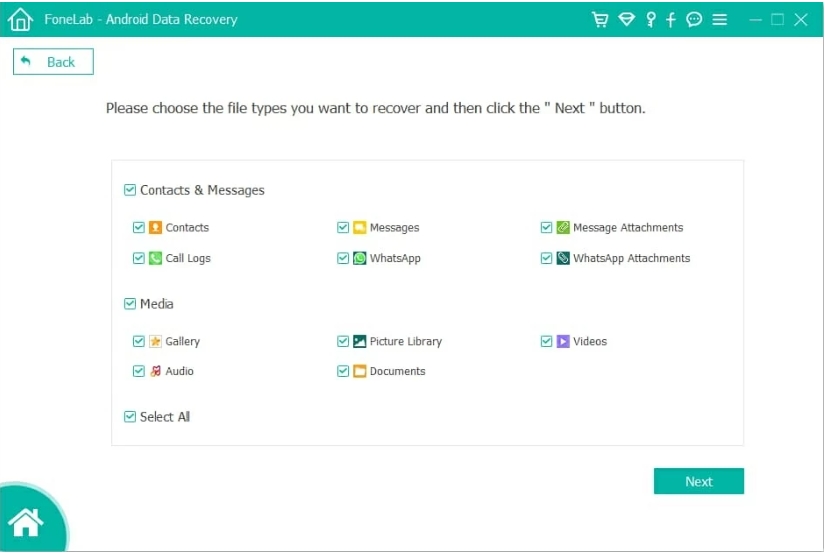
A major advantage of dedicated recovery software is its ability to search storage areas that remain inaccessible through normal Android file management systems. Instead of manually attempting risky troubleshooting procedures, users can follow guided recovery workflows that reduce the chance of further data loss.
To maximize recovery success, users should avoid saving new files immediately after data loss occurs. Continued device usage can overwrite deleted data, making recovery significantly more difficult.
Samsung devices have become increasingly reliable over the years, but no smartphone is immune to unexpected software failures, accidental deletions, or reset-related data loss. Maintaining regular backups remains the best defense. However, when backups are unavailable, professional recovery software can provide a practical second chance.
For Samsung Galaxy A16 owners, understanding both unlocking and recovery options creates a stronger safety net. It's not just about regaining access to the phone—it's also about protecting the valuable information stored inside it.
Tips to Avoid Future Samsung Lockouts
A few simple habits can dramatically reduce the chances of being locked out again:
- Use a memorable but secure PIN.
- Enable biometric authentication.
- Store passwords in a trusted password manager.
- Keep Samsung account credentials updated.
- Create regular backups of important data.
- Record recovery information in a secure location.
Prevention is always easier than recovery.
Frequently Asked Questions
1. Can I unlock my Samsung Galaxy A16 without losing data?
In some situations, yes. The outcome depends on the unlocking method used and the current condition of the device. Certain solutions focus on removing the lock screen, while others involve resetting the phone.
2. What happens if I enter the wrong password too many times?
Samsung devices may temporarily lock access after repeated failed attempts. Continued failures can require additional verification methods before access is restored.
3. Will a factory reset remove the screen lock?
Yes. A factory reset removes the existing lock screen settings because the device returns to its default state. However, local data may also be erased.
Final Thoughts
Being locked out of a Samsung Galaxy A16 doesn't necessarily mean your device is unusable. Whether you've forgotten your password, pattern, or PIN, there are reliable ways to regain access. Dedicated solutions such as iDATAPP Samsung Unlocker provide a guided approach for screen lock removal, while Samsung's built-in recovery options offer an alternative route when necessary.
The most important step is choosing a method that matches your situation and understanding the potential impact on your data. By combining smart security habits with reliable recovery tools, you can minimize future lockouts and keep your Samsung device accessible when it matters most.
 English
 Nederlands
 Tiếng Việt
 日本
日本 Español
 Português
 Deutsche
 Français
 Italiano
 Norsk
Norsk Suomalainen
 Svenska
 Dansk
Dansk Ελληνικά
 Türk
Türk русский
 हिंदी
हिंदी தமிழ்
தமிழ் Bahasa Melayu
 ไทย
ไทย 한국어
한국어 Română
 Polskie
 қазақ
қазақ Gaeilge
 繁體中文
繁體中文