
 iPhone Data Recovery
 iOS System Recovery
 iOS Backup & Restore
 iOS WhatsApp Transfer
 iOS FoneTrans
 MobieSync
 Android Data Recovery
 Broken Android Data Extraction
 Android Data Backup & Restore
 iPhone Unlocker
 Best Samsung Phone Unlock Tool
 Android Unlocker
 Win/Mac Data Recovery
 iDATAPP Screen Recorder
 2D&3D Video Converter
 AI Video Converter
 Ai Blu-ray Player
  Video Repair Software Ai
iDATAPP Video Repairer can help fix/restore videos with lost or corrupted data.
Unlock Samsung A15/A16 Without Password/Face ID
Forgot the password or Face ID on your Samsung Galaxy A15 or A16? This guide explains safe, proven ways to unlock your phone without data loss whenever possible, including Samsung and IDATAPP solutions.

You pick up your Samsung Galaxy A15 or A16, glance at the screen, and realize your face is not recognized. You try the PIN, but after several attempts, your mind goes blank. Suddenly, your own phone feels like a locked vault.
This situation is surprisingly common.
Maybe you:
- Changed your password recently and forgot it.
- Bought a second-hand Samsung A15/A16 that is still locked.
- Have a broken screen or malfunctioning fingerprint sensor.
- Let a child play with your phone, and they entered the wrong password too many times.
- Haven't used the device for weeks and forgot the lock code.
The good news? In most cases, you can regain access.
This guide walks you through the most effective ways to unlock Samsung A15 and A16 without a password, PIN, pattern, fingerprint, or Face ID.
Guide List
- Can You Unlock Samsung A15/A16 Without Password?
- Method 1: Unlock Samsung A15/A16 with IDATAPP Samsung Unlocker (Recommended)
- Method 2: Unlock Samsung A15/A16 with Samsung SmartThings Find
- Method 3: Unlock Samsung A15/A16 with Google Find My Device
- Method 4: Use Safe Mode (If a Third-Party App Caused the Lock)
- Method 5: Unlock Samsung A15/A16 via Recovery Mode Factory Reset
- Why Do People Get Locked Out of Samsung Phones?
- Which Method Should You Choose?
- Common Mistakes Beginners Make
- Myths vs Facts
- How to Prevent Future Lockouts
- The Technology Behind Samsung Security
- Frequently Asked Questions
Can You Unlock Samsung A15/A16 Without Password?
Yes, but the best method depends on your situation.
| Scenario | Best Solution | Data Loss |
|---|---|---|
| You want the easiest method | IDATAPP Samsung Unlocker | Usually erases data |
| You know your Samsung account | Samsung SmartThings Find | Erases data |
| You remember Google account credentials | Find My Device | Erases data |
| Touchscreen partially works | Safe Mode (if third-party app caused lock) | No data loss |
| You don't mind factory reset | Recovery Mode | Erases data |
Method 1: Unlock Samsung A15/A16 with IDATAPP Samsung Unlocker (Recommended)
When you need a direct and beginner-friendly solution, IDATAPP Samsung Unlocker is the most efficient choice.
It is designed specifically to remove:
- Password
- PIN
- Pattern
- Fingerprint lock
- Face recognition lock
- FRP (Google account verification)
Unlike manual methods that require navigating hidden menus, this tool automates the process. Even users with no technical background can unlock a Samsung A15 or A16 in minutes.
Key Features
- Supports Samsung Galaxy A15, A16, and most Samsung devices
- Removes all screen locks
- User-friendly interface
- Handles FRP lock removal
- Works on Windows and Mac
Step-by-Step Guide
1.Download and install IDATAPP Samsung Unlocker.
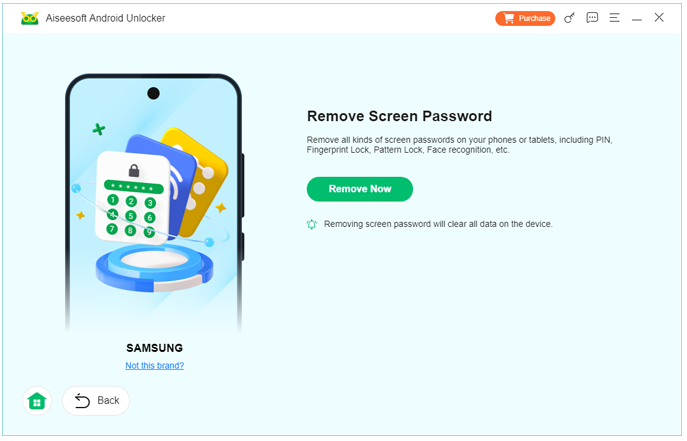
2.Select Remove Screen Password.

3.Connect your Samsung A15/A16 via USB.
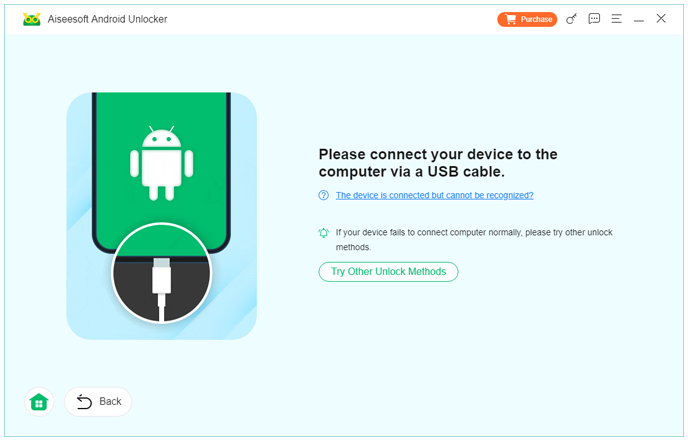
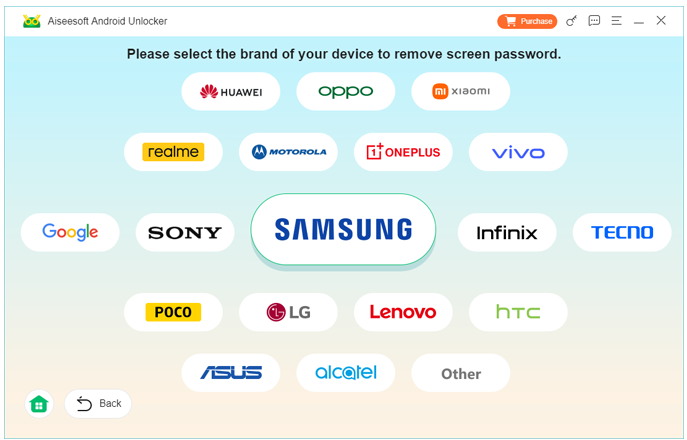
4.Confirm your device information.
5.Click Remove Now.
6.Wait for the process to complete.
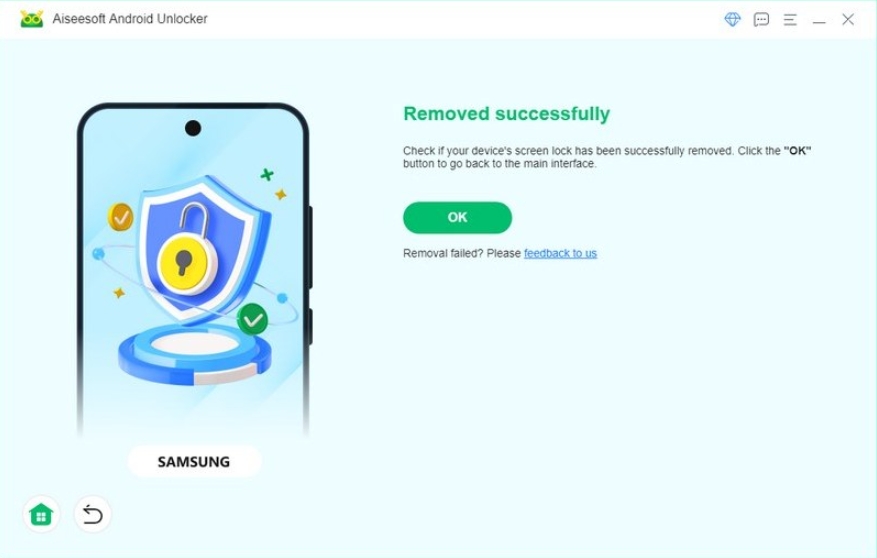
7.Set up your phone again.
Best For
- Forgotten password/PIN/pattern
- Face ID not working
- Used Samsung phone owners
- Users wanting the simplest process
Important Note
Most Samsung devices will be factory reset during unlocking.
Method 2: Unlock Samsung A15/A16 with Samsung SmartThings Find
Samsung offers an official remote management service called SmartThings Find.
If your phone is linked to your Samsung account and is connected to the internet, you can remotely erase the device and regain access.
How It Works
You log in to your Samsung account from a computer, locate your device, and perform a remote reset.
Steps
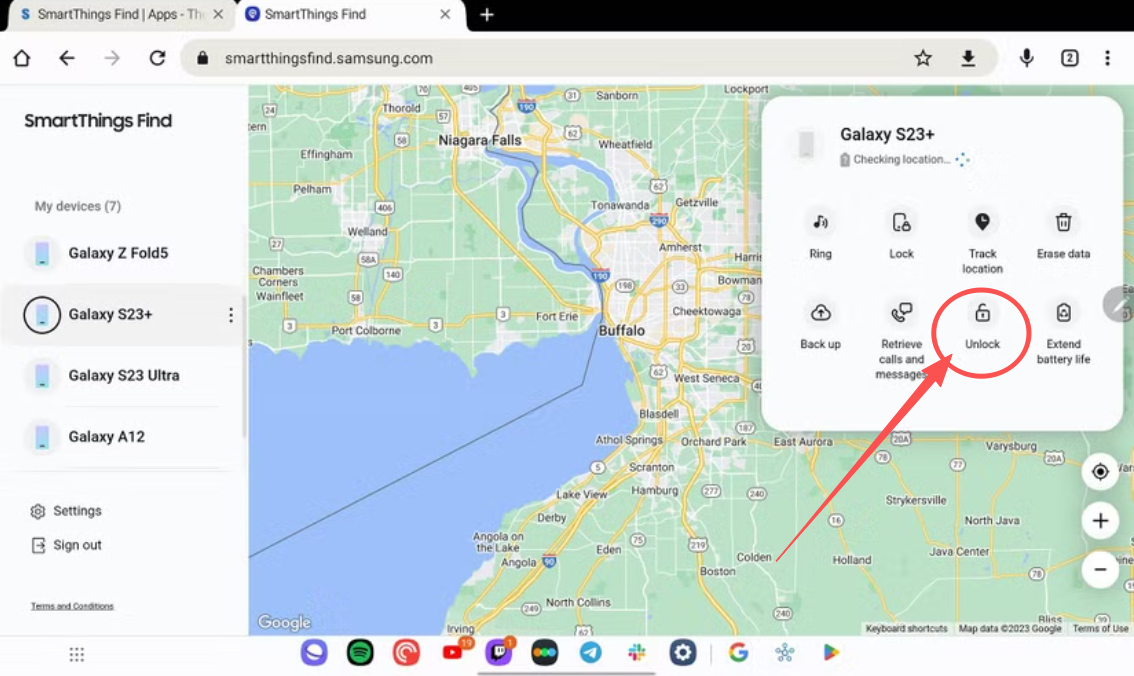
- Open Samsung SmartThings Find.
- Sign in using the Samsung account linked to the phone.
- Select your Galaxy A15 or A16.
- Click unlock.
- Confirm your identity.
- Wait for the reset to finish.
- Set up the device again.
Advantages
- Official Samsung method
- Secure and reliable
- Works remotely
Limitations
- Requires internet connection
- Samsung account must already be signed in
Method 3: Unlock Samsung A15/A16 with Google Find My Device
If you used a Google account on the device, Google’s Find My Device service can remotely erase the phone.
Steps
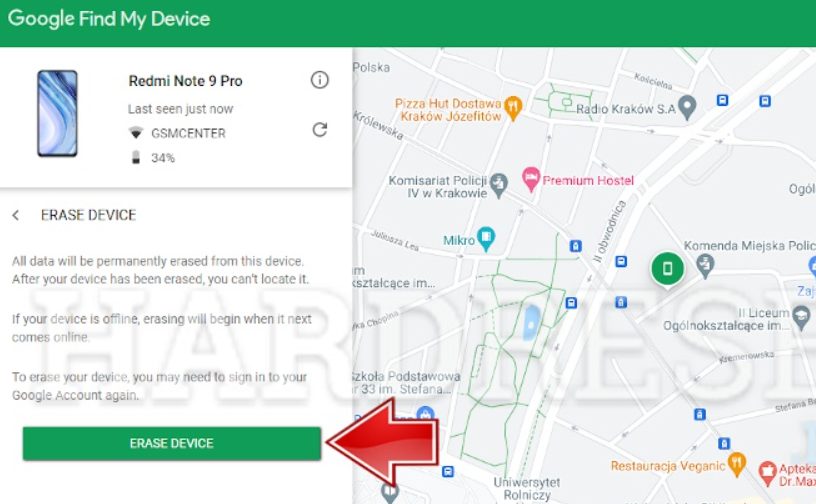
- Visit Google Find My Device.
- Sign in with the Google account linked to the locked phone.
- Select your Samsung A15/A16.
- Click Erase device.
- Confirm.
- Wait until the process is complete.
Best Scenario
You know your Google account credentials.
The device is online.
Risk
All local data will be erased unless previously backed up.
Method 4: Use Safe Mode (If a Third-Party App Caused the Lock)
Sometimes the lock issue is not caused by Samsung's system lock but by a third-party app.
If an app is displaying an overlay or preventing access, Safe Mode can temporarily disable it.
Steps
- Press and hold the Power button.
- Tap and hold Power Off.
- Select Safe Mode.
- Once rebooted, uninstall the suspicious app.
- Restart the phone normally.
Works When
- App lock software is causing the problem.
- Device password itself is still known.
Data Loss
None.
Method 5: Unlock Samsung A15/A16 via Recovery Mode Factory Reset
Recovery Mode is Samsung's built-in emergency reset feature.
If nothing else works, this method will restore the phone to factory settings.
Steps
- Turn off the Samsung A15/A16.
- Connect the phone to a computer using USB.
- Press and hold: Volume Up + Power
- Release buttons when the Samsung logo appears.
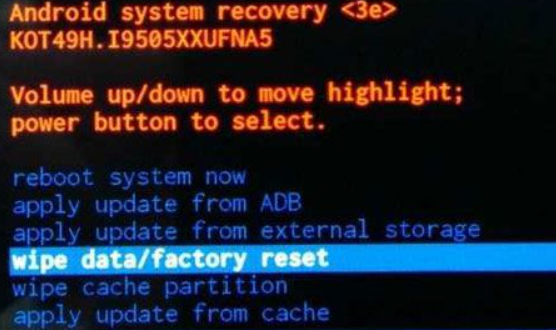
- Use volume keys to select Wipe data/factory reset.
- Press Power to confirm.
- Select Factory data reset.
- Reboot the device.
Important
After reset, you may need to verify the Google account previously used on the device (FRP).
Why Do People Get Locked Out of Samsung Phones?
The most common reasons include:
- Setting a complicated password
- Switching from PIN to pattern
- Face recognition failing in low light
- Fingerprint sensor damage
- Long periods without using the device
- Children entering incorrect passwords repeatedly
Which Method Should You Choose?
Choose IDATAPP Samsung Unlocker If:
- You want the easiest and most automated solution.
- You are not comfortable with technical steps.
- You need FRP removal support.
Choose Samsung SmartThings Find If:
- Your Samsung account is active.
- The phone is online.
Choose Google Find My Device If:
- You know your Google account credentials.
Choose Recovery Mode If:
- All other methods fail.
Common Mistakes Beginners Make
1. Guessing Too Many Passwords
Repeated failures can trigger additional security delays.
2. Forgetting Google Account Credentials
FRP may block setup after reset.
3. Disconnecting USB During Unlocking
Interrupting the process can cause errors.
4. Not Backing Up Data
Some methods erase everything.
Myths vs Facts
| Myth | Fact |
|---|---|
| Face ID means no password is needed | Your PIN is still the primary credential |
| Factory reset removes Google verification | FRP remains active |
| Unlocking always preserves data | Most methods erase data |
| All software is risky | Reputable tools and official methods are generally safe |
How to Prevent Future Lockouts
- Use a memorable PIN.
- Enable fingerprint and face unlock as backups.
- Save your password in a secure password manager.
- Keep your Samsung and Google account credentials updated.
- Turn on cloud backups.
The Technology Behind Samsung Security
Samsung Galaxy A15 and A16 use Android security layers such as:
- Secure lock screen encryption
- Samsung Knox
- Biometric authentication
- Factory Reset Protection (FRP)
These protections keep your information safe, but they also make bypassing a forgotten password more challenging without proper tools.
Frequently Asked Questions
Can I unlock Samsung A15/A16 without losing data?
If the lock issue is caused by a third-party app, Safe Mode may solve it without data loss. For a forgotten system password, data loss is usually unavoidable.
Does Face ID replace my PIN?
No. Face recognition is only a convenience feature. Your PIN or password remains the core security credential.
Will a factory reset remove FRP?
No. After reset, you'll need the previously synced Google account to activate the device.
Is IDATAPP Samsung Unlocker safe?
Yes, IDATAPP Samsung Unlocker is designed specifically for Samsung unlocking and provides a guided process.
What if my Samsung A15/A16 has a broken screen?
Software-based solutions such as IDATAPP Samsung Unlocker may still work as long as the device can be detected by your computer.
Final Thoughts
Being locked out of your Samsung Galaxy A15 or A16 can feel stressful, especially when your photos, contacts, and messages are trapped behind a forgotten password.
Fortunately, you are not out of options.
Whether you choose Samsung's built-in services, Google's tools, or the convenience of IDATAPP Samsung Unlocker, the right solution depends on your priorities: simplicity, speed, or data preservation.
Take a moment to choose the method that best fits your situation, and remember to back up your device regularly so a forgotten password never becomes a major crisis again.
 English
 Nederlands
 Tiếng Việt
 日本
日本 Español
 Português
 Deutsche
 Français
 Italiano
 Norsk
Norsk Suomalainen
 Svenska
 Dansk
Dansk Ελληνικά
 Türk
Türk русский
 हिंदी
हिंदी தமிழ்
தமிழ் Bahasa Melayu
 ไทย
ไทย 한국어
한국어 Română
 Polskie
 қазақ
қазақ Gaeilge
 繁體中文
繁體中文