
 iPhone Data Recovery
 iOS System Recovery
 iOS Backup & Restore
 iOS WhatsApp Transfer
 iOS FoneTrans
 MobieSync
 Android Data Recovery
 Broken Android Data Extraction
 Android Data Backup & Restore
 iPhone Unlocker
 Best Samsung Phone Unlock Tool
 Android Unlocker
 Win/Mac Data Recovery
 iDATAPP Screen Recorder
 2D&3D Video Converter
 Video Repair Software Ai
 AI Video Converter
 Ai Blu-ray Player
 How to Unlock Samsung Galaxy With Broken Screen?
This guide explains how to unlock a Samsung Galaxy with a broken screen using three proven methods, offering practical steps, expert insights, and safe solutions to regain access without panic.
A cracked or completely black Samsung Galaxy screen is more than a cosmetic problem. When the display no longer responds, the lock screen becomes a barrier between you and everything inside the phone—photos, contacts, apps, work files, even authentication apps you may urgently need. Many users assume that a broken screen automatically means data loss or an expensive repair before unlocking is possible. That assumption is wrong.

In reality, unlocking a Samsung Galaxy with a broken screen is a solvable technical problem, not a dead end. The key is understanding what still works inside the phone: the system boots, the storage remains intact, and Android security mechanisms can still be negotiated—sometimes without touching the screen at all.
This article breaks the problem down from a practical, user-focused perspective. First, we’ll analyze why screen damage blocks access. Then we’ll introduce three reliable, non-overlapping unlocking methods, including one professional solution from our own website designed specifically for Samsung devices with damaged displays. Each method is explained in detail, with clear steps and important caveats, so you can choose the safest option for your situation.
Guide List
- Why a Broken Screen Locks You Out (Even When the Phone Is Still Alive)
- Method 1: Unlock Samsung With Broken Screen Using Samsung Unlocker
- Method 2: Unlock Samsung Galaxy With Broken Screen Using OTG + External Display
- Method 3: Unlock Samsung Galaxy With Broken Screen via Samsung Account (Find My Mobile)
- When Unlocking Isn’t the Only Problem (Data Recovery After Screen Damage)
- Frequently Asked Questions
Why a Broken Screen Locks You Out (Even When the Phone Is Still Alive)
Most Samsung phones rely on two things to unlock: visual feedback and touch input. When the screen shatters or the display panel fails, one or both of these are lost. The phone may still vibrate, ring, or connect to Wi-Fi, but you cannot enter a PIN, pattern, or password because Android blocks access by design.
From a security standpoint, this is intentional. Android assumes that if input cannot be verified, access should be denied. However, Samsung devices also support multiple alternative access paths—external displays, device management systems, and system-level unlock tools. The trick is choosing the right path without making the situation worse, such as triggering Factory Reset Protection (FRP) or overwriting data.
Let’s move from theory to action.
Method 1: Unlock Samsung With Broken Screen Using Samsung Unlocker
Best for: Non-responsive screens, forgotten PIN/password, severe display damage
Data safety: High (model-dependent)
Skill level: Beginner-friendly
When the screen is completely unusable, software-based unlocking is often the most direct solution. Unlike generic Android tools, a Samsung-specific unlocker can communicate with the device at a system level, bypassing the lock screen even when touch input is impossible.
The dedicated tool available is designed for real-world Samsung failure scenarios, including cracked screens, black displays, and partial touch failure. It supports multiple Samsung models and Android versions, and does not rely on screen interaction once connected.
How this method works?
This approach connects your Samsung phone to a computer and initiates an authorized unlock process through Samsung-compatible system protocols. Instead of requiring on-screen confirmation, the software communicates directly with the device firmware. For many models, it can remove the screen lock (PIN, pattern, or password) while keeping user data intact. Even when data removal is required for security reasons, the process is controlled and predictable—far safer than trial-and-error attempts on a broken screen. This makes it especially suitable when the display is unreadable or completely dead.
Step-by-step breakdown
1.Install the Samsung Unlocker software on a Windows or macOS computer
2.Launch the program and select Remove Screen Password

3.Connect your Galaxy phone via USB cable
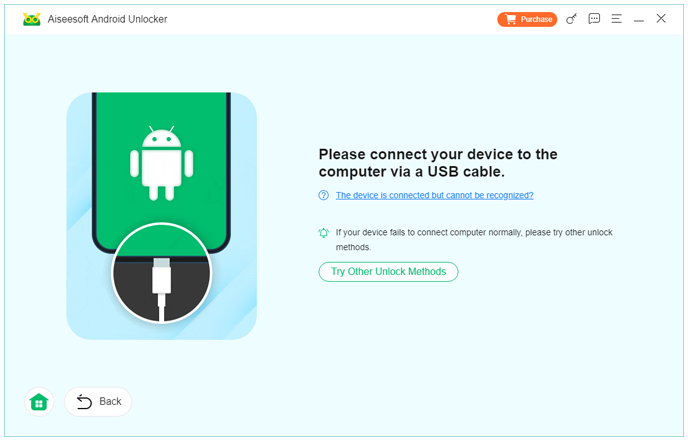
4.Follow on-screen instructions to put the device into the required mode (Download/Recovery)
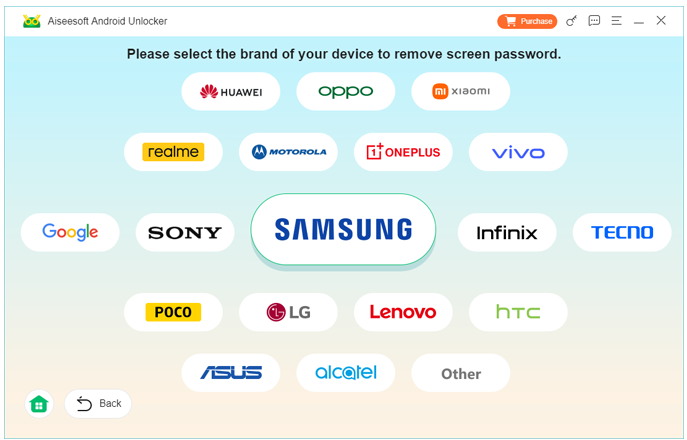
5.Confirm your device model when prompted
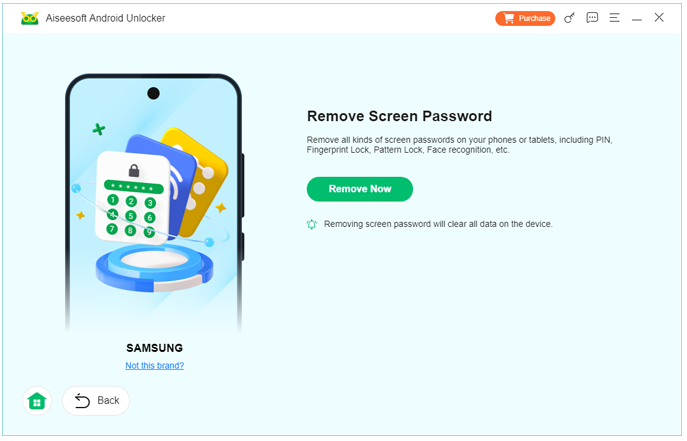
6.Start the unlocking process and wait for completion
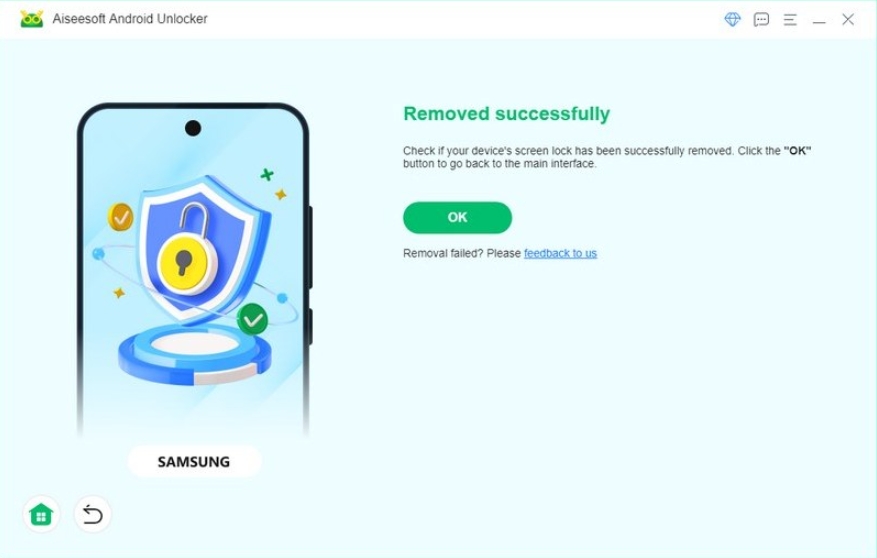
Important details:
- Always use the original USB cable if possible
- Battery level should be above 30%
- Some newer models may require data removal due to Android security updates
Method 2: Unlock Samsung Galaxy With Broken Screen Using OTG + External Display
Best for: Screen visible but touch not working, partial display damage
Data safety: Very high
Skill level: Intermediate
Not all broken screens are equal. In many cases, the display still shows content but cannot register touch. If that’s your situation, you can bypass the broken digitizer by using external input devices.
Samsung Galaxy phones support USB OTG (On-The-Go), which allows you to connect a mouse, keyboard, or even an HDMI adapter. With the right setup, you can control the phone as if the screen were working normally.
How this method works?
This method replaces the damaged touch layer with external input. By connecting a USB mouse via OTG, you can enter your lock screen password, pattern, or PIN manually. If the display itself is damaged or flickering, adding an HDMI adapter lets you mirror the phone screen to a monitor or TV. This transforms your unusable phone into a desktop-like environment. Since you’re unlocking the device legitimately with your original credentials, Android treats this as normal access, preserving all data and security settings.
Step-by-step breakdown
1.Obtain a USB OTG adapter compatible with Samsung
2.Connect a USB mouse (and optional keyboard)
3.If the display is unreadable, connect an HDMI adapter to an external screen
4.Wake the phone and use the mouse cursor to enter your lock screen code
5.Once unlocked, immediately back up your data
Important details:
- This method fails if the screen is completely black and HDMI output is unsupported
- Not ideal for phones with internal display failure
Method 3: Unlock Samsung Galaxy With Broken Screen via Samsung Account (Find My Mobile)
Best for: Screen broken but phone connected to internet
Data safety: Excellent
Skill level: Beginner
Samsung quietly includes one of the most overlooked unlocking features: Find My Mobile. If your phone is signed into a Samsung account and has internet access, you may be able to unlock it remotely—no cables, no hardware, no screen interaction.
How this method works?
Find My Mobile allows Samsung account holders to manage their devices remotely. One of its features is “Unlock,” which removes the screen lock after identity verification. This works even if the phone’s display is cracked or unresponsive, as long as it’s powered on and online. Because the unlock command is issued from Samsung’s servers, Android treats it as a trusted action. This makes it one of the safest and fastest options—when available.
Step-by-step breakdown
- Visit Samsung Find My Mobile on another device
- Log in with the same Samsung account used on the phone
- Select your Galaxy device from the list
- Click Unlock and verify your account password
- Wait for confirmation—your phone unlocks automatically
Important details:
- Requires Samsung account login to be enabled beforehand
- Phone must be connected to Wi-Fi or mobile data
When Unlocking Isn’t the Only Problem (Data Recovery After Screen Damage)
Unlocking a Samsung Galaxy with a broken screen is often just the first battle. In practice, screen damage frequently leads to secondary issues, especially data-related ones. A common scenario looks like this: the screen breaks, the phone is unlocked successfully, but shortly after, the device crashes, fails to boot, or gets stuck in a boot loop due to internal shock or corrupted system files.
This is extremely common with Samsung phones that experience physical impact. Even if storage chips are intact, Android may fail to load user data properly. In these cases, users suddenly face a more serious threat—data loss after system malfunction.
This is where professional Android data recovery software becomes essential. On the same website, idatapp.com, there are dedicated tools designed to extract data from Samsung devices experiencing system crashes, black screens, or boot failures. Unlike simple backup tools, these solutions operate at a deeper level, scanning internal storage partitions for recoverable data such as photos, videos, messages, WhatsApp files, and documents.
What makes this especially valuable is that data recovery can often be performed even if the phone cannot be fully unlocked or booted normally. For Samsung users, this is a realistic safety net after screen damage, failed updates, or unexpected shutdowns. Instead of gambling with factory resets or unofficial methods, using a structured recovery approach significantly increases the chance of saving irreplaceable data.
In short, unlocking restores access—but recovery preserves memories. For Samsung users, having both options available is the difference between inconvenience and permanent loss.
Frequently Asked Questions
Can I unlock a Samsung phone with a completely black screen?
Yes. Software-based unlocking or Samsung Find My Mobile can work even if the screen shows nothing.
Will unlocking erase my data?
Some methods preserve data, others may remove it depending on model and Android version. Always check before proceeding.
Does a cracked screen affect internal storage?
Usually no. Data remains intact unless the motherboard or storage chip is damaged.
What if USB debugging was never enabled?
Dedicated Samsung unlocker tools do not rely on USB debugging in many cases.
Should I repair the screen before unlocking?
Not necessarily. Unlocking first allows backup and data safety before repair decisions.
Conclusion
A broken screen does not mean a locked future. With the right method—software unlocking, external input, or Samsung’s own remote tools—you can regain access safely. The key is choosing the approach that matches your phone’s condition.
 English
 Nederlands
 Tiếng Việt
 日本
日本 Español
 Português
 Deutsche
 Français
 Italiano
 Norsk
Norsk Suomalainen
 Svenska
 Dansk
Dansk Ελληνικά
 Türk
Türk русский
 हिंदी
हिंदी தமிழ்
தமிழ் Bahasa Melayu
 ไทย
ไทย 한국어
한국어 Română
 Polskie
 қазақ
қазақ Gaeilge
 繁體中文
繁體中文