
 iPhone Data Recovery
 iOS System Recovery
 iOS Backup & Restore
 iOS WhatsApp Transfer
 iOS FoneTrans
 MobieSync
 Android Data Recovery
 Broken Android Data Extraction
 Android Data Backup & Restore
 iPhone Unlocker
 Best Samsung Phone Unlock Tool
 Android Unlocker
 Win/Mac Data Recovery
 iDATAPP Screen Recorder
 2D&3D Video Converter
 Video Repair Software Ai
 AI Video Converter
 Ai Blu-ray Player
 How to Recover Lost Data from Samsung A17?
Lost photos, contacts, videos, or messages on your Samsung A17? This guide explores why data disappears, how recovery works, and two proven methods to restore important files safely.
Samsung A17 Data Loss: Why Does It Happen So Often?
The Samsung A17 has become a popular smartphone thanks to its balanced performance, excellent battery life, and affordable price. Yet one issue continues to frustrate users worldwide: unexpected data loss.
Imagine opening your gallery and discovering that months of family photos have vanished. Or perhaps an important business contact disappeared after a system update. In some cases, users accidentally format an SD card, while others lose files because of software crashes, failed updates, virus attacks, or factory resets.
The good news is that deleted data is often not immediately destroyed. When a file is deleted from a Samsung A17, the system typically marks the storage space as available for reuse. Until new data overwrites that space, recovery may still be possible.
The success rate depends on several factors:
- How long ago the data was lost
- Whether new files have been added afterward
- Where the data was stored
- Whether backups exist
- The cause of data loss
Before attempting recovery, stop using the device as much as possible. Every new photo, video, or app installation can reduce the chances of successful recovery.
This guide introduces two practical solutions that can help recover lost data from Samsung A17 devices.
Method 1: Recover Samsung A17 Data with iDATAPP Android Data Recovery
For users who need a deeper recovery solution, Android Data Recovery from iDATAPP is designed specifically for situations where files disappear unexpectedly. Unlike ordinary backup methods, it scans internal storage and helps locate recoverable photos, videos, contacts, call logs, messages, WhatsApp attachments, and more.
One advantage of this approach is flexibility. Even if you do not have a previous backup, the software may still detect recoverable fragments stored on the device. This makes it particularly useful after accidental deletion, formatting, software crashes, or certain system errors. The recovery process is straightforward and suitable for both beginners and experienced users.

Detailed Recovery Steps
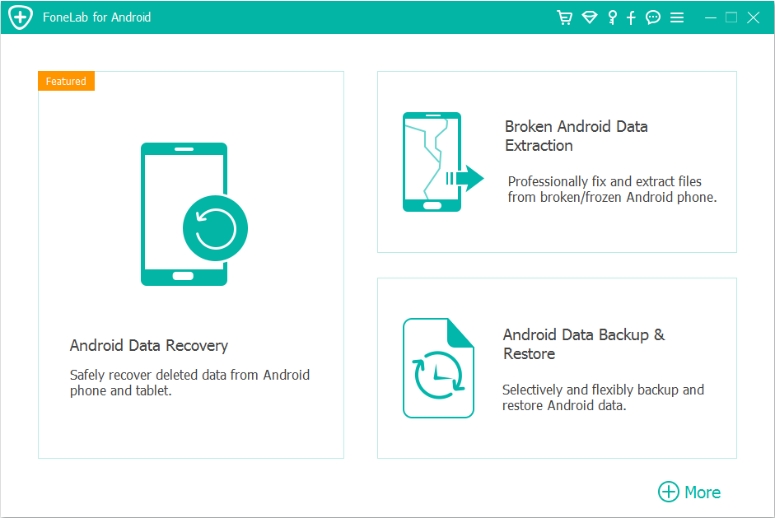
Step 1: Download and install Android Data Recovery from iDATAPP, Launch the program on your Windows or Mac computer.
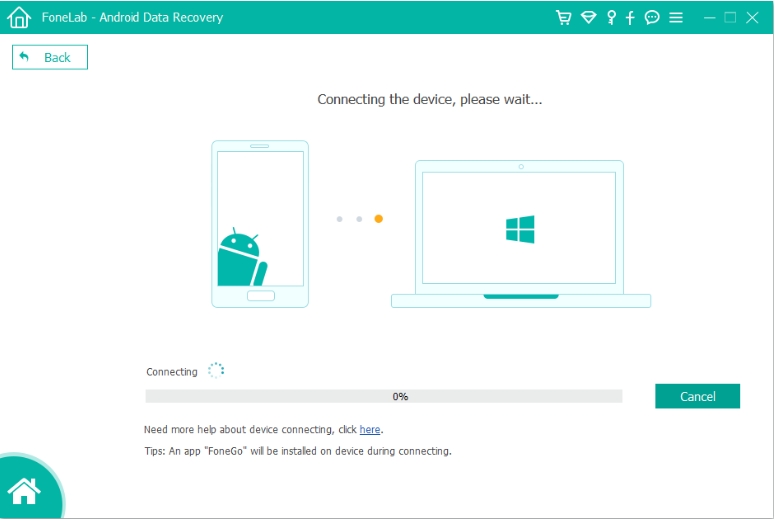
Step 2: Use a stable USB cable to connect your Samsung A17 to the computer.
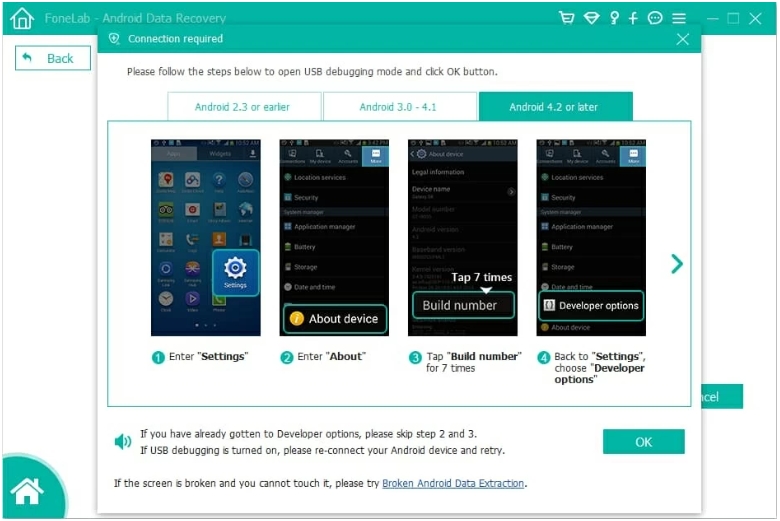
Step 3: Enable USB Debugging
If prompted:
- Open Settings.
- Select About Phone.
- Tap Build Number several times.
- Enable Developer Options.
- Turn on USB Debugging.
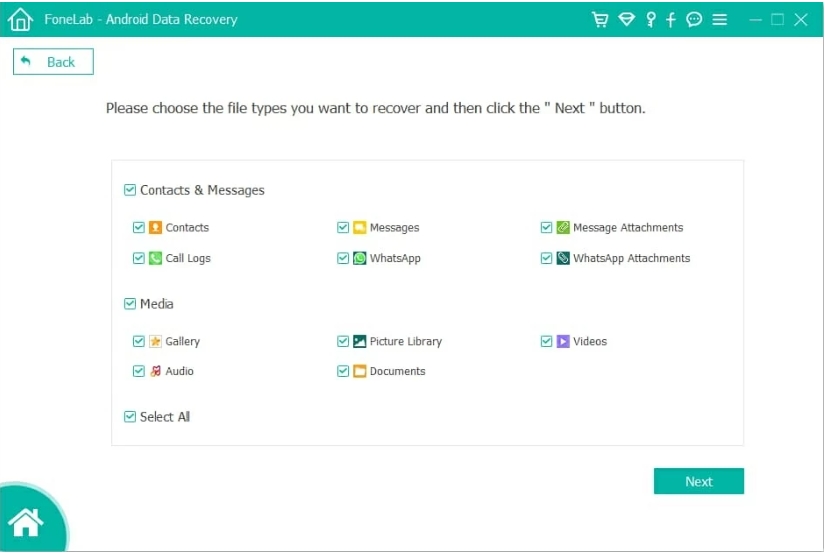
Step 4: Select the categories you wish to recover
Step 5: Allow the software to perform a comprehensive scan. Depending on storage capacity, this may take several minutes.
Step 6: The software displays recoverable data in organized categories. Preview files before restoring them.
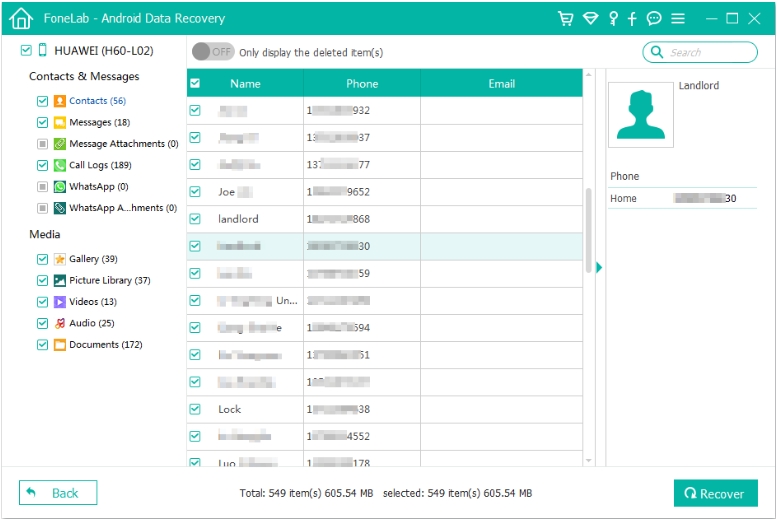
Step 7: Select desired files and click Recover. Save recovered files to your computer for safety.

Important Tips
- Avoid saving recovered files back to the phone immediately.
- Use original USB cables whenever possible.
- Perform recovery before extensive phone usage.
Method 2: Restore Lost Files from Samsung Cloud and Google Backup
Many Samsung A17 owners do not realize that their data may already be stored safely online. Samsung Cloud and Google services automatically synchronize various types of information, including contacts, calendars, photos, notes, and application settings.
This method is ideal when data loss occurs after a factory reset, device replacement, software update, or accidental deletion. Although it cannot recover every deleted file, it offers one of the safest recovery approaches because the data comes directly from existing backups. Users who regularly enable synchronization often recover important information within minutes without installing additional recovery tools.
Detailed Recovery Steps
Step 1: Check Samsung Account Sync
- Open Settings.
- Tap Accounts and Backup.
- Select Manage Accounts.
- Sign in with your Samsung account.
Verify synchronization settings.
Step 2: Restore Samsung Cloud Data
- Navigate to Accounts and Backup.
- Select Restore Data.
- Choose the backup version.
- Select desired content categories.
Tap Restore.
Step 3: Recover Photos from Google Photos
- Open Google Photos.
- Select Library.
- Open Trash.
- Locate deleted photos.
Tap Restore.
Step 4: Recover Contacts
- Visit Google Contacts.
- Sign into the linked Google account.
- Use Restore Contacts if available.
Step 5: Verify Recovered Files
Check:
- Gallery
- Contacts
- Messages
- Calendar
- Notes
Confirm all important information has been restored correctly.
Important Tips
- Keep backup synchronization enabled.
- Connect to Wi-Fi during restoration.
- Use the same account originally associated with the device.
What If Your Samsung A17 Becomes Locked?
Data loss is not the only challenge Samsung users encounter. Another surprisingly common issue involves screen locks.
Many Samsung A17 owners forget their PIN, password, pattern lock, or biometric authentication settings after changing them. Others purchase second-hand devices that remain locked by previous credentials.
In these situations, users often face a difficult choice: factory reset the device and lose data, or search for a safe unlocking solution.
This is where specialized phone unlocking tools become valuable.
The Android Unlocker solution available through iDATAPP is designed to help users remove various screen locks from Android devices. Whether the issue involves a forgotten password, PIN code, pattern lock, fingerprint lock, or face recognition lock, the software provides guided steps that simplify the unlocking process.
A typical unlocking scenario may involve:
- Forgotten screen passwords
- Disabled devices after repeated failed attempts
- Pattern lock issues
- Fingerprint recognition failures
- Second-hand devices with unknown credentials
The software walks users through device recognition, model selection, and unlocking procedures. Because Samsung devices use different security architectures depending on model and Android version, following model-specific instructions is essential.
Users should always understand that unlocking procedures may affect stored data depending on device security settings and Android version. Therefore, maintaining regular backups remains the best long-term strategy.
You can learn more about related Samsung management solutions through: https://idatapp.com
Preventive maintenance is often easier than recovery. Regular backups, password management, and software updates significantly reduce the likelihood of future data-related emergencies.
How to Increase Future Recovery Success Rates?
Many users focus only on recovery after losing files. A smarter approach involves prevention.
Consider adopting these habits:
- Enable automatic Google backup.
- Turn on Samsung synchronization.
- Save important photos to cloud storage.
- Export contacts regularly.
- Use reputable antivirus software.
- Avoid installing unknown applications.
- Keep Android updated.
- Back up SD card contents monthly.
These simple habits dramatically reduce the impact of future data loss events.
Frequently Asked Questions
1. Can permanently deleted Samsung A17 photos be recovered?
Yes. If the storage sectors have not been overwritten, recovery software may still detect and restore deleted photos.
2. Does factory reset permanently erase everything?
Not always. Some data may remain recoverable until new information overwrites the original storage space.
3. Can I recover WhatsApp messages on Samsung A17?
Yes. Recovery may be possible through backups or specialized Android recovery software depending on the situation.
4. Is root access required for Samsung A17 data recovery?
Not necessarily. Many recovery scenarios can be completed without rooting, although deeper scans may benefit from advanced permissions.
5. What should I do immediately after losing data?
Stop using the device, avoid taking new photos or videos, and begin recovery as soon as possible to maximize success rates.
Conclusion
Samsung A17 data loss can result from accidental deletion, software failures, formatting errors, updates, or hardware issues. Fortunately, recovery is often possible. Users can restore information through cloud backups or use iDATAPP Android Data Recovery for more advanced scanning and recovery. Acting quickly and minimizing device usage after data loss significantly improves recovery success. Regular backups remain the most effective protection against future incidents.
 English
 Nederlands
 Tiếng Việt
 日本
日本 Español
 Português
 Deutsche
 Français
 Italiano
 Norsk
Norsk Suomalainen
 Svenska
 Dansk
Dansk Ελληνικά
 Türk
Türk русский
 हिंदी
हिंदी தமிழ்
தமிழ் Bahasa Melayu
 ไทย
ไทย 한국어
한국어 Română
 Polskie
 қазақ
қазақ Gaeilge
 繁體中文
繁體中文