
 iPhone Data Recovery
 iOS System Recovery
 iOS Backup & Restore
 iOS WhatsApp Transfer
 iOS FoneTrans
 MobieSync
 Android Data Recovery
 Broken Android Data Extraction
 Android Data Backup & Restore
 iPhone Unlocker
 Best Samsung Phone Unlock Tool
 Android Unlocker
 Win/Mac Data Recovery
 iDATAPP Screen Recorder
 2D&3D Video Converter
 Video Repair Software Ai
 AI Video Converter
 Ai Blu-ray Player
 [Solved]Lenovo Tablet Unlock Tool|Without Password
Forgot your Lenovo tablet password? This guide explains three effective ways to unlock a Lenovo tablet, including professional unlocking software, factory reset methods, and Google account recovery solutions.
How to Unlock Lenovo Tablet If You Forgot Password?
A Lenovo tablet is often used for work documents, online classes, entertainment, family photos, and personal information. Because of this, most users protect their devices with a password, PIN, pattern lock, or fingerprint authentication. However, many Lenovo tablet owners eventually face a frustrating situation: they forget the password and become completely locked out of the device.
The problem is more common than most people think. A password may be changed and forgotten, a tablet may sit unused for months, a child may accidentally modify security settings, or an elderly family member may simply forget the screen lock.
When this happens, many users immediately worry about losing data or damaging the tablet during the unlocking process. Fortunately, there are several reliable solutions available. The right method depends on whether you remember your Google account credentials, whether USB debugging was previously enabled, and whether preserving data is a priority.
In this guide, we'll explore three practical methods to unlock a Lenovo tablet when the password has been forgotten. We'll also discuss an important issue that often occurs after unlocking attempts—data loss—and how to recover important files when necessary.
Guide List
- Before You Start: Understand Your Lenovo Tablet Lock Type
- Method 1: Unlock Lenovo Tablet with Android Unlocker (Recommended)
- Method 2: Perform a Factory Reset Through Recovery Mode
- Method 3: Unlock Lenovo Tablet Through Google Account Recovery
- What If You Lose Important Data During Lenovo Tablet Unlocking?
- Frequently Asked Questions
Before You Start: Understand Your Lenovo Tablet Lock Type
Before choosing a solution, it's helpful to identify which lock you're dealing with:
- Pattern lock
- PIN code
- Password lock
- Fingerprint lock failure
- Face unlock failure
- FRP (Factory Reset Protection) after reset
Different Lenovo tablet models may use slightly different Android security mechanisms, but the solutions below work for most Lenovo Tab series devices, including:
- Lenovo Tab M7
- Lenovo Tab M8
- Lenovo Tab M10
- Lenovo Tab M11
- Lenovo Tab P11
- Lenovo Tab P12
- Lenovo Yoga Tab
- Lenovo Smart Tab
- Lenovo Tab K10
Now let's look at the most effective solutions.
Method 1: Unlock Lenovo Tablet with Android Unlocker (Recommended)
For users who want a straightforward solution without spending hours troubleshooting, a dedicated unlocking tool is usually the fastest option. One reliable choice is iDATAPP Android Unlocker, designed specifically for Android lock screen removal.
Unlike manual methods that often require complicated button combinations or account verification, the software guides users through a step-by-step process. It supports removing PINs, passwords, patterns, fingerprints, and various lock screen types on Android devices.
This method is especially useful when you no longer remember the Google account associated with the Lenovo tablet or when the standard recovery options are unavailable. The software is designed to simplify the unlocking process and reduce technical barriers for average users.

Steps to Unlock Lenovo Tablet Using Android Unlocker
Step 1: Download and install the Android Unlocker software on your Windows computer.

Step 2: Launch the Program
Open Android Unlocker and select: Remove Screen Password from the main interface.
Step 3: Use a USB cable to connect the locked Lenovo tablet to the computer.
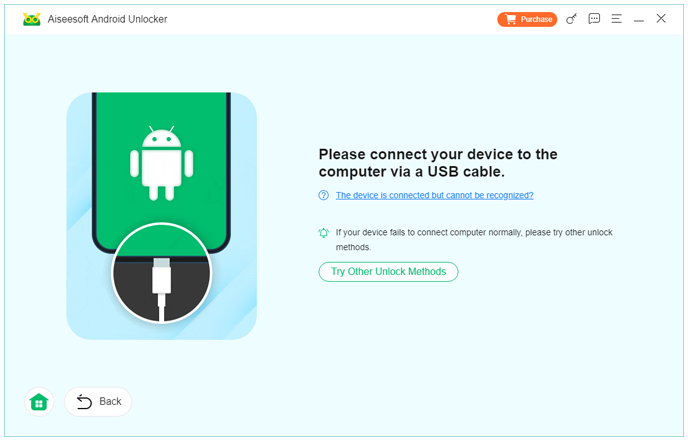
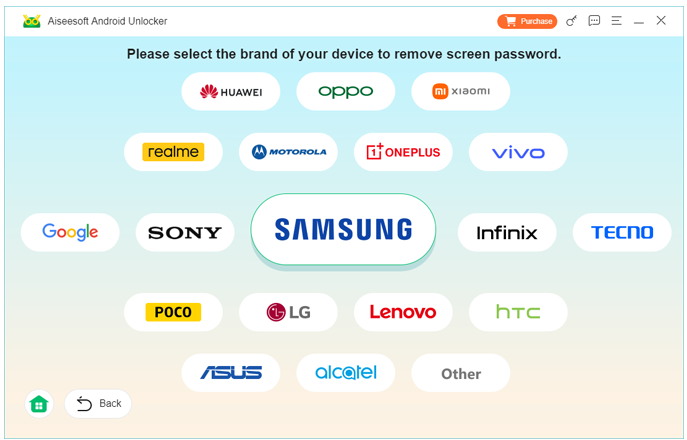
Step 4: Choose the appropriate Lenovo device information when prompted.
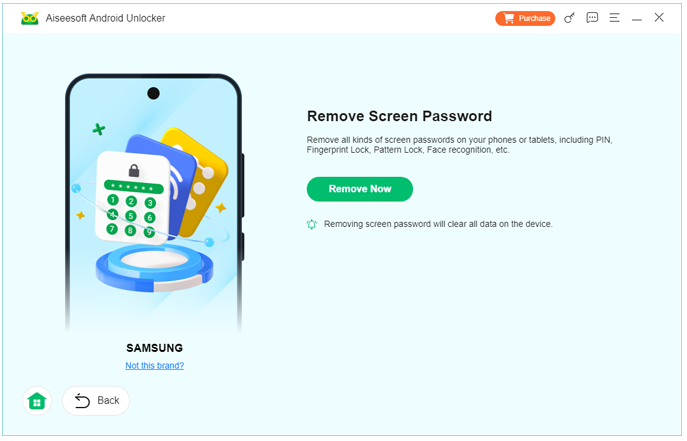
Step 5: Click the Remove Now button and allow the software to process the device.
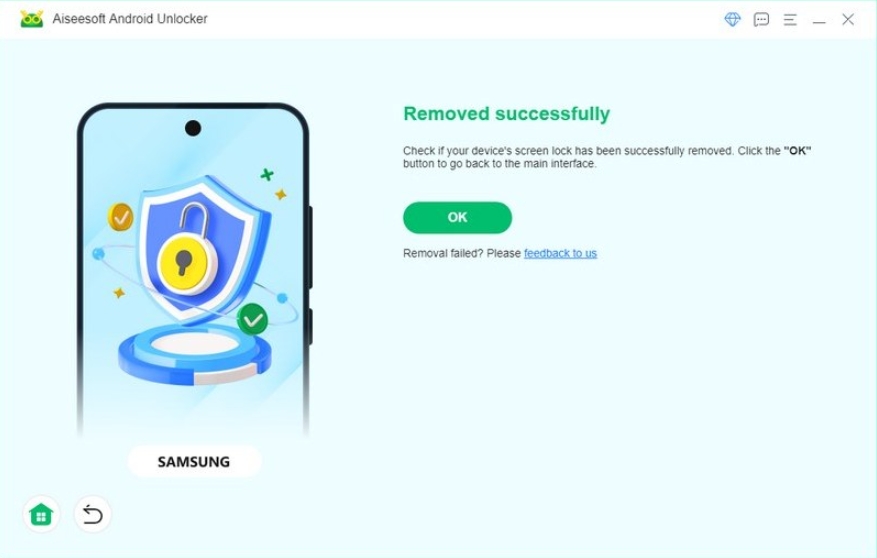
Step 6: The software will remove the lock screen and guide you through the remaining instructions.
Notes
- Ensure the tablet battery is above 50%.
- Use the original USB cable if possible.
- Do not disconnect the device during processing.
- Follow all on-screen instructions carefully.
Method 2: Perform a Factory Reset Through Recovery Mode
Recovery Mode is built into almost every Lenovo tablet and can be used when the screen lock password is completely forgotten. This method restores the device to factory settings, effectively removing the lock screen.
The advantage is that no additional software is required. However, users should understand that this process erases locally stored data, including downloaded files, apps, settings, and photos that have not been backed up.
For many users who simply need access to the tablet again and are willing to sacrifice local data, Recovery Mode remains one of the most effective emergency solutions.
Steps to Factory Reset a Lenovo Tablet
Step 1: Completely shut down the Lenovo tablet.
Step 2: Enter Recovery Mode
Press and hold: Volume Up + Power or Volume Down + Power depending on your Lenovo model.
Release the buttons when the Lenovo logo appears.
Step 3: Use volume buttons to move through options.
Select: Wipe Data/Factory Reset using the power button.
Step 4: Confirm Reset
Choose: Yes to confirm the factory reset operation.
Step 5: After completion, select: Reboot System Now
Step 6: Wait for the tablet to restart and perform the initial Android setup.
Notes
- All local data will be deleted.
- Google account verification may appear after reset.
- Remember your Google account credentials before proceeding.
Method 3: Unlock Lenovo Tablet Through Google Account Recovery
Many Lenovo tablets running Android are linked to a Google account. If you still remember the Google account credentials associated with the device, account recovery may help regain access.
This method is particularly useful when the forgotten password issue occurred recently and the Google account remains active. It is an official approach and doesn't require third-party hardware or advanced technical skills.
Depending on the Android version, the exact recovery process may differ slightly. Some older Android versions provide a direct "Forgot Pattern" option, while newer systems rely on account verification during setup after a reset.
Steps to Recover Access Through Google Account
Step 1: Visit Google Account Recovery
Open a browser and go to:
https://accounts.google.com/signin/recovery
Step 2: Verify Identity
Follow Google's verification process.
You may need:
- Recovery email
- Recovery phone number
- Previous password
Step 3: Reset Account Password
Create a new Google password.
Step 4: Wait for Synchronization
Allow Google servers some time to update account credentials.
Step 5: Sign In on Lenovo Tablet
Enter the updated Google account information when prompted.
Step 6: Complete Device Verification
Finish the verification process and regain access to the device.
Important Notes
- Internet access may be required.
- Recovery options must have been configured previously.
- Google's verification process may take time.
What If You Lose Important Data During Lenovo Tablet Unlocking?
One problem that frequently affects Lenovo users isn't the lock screen itself—it's the accidental loss of valuable data during the unlocking process.
Many users discover too late that a factory reset removes:
- Family photos
- Videos
- WhatsApp messages
- Contacts
- Documents
- Notes
- App data
Imagine a student who factory resets a Lenovo Tab before backing up class notes, or a business user who loses important PDF documents stored locally. The tablet may become accessible again, but critical information can disappear.
This is why data recovery has become an important part of the Android troubleshooting process.
When data is accidentally deleted due to a factory reset, system crash, virus attack, formatting error, or device malfunction, specialized Android recovery software may help retrieve lost files.
One solution designed for these situations is available through iDATAPP's Android data recovery platform.
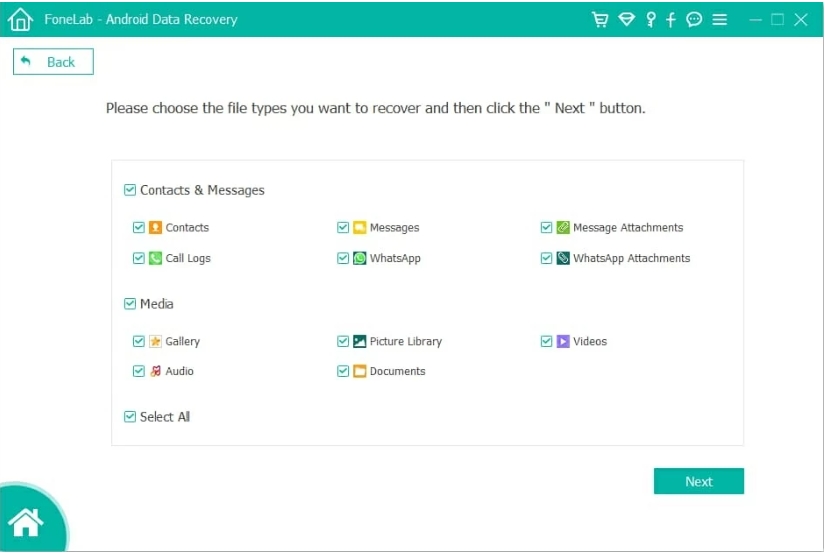
The recovery software scans Android storage for recoverable information and helps users locate files that may still exist in recoverable sectors of memory. Depending on the circumstances and how much new data has overwritten the storage, users may be able to recover:
- Photos
- Videos
- Contacts
- SMS messages
- Call logs
- Documents
- WhatsApp attachments
This type of recovery becomes especially valuable after an unsuccessful unlocking attempt or accidental reset.
A good practice is to stop using the device immediately after data loss occurs. Continuing to install applications, download files, or take photos can overwrite recoverable data and reduce recovery success rates.
Preventing data loss is even better than recovery. Lenovo tablet owners should regularly:
- Enable Google backup
- Sync photos to cloud storage
- Export important documents
- Maintain periodic local backups
By combining proper backup habits with reliable recovery tools, users can avoid the worst consequences of lockouts and system failures.
Ultimately, unlocking a Lenovo tablet should be viewed as only one part of device management. Protecting valuable data is equally important.
Frequently Asked Questions
1. Can I unlock a Lenovo tablet without losing data?
It depends on the method used. Software-based unlocking solutions may help in some situations, while factory reset methods typically erase local data.
2. What if I forgot both the tablet password and Google account?
You may need to use a dedicated Android unlocking solution or complete Google's account recovery process before regaining access.
3. Does a factory reset remove the Lenovo tablet password?
Yes. A factory reset removes the screen lock, but you may still need to verify the previously associated Google account due to FRP protection.
4. Can a Lenovo tablet be unlocked after years of non-use?
Yes. Even older Lenovo tablets can usually be unlocked through recovery mode, Google account recovery, or specialized unlocking software.
Conclusion
Forgetting a Lenovo tablet password can seem overwhelming at first, but it is usually a solvable problem. The best solution depends on your circumstances.
If convenience is your priority, Android Unlocker provides a guided unlocking experience. If you don't mind resetting the device, Recovery Mode offers a built-in solution. Users who still have access to their Google credentials can often recover access through Google's official account recovery process.
More importantly, remember that unlocking is only part of the challenge. Protecting your photos, documents, contacts, and other valuable data should always be a priority. Regular backups can save significant time and frustration when unexpected lockouts occur.
 English
 Nederlands
 Tiếng Việt
 日本
日本 Español
 Português
 Deutsche
 Français
 Italiano
 Norsk
Norsk Suomalainen
 Svenska
 Dansk
Dansk Ελληνικά
 Türk
Türk русский
 हिंदी
हिंदी தமிழ்
தமிழ் Bahasa Melayu
 ไทย
ไทย 한국어
한국어 Română
 Polskie
 қазақ
қазақ Gaeilge
 繁體中文
繁體中文