
 iPhone Data Recovery
 iOS System Recovery
 iOS Backup & Restore
 iOS WhatsApp Transfer
 iOS FoneTrans
 MobieSync
 Android Data Recovery
 Broken Android Data Extraction
 Android Data Backup & Restore
 iPhone Unlocker
 Best Samsung Phone Unlock Tool
 Android Unlocker
 Win/Mac Data Recovery
 iDATAPP Screen Recorder
 2D&3D Video Converter
 Video Repair Software Ai
 AI Video Converter
 Ai Blu-ray Player
 How to Recover Deleted/Lost Data from Lenovo Phone?
This guide explains how to recover deleted or lost data from Lenovo phones using iDatapp recovery software, cloud sync, and file tools, plus solutions for system crashes and bootloop-related data loss.

There’s something oddly universal about the moment you realize data has disappeared from your Lenovo phone. Maybe you deleted a photo album while clearing space. Maybe an app crashed and took your messages with it. Maybe the device restarted mid-update, and suddenly half your files are gone. It happens quickly—and the panic hits even faster.
Lenovo smartphones are widely appreciated for being sturdy and business-focused, but data loss isn’t selective. Android file systems, accidental taps, update glitches, and app conflicts make Lenovo devices just as vulnerable as any other Android brand. So before the panic snowballs, let’s break the problem down clearly.
Guide List
- Method 1: Recover Deleted or Lost Lenovo Data Using iDatapp Android Data Recovery
- Method 2: Recover Lenovo Data from Cloud/Linked Accounts (Google Sync Restoration)
- Method 3: Recover Lenovo Data Using File Restore Apps and Internal Storage Utilities
- One Problem Lenovo Users Frequently Face — Bootloop & System Crash Data Lockout
- Frequently Asked Questions
Why does data get deleted or vanish on Lenovo phones?
- Because Android’s file architecture is complex. When files are removed, they’re not immediately destroyed—they’re simply marked as overwrite-ready.
Why can recovery work?
- Because until that overwritten process happens, the data fragments still exist in storage.
So what’s the real challenge?
- Acting before new files take their place.
This article won’t just tell you what to do. It will walk you through three practical, Lenovo-friendly, non-technical methods—including a full professional approach using our own iDatApp tool—followed by a related issue many Lenovo users experience and how another iDatapp tool can help you fix that too.
Let’s start solving the problem.
Method 1: Recover Deleted or Lost Lenovo Data Using iDatapp Android Data Recovery
When Lenovo users face serious data loss—photos wiped, videos gone, contacts missing, WhatsApp chats vanished—manual tricks won’t help. You need something that can scan the phone’s storage deeply and pull out recoverable data before it’s overwritten. That’s exactly what iDatapp Android Data Recovery is built for. It works even when the phone fails to boot properly, suffers app malfunctions, or the file system gets corrupted. The tool supports recovery for contacts, messages, call logs, videos, music, photos, documents, and app data.
Its greatest strength is that it scans both visible and hidden directories and reconstructs recoverable data fragments—something users cannot do manually.
How to Use iDatapp Android Data Recovery (Step-by-Step):
1.Install Android Data Recovery from iDatapp on your computer.
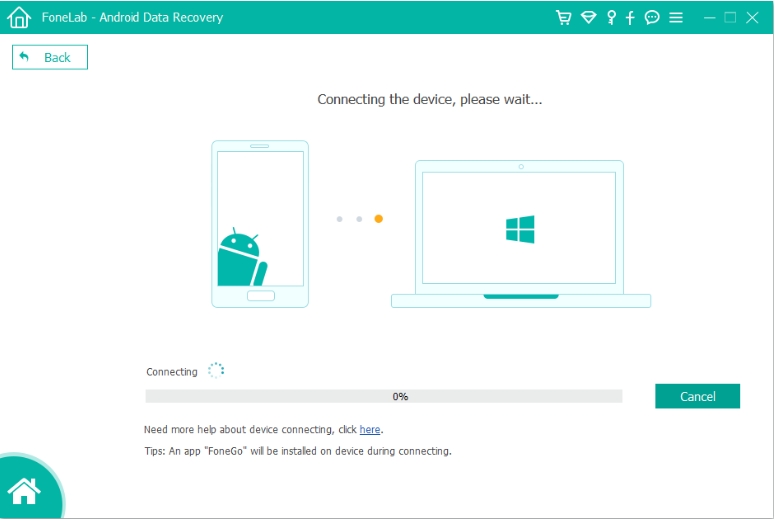
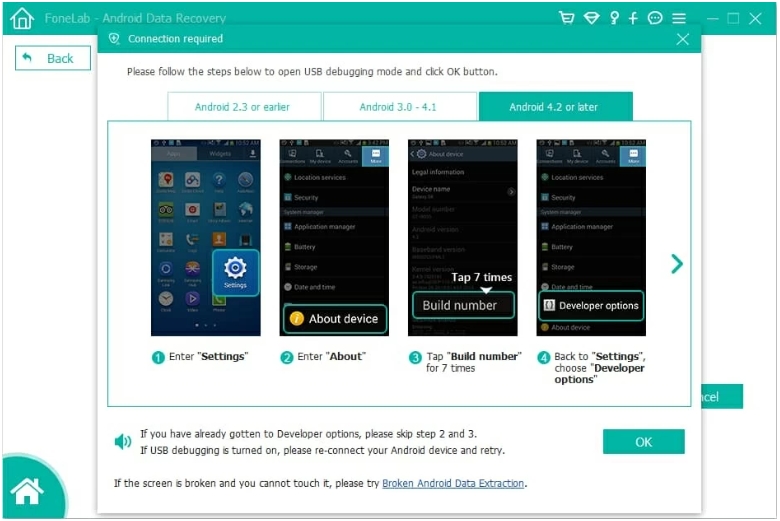
2.Connect your Lenovo phone using USB and enable USB debugging.
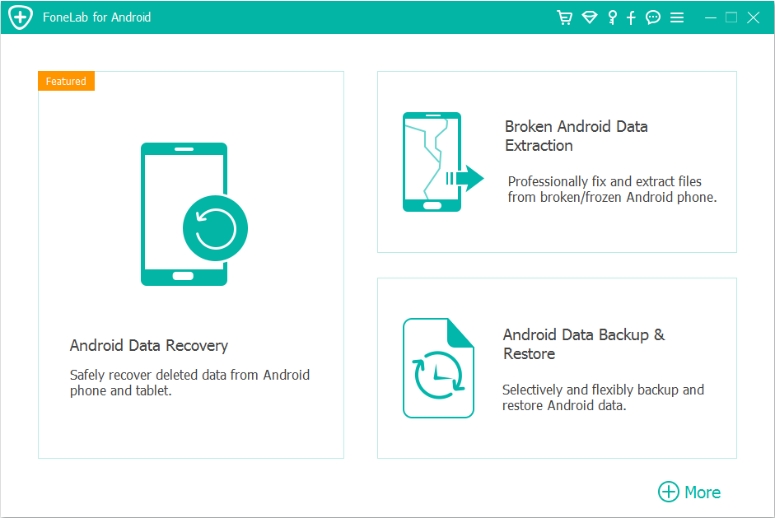
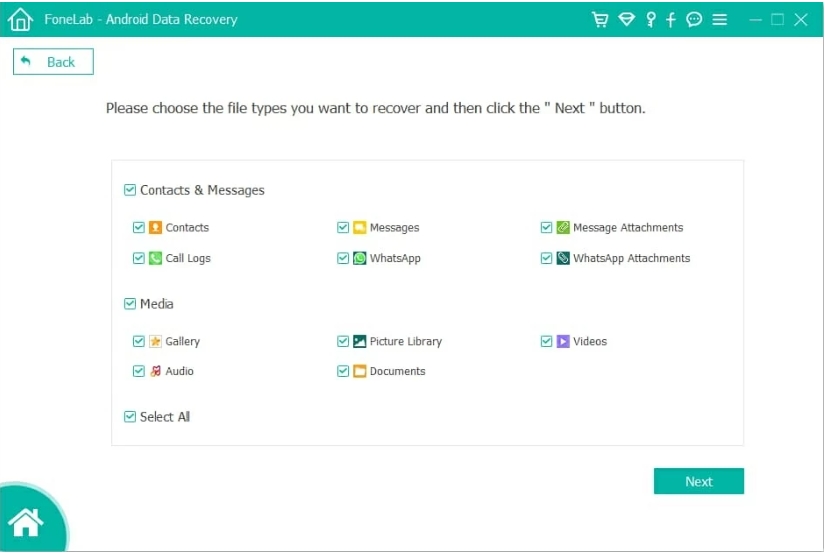
3.Launch the tool and choose Android Data Recovery. Select the categories you want to recover (photos, contacts, WhatsApp, videos, etc.).
4.Perform the scan; preview the files found on the phone.
5.Select the items you want restored and click Recover to save them to your PC.
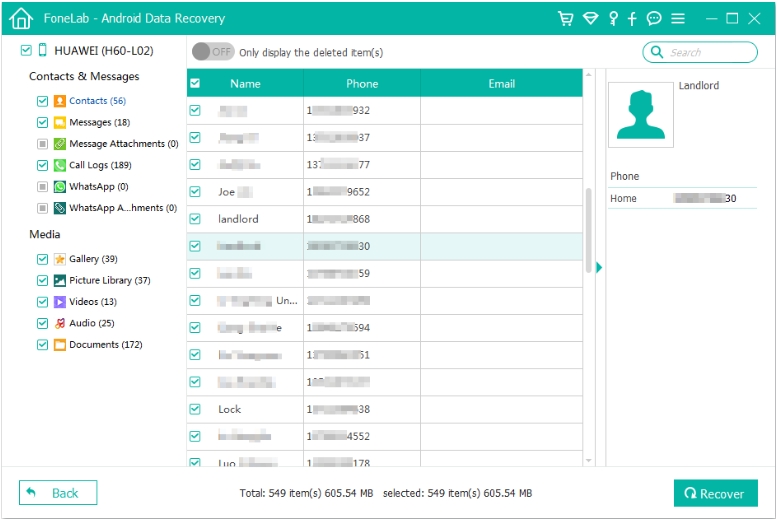
6.Keep the phone connected until the process completes.

Important Notes:
- Do not use the Lenovo phone before recovery—this prevents overwritten sectors.
- This method works even on Lenovo models stuck in glitches or partially unresponsive.
- Supports SD card recovery for devices that still use expandable storage.
Method 2: Recover Lenovo Data from Cloud/Linked Accounts (Google Sync Restoration)
This method doesn’t get enough credit. Lenovo phones—especially models like Lenovo K-series, Z-series, and Legion phones—are strongly tied to Google services. When users sign in with a Google account, a large amount of their information is quietly synced in the background. This means cloud-based recovery is often possible, even after factory resets, crashes, or accidental deletions.
This method works best when your lost items include contacts, app data, Google Photos images, Drive files, calendar items, or notes tied to your account. Think of it as your “invisible backup safety net."
Steps to Restore Lenovo Data via Google Sync:
- Open Settings on your Lenovo phone.
- Go to Accounts > Google.
- Ensure sync is enabled for Photos, Contacts, Messages (if using Google Messages), Drive, Keep Notes, and Calendar.
- If items are missing, log into your Google account from a computer browser.
- Check Google Photos recycle bin, Google Contacts trash, and Drive bin.
- Restore any items you find; they resync automatically back to your Lenovo phone.
Important Notes:
- Google Photos keeps deleted items for 30–60 days.
- Contacts have a 30-day recover window.
- Google cloud recovery won’t restore local-only files or app-specific data unless the app supported account backup.
Method 3: Recover Lenovo Data Using File Restore Apps and Internal Storage Utilities
Although not as powerful as professional tools, simple file-restore utilities can sometimes retrieve recently deleted photos, videos, or downloaded files—especially if the deletion was recent. Lenovo’s file system allows temporary caching of items in hidden storage layers, meaning quick recovery solutions can work when the lost data hasn’t been overwritten yet.
This method is best for users who need something fast and straightforward without connecting to a PC. It’s ideal for retrieving recently deleted images, documents, APK files, and audio clips stored in accessible internal folders.
How to Use Simple Lenovo File Recovery Utilities:
- Open your Lenovo device’s File Manager.
- Look for folders like Recently Deleted, Trash, or Recycle Bin (available on many Lenovo ROM versions).
- Browse media categories and restore recoverable items.
- If not available, use a trusted file restore app from Google Play.
- Grant storage permissions and run a quick scan.
- Save any recovered files to a secure folder immediately.
Important Notes:
- This method does not recover system data or deleted apps.
- Only works for items deleted in the last few days.
- Not reliable for deep-level recovery—use Method 1 for that.
One Problem Lenovo Users Frequently Face — Bootloop & System Crash Data Lockout
Lenovo smartphones, especially older K-series and business-oriented Vibe models, occasionally experience bootloops, failed updates, or system crashes due to firmware conflicts. When this happens, the phone repeatedly restarts, making internal storage inaccessible. Many users assume that if the phone doesn’t turn on properly, all data is gone—but that’s not true. The data is still inside the storage chip; it simply can't be accessed through normal booting.
This is where many Lenovo users panic most. Pictures from work events, contracts saved in Downloads, personal photos, WhatsApp chats—all locked behind a non-working system.
Luckily, the iDatapp software suite includes a tool specifically designed for data extraction under extreme conditions:
iDatapp Broken Android Data Extraction
This software helps when your Lenovo phone:
- is stuck in a bootloop
- won’t turn on normally
- has a black screen
- freezes on the Lenovo logo
- fails to respond after a system update
- experiences touchscreen failure
The tool can access the phone’s internal memory directly through a data extraction protocol, allowing recovery of photos, messages, app data, documents, and more—even when the operating system itself won’t load.
Why This Matters for Lenovo Phones:
- Older Lenovo models often struggle with firmware-related crashes.
- Many Lenovo users keep important business records on-device without cloud backup.
- Sudden system updates can cause app conflicts.
- Budget and mid-range Lenovo phones tend to show aging hardware symptoms earlier.
With iDatapp Broken Android Data Extraction, a dead or malfunctioning Lenovo phone doesn’t automatically equal lost data. The tool helps you salvage important content before you attempt repairs or replacements.
Frequently Asked Questions
Can I recover deleted files from my Lenovo phone without root?
Yes. iDatapp Android Data Recovery works without rooting the device, and Google sync can also restore account-based data.
Are deleted photos permanently gone after factory reset?
Not always. As long as the data sectors haven’t been overwritten, iDatapp can still detect and recover them.
Can I recover WhatsApp chats deleted from a Lenovo phone?
Yes, if they were backed up to Google Drive or still physically present in internal storage. iDatApp supports WhatsApp recovery.
Does using the phone reduce the chance of successful recovery?
Absolutely. Every photo you take or file you download increases the risk of overwriting old data fragments.
Which Lenovo models are supported for recovery?
Almost all Lenovo Android phones—including K-series, Legion, Vibe, A-series, and Z-series—are supported.
Conclusion
Recovering deleted or lost data from a Lenovo phone isn’t luck—it’s timing and technique. With methods like iDatapp Android Data Recovery, Google sync restoration, and internal file tools, users can rescue photos, documents, contacts, and more. Lenovo devices may face bootloops, crashes, or accidental deletions, but with the right tools—especially those from iDatapp—you can recover critical information quickly and safely.
 English
 Nederlands
 Tiếng Việt
 日本
日本 Español
 Português
 Deutsche
 Français
 Italiano
 Norsk
Norsk Suomalainen
 Svenska
 Dansk
Dansk Ελληνικά
 Türk
Türk русский
 हिंदी
हिंदी தமிழ்
தமிழ் Bahasa Melayu
 ไทย
ไทย 한국어
한국어 Română
 Polskie
 қазақ
қазақ Gaeilge
 繁體中文
繁體中文