
 iPhone Data Recovery
 iOS System Recovery
 iOS Backup & Restore
 iOS WhatsApp Transfer
 iOS FoneTrans
 MobieSync
 Android Data Recovery
 Broken Android Data Extraction
 Android Data Backup & Restore
 iPhone Unlocker
 Best Samsung Phone Unlock Tool
 Android Unlocker
 Win/Mac Data Recovery
 iDATAPP Screen Recorder
 2D&3D Video Converter
 Video Repair Software Ai
 AI Video Converter
 Ai Blu-ray Player
 Easily Unlock Samsung Tablet Tool Without Password/Pattern/Pin
Easily unlock a locked Samsung Galaxy Tab screen using three effective methods, including professional unlocking software, Samsung’s Find My Mobile, and recovery mode, plus tips for recovering lost tablet data.

Samsung’s Galaxy Tab lineup—such as the Galaxy Tab S10, S9, Tab S8, and Tab A series—has become a go-to device for productivity, media consumption, and remote work. However, one surprisingly common issue many users face is getting locked out of their own tablet. Maybe you forgot the password after changing it recently, entered the wrong pattern too many times, or bought a second-hand device that still has a lock screen enabled.
A locked Samsung tablet can feel frustrating because the device technically works, but you cannot access your files, apps, or settings. In some cases, repeated incorrect attempts may even trigger temporary security locks. This leads many users to search for how to unlock a locked Samsung Galaxy Tab screen without losing data.
The good news is that unlocking a Samsung tablet is usually possible through several reliable methods. Some approaches rely on official Samsung services, while others use specialized tools designed to bypass screen locks safely. The key is choosing the right method based on your situation—whether you remember your Samsung account, want to avoid factory reset, or need a quick unlock solution.
Guide List
- Method 1: Unlock Samsung Galaxy Tab Using Samsung Unlocker Software
- Method 2: Unlock Samsung Galaxy Tab via Samsung Find My Mobile
- Method 3: Unlock Samsung Galaxy Tab Using Recovery Mode (Factory Reset)
- Recover Lost Data on Samsung Galaxy Tab After System Problems
- Frequently Asked Questions
- Conclusion
In this guide, we’ll explore three practical methods to unlock a Samsung Galaxy Tab screen, including a professional unlocking tool and built-in recovery techniques. Each solution includes detailed steps so you can follow along easily.
Method 1: Unlock Samsung Galaxy Tab Using Samsung Unlocker Software
One of the most efficient ways to unlock a Samsung Galaxy Tab screen is by using a dedicated unlocking tool. The Samsung Unlocker from iDatapp is designed specifically to remove lock screens—including PINs, passwords, patterns, and fingerprint locks—from Samsung tablets and phones.
This solution is especially useful if you completely forgot the lock screen credentials or if your tablet does not respond to other recovery options. The software connects your tablet to a computer and performs a structured unlocking process. Unlike many manual approaches, it guides users through the entire process, reducing the risk of device errors.
Another advantage is compatibility. The software supports multiple Samsung Galaxy Tab models and Android versions, making it a practical solution for both older and newer devices.
Steps to Unlock Samsung Galaxy Tab Using Samsung Unlocker
1.Download and install the Samsung Unlocker software and install it on your Windows or Mac computer.

2.Select the Remove Screen Password option.
3.Connect your Samsung Galaxy Tab use a USB cable to connect the tablet to the computer.
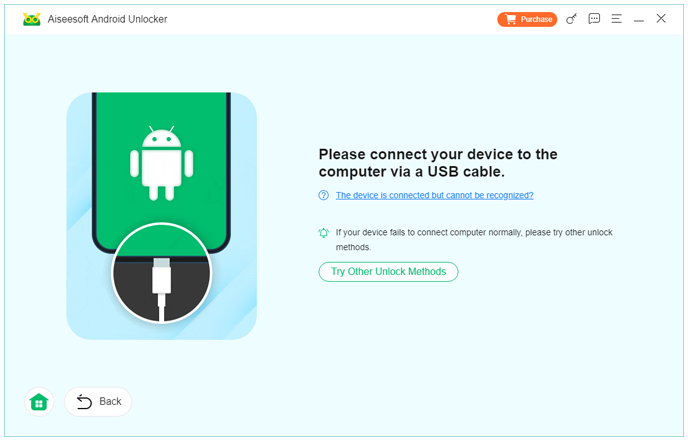
4.Ensure the device is recognized by the software.
5.Select device information and choose your tablet’s brand, model, and Android version.
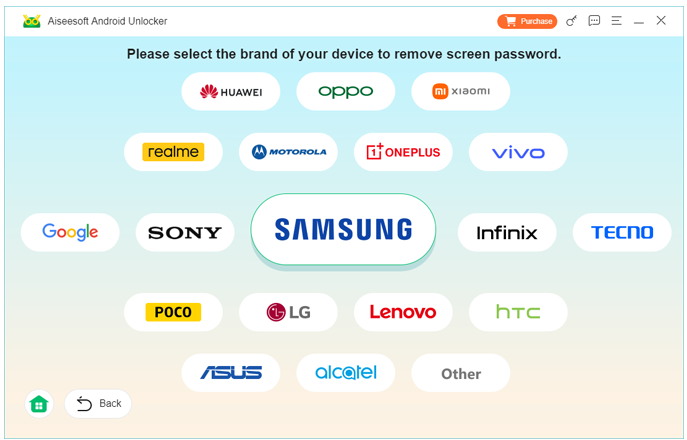
6.Click Remove Now.
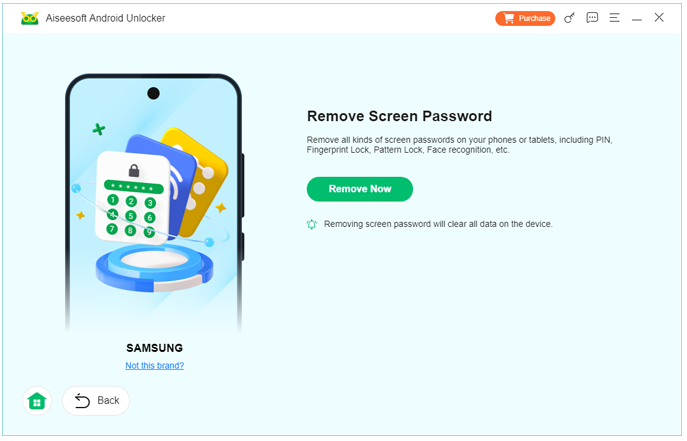
7.The program removes the lock screen from the tablet.
8.Device restarts
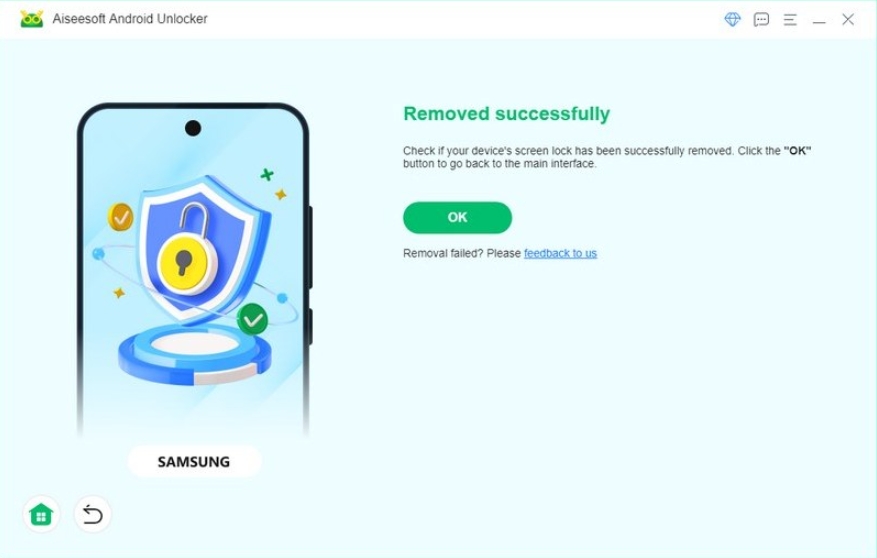
After completion, your Samsung Galaxy Tab will reboot without the lock screen.
Important tips
- Ensure the tablet battery is above 50%.
- Use the original USB cable if possible.
- Do not disconnect the device during the unlocking process.
Method 2: Unlock Samsung Galaxy Tab via Samsung Find My Mobile
Samsung offers an official remote management platform called Find My Mobile. If you previously logged into your Samsung account on the tablet and enabled remote unlock features, this service can remove the lock screen remotely.
This approach is convenient because it works entirely online. You do not need to install additional software or reset the tablet. Instead, you log into your Samsung account through a web browser and send an unlock command to the device.
However, this method only works if the tablet meets certain conditions: it must be connected to the internet, have a Samsung account logged in, and have remote unlocking enabled in the settings.
Steps to Unlock Using Find My Mobile
1.Open Find My Mobile
- Visit the official Samsung Find My Mobile website.
2.Log into your Samsung account
- Use the same account that is signed in on your Galaxy Tab.
3.Locate your device
- After logging in, you will see all Samsung devices connected to your account.
4.Select the locked Galaxy Tab
- Click on the specific tablet from the device list.
5.Choose the Unlock option
- Click Unlock in the device control panel.
6.Verify your account
- Enter your Samsung account password again to confirm.
7.Unlock command is sent
- The tablet receives the unlock request over the internet.
8.Screen lock removed
- Within a few seconds, the tablet lock screen will be disabled.
Important notes
- The tablet must be online.
- Samsung account verification is required.
- If the device is offline, the command will activate once it reconnects.
Method 3: Unlock Samsung Galaxy Tab Using Recovery Mode (Factory Reset)
If other methods fail, a factory reset through Recovery Mode can remove the lock screen. This method works even if the device has no internet connection or Samsung account access.
However, a factory reset erases all data on the device—including apps, photos, documents, and settings. Therefore, it should be considered a last resort when other unlocking options are unavailable.
Still, many users choose this approach because it is built into Android and does not require external tools.
Steps to Unlock Samsung Galaxy Tab via Recovery Mode
1.Turn off the tablet
- Press and hold the power button.
- Select Power Off.
2.Enter Recovery Mode
- Press and hold Volume Up + Power Button simultaneously.
- Release when the Samsung logo appears.
3.Navigate the recovery menu
- Use volume buttons to scroll.
- Use the power button to confirm selections.
4.Choose Wipe Data / Factory Reset
- Highlight the option and press the power button.
5.Confirm the reset
- Select Yes to start the factory reset process.
6.Wait for completion
- The tablet erases all stored data.
7.Reboot the device
- Choose Reboot System Now.
8.Set up the tablet
- After rebooting, the lock screen will be removed.
- Follow the initial setup process.
Important reminder
If Factory Reset Protection (FRP) is enabled, you may need the previously synced Google account after the reset.
Recover Lost Data on Samsung Galaxy Tab After System Problems
Unlocking the tablet is only one side of the story. In real-world scenarios, many users experience data loss after unlocking attempts, system crashes, or factory resets.
For example:
- A factory reset removed all files from the tablet.
- System crashes caused photos and documents to disappear.
- The tablet became stuck in a boot loop after a failed update.
- Important files were accidentally deleted while troubleshooting.
When this happens, many users assume the data is gone forever. Fortunately, modern Android recovery tools can scan the internal storage and retrieve lost files.
One reliable solution is Android Data Recovery from the iDatapp platform.
This tool is designed to recover multiple types of data from Samsung devices, including:
- Photos
- Videos
- Contacts
- Messages
- WhatsApp chats
- Documents
- App data
How the Recovery Process Works
The software connects your Samsung Galaxy Tab to a computer and performs a deep scan of the device storage. Even files that were deleted or lost due to system errors may still exist in hidden storage sectors.
During the scan, the tool categorizes recoverable data so users can preview files before restoring them. This is particularly useful if you only want to recover certain photos or documents rather than the entire dataset.
Example Recovery Scenario
Imagine you unlocked your Galaxy Tab through factory reset and realized afterward that your important work files and family photos were erased.
Using Android Data Recovery, you can:
- Connect the tablet to a computer.
- Start the scanning process.
- Preview lost files.
- Restore selected data back to your device or computer.
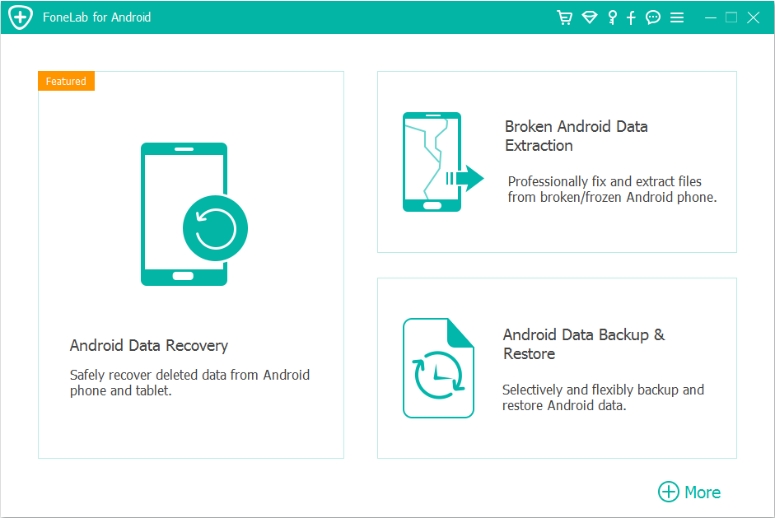
The tool supports many Samsung tablets, including the Galaxy Tab S series and Tab A models.
Why Data Recovery Matters
Many unlocking tutorials focus only on removing the lock screen. However, real users often care more about protecting or restoring their data. Losing files such as photos, notes, or documents can be far more damaging than being locked out of the device.
By combining unlocking tools with reliable recovery software, users can manage both device access and data safety.
Frequently Asked Questions
Can I unlock my Samsung Galaxy Tab without losing data?
Yes, some methods such as Samsung Find My Mobile or specialized unlocking tools can remove the screen lock without deleting data. Factory reset methods will erase everything.
What types of lock screens can be removed?
Most unlocking tools support PINs, passwords, patterns, fingerprint locks, and face unlock restrictions on Samsung Galaxy tablets.
Why is my Samsung tablet locked after too many attempts?
Android security systems temporarily lock the device after repeated incorrect password attempts to protect user data from unauthorized access.
Will factory reset remove the Samsung account lock?
Factory reset removes the screen lock but may trigger Factory Reset Protection (FRP), requiring the previously used Google account.
Is unlocking software safe to use?
If downloaded from a trusted developer and used according to instructions, professional unlocking software can safely remove lock screens from Samsung devices.
Conclusion
Getting locked out of a Samsung Galaxy Tab can happen to anyone, but it doesn’t mean the device is unusable. Whether you use professional unlocking software, Samsung’s official remote tools, or recovery mode, there are reliable ways to regain access.
The most suitable solution depends on your situation—whether you want to preserve data, have access to your Samsung account, or need a quick reset. In addition, pairing unlocking methods with reliable data recovery tools can help ensure important files remain safe.
With the right approach, unlocking a Samsung tablet becomes a manageable process rather than a frustrating problem.
 English
 Nederlands
 Tiếng Việt
 日本
日本 Español
 Português
 Deutsche
 Français
 Italiano
 Norsk
Norsk Suomalainen
 Svenska
 Dansk
Dansk Ελληνικά
 Türk
Türk русский
 हिंदी
हिंदी தமிழ்
தமிழ் Bahasa Melayu
 ไทย
ไทย 한국어
한국어 Română
 Polskie
 қазақ
қазақ Gaeilge
 繁體中文
繁體中文