
 iPhone Data Recovery
 iOS System Recovery
 iOS Backup & Restore
 iOS WhatsApp Transfer
 iOS FoneTrans
 MobieSync
 Android Data Recovery
 Broken Android Data Extraction
 Android Data Backup & Restore
 iPhone Unlocker
 Best Samsung Phone Unlock Tool
 Android Unlocker
 Win/Mac Data Recovery
 iDATAPP Screen Recorder
 2D&3D Video Converter
 AI Video Converter
 Ai Blu-ray Player
  Video Repair Software Ai
iDATAPP Video Repairer can help fix/restore videos with lost or corrupted data.
How to Recover Lost Data On Samsung Tab S10/S9 FE?
Lost files on Samsung Galaxy Tab S10 or S9 FE? This guide explains causes of data loss and three effective recovery methods, including professional Android recovery software, Samsung Cloud restoration, and Google backup solutions.

Losing important files on a tablet can feel like a disaster—especially when that device holds photos, project documents, downloaded media, or work notes. Owners of Samsung Galaxy Tab S10 and Samsung Galaxy Tab S9 FE often use their tablets for productivity and creativity, which means data loss can interrupt both personal and professional workflows.
But here’s the good news: most lost data is not permanently gone. In many situations, deleted files remain on the device’s internal storage until new data overwrites them. With the right strategy, you can recover photos, videos, contacts, notes, messages, and documents from your Samsung tablet.
This guide explores why data disappears on Samsung tablets, and more importantly, how to recover lost data from Samsung Tab S10/S9 FE using three practical methods. The solutions range from professional recovery software to built-in backup features and cloud restoration techniques.
Guide List
- Why Data Gets Lost on Samsung Tab S10/S9 FE?
- Method 1: Recover Samsung Tablet Data Using Android Data Recovery Software
- Method 2: Restore Data from Samsung Cloud Backup
- Method 3: Recover Deleted Files from Google Backup or Google Photos
- Forgot Samsung Tablet Lock Screen Password?
- Frequently Asked Questions
- Conclusion
Why Data Gets Lost on Samsung Tab S10/S9 FE?
Before attempting recovery, it’s useful to understand how data loss occurs. Knowing the cause helps you choose the most effective solution.
Common causes include:
- Accidental deletion of photos, videos, or documents
- System crashes or firmware update failures
- Factory reset or accidental formatting
- Corrupted storage or SD card errors
- Malware or third-party app conflicts
- Sync errors with cloud services
On devices like the Samsung Galaxy Tab S10 and Samsung Galaxy Tab S9 FE, the Android system usually marks deleted data as removable rather than immediately erasing it. That means recovery is often possible if you act quickly.
Now let’s explore the most effective recovery methods.
Method 1: Recover Samsung Tablet Data Using Android Data Recovery Software
The most comprehensive approach is using a dedicated recovery program such as Android Data Recovery from iDATAPP. This solution scans the internal storage of your tablet and reconstructs deleted files before they are overwritten. Unlike simple backup restoration, it can recover data even without a backup.
The software supports recovery of photos, videos, contacts, messages, call logs, documents, WhatsApp data, and more from Samsung tablets. It works by connecting the device to a computer and performing a deep scan of the storage structure.
For users who accidentally deleted files or lost data due to system errors, this method provides the highest recovery success rate.
Step-by-Step Recovery Guide
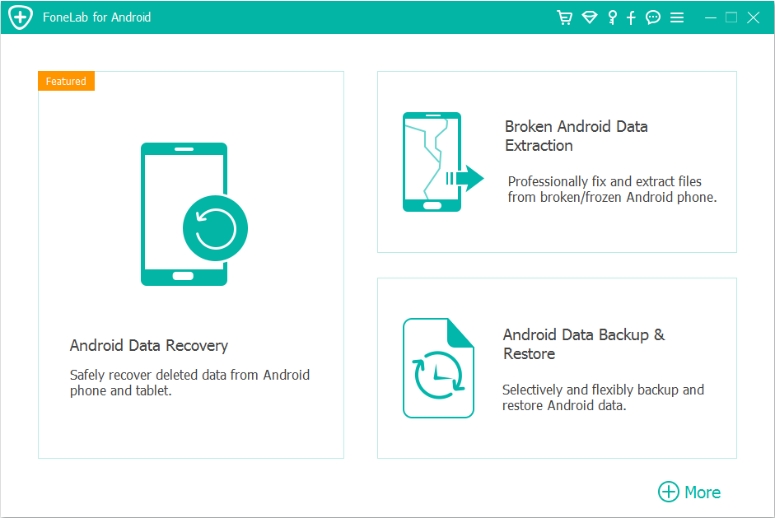
Step 1: Install the software
Download and install Android Data Recovery on your Windows or Mac computer.
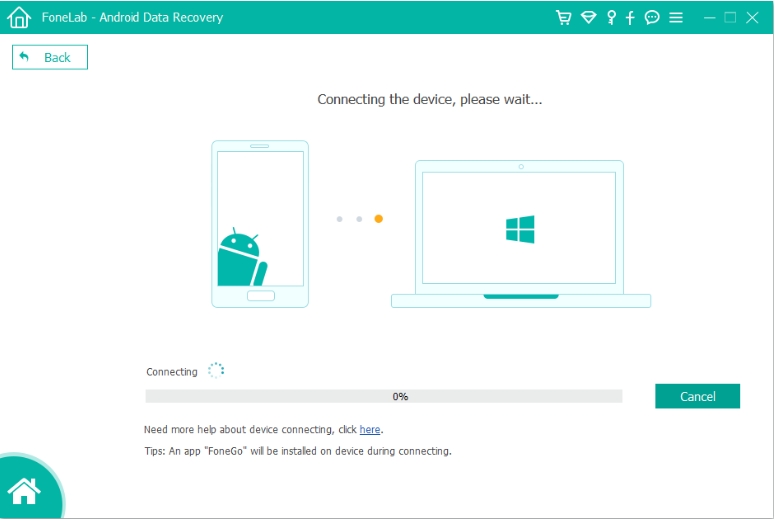
Step 2: Connect the Samsung tablet
Use a USB cable to connect your Samsung Tab S10/S9 FE to the computer.
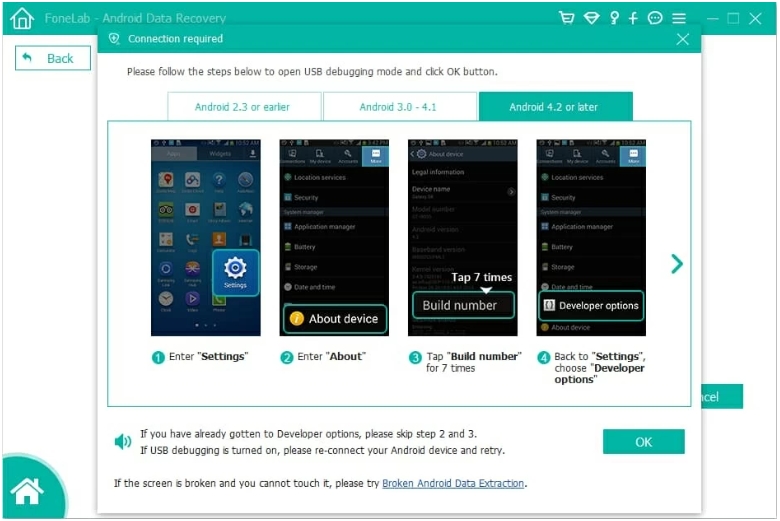
Step 3: Enable USB debugging
Go to Settings → About Tablet → Tap “Build Number” 7 times → Enable Developer Options → Turn on USB Debugging.
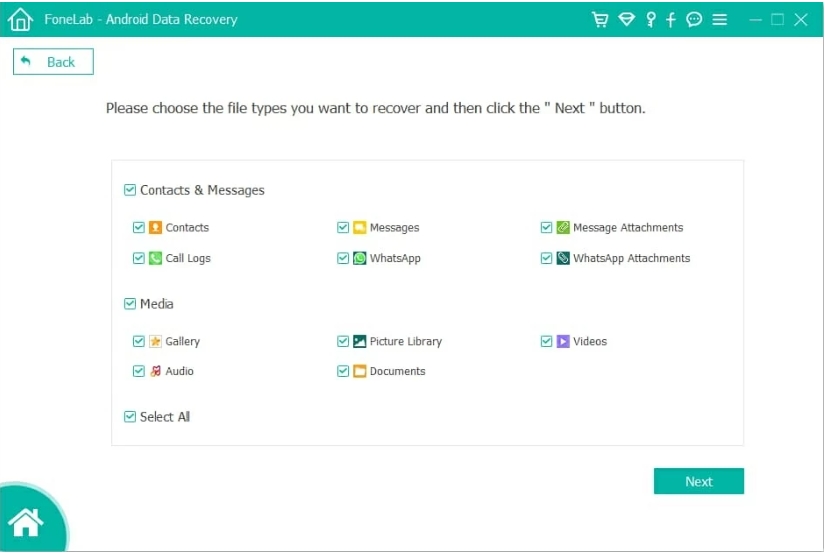
Step 4: Select file types
Choose the types of files you want to recover such as:
- Photos
- Videos
- Contacts
- Messages
- Documents
Step 5: Start scanning
The program performs a deep scan of internal storage and lists recoverable files.
Step 6: Preview lost files
Preview photos, documents, or messages before restoring them.
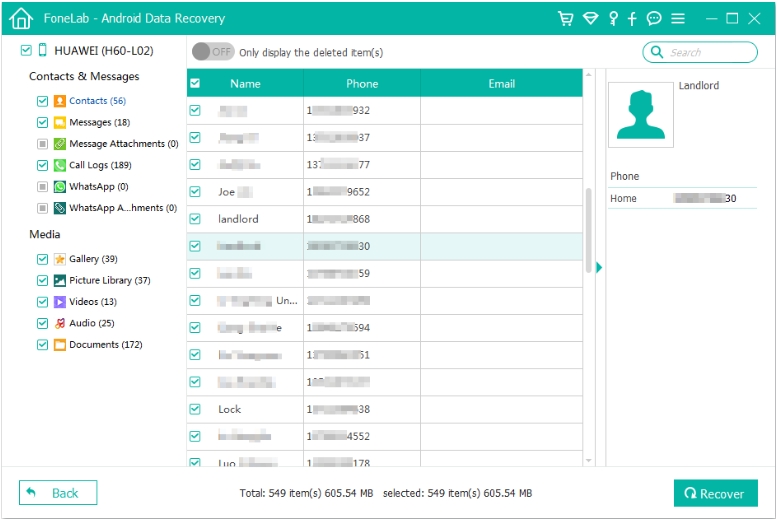
Step 7: Recover data
Select the desired files and click Recover to save them to your computer.

Important Tips
- Stop using the tablet immediately after data loss.
- Avoid installing new apps before recovery.
- Deep scan may take several minutes depending on storage size.
Method 2: Restore Data from Samsung Cloud Backup
If you previously enabled Samsung Cloud, recovering lost data can be very quick. Samsung tablets automatically back up certain types of information including contacts, settings, notes, and gallery data.
When files are deleted accidentally, you can restore them from the cloud backup created earlier.
This method is ideal for users who regularly synchronize their Samsung devices with their Samsung account.
How to Restore Samsung Cloud Backup
Step 1: Open tablet settings
Navigate to: Settings → Accounts and Backup
Step 2: Access Samsung Cloud
Tap Samsung Cloud.
Step 3: Choose Restore Data
Select the device backup associated with your Samsung Tab S10/S9 FE.
Step 4: Select content categories
You may see options such as:
- Gallery
- Contacts
- Calendar
- Samsung Notes
- Settings
Step 5: Tap Restore
The system downloads the saved data from the cloud and restores it to the tablet.
Things to Remember
- Recovery works only if backup was enabled earlier.
- Cloud restoration replaces existing synced content.
- Internet connection is required.
If no backup exists, use the recovery software method instead.
Method 3: Recover Deleted Files from Google Backup or Google Photos
Many Samsung tablet users rely on Google services for automatic backups. If Google Photos, Google Drive, or Android Backup was enabled, you may be able to recover lost data easily.
For example, deleted photos often remain in the Google Photos Trash folder for up to 60 days.
Recovering Photos from Google Photos
Step 1: Open Google Photos
Launch the app on your tablet.
Step 2: Go to Library
Tap Library → Trash.
Step 3: Find deleted photos
Browse files that were removed recently.
Step 4: Restore selected items
Tap the photo → press Restore.
The image will return to the gallery.
Restoring Device Backup from Google
If Android backup was enabled:
1.Open Settings
2.Tap Google
3.Select Backup
4.Restore available data during device setup
Tips
- Google Photos retains deleted files for 60 days.
- Videos and images are the most commonly backed-up data.
- This method works best when Google sync is active.
Forgot Samsung Tablet Lock Screen Password?
Data loss is not the only problem Samsung tablet users face. Another common situation occurs when people forget their lock screen password, PIN, or pattern, especially after not using the device for a long time.
If your Samsung Galaxy Tab S10 or Tab S9 FE becomes locked, you may be unable to access files, photos, and documents stored on the device. In some cases, users attempt a factory reset to regain access, but that process completely erases the tablet's data.
Fortunately, there are safer alternatives.
One effective option is using Android Unlocker from iDATAPP, a tool designed to remove screen locks from Android devices without requiring complex technical steps. It supports Samsung phones and tablets, including recent Galaxy models.
This type of tool works by connecting the device to a computer and guiding the user through a structured unlocking process. Unlike manual resets, specialized unlocking software can remove different types of lock mechanisms such as:
- Pattern locks
- PIN passwords
- Numeric passcodes
- Fingerprint locks
- Face recognition locks
The biggest advantage is that it helps users regain access to their device quickly, which is particularly important when valuable data remains inside.
Typical unlocking workflow:
- Install the Android Unlocker program on a computer.
- Connect the locked Samsung tablet using a USB cable.
- Choose the device model from the software interface.
- Follow the guided instructions to place the tablet into recovery or download mode.
- The program removes the screen lock and restores access.

Many technicians and mobile repair professionals use similar tools because they simplify the unlocking process and reduce the risk of device damage.
Of course, prevention is always better. If you regularly store important files on your Samsung tablet, consider combining data backups, cloud syncing, and secure password management to avoid lock-related data loss.
Frequently Asked Questions
Can I recover permanently deleted files on Samsung Tab S10?
Yes, it is often possible. If the deleted files have not been overwritten, recovery software can scan internal storage and restore them.
Is rooting required for Samsung data recovery?
Not always. Many recovery tools work without rooting, though deeper scans sometimes require temporary system access.
How long does data recovery take?
A typical scan takes 5–20 minutes, depending on tablet storage capacity and the number of files.
Are SD card files easier to recover?
Yes. Data stored on removable SD cards is generally easier to recover because it can be scanned independently.
How can I prevent future data loss?
Use multiple protections:
- Enable Samsung Cloud backup
- Sync Google Photos
- Regularly export important files
- Avoid installing unknown apps
Conclusion
Data loss on Samsung Tab S10 or Samsung Tab S9 FE can happen unexpectedly, but recovery is often possible with the right tools and methods. Whether your files disappeared due to accidental deletion, system errors, or software problems, there are reliable solutions available.
Using Android Data Recovery software provides the deepest scanning capability, while Samsung Cloud and Google backups offer fast restoration when backups exist. Combining these approaches significantly increases your chances of retrieving lost files.
By acting quickly and choosing the right recovery method, most users can restore valuable photos, documents, and other important data without permanent loss.
 English
 Nederlands
 Tiếng Việt
 日本
日本 Español
 Português
 Deutsche
 Français
 Italiano
 Norsk
Norsk Suomalainen
 Svenska
 Dansk
Dansk Ελληνικά
 Türk
Türk русский
 हिंदी
हिंदी தமிழ்
தமிழ் Bahasa Melayu
 ไทย
ไทย 한국어
한국어 Română
 Polskie
 қазақ
қазақ Gaeilge
 繁體中文
繁體中文