
 iPhone Data Recovery
 iOS System Recovery
 iOS Backup & Restore
 iOS WhatsApp Transfer
 iOS FoneTrans
 MobieSync
 Android Data Recovery
 Broken Android Data Extraction
 Android Data Backup & Restore
 iPhone Unlocker
 Best Samsung Phone Unlock Tool
 Android Unlocker
 Win/Mac Data Recovery
 iDATAPP Screen Recorder
 2D&3D Video Converter
 Video Repair Software Ai
 AI Video Converter
 Ai Blu-ray Player
 How to Unlock Fingerprint Lock on Android Without Password?
Fingerprint lock issues on Android can lock users out completely. This guide explains three effective unlocking methods and highlights data recovery solutions to prevent permanent data loss after unlocking.

Fingerprint locks feel effortless—until they don’t work. A wet finger, a sensor glitch, or a system update can suddenly block access to your own phone. And if you’ve forgotten your backup password, PIN, or pattern, the situation becomes even more frustrating.
This isn’t just a minor inconvenience. Your Android device stores your personal photos, business files, chats, and even authentication apps. Being locked out can disrupt your day—or worse, cause data loss if you attempt the wrong fix.
Guide List
- Why Fingerprint Unlock Fails (And Why It Matters)
- Method 1: Unlock Android Fingerprint Lock Using iDATAPP Android Unlocker (Recommended)
- Method 2: Use Google Find My Device to Reset Lock
- Method 3: Boot into Recovery Mode and Factory Reset
- Extended Scenario: What If You Lose Data After Unlocking?
- FAQs
- Final Thoughts
So what’s actually happening here?
Why Fingerprint Unlock Fails (And Why It Matters)
Fingerprint authentication on Android is not a standalone system. It always relies on a backup authentication method—usually a PIN, pattern, or password. If the fingerprint sensor fails multiple times, Android forces you to use that backup.
The problem is simple: many users forget that backup.
Common causes include:
- Long periods without using password unlock
- Recently changed password that wasn’t memorized
- Second-hand devices with unknown credentials
- System bugs disabling biometric recognition
Now, the real challenge: how do you unlock your Android without the password?
Let’s walk through three practical, effective methods.
Method 1: Unlock Android Fingerprint Lock Using iDATAPP Android Unlocker (Recommended)
When both fingerprint and password fail, a professional unlocking tool becomes the most reliable option. The iDATAPP Android Unlocker is designed specifically for bypassing lock screens—including fingerprint locks—without requiring the original password.
Unlike many tools that require technical knowledge, this one simplifies the process with guided steps. It supports multiple Android brands and can remove different lock types, including PINs, patterns, and biometrics.
Why this method works
The software interacts directly with the Android system layer, removing the lock screen configuration. This effectively resets authentication without needing user input.
Step-by-step guide
1.Download and install Android Unlocker
2.Launch the software and select “Remove Screen Lock”

3.Connect your Android device via USB
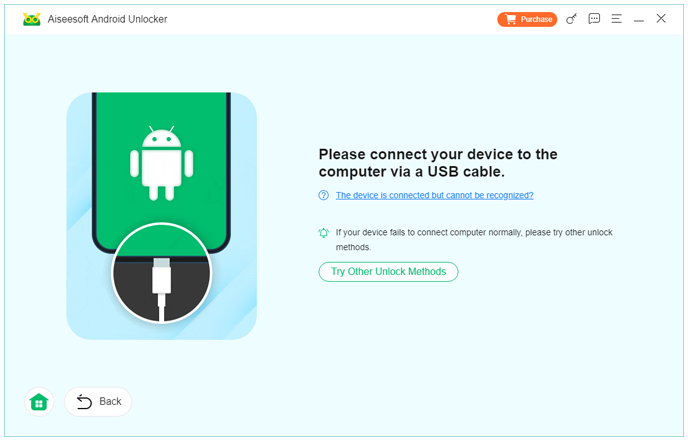
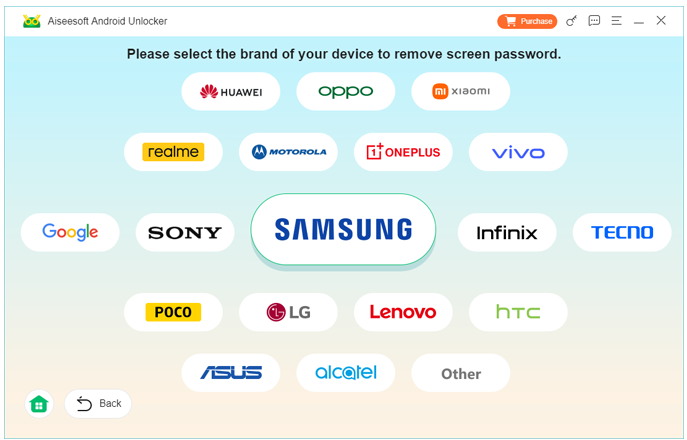
4.Choose your device brand (Samsung, Xiaomi, etc.)
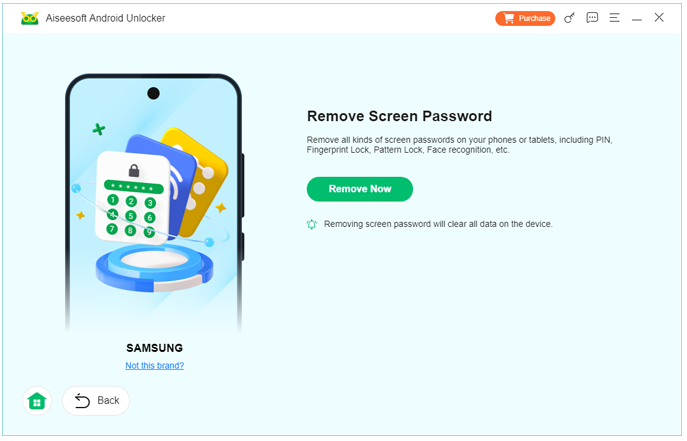
5.Click “Remove Now” and wait for the process to complete
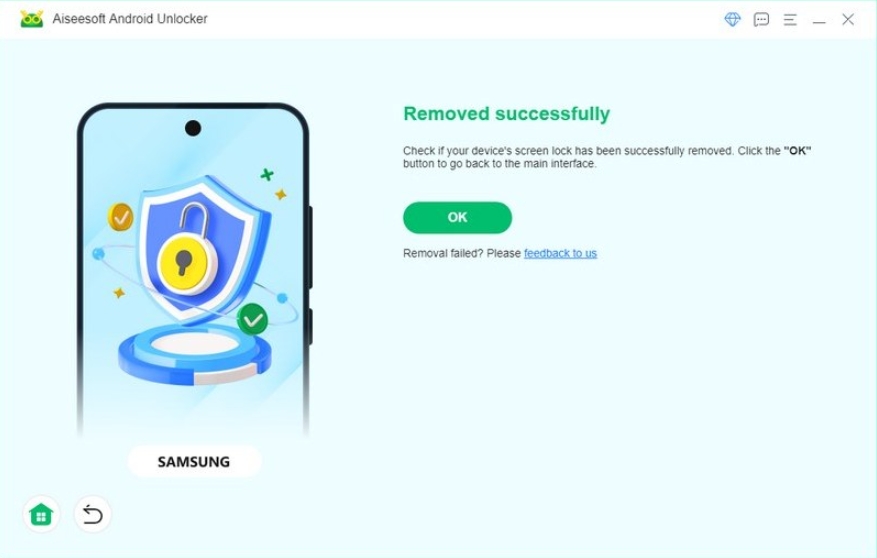
6.Your device will reboot without the fingerprint lock
Important notes
- Some devices may experience data loss (depends on model)
- Ensure your device has at least 50% battery
- Use the original USB cable for stable connection
This method is ideal if you want a fast, structured, and reliable solution without guessing passwords.
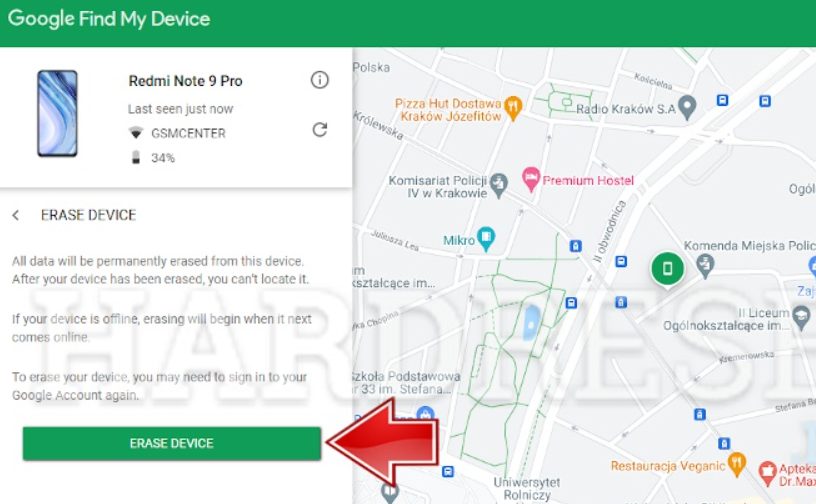
Method 2: Use Google Find My Device to Reset Lock
If your Android phone is connected to a Google account and has internet access, you can remotely reset it using Google’s Find My Device service.
This method doesn’t directly “unlock” the fingerprint—it erases the device and removes all lock settings, including biometric data.
Why this method works
Android security is tied to your Google account. By authenticating through Google, you can regain control of the device remotely.
Step-by-step guide
- Go to Find My Device (on another phone or PC)
- Log in with the Google account linked to your locked device
- Select your device from the list
- Click “Erase Device”
- Confirm your choice
- Wait for the device to reset
- Set up the phone again without the previous lock
Important notes
- This will erase all data on the device
- The phone must be online
- You’ll need the same Google account after reset (FRP protection)
This method is useful when you don’t mind resetting your phone and want an official, built-in solution.
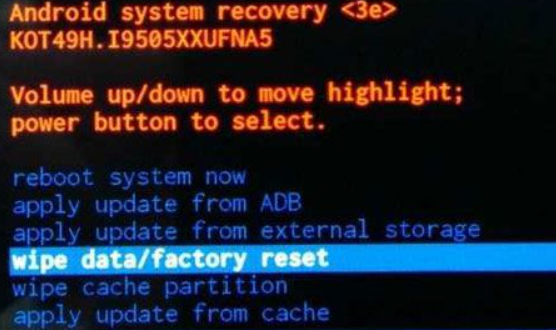
Method 3: Boot into Recovery Mode and Factory Reset
If you don’t have access to Google services or prefer a manual method, you can use Android’s Recovery Mode to perform a factory reset.
This is a hardware-based approach and works even if the phone is offline.
Why this method works
Recovery Mode operates independently of the Android system, allowing you to wipe the device and remove all locks.
Step-by-step guide
1.Power off your Android device
2.Press and hold the correct button combination:
- Usually Volume Up + Power
- Or Volume Down + Power (varies by brand)
3.Enter Recovery Mode
4.Use volume buttons to navigate to:
- “Wipe data/factory reset”
5.Press the Power button to confirm
6.Select “Yes”
7.Wait for the process to complete
8.Reboot the device
Important notes
- All data will be permanently deleted
- After reset, Google account verification may be required
- Button combinations differ across brands
This method is reliable but less user-friendly compared to software solutions.
Extended Scenario: What If You Lose Data After Unlocking?
Here’s a situation many users don’t anticipate:
You unlock your phone successfully—but realize all your photos, contacts, or messages are gone after a reset.
This is especially common with Samsung, Xiaomi, and Pixel devices where factory reset is often required to bypass locks.
The Real Problem
Unlocking methods like factory reset or Find My Device remove data along with the lock. Without a backup, recovery becomes urgent.
Solution: Android Data Recovery from iDATAPP
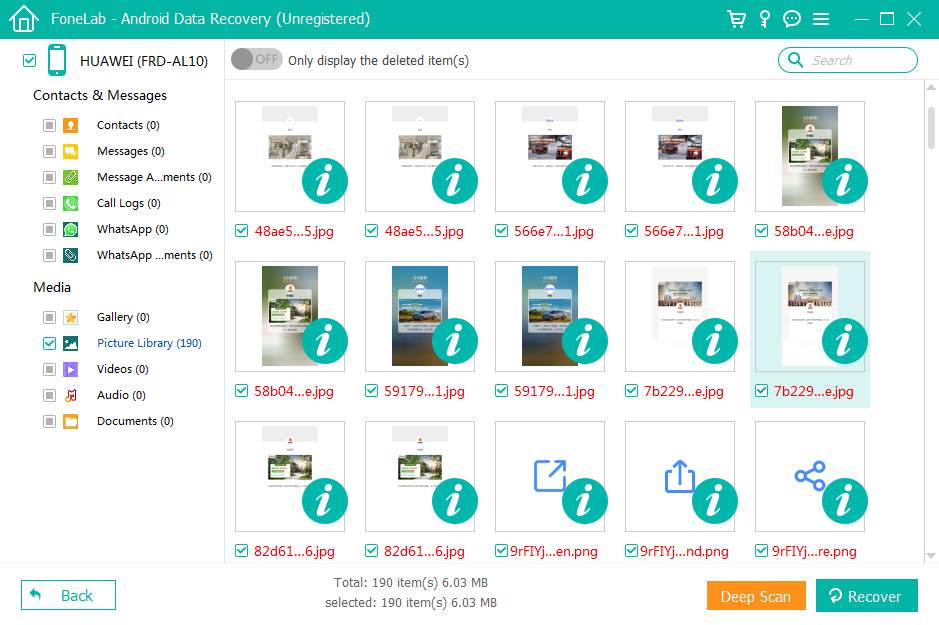
iDATAPP offers a dedicated Android Data Recovery solution designed for retrieving lost data after unlocking, crashes, or accidental deletion.
What it can recover
- Photos and videos
- Contacts and call logs
- WhatsApp and messages
- Documents and files
Why it’s effective
The tool scans your device’s internal storage at a deep level, identifying recoverable data fragments even after deletion.
How it works
- Install Android Data Recovery from idatapp.com
- Connect your device to the computer
- Enable USB debugging (if possible)
- Select file types to scan
- Start scanning
- Preview and recover files
Key advantages
- Supports most Android brands
- Recovers data without overwriting
- Beginner-friendly interface
Practical insight
If you’re planning to unlock your device using a reset method, it’s wise to prepare for recovery in advance. Many users only realize the value of recovery tools after data is gone.
FAQs
Can I unlock fingerprint lock without losing data?
Yes, but only in certain cases. Tools like Android Unlocker may preserve data on some devices, but factory reset methods will erase everything.
Why does Android force password after fingerprint fails?
This is a built-in security feature. Android requires backup authentication after multiple failed attempts to prevent unauthorized access.
Is it safe to use third-party unlocking tools?
It depends on the provider. Trusted tools like iDATAPP Android Unlocker are designed for safe unlocking without malware risks.
What is FRP and will it affect unlocking?
FRP (Factory Reset Protection) requires your Google account after reset. If you forget it, you may still be locked out.
Which method is best overall?
If you want simplicity and reliability, using Android Unlocker is the best option. Manual methods are more complex and risky.
Final Thoughts
Getting locked out of your Android due to fingerprint failure is more common than most people expect. The key is understanding that fingerprint authentication is only one layer of security—and when it fails, you need a solid backup plan.
From professional unlocking tools to built-in reset options, each method has its place depending on your situation. The smartest approach is choosing a method that balances ease, safety, and data protection.
 English
 Nederlands
 Tiếng Việt
 日本
日本 Español
 Português
 Deutsche
 Français
 Italiano
 Norsk
Norsk Suomalainen
 Svenska
 Dansk
Dansk Ελληνικά
 Türk
Türk русский
 हिंदी
हिंदी தமிழ்
தமிழ் Bahasa Melayu
 ไทย
ไทย 한국어
한국어 Română
 Polskie
 қазақ
қазақ Gaeilge
 繁體中文
繁體中文