
 iPhone Data Recovery
 iOS System Recovery
 iOS Backup & Restore
 iOS WhatsApp Transfer
 iOS FoneTrans
 MobieSync
 Android Data Recovery
 Broken Android Data Extraction
 Android Data Backup & Restore
 iPhone Unlocker
 Best Samsung Phone Unlock Tool
 Android Unlocker
 Win/Mac Data Recovery
 iDATAPP Screen Recorder
 2D&3D Video Converter
 Video Repair Software Ai
 AI Video Converter
 Ai Blu-ray Player
 Transfer WhatsApp Data from iPhone to New iPhone 17
Moving WhatsApp chats from old iPhone to a new iPhone 17 can be simple when using the right method. This guide explains three reliable transfer solutions, troubleshooting tips, and related iPhone data protection strategies.
Your New iPhone 17 Is Ready—But What About Years of Whatsapp Chats?
Few things are more frustrating than setting up a brand-new iPhone 17 only to discover that years of WhatsApp conversations, family photos, voice notes, work discussions, and important attachments are missing.
For many users, Whatsapp has become more than a messaging app. It stores business records, travel information, personal memories, and even legal conversations. When upgrading from an older iPhone to the iPhone 17, preserving this data becomes just as important as transferring contacts or photos.
The challenge is that Whatsapp data is encrypted and managed differently from ordinary files. Simply copying app data from one device to another does not work. Users often encounter issues such as:
- Whatsapp restoration stuck on loading
- Insufficient iCloud storage
- Missing media files after migration
- Different Apple IDs on old and new devices
- Interrupted transfer process
- Corrupted backups
Fortunately, there are several proven ways to move Whatsapp messages to a new iPhone 17 without losing conversations.
In this guide, we'll examine three effective solutions, compare their advantages, and help you choose the most suitable method for your situation.
Guide List
- Before You Start: Three Important Checks
- Solution 1: Transfer Whatsapp Directly with iDatapp iOS Whatsapp Transfer
- Solution 2: Transfer WhatsApp Using Whatsapp's Built-In Chat Transfer Feature
- Solution 3: Restore Whatsapp Through iCloud Backup
- What If Data Is Lost During the iPhone Upgrade?
- Comparing the Three Whatsapp Transfer Methods
- Five Frequently Asked Questions
Before You Start: Three Important Checks
Before transferring Whatsapp messages, verify the following:
Check 1: Update Whatsapp
Install the latest Whatsapp version on both devices.
Check 2: Verify Available Storage
The new iPhone 17 should have enough free storage to accommodate chat history, videos, documents, and media.
Check 3: Stable Internet Connection
Whether using iCloud or direct transfer, a stable Wi-Fi connection significantly reduces transfer failures.
Solution 1: Transfer Whatsapp Directly with iDatapp iOS Whatsapp Transfer
For users who want maximum control over the transfer process, dedicated transfer software often provides the most predictable results. Unlike cloud-based methods that depend on internet speed and storage limits, iDatapp iOS Whatsapp Transfer allows direct migration between two iPhones.
This approach is particularly useful when the WhatsApp database is large or when users want to avoid waiting for an iCloud backup to upload and download. It can transfer chats, photos, videos, voice messages, stickers, and attachments while maintaining conversation structures. Since the process occurs directly between devices, transfer speed is usually faster and less dependent on network conditions.

Detailed Steps
Step 1: Download and install iDatapp iOS Whatsapp Transfer on your computer.
Step 2: Launch the software and select: Whatsapp Transfer for iOS.
Step 3: Connect both iPhones using certified USB cables.
- Old iPhone = Source Device
- New iPhone 17 = Target Device
Step 4: Wait for the software to detect both devices.
If necessary, click Switch to correct the source and destination order.
Step 5: Choose Device to Device Transfer
Step 6: Click Start Transfer.
The software will begin transferring:
- Messages
- Photos
- Videos
- Voice messages
- Documents
- Group chats
Step 7: Keep both devices connected until the process finishes.
Step 8: Open Whatsapp on the new iPhone 17 and verify that all chats appear correctly.
Why Many Users Prefer This Method
- No iCloud storage limitations
- Direct device-to-device migration
- Transfers media and attachments
- Less affected by internet interruptions
- Suitable for large WhatsApp databases
Solution 2: Transfer WhatsApp Using Whatsapp's Built-In Chat Transfer Feature
Whatsapp has introduced an official direct transfer feature specifically designed for moving chats between iPhones. This method avoids cloud backups and allows encrypted migration through a local connection.
For users upgrading directly from an older iPhone to an iPhone 17, this is often the easiest official solution. Since both devices communicate directly, transfer speed is generally faster than downloading large backups from iCloud. The process also preserves message history, media, settings, and account information.
The key requirement is that both devices must remain physically available during setup.
Detailed Steps
Step 1: Power on your new iPhone 17.
Step 2: Install Whatsapp but do not complete account restoration.
Step 3: Open WhatsApp on your old iPhone.
Navigate to: Settings > Chats > Transfer Chats to iPhone
Step 4: Tap Start
Step 5: A QR code appears on the new iPhone.
Step 6: Use the old iPhone to scan the QR code.
Step 7: Keep both devices:
- Connected to Wi-Fi
- Plugged into power
- Close to each other
Step 8: Wait for Whatsapp to complete data migration.
Step 9: Open Whatsapp on the new iPhone 17 and confirm your account.
Advantages
- Official Whatsapp method
- End-to-end encrypted transfer
- No computer required
- Faster than many cloud restorations
Potential Limitations
- Requires both devices
- May fail if network connectivity is unstable
- Large media libraries can extend transfer time
Solution 3: Restore Whatsapp Through iCloud Backup
iCloud remains the most familiar solution for many Apple users. If your old iPhone is already backing up Whatsapp regularly, transferring chats to the new iPhone 17 may require only a restoration process.
The biggest advantage is convenience. Users who have already configured automatic WhatsApp backups often need only verify their phone number and download the existing backup. However, large WhatsApp histories can consume significant iCloud storage, and restoration speed depends heavily on internet bandwidth.
Related: Recover deleted whatsapp data from iPhone.
Detailed Steps
Step 1: On the old iPhone, open: WhatsApp > Settings > Chats > Chat Backup
Step 2: Tap Back Up Now, wait for completion.
Step 3: Verify
- Apple ID is unchanged
- Phone number remains the same
- Backup completed successfully
Step 4: Turn on your new iPhone 17.
Step 5: Install Whatsapp from the App Store.
Step 6: Verify the same phone number.
Step 7: Whatsapp detects the backup.
Tap: Restore Chat History
Step 8: Allow restoration to finish completely.
Advantages
- Official Whatsapp-supported method
- No computer required
- Convenient for existing iCloud users
Potential Drawbacks
- Requires sufficient iCloud storage
- Slow with large backups
- Restoration depends on internet speed
What If Data Is Lost During the iPhone Upgrade?
A surprisingly common issue occurs after users successfully transfer Whatsapp but discover that photos, contacts, notes, or other iPhone data have disappeared.
This often happens because:
- An incomplete backup was restored
- The wrong iCloud account was used
- iOS setup was interrupted
- Device storage became full
- System crashes occurred during migration
In these situations, the problem extends beyond WhatsApp. Users may need to recover deleted or inaccessible iPhone data.
One solution designed for these situations is available through the iDatapp ecosystem.
The iOS Data Recovery tool available at idatapp.com is designed to recover lost iPhone data caused by accidental deletion, failed upgrades, system crashes, device malfunctions, factory resets, or backup corruption.
Unlike ordinary restoration methods that require a complete backup, recovery software can scan available data sources and attempt to retrieve missing information. Depending on the situation, recoverable data may include:
- Photos
- Videos
- Contacts
- Notes
- Call history
- Safari bookmarks
- WhatsApp attachments
- Documents
A typical recovery scenario occurs when a user upgrades to an iPhone 17, restores from backup, and later discovers that several months of photos never transferred correctly. Instead of resetting the entire phone again, recovery software can analyze device storage, iTunes backups, or iCloud backup content and extract the missing files.
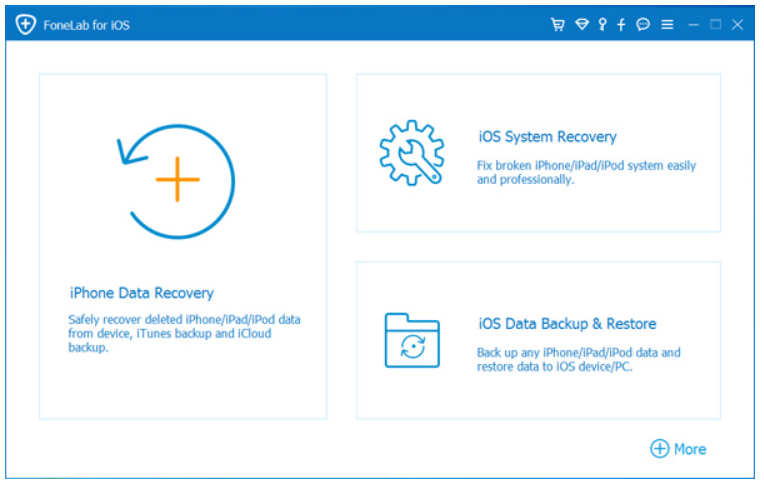
The process generally involves connecting the iPhone to a computer, running a deep scan, previewing recoverable files, and selecting only the data that needs restoration. This selective approach is often more efficient than performing a complete device reset.
Because iPhone upgrades are among the most common periods for data loss incidents, maintaining a secondary recovery option can provide additional protection beyond traditional backups.
The broader lesson is that successful migration is not just about transferring data—it is also about having a recovery strategy if something unexpected happens during the upgrade process.
Comparing the Three Whatsapp Transfer Methods
| Method | Computer Required | Internet Required | Speed | Best For |
|---|---|---|---|---|
| iDatapp iOS Whatsapp Transfer | Yes | No | Fast | Large chat histories |
| Whatsapp Chat Transfer | No | Minimal | Fast | Direct iPhone-to-iPhone upgrades |
| iCloud Backup | No | Yes | Moderate | Existing iCloud users |
Five Frequently Asked Questions
1. Can I transfer Whatsapp messages to iPhone 17 without iCloud?
Yes. Both WhatsApp's Chat Transfer feature and iDatapp iOS Whatsapp Transfer can migrate Whatsapp data without relying on iCloud storage.
2. Will WhatsApp photos and videos transfer too?
Yes. When properly transferred, chats, photos, videos, documents, voice messages, and attachments can move together with conversation history.
3. Do I need the same phone number?
In most cases, yes. Using the same phone number ensures Whatsapp can locate and restore the correct account data.
4. Why is my WhatsApp restore stuck?
Common causes include:
- Weak Wi-Fi connection
- Insufficient storage
- Large backup size
- iCloud synchronization issues
- Outdated WhatsApp version
5. Which transfer method is the fastest?
Direct device-to-device transfer methods are typically fastest because they avoid uploading and downloading large cloud backups.
Conclusion
Transferring Whatsapp messages from an old iPhone to a new iPhone 17 is no longer the complicated process it once was. The best solution depends on your situation.
If you want a dedicated migration environment with direct transfer capability, iDatapp iOS Whatsapp Transfer offers a practical approach. If both devices are available, WhatsApp's built-in Chat Transfer feature provides a convenient official solution. For users already invested in Apple's ecosystem, iCloud Backup remains a reliable option.
Whichever method you choose, the most important rule is simple: create a fresh backup before starting. A few minutes of preparation can prevent years of conversations from being lost during the upgrade process.
 English
 Nederlands
 Tiếng Việt
 日本
日本 Español
 Português
 Deutsche
 Français
 Italiano
 Norsk
Norsk Suomalainen
 Svenska
 Dansk
Dansk Ελληνικά
 Türk
Türk русский
 हिंदी
हिंदी தமிழ்
தமிழ் Bahasa Melayu
 ไทย
ไทย 한국어
한국어 Română
 Polskie
 қазақ
қазақ Gaeilge
 繁體中文
繁體中文