
 iPhone Data Recovery
 iOS System Recovery
 iOS Backup & Restore
 iOS WhatsApp Transfer
 iOS FoneTrans
 MobieSync
 Android Data Recovery
 Broken Android Data Extraction
 Android Data Backup & Restore
 iPhone Unlocker
 Best Samsung Phone Unlock Tool
 Android Unlocker
 Win/Mac Data Recovery
 iDATAPP Screen Recorder
 2D&3D Video Converter
 Video Repair Software Ai
 AI Video Converter
 Ai Blu-ray Player
 Remove Google Account from Motorola After Factory Reset
Locked out of a Motorola phone after reset? Learn three effective ways to remove Google account verification without a password, including a reliable professional unlocking solution.
How to Remove Google Account from Motorola Phone After Factory Reset Without Password?
Factory resetting a Motorola phone is often seen as a clean slate. But for many users, that “fresh start” quickly turns into frustration when the device asks for the previously synced Google account and password. This protection, known as Factory Reset Protection (FRP), is designed to prevent theft—but it can also lock out legitimate owners who forgot their credentials, bought a second-hand Motorola phone, or inherited a device from someone else.

In this article, we’ll analyze why FRP appears on Motorola phones, explain real-world situations where users get stuck, and then walk through three practical methods to remove a Google account from a Motorola phone after factory reset without the original password. These methods avoid third-party commercial tools from other companies and focus on official processes, built-in workarounds, and one professional solution from our own website.
Finally, we’ll extend the discussion to a related Motorola problem many users face after unlocking or system failure—and show how another solution from the same website can help.
Guide List
- Why Motorola Phones Get Stuck on Google Account Verification?
- Method 1: Use iDatapp Android Unlocker to Remove Google Account (Recommended)
- Method 2: Recover Access Through Google Account Recovery
- Method 3: Remove Google Account Before Reset (Preventive, Not Retroactive)
- Data Loss on Motorola Phones After Unlocking or System Failure
- How iDatapp Helps with Motorola Data Recovery
- FAQs
Why Motorola Phones Get Stuck on Google Account Verification?
Motorola devices run near-stock Android, which means Google’s security mechanisms are deeply integrated. When you factory reset a Motorola phone from recovery mode or settings without first removing the Google account, Android automatically activates FRP.
Once the phone reboots, you’ll see messages like:
- “This device was reset. To continue, sign in with a Google Account that was previously synced on this device.”
- “Verify your account”
This is not a bug—it’s a security lock. But in real life, people lose access for many valid reasons:
- Forgot the Google account or password
- Bought a used Motorola phone still linked to the previous owner
- Received a phone from a friend or family member
- Reset the phone after screen damage or system crash
- Business or company phone reassigned without proper account removal
If you’re in one of these situations, don’t panic. Below are three legitimate ways to remove or bypass the Google account lock on Motorola phones after a factory reset.
Method 1: Use iDatapp Android Unlocker to Remove Google Account (Recommended)
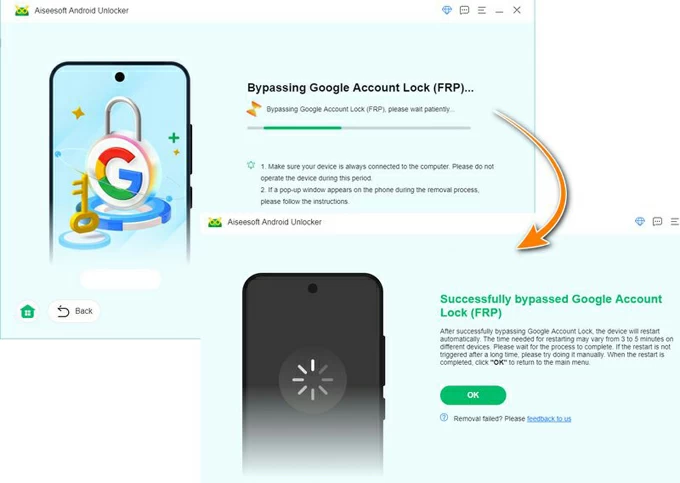
This is the most direct and time-saving solution if you no longer have access to the original Google account. iDatapp Android Unlocker is designed specifically to remove Google account verification (FRP) and screen locks from Android devices, including Motorola models running different Android versions.
Unlike risky manual tricks, this method works through a guided process on a computer. It doesn’t require the previous Google password and avoids complicated system exploits. The software supports many Motorola devices and Android versions and is suitable even for non-technical users.
Step-by-Step Solution
1.Download and install the software on your Windows or Mac computer. Launch the program and select “Bypass Google FRP Lock”.

2.Connect your Motorola phone to the computer using a USB cable.
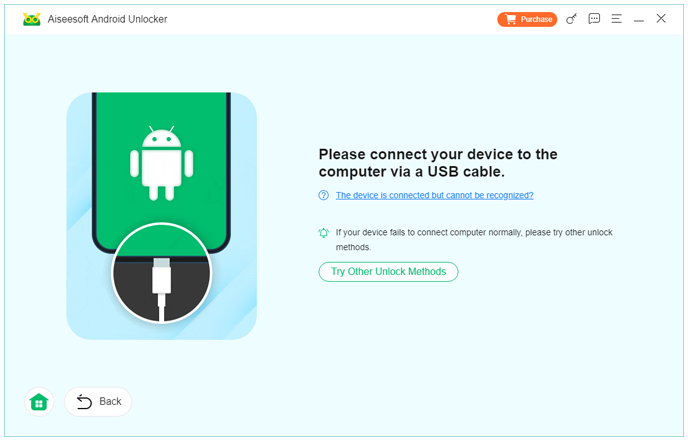
3.Choose your Motorola device brand and Android version when prompted.

4.Follow the on-screen instructions to put the phone into the required mode.
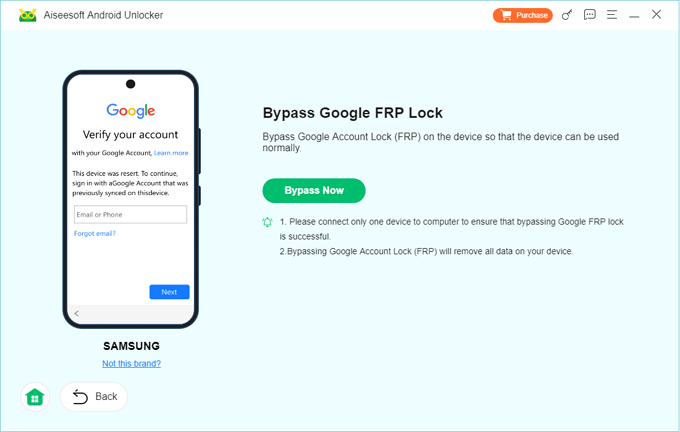
5.The software will automatically bypass the Google account verification.
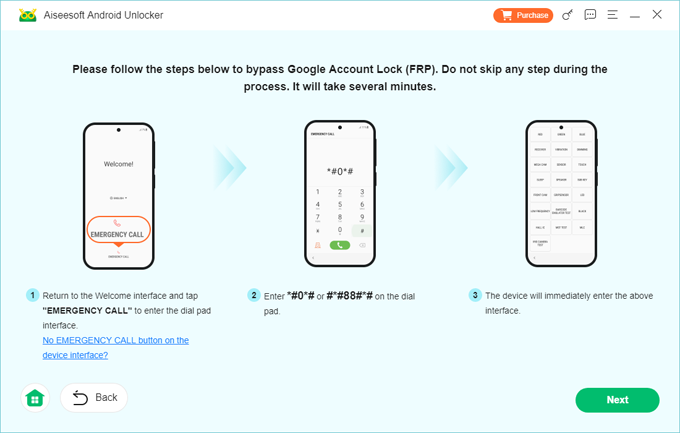
6.Once completed, restart your phone and set it up with a new Google account.
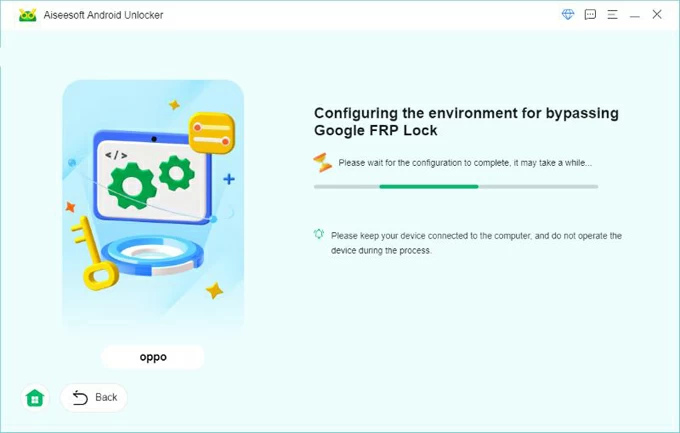
Important Details
- No Google password required
- Works after factory reset
- No need to enable USB debugging beforehand
- Safe, guided, and repeatable process
This method is especially effective if you purchased a second-hand Motorola phone or cannot contact the previous owner.
Method 2: Recover Access Through Google Account Recovery
If you believe you still have access to the original Google account—or can recover it—this is the most official and risk-free method. Google allows users to recover accounts even if they’ve forgotten the password, as long as some recovery information is still valid.
This method doesn’t “bypass” FRP but legitimately unlocks it by restoring account access.
Step-by-Step Solution
1.On another device, open Google Account Recovery.
2.Enter the email address previously used on the Motorola phone.
3.Follow Google’s recovery steps:
- Verify via backup email
- Confirm phone number
- Answer security questions
4.Reset your Google password.
5.Wait 24–72 hours if Google enforces a security delay.
6.Power on your Motorola phone and sign in using the recovered credentials.
Important Details
- Requires partial account information
- May involve waiting periods
- Won’t work if you don’t know the original email
- Not helpful for second-hand phone buyers
While this method is ideal in theory, many users find it impractical—especially when the account belongs to someone else.
Method 3: Remove Google Account Before Reset (Preventive, Not Retroactive)
This method doesn’t help if you’re already locked out—but it’s critical to understand for future protection. Many FRP problems occur simply because users don’t remove their Google account before resetting the phone.
If you still have access to a Motorola phone before a reset, this method prevents Google account verification entirely.
Step-by-Step Solution
- Open Settings on your Motorola phone.
- Go to Passwords & Accounts or Accounts.
- Select Google.
- Choose the Google account linked to the device.
- Tap Remove account.
- Confirm removal.
- Now perform a factory reset.
Important Details
- Prevents FRP activation
- Requires screen access and account login
- Essential before selling or gifting the phone
Although this method won’t help after a reset, it explains why FRP exists and how many users accidentally trigger it.
Data Loss on Motorola Phones After Unlocking or System Failure
One common issue Motorola users face—especially after factory reset, FRP removal, or system crashes—is unexpected data loss. Photos, contacts, messages, and videos can disappear due to:
- Forced factory resets
- System update failures
- Unlocking errors
- Rooting attempts
- Virus or malware attacks
- Storage corruption
Motorola phones are widely used for daily communication, work, and media storage. Losing important data can be more painful than being locked out of the device itself.
How iDatapp Helps with Motorola Data Recovery
When data loss occurs, professional recovery software becomes essential. On the same website, iDatapp provides Android Data Recovery solutions that support Motorola devices.
These tools can help recover:
- Deleted photos and videos
- Lost contacts and call logs
- Messages and WhatsApp data
- Files from internal storage or SD cards
The recovery process typically involves connecting the Motorola phone to a computer, scanning storage modules, and previewing recoverable data before restoration. This is especially useful after unlocking the phone, when users realize their data is missing.
Unlike risky DIY methods, professional recovery tools reduce the chance of permanent data overwriting and provide structured recovery paths.
FAQs
Is it legal to remove Google account verification from a Motorola phone?
Yes, if you are the legitimate owner or have permission. FRP removal is intended for owners who lost access—not for stolen devices.
Will removing FRP delete my data?
Most FRP removal methods occur after a factory reset, so data is already erased. Always back up data when possible.
Does this work on all Motorola models?
Most modern Motorola phones are supported, but compatibility depends on Android version and security patch level.
Can FRP be removed without a computer?
Some manual methods exist, but they are unreliable, version-specific, and often patched. Computer-based tools are more stable.
Will FRP come back after system updates?
No. Once removed and a new Google account is added, FRP will be tied to the new account.
Conclusion
Removing a Google account from a Motorola phone after factory reset without a password can be frustrating—but it’s solvable. Whether you recover your account, use a professional unlocking tool, or prevent FRP in advance, the key is choosing the method that fits your situation. Understanding FRP not only helps you unlock your phone but also protects your data and device in the future.
 English
 Nederlands
 Tiếng Việt
 日本
日本 Español
 Português
 Deutsche
 Français
 Italiano
 Norsk
Norsk Suomalainen
 Svenska
 Dansk
Dansk Ελληνικά
 Türk
Türk русский
 हिंदी
हिंदी தமிழ்
தமிழ் Bahasa Melayu
 ไทย
ไทย 한국어
한국어 Română
 Polskie
 қазақ
қазақ Gaeilge
 繁體中文
繁體中文