
 iPhone Data Recovery
 iOS System Recovery
 iOS Backup & Restore
 iOS WhatsApp Transfer
 iOS FoneTrans
 MobieSync
 Android Data Recovery
 Broken Android Data Extraction
 Android Data Backup & Restore
 iPhone Unlocker
 Best Samsung Phone Unlock Tool
 Android Unlocker
 Win/Mac Data Recovery
 iDATAPP Screen Recorder
 2D&3D Video Converter
 Video Repair Software Ai
 AI Video Converter
 Ai Blu-ray Player
 Get Back Deleted Photos From Samsung Tablet Is So Easy
Lost photos or videos on a Samsung tablet can often be recovered through cloud backups, hidden storage recovery, or professional Android recovery tools. This guide explains practical recovery methods and prevention strategies.

There is a unique kind of panic that happens when a Samsung tablet suddenly loses years of photos and videos. Maybe your Galaxy Tab froze during an update. Maybe you accidentally deleted your child’s birthday videos while clearing storage. Or perhaps the tablet screen became unresponsive and important media files disappeared after a factory reset.
What makes Samsung tablet photo recovery complicated is that media loss rarely happens for one single reason. In real situations, users face:
- Accidental deletion
- Broken system updates
- Corrupted SD cards
- Samsung tablet boot loops
- Virus attacks
- Formatting mistakes
- Storage optimization cleanup
- Water damage
- Cache corruption
- Sync failures
Unlike ordinary documents, photos and videos usually carry emotional value. Once they disappear, users often try random recovery apps immediately, which can overwrite storage sectors and permanently reduce recovery success rates.
The good news? In many cases, deleted photos and videos are not immediately erased from Samsung tablet storage. The system only marks the space as reusable. Until new data overwrites it, recovery may still be possible.
This article focuses on practical, real-world recovery solutions specifically for Samsung tablets, including Galaxy Tab S series, Galaxy Tab A series, Galaxy Tab Active devices, and older Samsung Android tablets.
Instead of presenting generic advice copied from other websites, we will analyze how Samsung storage actually behaves after deletion and which recovery approaches still work in 2026.
Guide List
- Why Samsung Tablet Photos and Videos Disappear?
- Method 1: Recover Samsung Tablet Photos from Samsung Cloud or Google Photos
- Method 2: Recover Deleted Samsung Tablet Media Using iDATAPP Android Data Recovery
- Method 3: Recover Hidden or Corrupted Samsung Tablet Media Through File Manager
- What If Your Samsung Tablet Was Factory Reset?
- Common Mistakes That Reduce Samsung Tablet Recovery Success
- Unlocking a Samsung Tablet After Forgotten Password
- Frequently Asked Questions
- Conclusion
Why Samsung Tablet Photos and Videos Disappear?
Before attempting recovery, it is important to understand what actually causes the loss. Different causes require different recovery strategies.
1. Accidental Deletion
The most common scenario. Users clear gallery files or “junk” data without checking contents carefully.
2. Samsung System Updates
Some Android updates rebuild media databases, causing photos to appear missing even though storage data still exists.
3. SD Card Corruption
Many Samsung tablets use microSD cards. Sudden removal, power failures, or counterfeit cards can corrupt media directories.
4. Factory Reset
A reset may erase internal storage, but recovery chances still depend on encryption status and overwrite activity.
5. App Conflicts
Gallery cleaners, duplicate removers, and third-party optimization apps sometimes remove media unexpectedly.
Understanding the reason behind the loss helps determine whether recovery should focus on cloud restoration, local cache rebuilding, or deep storage scanning.
Method 1: Recover Samsung Tablet Photos from Samsung Cloud or Google Photos
Many Samsung tablet users forget that their devices silently synchronize media files in the background. Even when files vanish locally, copies may still exist in cloud services.
Samsung tablets commonly use:
- Samsung Cloud
- Google Photos
- OneDrive synchronization
- Google Drive backups
This method works especially well for recently deleted photos and videos because cloud services often keep deleted items in a recycle bin for 30–60 days. Unlike deep recovery software, this approach does not risk overwriting tablet storage. It is also the safest option if your Samsung tablet is still functioning normally.
The key advantage is that cloud recovery preserves original quality, timestamps, albums, and metadata.
Steps to Recover Photos/Videos from Cloud Backup:
1.Using Google Photos
Open Google Photos on the Samsung tablet.
Tap “Library.”
Open “Trash” or “Bin.”
Select deleted photos/videos.
Tap “Restore.”
2.Using Samsung Cloud
Open “Settings.”
Tap “Samsung Account.”
Choose “Samsung Cloud.”
Open synced gallery items.
Restore available backups.
3.Using OneDrive
Open OneDrive app.
Check “Recycle Bin.”
Recover deleted media files.
Notes
- Deleted cloud files may auto-delete after 30–60 days.
- Videos larger than sync limits might not upload automatically.
- Multiple Samsung accounts can cause synchronization confusion.
- Recovery success depends on previous backup settings.
If your media files are not available in cloud storage, avoid installing random recovery apps immediately. The next method is more suitable for deeper recovery scenarios.
Method 2: Recover Deleted Samsung Tablet Media Using iDATAPP Android Data Recovery
When cloud backups fail, professional Android recovery becomes the most effective option. One reliable solution for Samsung tablet recovery is iDATAPP Android Data Recovery.
Unlike basic file explorer apps, this tool performs deeper scanning on Samsung tablet storage and SD cards to locate recoverable photos and videos that still remain inside the device memory structure.
A major advantage is that it supports various Samsung tablet situations, including:
- Deleted gallery files
- Factory reset recovery
- Broken Android systems
- SD card recovery
- Water-damaged tablets
- Black screen Samsung devices
- System crash data extraction
The software also allows previewing recoverable files before restoration, reducing unnecessary exports.
Steps to Recover Photos/Videos with iDATAPP:
Step 1: Install the Android Data Recovery Tool.
Download and install the recovery program on a Windows or Mac computer.
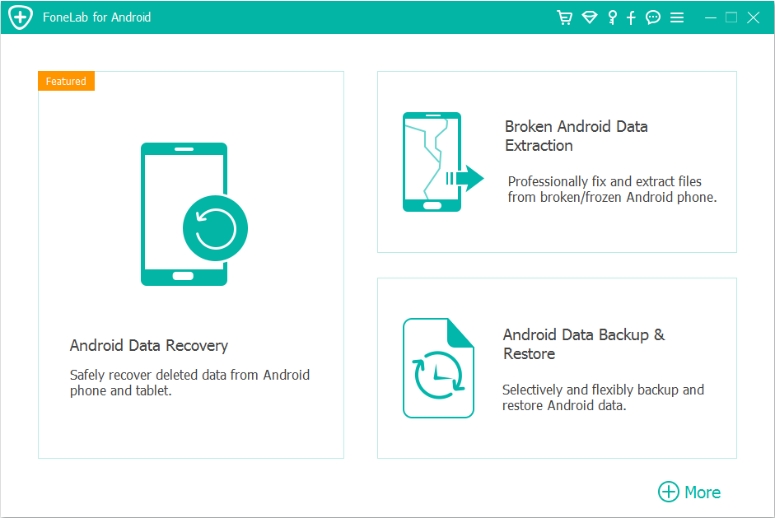
Step 2: Connect the Samsung Tablet
Use a USB cable to connect the tablet.
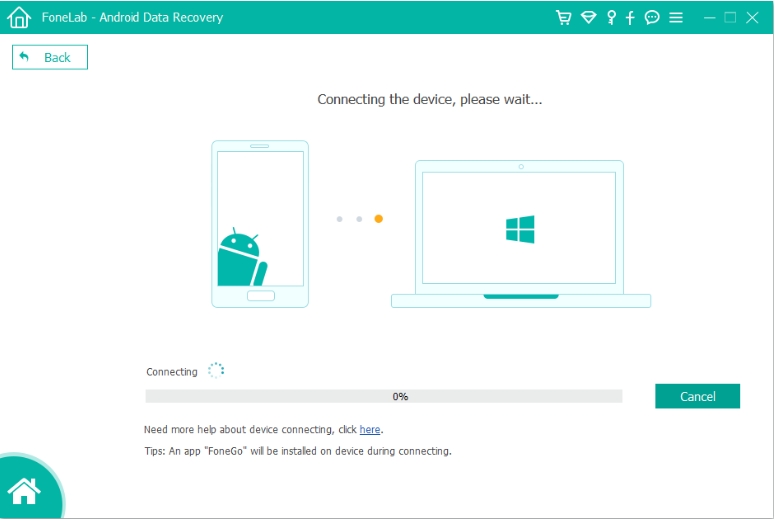
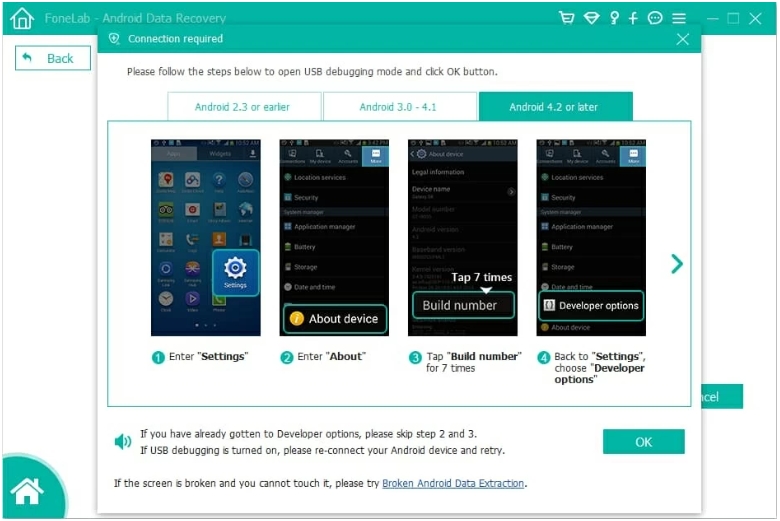
Enable:
- USB Debugging
- File Transfer Mode
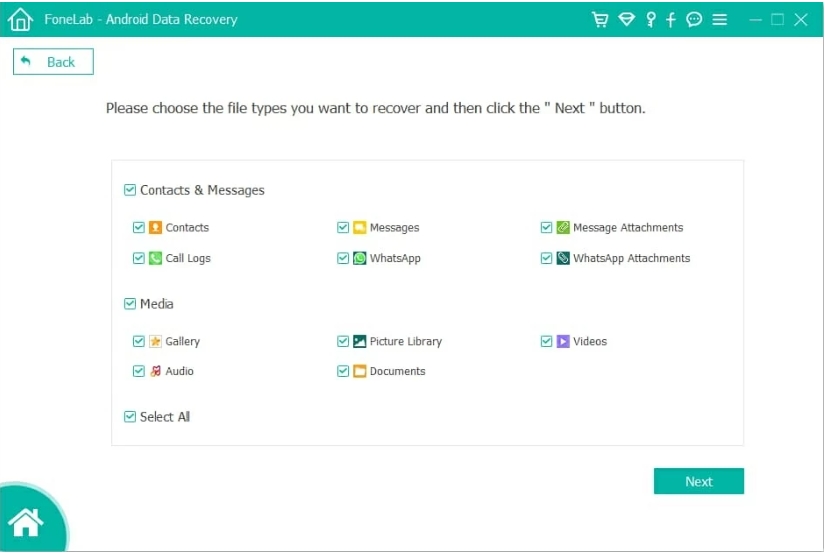
Step 3: Select File Types
Choose: Photos/Videos/Gallery items
Step 4: Start Device Scan
The software scans internal storage and optional SD card partitions.
Step 5: Preview Recoverable Files
Check thumbnails and media previews before restoring.
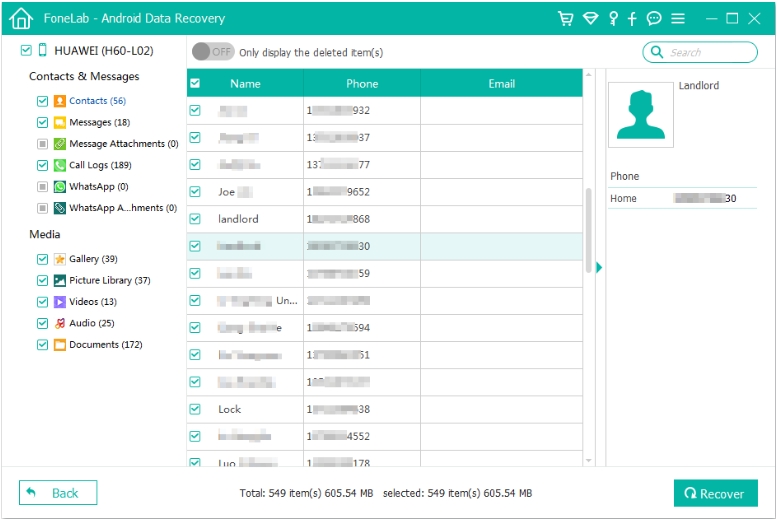
Step 6: Recover Data
Export recovered files safely to the computer.

Notes
- Stop using the Samsung tablet immediately after deletion.
- Avoid taking new photos before recovery.
- Root access may improve deep-scan results on older Android versions.
- Physical hardware damage may require repair before scanning.
This method is especially effective when deleted videos no longer appear in Samsung Gallery or cloud backups.
Method 3: Recover Hidden or Corrupted Samsung Tablet Media Through File Manager
Sometimes photos are not truly deleted. Instead, Android media indexing becomes corrupted, causing files to disappear from Gallery apps while remaining inside storage.
This often happens after:
- Android updates
- Forced shutdowns
- Cache corruption
- SD card mounting errors
In these situations, users mistakenly believe their videos are permanently lost even though the actual media files still exist.
Samsung tablets often hide these files inside:
- DCIM folders
- .thumbnails directories
- Lost media caches
- Unindexed folders
Using Samsung’s built-in file management tools may restore access without advanced recovery software.
Steps to Find Hidden Samsung Tablet Photos:
Step 1: Open My Files
Launch Samsung “My Files.”
Step 2: Enable Hidden Files
- Tap menu settings.
- Enable “Show Hidden System Files.”
Step 3: Search Media Directories
Check:
- DCIM
- Camera
- Movies
- Download
- WhatsApp Images
- Screenshots
Step 4: Rebuild Media Database
- Open Settings.
- Go to Apps.
- Find “Media Storage.”
- Clear cache.
- Restart the tablet.
Step 5: Reinsert SD Card
If using external storage:
- Remove SD card safely.
- Restart tablet.
- Reinsert card.
Notes
- Do not format corrupted SD cards immediately.
- Hidden files may appear with unusual filenames.
- Media indexing can take several minutes after rebooting.
- Avoid third-party “cleaner” apps during troubleshooting.
This method surprisingly resolves many “missing photo” problems without requiring deep recovery scans.
What If Your Samsung Tablet Was Factory Reset?
Factory reset recovery depends heavily on Android encryption.
Older Samsung tablets may still allow partial media recovery after reset because deleted storage sectors remain readable temporarily.
Newer Samsung Galaxy tablets using modern Android encryption are more difficult because reset operations destroy encryption keys, making old files inaccessible.
However, recovery chances improve if:
- The tablet was not used after reset
- SD card storage was enabled
- Cloud synchronization existed
- Backup copies remain on connected PCs
The best strategy after a factory reset is:
- Stop using the device immediately.
- Disable Wi-Fi and downloads.
- Attempt recovery before new files overwrite storage.
Common Mistakes That Reduce Samsung Tablet Recovery Success
Many users accidentally make recovery harder.
Installing Multiple Recovery Apps
Each installation writes new data into storage.
Recording New Videos
Large videos overwrite deleted sectors quickly.
Factory Resetting Repeatedly
Multiple resets further reduce recoverable structures.
Formatting SD Cards Immediately
Quick formatting sometimes destroys recoverable directory tables.
Ignoring Cloud Sync
Users often assume backups never existed without checking Samsung or Google accounts carefully.
Unlocking a Samsung Tablet After Forgotten Password
Photo loss is not the only major issue Samsung tablet users face. Another extremely common situation occurs when users forget their lock screen password, PIN, or pattern after changing security settings.
This problem becomes even more stressful when valuable photos and videos remain trapped inside the locked device.
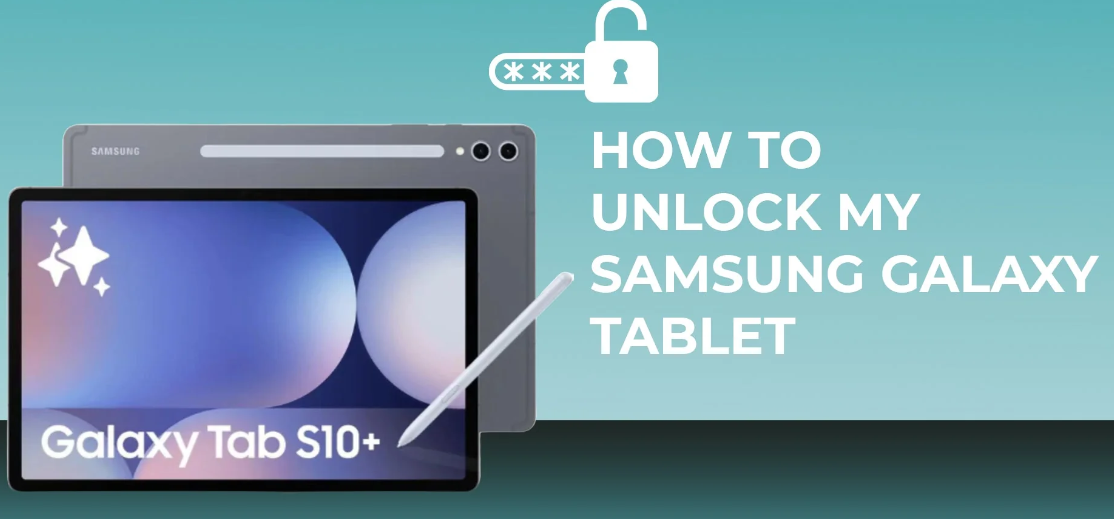
For example, many Samsung Galaxy Tab users experience:
- Forgotten PIN after long inactivity
- Children changing tablet passwords accidentally
- Pattern lock failures after software updates
- Fingerprint recognition problems
- FRP lock activation after reset
In these cases, users often fear losing all stored media permanently. Some attempt unsafe flashing methods or unofficial unlocking tutorials that may damage the Android system further.
A safer approach is using specialized Samsung unlocking software such as iDATAPP Android Unlocker to unlock your Samsung Tablet devices.
This tool is designed to help remove:
- PIN locks
- Password locks
- Pattern locks
- Fingerprint locks
- Face recognition locks
- FRP verification barriers
It supports many Samsung Galaxy Tab models and Android versions.
What makes this especially useful for Samsung users is that certain unlocking modes may preserve device data depending on Android version and device condition. That means users can regain access to important photos, videos, contacts, and documents without immediately resorting to risky factory resets.
A typical unlocking workflow includes:
- Installing the software on a computer
- Connecting the Samsung tablet
- Select your Samsung Tablet model
- Selecting device information
- Removing the screen lock

For users who accidentally locked themselves out after changing passwords or after a child modified settings, this can save both time and important personal memories.
Samsung tablets are widely used by families, students, and business users, making lock-related problems increasingly common as Android security grows stricter every year.
Frequently Asked Questions
Can permanently deleted Samsung tablet photos really be recovered?
Yes, in many cases. Deleted files often remain in storage until overwritten by new data. Recovery success depends on how quickly recovery attempts begin.
Are Samsung Gallery Trash files recoverable after 30 days?
Usually not through the Gallery app itself. However, deep storage recovery software may still locate remaining file fragments.
Can I recover photos from a broken Samsung tablet screen?
Yes. If the device still powers on, USB debugging or specialized Android recovery tools may help extract media files.
Why did my Samsung tablet videos disappear after an update?
Android updates sometimes rebuild media databases incorrectly. Files may still exist but fail to display in Gallery apps.
Does rooting improve Samsung tablet recovery?
In some older Android versions, root access enables deeper storage scanning. However, rooting also carries risks and should be approached carefully.
Conclusion
Recovering deleted photos and videos from a Samsung tablet is often possible when users act quickly and avoid overwriting storage. Cloud recovery should always be attempted first because it is safest and fastest. If backups are unavailable, deeper scanning solutions like iDATAPP Android Data Recovery can help recover deleted Samsung media from internal storage or SD cards. Hidden file reconstruction and media database repair also solve many “missing photo” situations that users incorrectly assume are permanent losses.
The most important factor is timing. The sooner recovery begins, the higher the chance of restoring valuable Samsung tablet memories successfully.
 English
 Nederlands
 Tiếng Việt
 日本
日本 Español
 Português
 Deutsche
 Français
 Italiano
 Norsk
Norsk Suomalainen
 Svenska
 Dansk
Dansk Ελληνικά
 Türk
Türk русский
 हिंदी
हिंदी தமிழ்
தமிழ் Bahasa Melayu
 ไทย
ไทย 한국어
한국어 Română
 Polskie
 қазақ
қазақ Gaeilge
 繁體中文
繁體中文