
 iPhone Data Recovery
 iOS System Recovery
 iOS Backup & Restore
 iOS WhatsApp Transfer
 iOS FoneTrans
 MobieSync
 Android Data Recovery
 Broken Android Data Extraction
 Android Data Backup & Restore
 iPhone Unlocker
 Best Samsung Phone Unlock Tool
 Android Unlocker
 Win/Mac Data Recovery
 iDATAPP Screen Recorder
 2D&3D Video Converter
 Video Repair Software Ai
 AI Video Converter
 Ai Blu-ray Player
 How to Unlock Samsung Tablet After Factory Reset?
This guide explains why Samsung tablets lock after factory reset and provides three proven unlocking methods, including a professional FRP removal solution, plus practical insights into data recovery scenarios.
A factory reset is supposed to be the ultimate fix—wipe the slate clean, remove errors, and give your Samsung tablet a fresh start. Yet for many users, the reset itself becomes the beginning of a new problem. After rebooting, the tablet asks for the previous Google account synced on the device. If you can’t remember that account, or if you bought the tablet second-hand, you’re suddenly locked out.

This situation is known as Factory Reset Protection (FRP), and it’s one of the most common issues Samsung tablet users face today. In this article, we’ll break down why this happens, how FRP works, and—most importantly—how to unlock a Samsung tablet after a factory reset using three practical, legal, and realistic methods, including one professional solution from our own website.
Guide List
- Understanding the Real Problem After a Factory Reset
- Method 1: Unlock Using Samsung’s Official Account Recovery
- Method 2: Unlock Samsung Tablet with Android Unlocker (Recommended)
- Method 3: Unlock Using Samsung Tablet Find My Mobile (Limited but Effective)
- What If Unlocking Leads to Data Loss on a Samsung Tablet?
- Frequently Asked Questions
Understanding the Real Problem After a Factory Reset
Samsung tablets running Android 6.0 and above come with Google’s FRP security system. Its purpose is simple: prevent unauthorized access if a device is reset without permission.
However, FRP doesn’t distinguish between theft and honest mistakes. If you forgot the Google account, changed emails years ago, or inherited a device from someone else, FRP becomes a wall you can’t climb over easily.
Typical scenarios include:
- You reset the tablet but forgot the original Google account
- You purchased a used Samsung tablet still linked to the previous owner
- The tablet belonged to a family member who no longer remembers the credentials
- You reset the tablet after a system crash or update failure
Now let’s move from problem analysis to actual solutions.
Method 1: Unlock Using Samsung’s Official Account Recovery
The first and safest option is using Samsung and Google’s official recovery paths. This method works only if you still have access to the Google account originally synced or can recover it through Google’s account recovery system. While this approach doesn’t require extra tools or technical steps, it depends heavily on memory and account ownership. Many users fail here because they no longer control the registered email or phone number. Still, before moving to advanced methods, this is always worth trying.
Step-by-Step Instructions
- Power on the Samsung tablet after the reset
- Connect to a stable Wi-Fi network
- When prompted for the Google account, tap “Forgot email?” or “Forgot password?”
- Visit Google Account Recovery on another device
- Verify ownership using backup email, phone number, or security questions
- Once recovered, sign in on the tablet and complete setup
Important Notes
- Google recovery can take 24–72 hours
- Fails if the account was deleted or never fully verified
- Not effective for second-hand tablets with unknown accounts
Method 2: Unlock Samsung Tablet with Android Unlocker (Recommended)
When official recovery fails, a professional unlocking solution becomes necessary. Android Unlocker from iDatapp is designed specifically to remove screen locks and bypass Google FRP on Samsung tablets without requiring the original Google account. This method is ideal for users who value time, reliability, and simplicity. Unlike risky manual tricks found online, this software follows a structured unlocking process compatible with most Samsung tablet models and Android versions. It does not rely on third-party exploits or unstable workarounds.
Step-by-Step Instructions
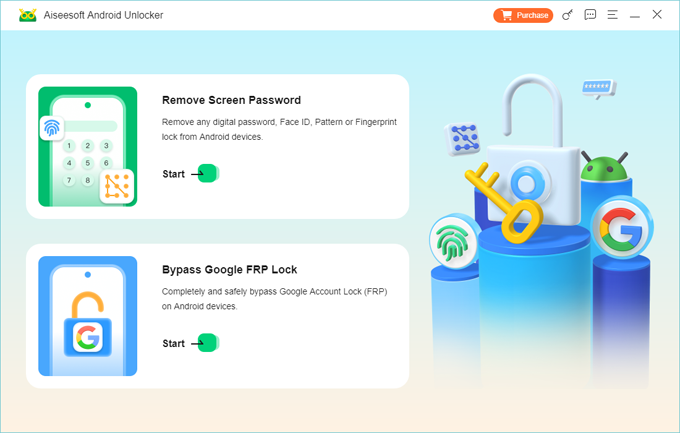
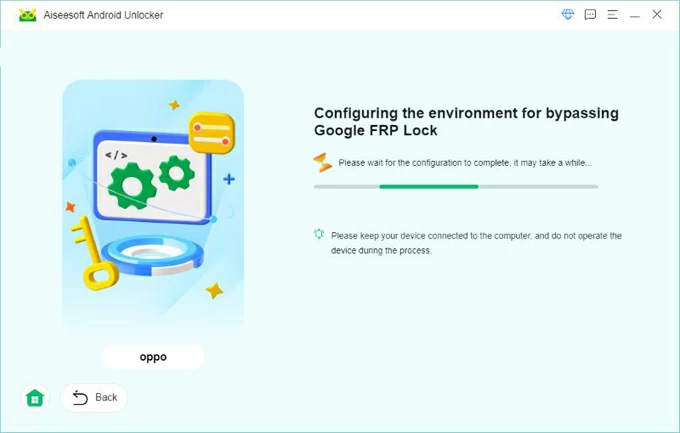
1.Download and install Android Unlocker on your computer and launch the software and choose “Bypass Google FRP Lock”.
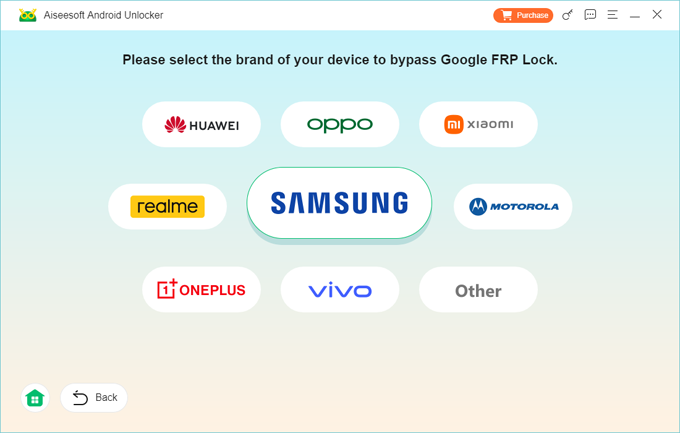
2.Connect your Samsung tablet via USB cable and select your Samsung brand.
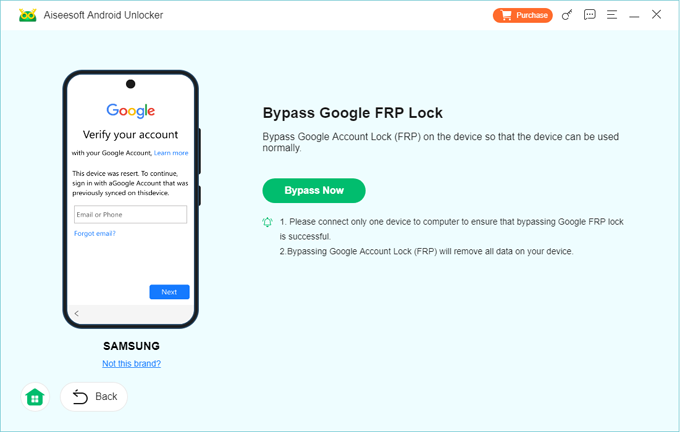
3.Click Bypass Now to start the Google lock removal process.
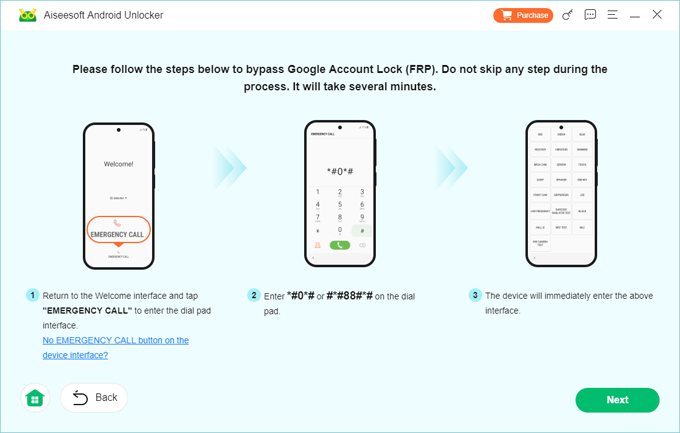
4.Follow on-screen instructions to enable required settings.
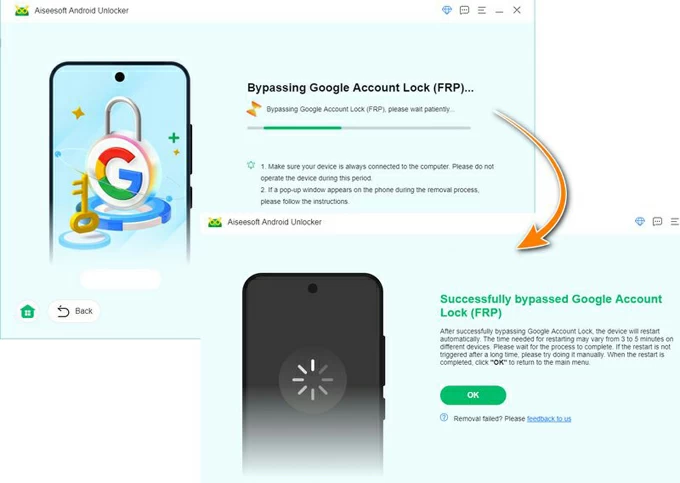
5.The tool automatically removes the Google account lock.
6.Restart the tablet and set it up as a new device.
Key Advantages
- No Google account or password required
- High success rate across Samsung tablet models
- User-friendly interface, no technical background needed
- Safer than unofficial bypass tricks
Method 3: Unlock Using Samsung Tablet Find My Mobile (Limited but Effective)
Samsung offers its own remote management service called Find My Mobile, which can unlock certain devices remotely. This method only works if the tablet was previously logged into a Samsung account and had remote unlock enabled. While limited in scope, it’s extremely convenient when conditions are met. Unfortunately, many users don’t activate this feature beforehand, making it unavailable after a reset.
Step-by-Step Instructions
- Visit Find My Mobile on another device
- Sign in with the Samsung account linked to the tablet
- Select the locked tablet from the device list
- Click “Unlock” and confirm
- Restart the tablet and complete setup
Limitations
- Requires prior Samsung account login
- Remote unlock must be enabled before reset
- Does not work on all tablet models
What If Unlocking Leads to Data Loss on a Samsung Tablet?
Unlocking a Samsung tablet after a factory reset often comes with another painful realization—your data is gone. Photos, documents, app data, and even SD card files may disappear due to system resets, crashes, or failed updates. This is one of the most frequent long-term issues Samsung users encounter, especially after forced resets or unlocking attempts.
In real-world scenarios, data loss often happens due to:
- Factory reset triggered by FRP lock
- System update failures causing boot loops
- Accidental deletion during troubleshooting
- SD card corruption after repeated reboots
- Malware or virus attacks affecting storage partitions
For such situations, professional data recovery becomes critical. iDatapp provides specialized Android data recovery and repair tools designed to work even when the device system is unstable or partially damaged. These tools focus on extracting recoverable data safely instead of overwriting it with repeated reset attempts.
For example, Samsung tablet users commonly recover:
- Photos and videos from internal storage or SD cards
- Contacts and messages lost after system crashes
- Documents deleted during failed unlock attempts
- App data after accidental resets
What makes these solutions practical is their focus on real user mistakes, not ideal conditions. Whether the tablet is stuck, unstable, or already reset, targeted recovery tools from idatapp.com help users regain control over both their device and their data—something most free methods cannot guarantee.
Frequently Asked Questions
Why does my Samsung tablet ask for a Google account after reset?
Because Factory Reset Protection is enabled to prevent unauthorized access.
Can I bypass FRP without the original Google account?
Yes, using professional tools like Android Unlocker when official recovery fails.
Is unlocking a Samsung tablet legal?
Yes, as long as you own the device or have permission from the owner.
Will unlocking erase my data?
Most FRP unlock methods require a reset; data recovery tools may help afterward.
What’s the safest method with the highest success rate?
Using a dedicated Samsung-compatible unlocking tool is generally the most reliable.
Conclusion
Unlocking a Samsung tablet after a factory reset can feel overwhelming, but it’s a solvable problem. By understanding FRP and choosing the right method—especially professional unlocking tools—you can regain access safely and efficiently without unnecessary risks.
 English
 Nederlands
 Tiếng Việt
 日本
日本 Español
 Português
 Deutsche
 Français
 Italiano
 Norsk
Norsk Suomalainen
 Svenska
 Dansk
Dansk Ελληνικά
 Türk
Türk русский
 हिंदी
हिंदी தமிழ்
தமிழ் Bahasa Melayu
 ไทย
ไทย 한국어
한국어 Română
 Polskie
 қазақ
қазақ Gaeilge
 繁體中文
繁體中文