
 iPhone Data Recovery
 iOS System Recovery
 iOS Backup & Restore
 iOS WhatsApp Transfer
 iOS FoneTrans
 MobieSync
 Android Data Recovery
 Broken Android Data Extraction
 Android Data Backup & Restore
 iPhone Unlocker
 Best Samsung Phone Unlock Tool
 Android Unlocker
 Win/Mac Data Recovery
 iDATAPP Screen Recorder
 2D&3D Video Converter
 Video Repair Software Ai
 AI Video Converter
 Ai Blu-ray Player
 How to Unlock Samsung Tablet Without Google Account?
Learn three reliable ways to unlock a Samsung tablet without a Google account, recover from FRP lock, and protect your data using practical solutions and iDatapp’s dedicated Samsung unlock tools.

When a Samsung tablet suddenly demands a Google account that you no longer remember—or never used in the first place—the situation can feel like hitting a digital wall. Whether it’s a child’s tablet locked after a reset, a work device returned from an employee, or a second-hand Galaxy Tab stuck at Google Verification, this “locked-out” moment is extremely common. And unlike simple screen locks, Google account verification (FRP) is built specifically to prevent unauthorized access, meaning most users have no idea where to begin.
In this guide, I’ll walk you through why Samsung tablets get locked by Google, what realistic options exist, and how you can unlock a Samsung tablet without a Google account using three safe, actionable methods—one of which uses a professional tool from iDatapp. After the solutions, I’ll dive deeper into a related problem many Samsung users face and how another tool from the same ecosystem can help.
Let’s break the problem down and solve it cleanly.
Guide List
- Why Your Samsung Tablet Requires a Google Account After Reset
- Method 1: Unlock Samsung Tablet Without Google Account Using iDatapp Samsung Unlocker (FRP Removal Tool)
- Method 2: Unlock Samsung Tablet Using Samsung’s “Find My Mobile” (If Previously Enabled)
- Method 3: Unlock Samsung Tablet Without Google Account Through Smart Reset + Accessibility Path
- A Common Samsung Problem — Data Loss After Forced Reset (and How to Recover It)
- Frequently Asked Questions
Why Your Samsung Tablet Requires a Google Account After Reset
Samsung tablets running Android 6.0 and above include a security layer called FRP (Factory Reset Protection). It activates automatically once a Google account is logged into the device. When the tablet is factory-reset without first removing that account, FRP demands the same Google credentials to complete the setup.
This mechanism protects your device from theft.
But for legitimate owners, FRP can become a serious inconvenience when:
- You forget the Google password
- You bought a used tablet without the previous owner’s login
- You performed a reset after a crash or virus infection
- A child or family member set up the device and forgot the account
- The device belonged to an employee who no longer works with you
In short, the tablet may still be yours—but the login isn’t.
The good news: You can unlock a Samsung tablet without a Google account by using specific, reliable methods. Let’s go step-by-step through three solutions you can actually use today.
Method 1: Unlock Samsung Tablet Without Google Account Using iDatapp Samsung Unlocker (FRP Removal Tool)
If you want a direct, guided method that doesn’t require complex tricks, the iDatapp Samsung Unlocker is built exactly for this situation. It removes Google FRP lock on Samsung tablets and phones without requiring any previous account, even on newer Android versions. This is ideal for users who just want their tablet working again without navigating hidden menus or relying on someone else’s login.
It automates the entire FRP unlock sequence, supports a wide range of Samsung models (Galaxy Tab A, Tab S, Tab S9 series, Tab Active, etc.), and doesn’t require special knowledge. Most unlocks finish within minutes.
How it works?
iDatapp Samsung Unlocker performs an authenticated, guided bypass of the Google verification screen by triggering the approved device-specific protocol used for FRP removal. Unlike risky online bypass methods, it doesn’t rely on patched firmware or unsafe APK installations. Instead, the tool interacts with your tablet through a secure USB connection and walks you through each necessary step, confirming the device model, Android version, and FRP status. It then performs the correct sequence for your tablet automatically. The result is a clean unlock without needing the original Google account.
Step-by-Step
1.Install iDatapp Samsung Unlocker on your PC.
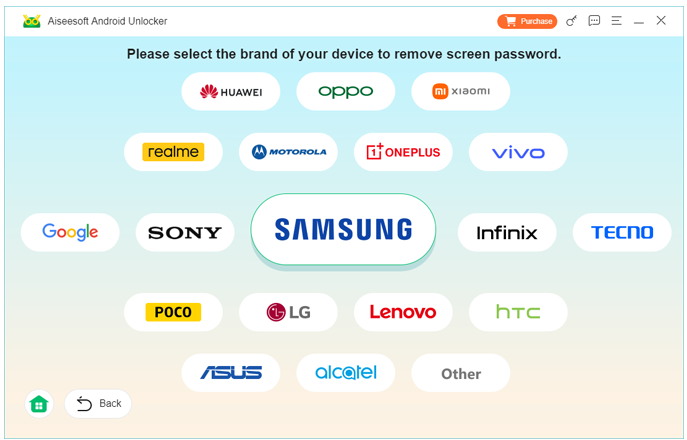
2.Launch the software and select Remove Screen Password.

3.Connect your Samsung tablet using a USB cable.
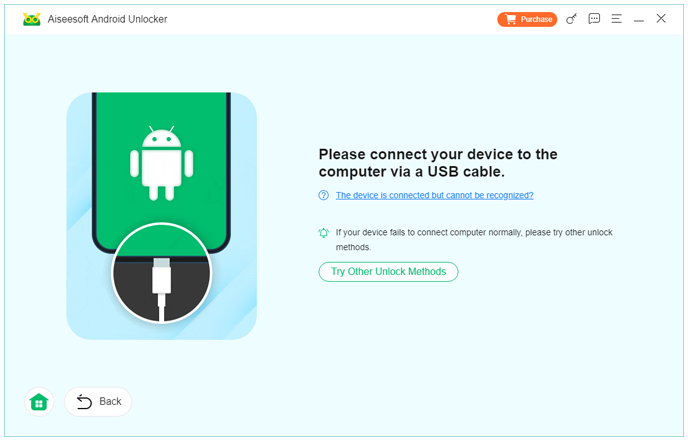
4.The software will detect your device and display the model + version.
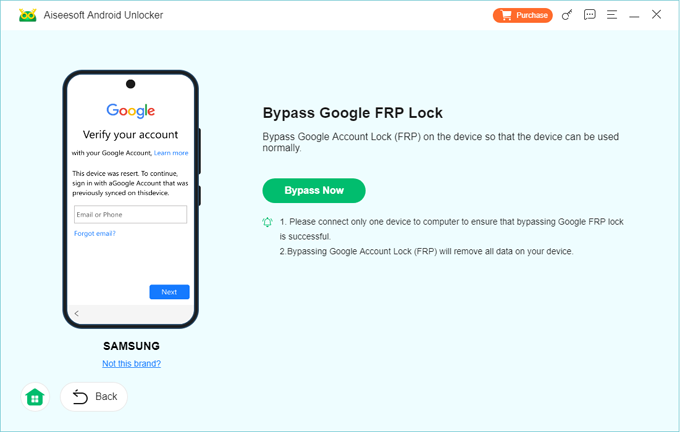
5.Click Bypass Now, then follow on-screen prompts (may include rebooting the tablet).
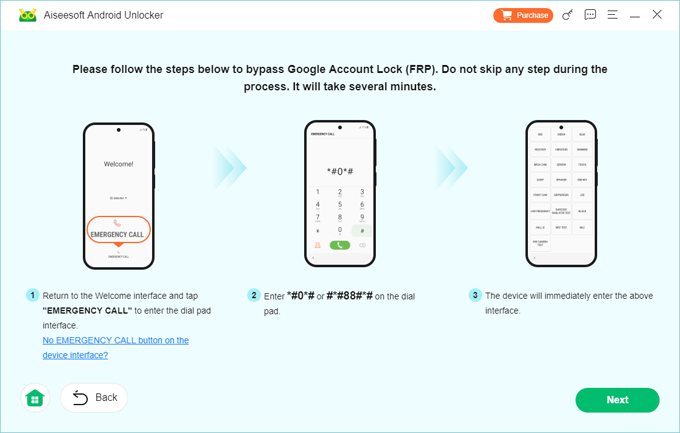
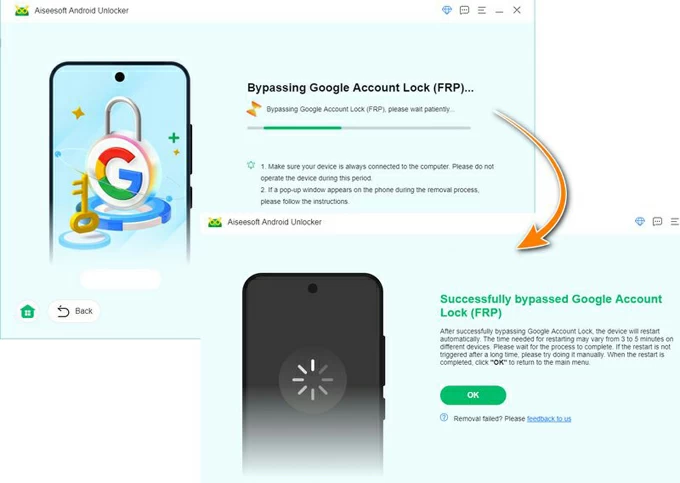
6.Wait for bypassing the google frp lock to complete.
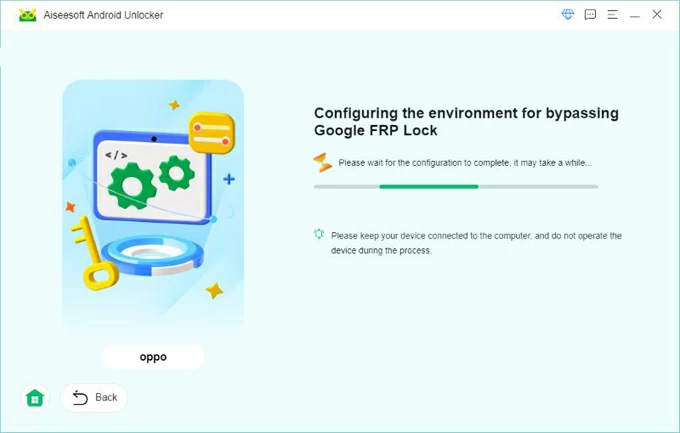
7.Restart your tablet → set it up with any Google account you want.
Important Notes
- This method works even if you do not know the previous owner’s Google info.
- No technical skills required.
- Avoid disconnecting the device during the process.
Method 2: Unlock Samsung Tablet Using Samsung’s “Find My Mobile” (If Previously Enabled)
This method is often overlooked, yet it’s built directly by Samsung and works surprisingly well. If the tablet was previously linked to a Samsung account with Find My Mobile turned on, you can remove screen locks—including PIN, pattern, or password—from anywhere. While this doesn’t remove FRP after factory reset, it does unlock the tablet if you are stuck behind a screen lock but not yet at Google verification.
How it works?
Find My Mobile is Samsung’s own remote management system that syncs device data with your Samsung account. It allows you to ring, lock, locate, or unlock your tablet through a web browser. This is extremely useful when you’re locked out because you can remotely issue an “Unlock” command that clears all lock screen barriers instantly. As long as the tablet was registered to your Samsung account and had Wi-Fi or mobile data enabled before the lock occurred, this method works within seconds.
Step-by-Step
- Visit SmartThings Find from your browser.
- Log in with the Samsung account originally linked to the tablet.
- Select your tablet from the list of registered devices.
- Click Unlock on the right-hand menu.
- Confirm your Samsung account password.
- Wait for the unlock command to reach your device.
- Enter the tablet normally—no password required.
Important Notes
- Works only if the tablet was signed into a Samsung account beforehand.
- Internet connectivity must be active on the tablet.
Method 3: Unlock Samsung Tablet Without Google Account Through Smart Reset + Accessibility Path
On some older Samsung tablets (mainly Android 8–11), you can perform a semi-manual FRP bypass by exploiting certain accessibility pathways during setup. Although not guaranteed on the newest firmware, it remains a legitimate solution for tablet models that still support these sequences.
How it works?
During the setup process, certain system apps (such as Accessibility, Voice Assistant, or YouTube) can be opened before Google Verification fully restricts access. These apps allow limited navigation to settings pages where you can perform resets, enable new user accounts, or install helper tools. This method requires patience and careful tapping, but it does allow some devices to bypass FRP without knowing the Google credentials. The trick works only on older tablets because newer versions patch the required menu paths.
Step-by-Step
- Start the tablet setup and connect to Wi-Fi.
- When Google verification appears, tap Accessibility → Voice Assistant.
- Open the YouTube app through the accessibility menu.
- In YouTube, go to Terms & Privacy Policy → browser.
- Inside the browser, open Settings URI commands (searchable online).
- Navigate to Settings → Apps → Reset App Preferences.
- Return and perform Factory Reset from settings (not the boot menu).
- Reboot the tablet.
- Set up the device normally—FRP should be cleared on older models.
Important Notes
- Not reliable on Android 12–15.
- Don’t install unknown APKs from random websites.
A Common Samsung Problem — Data Loss After Forced Reset (and How to Recover It)
Many Samsung tablet owners attempting to bypass Google verification end up performing multiple resets or system wipes. While this may temporarily resolve the lock, it often creates another serious issue: data loss. Photos, notes, videos, WhatsApp files, school documents, and even app data can vanish instantly if they were not backed up.
Samsung tablets—especially Galaxy Tab A and Tab S models—often face data loss during:
- FRP troubleshooting
- system crashes
- boot loops
- failed rooting attempts
- firmware flashing
- accidental deletion
- black-screen issues
A forgotten Google account means you cannot sync your data from Google Drive, and without Samsung Cloud backups, users fear everything is gone permanently.
A Reliable Recovery Option
For these scenarios, the iDatapp ecosystem includes a specialized tool: Android Data Recovery.
This software retrieves data directly from the device’s internal storage—even if the tablet is stuck, frozen, crashed, or reset improperly. It supports recovering:
- Photos & videos
- Messages & call logs
- WhatsApp/LINE/Viber data
- Documents (PDFs, ZIPs, spreadsheets)
- Contacts
- System app data
How it helps Samsung users?
Samsung devices frequently encounter corrupted partitions after forced resets or flashing errors. iDatapp Android Data Recovery scans these damaged areas using a read-only extraction protocol that doesn’t overwrite data. Even if your Galaxy tablet doesn’t boot properly, the tool can initiate a guided recovery mode and extract usable files.
Whether the tablet was reset during an FRP issue or suffered a crash unrelated to locking, this tool gives you a second chance to keep important memories and documents safe. In a world where Samsung tablets often serve as educational tools, work devices, or children’s entertainment, this safety net becomes invaluable.
Frequently Asked Questions
Will unlocking my Samsung tablet erase my data?
Using FRP removal tools like iDatapp Samsung Unlocker typically preserves your data. Some manual methods, however, may trigger resets. Always check each method’s instructions.
Is bypassing Google FRP illegal?
No—not if you are the legitimate owner of the device. FRP is designed to prevent theft, but removing it on your personal device is legal.
Can I unlock without PC?
Some older-model methods work without a computer, but for newer tablets, a PC-based tool is the most reliable.
Does FRP lock affect Samsung tablets the same way as phones?
Yes, Samsung tablets use the same FRP protection system as Galaxy smartphones.
What if none of the three methods work for my tablet?
Firmware versions vary. Your safest next step is using a dedicated FRP unlock tool (like iDatapp) or visiting a professional repair shop.
Conclusion
Unlocking a Samsung tablet without a Google account is possible using multiple methods, including professional FRP tools, Samsung’s own remote unlock service, and older-model manual pathways. With proper steps, you can regain full access without losing control of your device.
 English
 Nederlands
 Tiếng Việt
 日本
日本 Español
 Português
 Deutsche
 Français
 Italiano
 Norsk
Norsk Suomalainen
 Svenska
 Dansk
Dansk Ελληνικά
 Türk
Türk русский
 हिंदी
हिंदी தமிழ்
தமிழ் Bahasa Melayu
 ไทย
ไทย 한국어
한국어 Română
 Polskie
 қазақ
қазақ Gaeilge
 繁體中文
繁體中文