
 iPhone Data Recovery
 iOS System Recovery
 iOS Backup & Restore
 iOS WhatsApp Transfer
 iOS FoneTrans
 MobieSync
 Android Data Recovery
 Broken Android Data Extraction
 Android Data Backup & Restore
 iPhone Unlocker
 Best Samsung Phone Unlock Tool
 Android Unlocker
 Win/Mac Data Recovery
 iDATAPP Screen Recorder
 2D&3D Video Converter
 Video Repair Software Ai
 AI Video Converter
 Ai Blu-ray Player
 Can I Recover Deleted Notes From Samsung S26 Series?
Recover deleted notes from Samsung S26 using Trash, cloud backup, and deep recovery tools, plus solutions for lockout issues and strategies to prevent permanent data loss.

A Real-World Problem You Don’t Notice Until It Hurts
On a modern flagship like the Samsung S26 series, notes are no longer just reminders—they’re your meeting summaries, saved passwords, creative ideas, business plans, and even personal memories. Losing them can feel like losing a part of your digital brain.
But here’s the truth: deleted notes are not always permanently gone.
When you delete notes on Samsung devices (especially through Samsung Notes), the system typically marks the storage space as reusable instead of immediately erasing the data. This creates a recovery window—sometimes minutes, sometimes weeks—depending on usage patterns.
However, recovery becomes harder if:
- New data overwrites the deleted notes
- Sync features weren’t enabled
- The device has been reset or updated
So the real question isn’t “Can I recover deleted notes?”
It’s “Which method gives me the highest success rate based on my situation?”
Let’s break down three effective, practical, and original recovery approaches—ranging from built-in features to advanced recovery techniques.
Guide List
- Method 1: Restore Deleted Notes from Samsung Notes Trash (Fastest & Easiest)
- Method 2: Recover Notes Using Android Data Recovery Software (Deep Scan Solution)
- Method 3: Restore Notes from Samsung Cloud Backup (If Sync Was Enabled)
- Beyond Notes Recovery: What If Your Samsung S26 Gets Locked?
- Prevent Future Note Loss (Often Overlooked but Crucial)
- Frequently Asked Questions
- Final Thoughts
Method 1: Restore Deleted Notes from Samsung Notes Trash (Fastest & Easiest)
Samsung Notes includes a built-in Recycle Bin (Trash folder) where deleted notes are temporarily stored—typically for up to 30 days. This is your first and most reliable checkpoint because it requires no tools, no risk, and no technical skills.
This method works best if:
- You deleted notes recently
- You didn’t manually clear the trash
- You’re using Samsung Notes as your primary note app
Step-by-Step Recovery Guide
- Open the Samsung Notes app on your S26 device
- Tap the Menu (☰ icon) in the upper corner
- Select Trash or Recycle Bin
- Browse through deleted notes
- Select the note you want to recover
- Tap Restore
Important Details
- Notes remain in Trash for 30 days only
- If the Trash is emptied manually, this method won’t work
- Restored notes return to their original location
Pro Tip: Check both Samsung Notes and Samsung Cloud synced notes if enabled.
Method 2: Recover Notes Using Android Data Recovery Software (Deep Scan Solution)
If your notes are no longer in the Trash, they may still exist in hidden storage sectors. This is where advanced recovery software like Android Data Recovery from iDATAPP becomes essential.
Unlike basic methods, this approach:
- Scans internal storage at a deeper level
- Retrieves deleted notes even after Trash is cleared
- Supports recovery without backup
This method is ideal if:
- Notes were permanently deleted
- Trash folder is empty
- No cloud backup exists
Step-by-Step Recovery Guide
1.Download and install the software on your computer
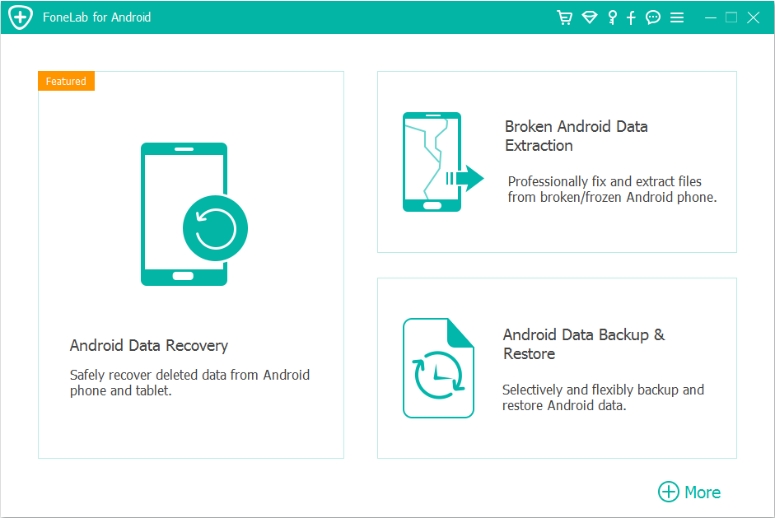
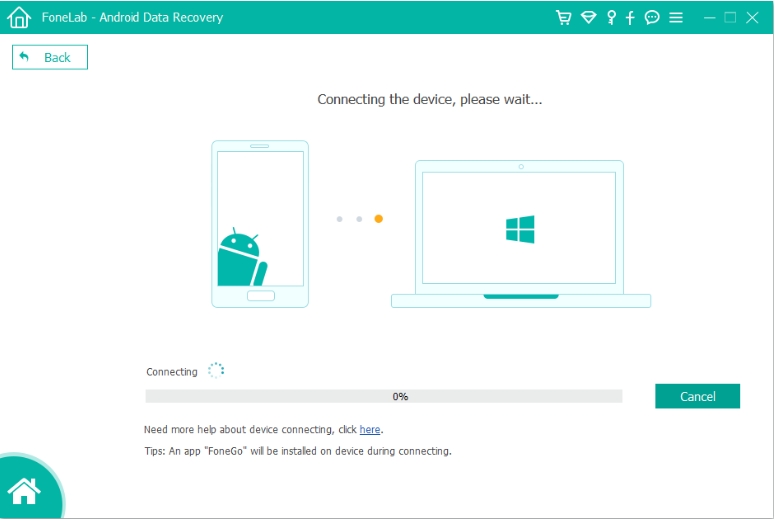
2.Launch the program and connect your Samsung S26 via USB
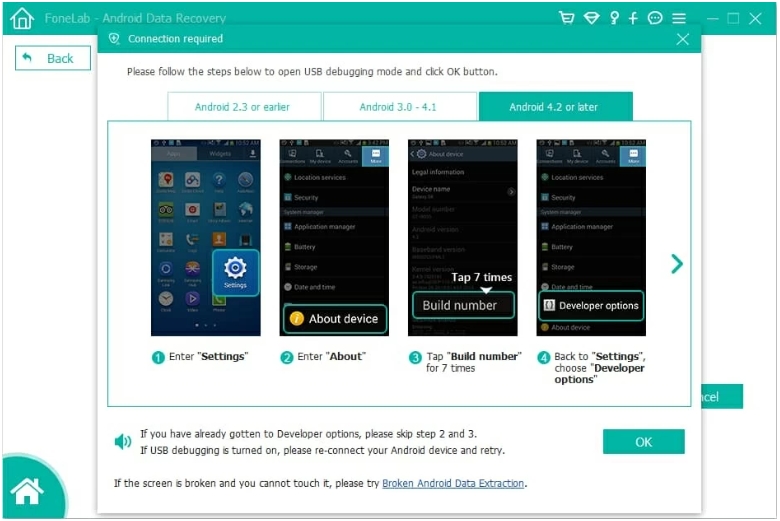
3.Enable USB Debugging on your phone
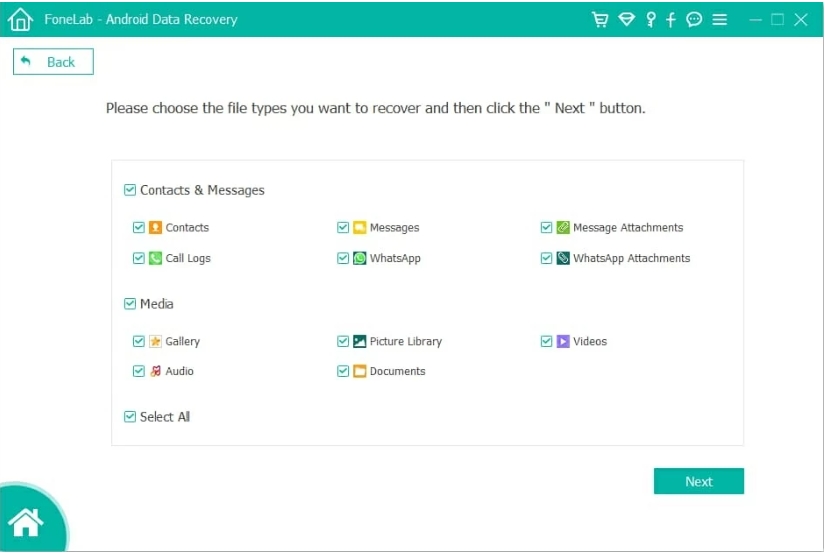
4.Select “Notes” or “Documents” as the recovery type
5.Start scanning your device (Quick Scan + Deep Scan)
6.Preview recoverable notes
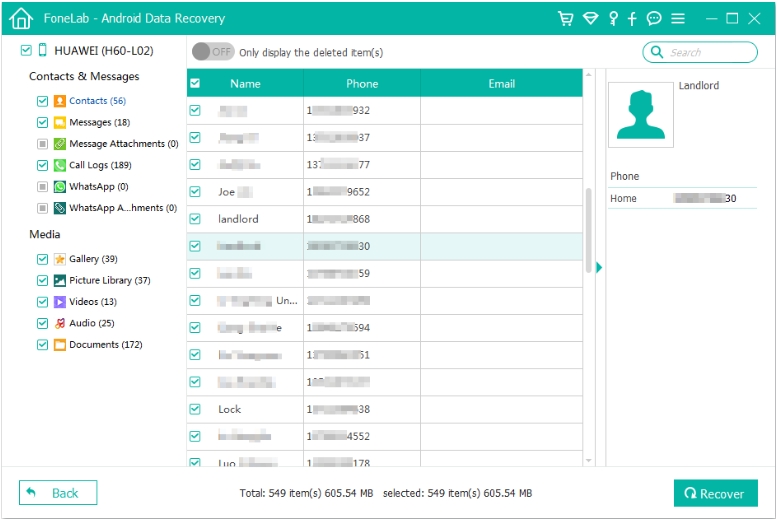
7.Select desired files and click Recover

Details
- Works best before new data overwrites deleted files
- Root access may increase recovery success rate
- Supports recovery of other data like contacts, photos, messages
Expert Insight: Even if notes don’t appear initially, run a deep scan—many users skip this and miss recoverable data.
Method 3: Restore Notes from Samsung Cloud Backup (If Sync Was Enabled)
Samsung Cloud automatically backs up data—including notes—if sync is turned on. This creates a snapshot of your data that can be restored at any time.
This method is highly effective if:
- You had Samsung Cloud sync enabled
- Notes were backed up before deletion
- You haven’t overwritten the backup with a newer sync
Step-by-Step Recovery Guide
- Open Settings on your Samsung S26
- Tap Accounts and Backup
- Select Samsung Cloud
- Tap Restore Data
- Choose your device backup
- Select Notes
- Tap Restore
Details
- Restoring may overwrite current data
- Ensure you choose the correct backup date
- Requires Samsung account login
Pro Tip: Always verify the backup timestamp before restoring to avoid losing newer data.
Beyond Notes Recovery: What If Your Samsung S26 Gets Locked?
Let’s shift to another common—but equally frustrating—problem:
“I Forgot My Lock Screen Password and Can’t Access My Notes”
This situation is surprisingly common among Samsung users. Whether it’s a forgotten PIN, pattern lock, or biometric failure, being locked out means zero access to your notes and data—even if they’re still intact.
Why This Problem Matters
Unlike deleted notes, your data isn’t gone—it’s trapped behind a security barrier. Traditional methods like factory reset can unlock the device, but they erase everything, including your notes.
A Smarter Solution: Android Unlocker Tool
Instead of losing everything, you can use a dedicated unlocking tool from iDATAPP.
This type of tool allows you to:
- Remove screen locks (PIN, pattern, fingerprint)
- Unlock Samsung devices without data loss (in some cases)
- Regain access to your notes and files

How It Works (Simplified Steps)
- Install the iDATAPP Android Unlocker on your computer
- Connect your Samsung S26 device
- Choose Remove Screen Lock
- Follow on-screen instructions
- Wait for the process to complete
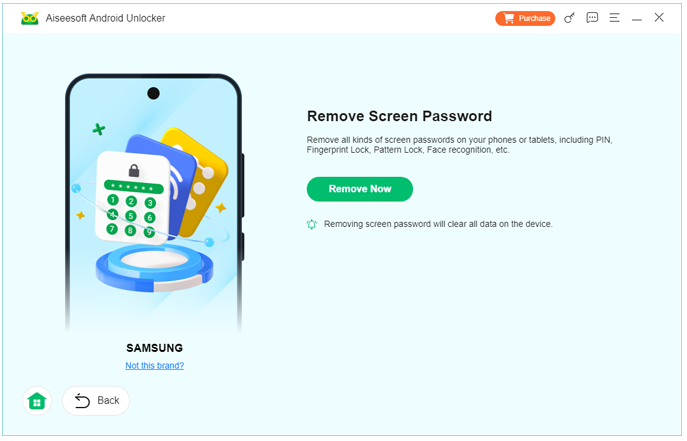
Important Considerations
- Some models may still require partial data reset
- Always back up data regularly to avoid lockout risks
- Combine this tool with recovery software for full protection
Real Insight: Many users only think about recovery after deletion—but access issues like lockouts are just as critical.
Prevent Future Note Loss (Often Overlooked but Crucial)
Recovery is helpful—but prevention is smarter. Here are strategies most users ignore:
1. Enable Auto Sync
- Sync Samsung Notes with Samsung Cloud or Google account
2. Export Important Notes Regularly
- Save notes as PDF or text files to external storage
3. Avoid Immediate Heavy Usage After Deletion
- Reduces chance of data overwrite
4. Use Dual Backup Systems
- Cloud + local backup = maximum safety
Frequently Asked Questions
Can I recover permanently deleted notes on Samsung S26?
Yes, if they haven’t been overwritten. Use deep scan recovery software for best results.
How long do deleted notes stay in Samsung Trash?
Typically 30 days, unless manually deleted earlier.
Do I need root access to recover notes?
Not always, but rooting can improve deep recovery success rates.
Will restoring from Samsung Cloud delete current data?
It can overwrite existing data, so always check backup details first.
What is the safest recovery method?
Start with Trash recovery, then Cloud backup, and finally use recovery software.
Final Thoughts
Recovering deleted notes from the Samsung S26 series isn’t just possible—it’s often straightforward if you act quickly and choose the right method.
From simple Trash recovery to advanced deep scanning tools, each approach serves a different scenario. The key is understanding where your data might still exist and acting before it’s permanently overwritten.
And remember: sometimes the biggest risk isn’t deletion—it’s losing access altogether. Preparing for both scenarios ensures your notes—and your digital life—stay protected.
 English
 Nederlands
 Tiếng Việt
 日本
日本 Español
 Português
 Deutsche
 Français
 Italiano
 Norsk
Norsk Suomalainen
 Svenska
 Dansk
Dansk Ελληνικά
 Türk
Türk русский
 हिंदी
हिंदी தமிழ்
தமிழ் Bahasa Melayu
 ไทย
ไทย 한국어
한국어 Română
 Polskie
 қазақ
қазақ Gaeilge
 繁體中文
繁體中文