
 iPhone Data Recovery
 iOS System Recovery
 iOS Backup & Restore
 iOS WhatsApp Transfer
 iOS FoneTrans
 MobieSync
 Android Data Recovery
 Broken Android Data Extraction
 Android Data Backup & Restore
 iPhone Unlocker
 Best Samsung Phone Unlock Tool
 Android Unlocker
 Win/Mac Data Recovery
 iDATAPP Screen Recorder
 2D&3D Video Converter
 Video Repair Software Ai
 AI Video Converter
 Ai Blu-ray Player
 Easily Recover Deleted Contacts from Samsung S24 Series
Best ways to recover deleted contacts from Samsung S24, S24+, and S24 Ultra using cloud backups, manual methods, and professional Android data recovery solutions—no backup required.
How to Recover Deleted Contacts from Samsung S24 Series?
Losing contacts on a brand-new Samsung Galaxy S24, S24+, or S24 Ultra feels almost ironic. These phones are fast, intelligent, and deeply integrated with cloud services—yet contacts still disappear. A wrong tap, a sync conflict, a system update glitch, or even switching Google accounts can quietly wipe years of phone numbers.

This guide doesn’t just list fixes. It dissects why contacts vanish on the Samsung S24 series, how Android actually stores contact data, and which recovery paths still work after deletion. Then, step by step, we walk through three proven recovery methods, including one professional-grade solution from our own toolkit. Finally, we extend the conversation to a related Samsung S24 problem that many users face but rarely prepare for.
If your contacts matter—and they usually do—read carefully.
Guide List
- Why Contacts Disappear on Samsung S24?
- Method 1: Deep Recovery Using iDATAPP Android Data Recovery (No Backup Required)
- Method 2: Restore Deleted Contacts from Google Contacts Sync (Cloud-Based Recovery)
- Method 3: Recover Contacts from Samsung Cloud Backup
- Samsung S24 Data Loss After System Update or Crash (And How to Handle It)
- FAQs
Why Contacts Disappear on Samsung S24?
On the Samsung S24 series, contacts don’t live in just one place. They may exist in:
- Google Contacts (cloud-synced)
- Samsung Cloud
- Phone internal storage (local database)
- SIM card
- Work or secondary Google accounts
This layered system is powerful, but it introduces risk. When contacts are deleted, they’re often not immediately destroyed. Instead, Android flags the data space as “available,” meaning recovery may still be possible—if you act quickly and choose the right method.
The challenge is knowing which storage layer your contacts were deleted from. That’s why a single solution rarely works for everyone. Below are three recovery paths, ordered from simplest to most advanced.
Method 1: Deep Recovery Using iDATAPP Android Data Recovery (No Backup Required)
If your contacts were deleted without any backup, or you’re unsure where they were stored, this is the most powerful option. Contacts on Android aren’t immediately erased—they remain hidden in the internal database until overwritten. Specialized recovery software can scan these databases directly.
iDATAPP Android Data Recovery is designed for scenarios exactly like this: accidental deletion, system crashes, sync errors, or failed updates on Samsung devices—including the S24 series.
This method is particularly valuable when:
- Google/Samsung backups are unavailable
- Contacts were stored locally
- Deletion happened weeks ago (not overwritten yet)
Step-by-Step Guide:
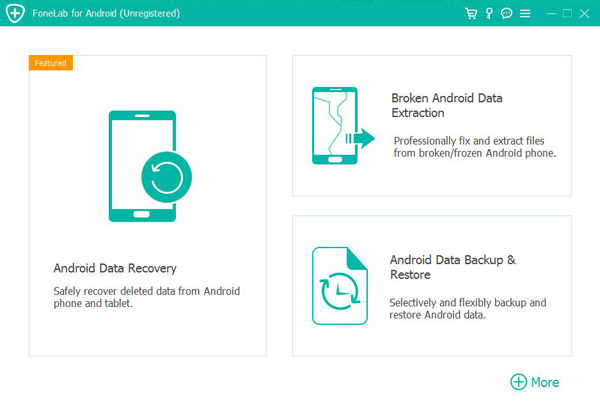
1.Download and install iDATAPP Android Data Recovery on your computer. Launch the program and select Android Data Recovery mode.
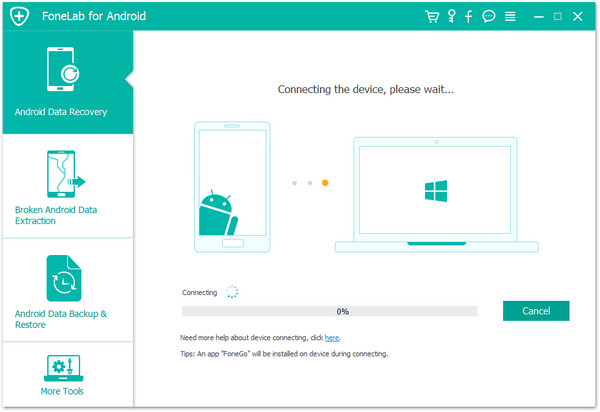
2.Connect your Samsung S24 using a USB cable.
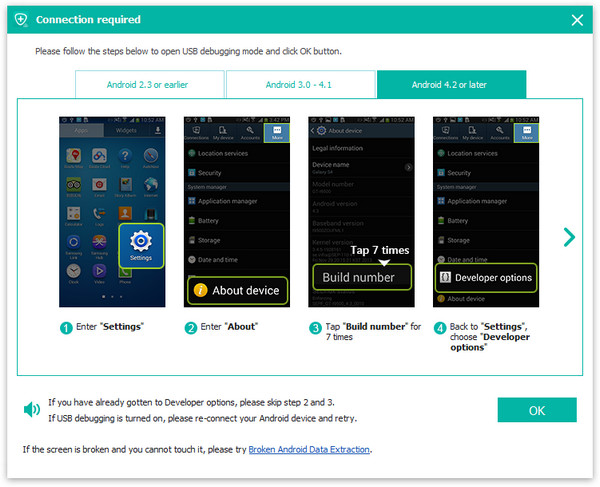
3.Enable USB Debugging when prompted.
4.Select Contacts as the scan target.
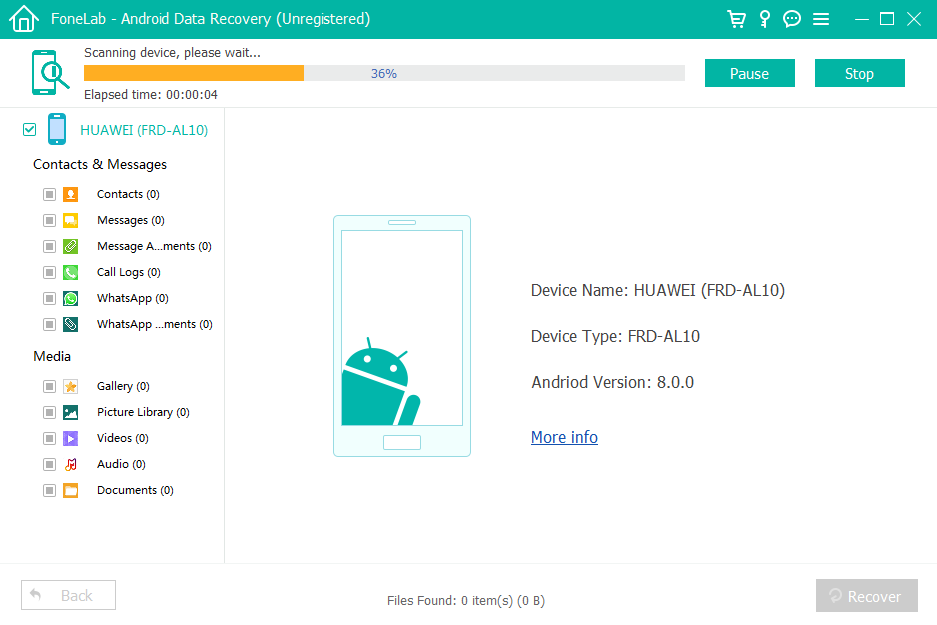
5.Run a deep scan of the device.
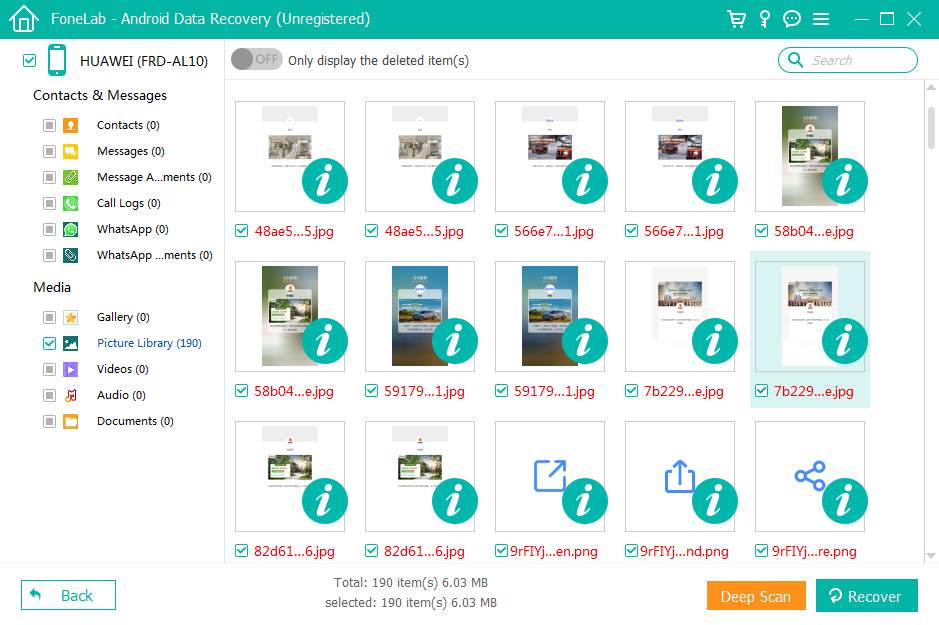
6.Preview deleted contacts and recover them to your computer.

Notes:
- Recovery success depends on how much the phone was used after deletion.
- Avoid installing new apps or updates before scanning.
- The software does not overwrite existing phone data.
Method 2: Restore Deleted Contacts from Google Contacts Sync (Cloud-Based Recovery)
If your Samsung S24 was signed into a Google account (which most are by default), your contacts may still exist in Google’s cloud—even if they’ve vanished from the phone. Google Contacts keeps a 30-day change history, allowing you to rewind accidental deletions.
This method is ideal if contacts disappeared suddenly after syncing, switching phones, or updating Android. It’s fast, safe, and doesn’t require additional tools. However, it only works if Google sync was enabled before deletion.
Step-by-Step Guide:
1.On a computer or browser, visit Google Contacts.
2.Sign in using the same Google account linked to your Samsung S24.
3.Click Settings (gear icon) → Undo changes.
4.Choose a time range (10 minutes, 1 hour, 1 day, or up to 30 days).
5.Confirm and wait a few minutes.
6.On your S24, go to Settings → Accounts → Google → Sync Contacts.
Notes:
- Contacts deleted more than 30 days ago won’t appear.
- If contacts were stored locally (not synced), this method won’t help.
- Sync conflicts may overwrite recovered data if multiple devices are connected.
Method 3: Recover Contacts from Samsung Cloud Backup
Samsung Cloud is often overlooked, yet many S24 users unknowingly enable it during device setup. If your contacts were backed up there, recovery becomes surprisingly straightforward.
Unlike Google, Samsung Cloud restores data at the device level, meaning it’s best used when contacts disappeared after a system update, factory reset, or device migration.
Step-by-Step Guide:
- Open Settings on your Samsung S24.
- Tap Accounts and Backup → Samsung Cloud.
- Choose Restore data.
- Select your device backup.
- Check Contacts only (to avoid overwriting other data).
- Tap Restore and wait for completion.
Notes:
- This will not recover contacts deleted after the last backup.
- Requires Samsung account login.
- Restoration may take several minutes depending on data size.
Samsung S24 Data Loss After System Update or Crash (And How to Handle It)
One of the most common yet under-discussed Samsung S24 problems is data loss after system updates. Android 14 and One UI updates bring improvements, but they also introduce instability—especially during major version upgrades.
Users often report:
- Contacts disappearing after an update
- Phone stuck in a boot loop
- Partial data corruption
- Apps crashing or refusing to sync
- Storage showing data “used” but inaccessible
In these cases, contacts are rarely the only casualty. Messages, photos, WhatsApp data, and call logs may also be affected.
This is where having the right recovery ecosystem matters, not just a single tool.
On idatapp.com, you’ll find a complete suite designed for Android disaster scenarios—especially Samsung devices. Beyond contact recovery, these tools address:
- Data extraction from phones stuck on boot screens
- Recovery after system crashes or failed updates
- Exporting data before repair or factory reset
- Handling data loss caused by rooting or firmware flashing
For Samsung users, this is crucial because service center repairs often require a factory reset, permanently erasing data. Preparing with a recovery/export tool beforehand can save years of information.
If your Samsung S24 shows symptoms like freezing, repeated restarts, or update failure messages, stop using the device immediately. Continued use increases the risk of permanent data overwrite. In these scenarios, professional recovery software from the same ecosystem as your contact recovery tool ensures compatibility and higher success rates.
FAQs
Can I recover contacts deleted months ago on Samsung S24?
Possibly. If the storage space hasn’t been overwritten, deep recovery tools may still retrieve them, but success rates decrease over time.
Where are contacts stored on Samsung S24?
They may be stored locally, in Google Contacts, Samsung Cloud, SIM card, or multiple locations simultaneously.
Does factory reset permanently erase contacts?
Usually yes—but some recoverable fragments may still exist unless overwritten. Recovery chances are lower after reset.
Will restoring from Samsung Cloud overwrite my current contacts?
Yes, if you restore all data. Always select Contacts only to avoid conflicts.
Is contact recovery safe for my Samsung S24?
Yes, if you use trusted software and avoid rooting or flashing firmware unnecessarily.
Conclusion
Recovering deleted contacts from the Samsung S24 series depends on where the data was stored and how quickly you act. Cloud restores work first; deep recovery fills the gaps when backups fail.
 English
 Nederlands
 Tiếng Việt
 日本
日本 Español
 Português
 Deutsche
 Français
 Italiano
 Norsk
Norsk Suomalainen
 Svenska
 Dansk
Dansk Ελληνικά
 Türk
Türk русский
 हिंदी
हिंदी தமிழ்
தமிழ் Bahasa Melayu
 ไทย
ไทย 한국어
한국어 Română
 Polskie
 қазақ
қазақ Gaeilge
 繁體中文
繁體中文