
 iPhone Data Recovery
 iOS System Recovery
 iOS Backup & Restore
 iOS WhatsApp Transfer
 iOS FoneTrans
 MobieSync
 Android Data Recovery
 Broken Android Data Extraction
 Android Data Backup & Restore
 iPhone Unlocker
 Best Samsung Phone Unlock Tool
 Android Unlocker
 Win/Mac Data Recovery
 iDATAPP Screen Recorder
 2D&3D Video Converter
 Video Repair Software Ai
 AI Video Converter
 Ai Blu-ray Player
 Recover Data On POCO Phone After Factory Reset
This guide explains how to recover lost data on POCO phones after factory reset using professional recovery tools, cloud backups, and local backups, plus solutions for common post-reset lock issues.
How to Recover Lost Data On POCO Phone After Factory Reset?
Why Factory Reset on POCO Phones Causes Massive Data Loss (Problem Analysis)
Factory reset is often seen as a quick fix for performance issues, malware infections, forgotten passwords, or resale preparation. On POCO smartphones, a factory reset wipes the user partition, deletes installed apps, clears system caches, removes Google accounts, and erases personal files such as photos, videos, contacts, messages, and documents.
However, most users mistakenly believe that factory reset permanently destroys data. In reality, the process only marks storage blocks as reusable, while the actual data fragments may remain hidden until overwritten. This technical gap creates a window of opportunity for recovery.
The challenge? POCO phones use modern Android storage architectures like FBE (File-Based Encryption), TRIM optimization, and UFS flash memory. These technologies improve security but make recovery significantly harder compared to older Android models. Still, recovery is possible—if you act fast and choose the right method.
This guide introduces three practical, field-tested solutions to recover lost data on POCO phones after factory reset, followed by an advanced real-world problem related to POCO devices and how to solve it.
Guide List
- Method 1: Recover Factory Reset Data Using iDATAPP Android Data Recovery (Professional Approach)
- Method 2: Restore Data from Google Backup (Cloud-Based Recovery)
- Method 3: Recover Data from Local Backup or SD Card (Manual Recovery)
- Forgot Password or FRP Lock (And How to Fix It)
- Can You Recover Data After Factory Reset on POCO?
- 5 Frequently Asked Questions
Method 1: Recover Factory Reset Data Using iDATAPP Android Data Recovery (Professional Approach)
Professional data recovery software remains the most reliable way to retrieve deleted data after factory reset. Unlike basic backup tools, advanced recovery programs scan raw storage sectors, reconstruct deleted files, and extract recoverable data even after system wipe.
iDATAPP Android Data Recovery is designed specifically for deep Android scanning, supporting POCO devices with Qualcomm and MediaTek chipsets. It can recover photos, videos, contacts, SMS, WhatsApp data, documents, and app data with a high success rate, especially when data blocks have not been overwritten.

Step-by-Step Recovery Guide
Step 1: Install the Software
Download and install iDATAPP Android Data Recovery on your Windows or Mac computer.
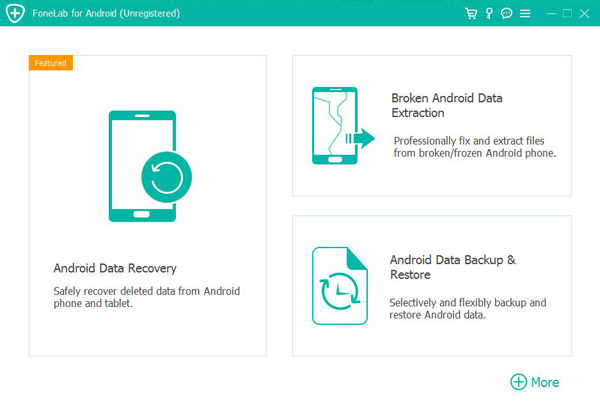
Step 2: Connect Your POCO Phone
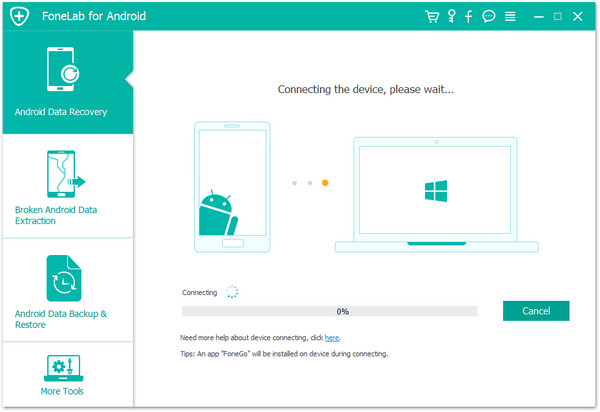
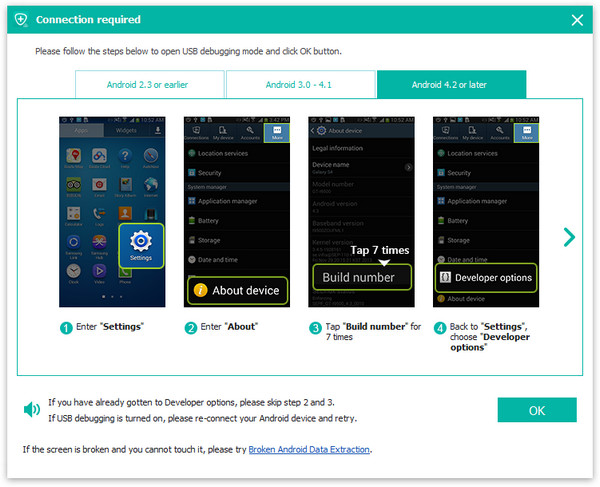
Use a USB cable to connect your POCO device. Enable USB debugging if possible. If debugging is disabled, the software provides guided instructions.
Step 3: Choose Data Types
Select what you want to recover—photos, videos, contacts, messages, documents, or all file types.
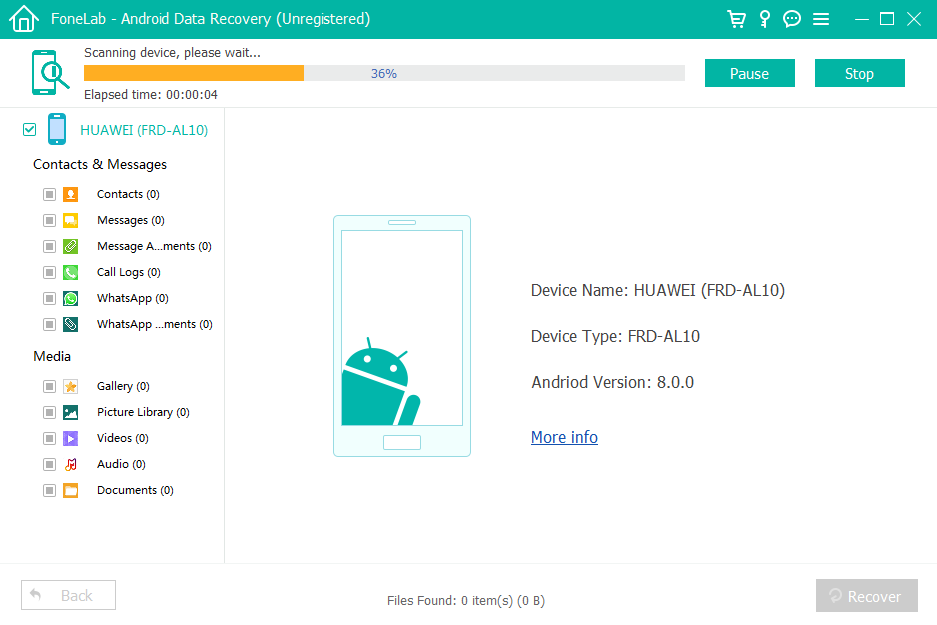
Step 4: Deep Scan the Device
Run a deep scan. The software will analyze the internal storage and reconstruct deleted data fragments.
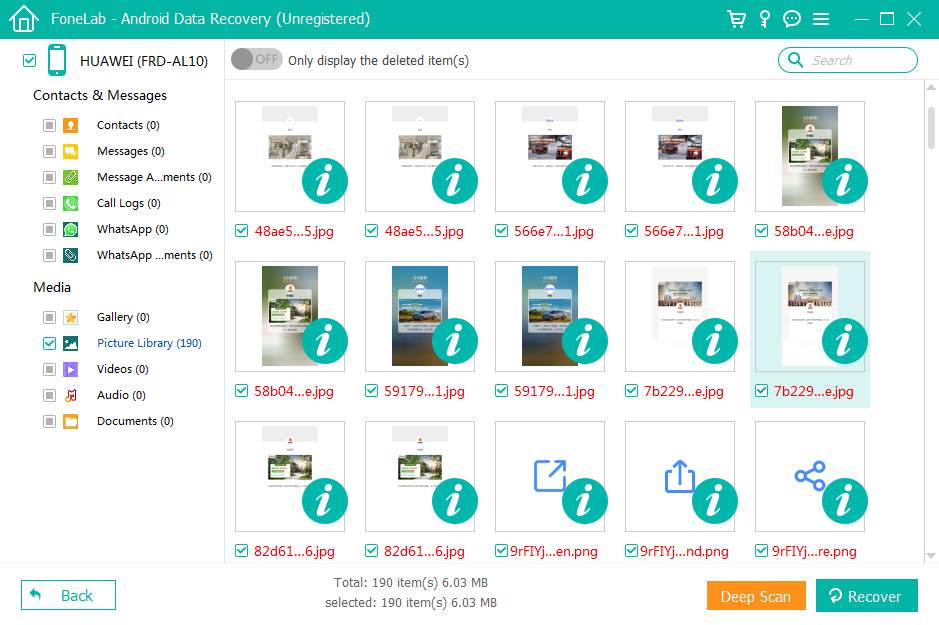
Step 5: Preview and Recover
Preview recoverable files and export them to your PC safely without overwriting the phone’s storage.

Important Notes
- Stop using the phone immediately after reset to avoid data overwriting.
- Root access may improve recovery depth on certain models.
- External SD card data can often be recovered more easily than internal memory.
Method 2: Restore Data from Google Backup (Cloud-Based Recovery)
Most POCO phones are integrated with Google’s backup system. If the device had backup enabled before factory reset, you can restore contacts, app data, Wi-Fi passwords, call logs, and some photos from Google Drive or Google Photos.
This method is simple and does not require a computer or technical expertise. However, its success depends entirely on whether backups were enabled before the reset.
Step-by-Step Restore Process
Step 1: Set Up the POCO Phone Again
Turn on the phone and go through the initial setup process.
Step 2: Sign in to Your Google Account
Use the same Google account previously used on the device.
Step 3: Select Backup to Restore
When prompted, choose the latest available backup and select the data categories to restore.
Step 4: Complete Setup
Wait for the data to sync. Apps and settings will be restored automatically.
Important Notes
- Google Photos may store photos even if device storage is wiped.
- Messages may only be restored if SMS backup was enabled.
- Backup frequency affects how recent your restored data will be.
Method 3: Recover Data from Local Backup or SD Card (Manual Recovery)
Some POCO users manually back up data to a microSD card, Xiaomi Cloud, or PC using MIUI backup tools. If such backups exist, data restoration becomes straightforward and does not require specialized software.
Additionally, files stored on an external SD card are not deleted during factory reset unless formatted manually.
Step-by-Step Recovery Process
Step 1: Check External SD Card
Remove the SD card and scan it using a PC or SD recovery software.
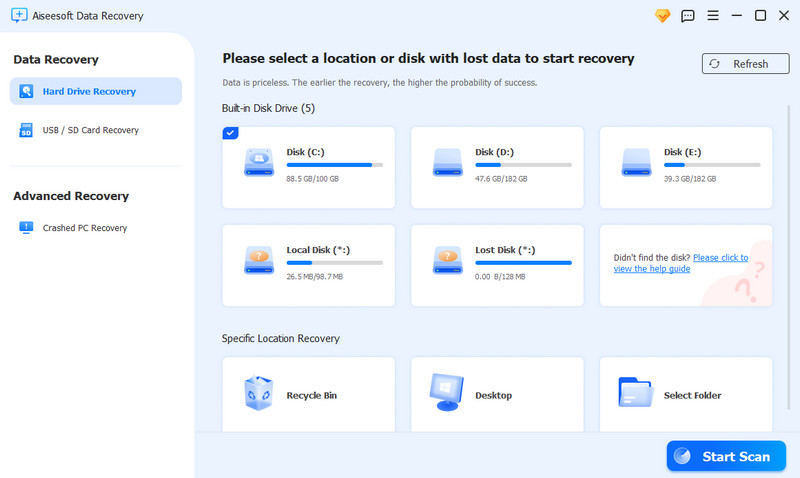
Step 2: Restore Local Backup
If you used MIUI local backup, copy the backup folder back to the phone’s internal storage and restore via Settings > Backup & Restore.
Step 3: Restore Xiaomi Cloud Data
Log into your Xiaomi account and sync contacts, notes, and messages.
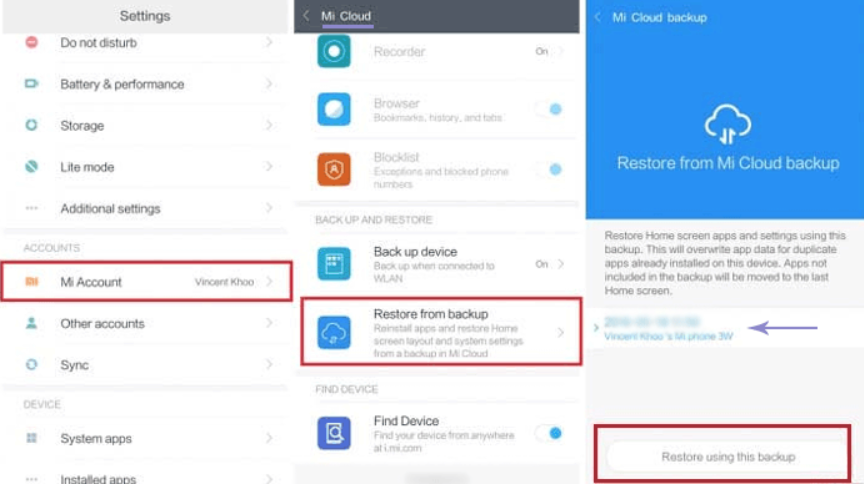
Notes
- Local backups must be restored on the same MIUI version when possible.
- SD card data recovery is easier than internal storage recovery.
- Always store backups on multiple platforms to reduce data loss risk.
Forgot Password or FRP Lock (And How to Fix It)
Factory reset does not always solve all issues. In many real-world cases, users perform a reset and then discover a bigger problem—the phone becomes locked due to Google FRP (Factory Reset Protection) or forgotten screen password.
This problem is extremely common on POCO and Xiaomi devices. After reset, the phone requires the previous Google account credentials. If the user forgets the account or bought a second-hand phone, the device becomes unusable.
Why This Happens on POCO Phones
POCO phones run MIUI/HyperOS with Google security layers. When a reset is performed without removing the Google account, FRP is automatically triggered to prevent theft. Unfortunately, legitimate users also get locked out.
Consequences of FRP Lock
- Phone stuck on verification screen
- Cannot access home screen
- Cannot install apps or retrieve data
- Device becomes practically useless
How Specialized Tools Can Help
Professional unlocking tools from idatapp.com can bypass FRP, remove forgotten PIN/pattern/password, and unlock Android phones without technical skills. These tools are widely used by repair technicians and advanced users to regain access to POCO devices safely.
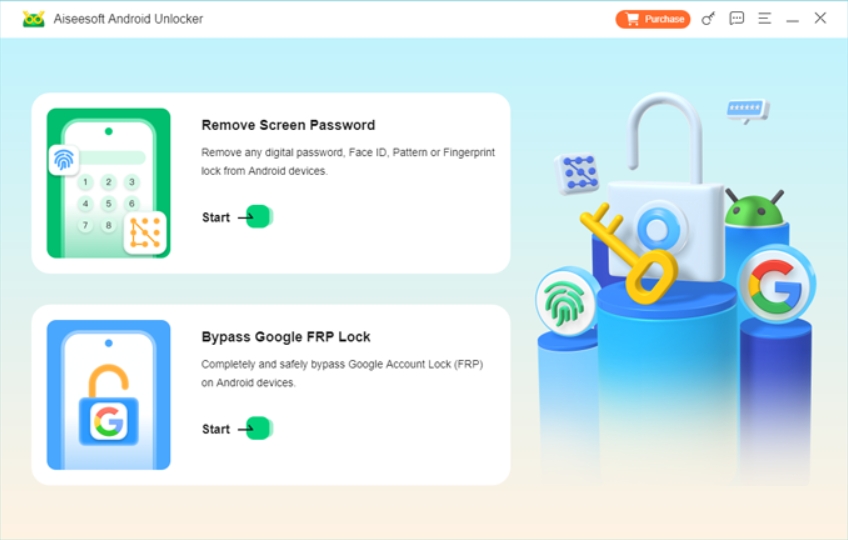
Unlike unofficial hacks, professional unlocking software offers guided steps, compatibility updates, and minimized risk of device damage.
This issue is closely related to factory reset because many users reset phones specifically to remove a forgotten password—only to face FRP lock afterward. Therefore, data recovery and unlocking solutions are often used together in real-world scenarios.
Can You Recover Data After Factory Reset on POCO?
Modern POCO phones use encryption and TRIM. Here’s what that means for recovery:
- File-Based Encryption (FBE): Each file is encrypted individually. Reset may destroy encryption keys, making recovery harder.
- TRIM Command: Clears storage blocks automatically after reset, reducing recovery chances.
- UFS Storage: Faster but more aggressive garbage collection.
Despite these technologies, partial recovery is still possible if:
- Reset was recent
- Phone was not heavily used after reset
- Data was stored on SD card
- Backup existed
Professional tools increase recovery chances significantly.
5 Frequently Asked Questions
Can I recover photos after factory reset on POCO without backup?
Yes, but success depends on whether storage blocks were overwritten. Professional recovery software offers the highest success rate, especially if you stop using the phone immediately.
Does factory reset permanently erase everything on POCO?
Not always. Factory reset marks data blocks as free but does not instantly erase them physically. Overwriting new data makes recovery impossible.
Is rooting required to recover POCO data?
Rooting is not always required, but it can improve deep scan results on some models. However, rooting may void warranty and should be done carefully.
Can Google backup restore WhatsApp chats after reset?
Yes, if WhatsApp backup was enabled to Google Drive. Otherwise, chats may not be recoverable without specialized recovery tools.
How long should I wait before using recovery software?
You should start recovery immediately after reset. Continued phone use increases data overwriting and reduces recovery success.
Final Summary
Recovering lost data on a POCO phone after factory reset is challenging but not impossible. Professional recovery software, cloud backups, and local storage backups provide three effective recovery paths. Acting quickly and avoiding phone usage greatly increases success rates. Additionally, factory reset can trigger FRP lock, which requires specialized unlocking tools to regain access.
 English
 Nederlands
 Tiếng Việt
 日本
日本 Español
 Português
 Deutsche
 Français
 Italiano
 Norsk
Norsk Suomalainen
 Svenska
 Dansk
Dansk Ελληνικά
 Türk
Türk русский
 हिंदी
हिंदी தமிழ்
தமிழ் Bahasa Melayu
 ไทย
ไทย 한국어
한국어 Română
 Polskie
 қазақ
қазақ Gaeilge
 繁體中文
繁體中文