
 iPhone Data Recovery
 iOS System Recovery
 iOS Backup & Restore
 iOS WhatsApp Transfer
 iOS FoneTrans
 MobieSync
 Android Data Recovery
 Broken Android Data Extraction
 Android Data Backup & Restore
 iPhone Unlocker
 Best Samsung Phone Unlock Tool
 Android Unlocker
 Win/Mac Data Recovery
 iDATAPP Screen Recorder
 2D&3D Video Converter
 AI Video Converter
 Ai Blu-ray Player
  Video Repair Software Ai
iDATAPP Video Repairer can help fix/restore videos with lost or corrupted data.
POCO Phone Unlock Tool/Without Password/PIN/Face ID/Fingerprint
Locked out of your Xiaomi POCO phone? This guide explains why it happens, shows three effective unlock methods, and reveals how to recover lost data after unlocking safely and efficiently.

Smartphones are designed to protect privacy, but that protection can quickly turn into a wall when you’re locked out of your own device. POCO phones, running MIUI or HyperOS on top of Android, use multiple layers of security: PINs, patterns, fingerprints, Face ID, and Google’s Factory Reset Protection (FRP). When any of these fail—after a forgotten password, a second-hand purchase, a system crash, or too many wrong attempts—you’re left staring at a locked screen with no clear way forward.
This article breaks down why POCO phones get locked, what actually happens behind the scenes, and three realistic methods to unlock a POCO phone without the original password or biometric access. One of these methods uses a professional solution from our own website, while the others rely on system-level features already built into Android or MIUI. We’ll also expand into a related but often overlooked problem POCO users face after unlocking: data loss and recovery.
Guide List
- Understanding the POCO Lock Problem (Before You Fix It)
- Method 1: Unlock POCO Phone Using Android Unlocker (Recommended)
- Method 2: Factory Reset via Recovery Mode (Manual, Data Loss)
- Method 3: Unlock via Xiaomi Account (Cloud-Based Option)
- Data Loss After Unlocking a POCO Phone (And How to Fix It)
- Related Questions
Understanding the POCO Lock Problem (Before You Fix It)
POCO phones inherit Android’s security architecture, which means your lock screen credentials are encrypted and tied directly to the system partition. This is why simply “guessing” a pattern doesn’t work and why some unlock attempts trigger FRP, Google’s theft-protection mechanism.
Common scenarios include:
- Forgetting a PIN or pattern after months of fingerprint use
- Face ID or fingerprint failing after a screen replacement
- Buying a used POCO device still linked to the previous Google account
- A forced factory reset that unexpectedly triggers FRP
- System updates or crashes that corrupt lock credentials
Understanding which lock you’re facing (screen lock vs FRP) matters, because not all methods solve both. Let’s walk through three approaches—starting with the most complete solution.
Method 1: Unlock POCO Phone Using Android Unlocker (Recommended)
- Best for: Forgotten PIN/pattern/password, fingerprint & Face ID lock, FRP lock
- Data loss: Depends on mode (FRP unlock usually keeps data; screen lock removal may erase data)
When built-in options fail, a dedicated Android unlocking tool becomes the most efficient route. Android Unlocker from iDatapp is designed specifically to remove Android screen locks and bypass FRP on devices like POCO without relying on unofficial exploits or risky flashing.
Unlike manual methods, this approach communicates directly with the device’s system-level security modules. It supports multiple POCO models and MIUI/HyperOS versions, making it suitable even when Google account verification blocks access after a reset.
- Removes PIN, pattern, password, fingerprint, and Face ID
- Bypasses Google FRP lock without original account credentials
- Guided interface reduces human error
- No need to root the device
Step-by-Step Guide
1.Install Android Unlocker on a Windows or Mac computer
2.Launch the program and choose Remove Screen Password or Bypass Google FRP Lock

3.Connect your POCO phone via USB
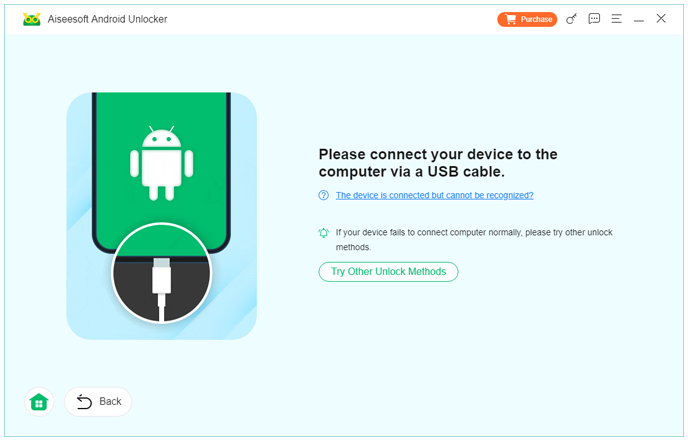
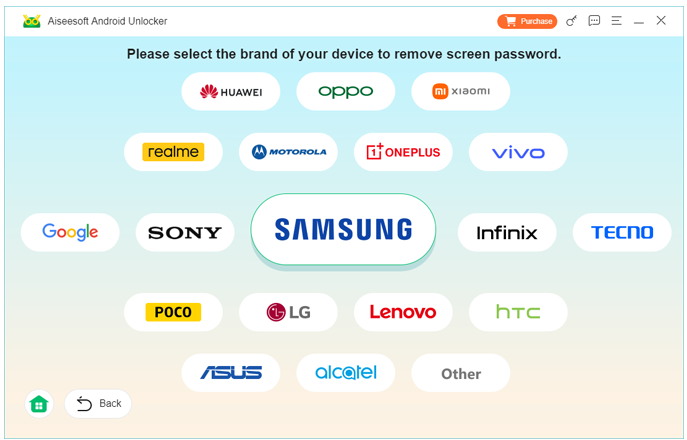
4.Select your device model and follow on-screen instructions
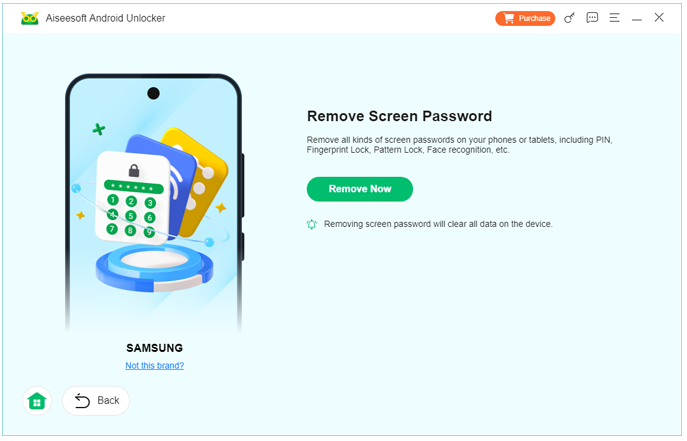
5.Click Remove Now and let the software complete the unlock process
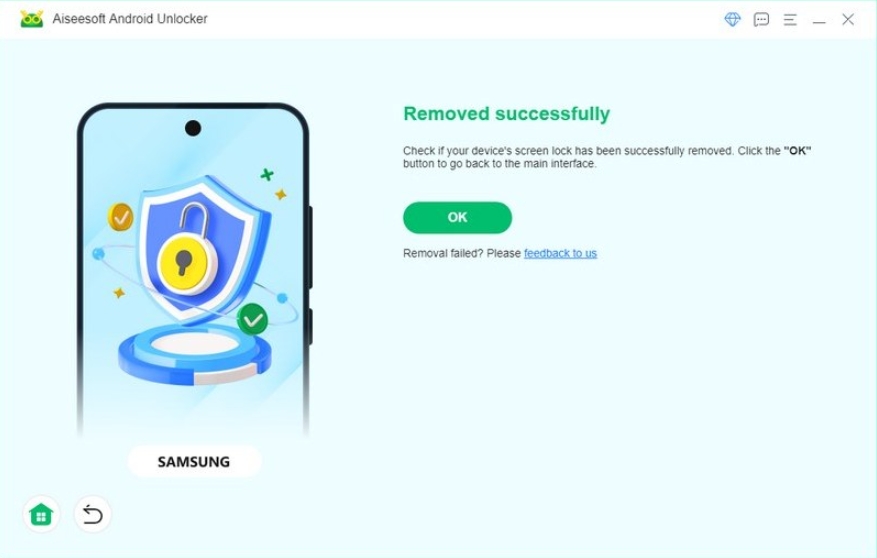
6.Restart the device and set up a new lock method
Important note: If your priority is data preservation, always attempt FRP-related or account-based unlocks first before full lock removal.
Method 2: Factory Reset via Recovery Mode (Manual, Data Loss)
- Best for: Forgotten PIN/pattern/password
- Does NOT solve: FRP lock
- Data loss: Yes (full wipe)
This is the most commonly discussed method online—and also the most misunderstood. A factory reset through Recovery Mode removes the screen lock, but it does not remove the Google account linked to the device. On POCO phones, this often leads directly to an FRP lock after reboot.
Still, if you remember the Google account credentials and only forgot the lock screen password, this method can work.
How It Works
Recovery Mode allows the system partition to reset user data, which deletes lock credentials stored locally. However, Google’s servers still recognize the device ID, triggering verification on setup.
Step-by-Step Guide
1.Power off the POCO phone completely
2.Press and hold Volume Up + Power until the POCO logo appears
3.Release Power but keep holding Volume Up to enter Recovery Mode
4.Use volume keys to select Wipe All Data
5.Confirm the action and wait for completion
6.Reboot the phone
Warnings
- All data stored locally will be erased
- You must log in with the original Google account after reset
- If you don’t know the account, the phone will remain locked
This method is simple, but it’s often the reason users end up stuck with FRP afterward.
Method 3: Unlock via Xiaomi Account (Cloud-Based Option)
- Best for: Pattern/PIN lock
- Requirements: Active Xiaomi account linked to the device
- Data loss: Possible
POCO phones are part of Xiaomi’s ecosystem, which means many users unknowingly link their device to a Mi (Xiaomi) account. If this account was enabled before the lockout, it can sometimes be used to remove the screen lock remotely.
This method relies on Xiaomi’s official cloud services rather than third-party tools.
How It Works
When “Find Device” is enabled, Xiaomi’s servers can send a command to reset or unlock the phone after identity verification.
Step-by-Step Guide
1.On another device, visit Xiaomi Cloud and log in
2.Access Find Device
3.Select the locked POCO phone from your account
4.Choose Erase Device or Unlock (if available)
5.Wait for the command to sync when the phone is online
Limitations
- Not all regions or MIUI versions support unlock without erase
- Requires internet access on the locked phone
- Does not bypass Google FRP if a reset is performed
This method is official and safe, but availability depends heavily on prior setup.
Data Loss After Unlocking a POCO Phone (And How to Fix It)
Unlocking a POCO phone is often only half the battle. The more painful aftermath usually comes when users realize their photos, messages, contacts, or app data are gone—especially after factory resets, system crashes, or failed unlock attempts.
This problem is surprisingly common with POCO devices due to:
- Aggressive system updates (MIUI → HyperOS transitions)
- Forced resets after multiple unlock failures
- Boot loops caused by corrupted partitions
- Accidental wipes during DIY flashing or rooting
Once data is erased at the system level, Android no longer shows it—but that doesn’t always mean it’s unrecoverable.
A Practical Recovery Scenario
Imagine this: you reset your POCO phone to remove a forgotten PIN. The phone unlocks, but years of photos and WhatsApp chats are missing. No cloud backup. Panic sets in.
This is where Android Data Recovery solutions from iDatapp come into play. These tools scan the device storage or SD card directly, reconstructing recoverable files even after deletion or system damage.
What Makes This Useful for POCO Users?
- Supports recovery after factory reset or system crash
- Works with internal storage and SD cards
- Can extract data even when the screen is damaged
- Useful after failed unlock or FRP-related resets
For POCO users, pairing an unlock solution with a recovery plan is the smartest way to avoid permanent data loss.
Related Questions
Can I unlock a POCO phone without losing data?
Yes, in some cases—especially FRP bypass or cloud-based unlocks. Full screen lock removal usually erases data.
Does factory reset remove FRP on POCO phones?
No. Factory reset often triggers FRP if a Google account was previously linked.
Is fingerprint or Face ID unlockable without the password?
Biometric data is tied to the main lock. Removing it requires removing the screen lock itself.
Can I unlock a second-hand POCO phone stuck on Google verification?
Yes, FRP bypass tools like Android Unlocker are designed for this situation.
What if my POCO phone is also system-damaged or stuck in boot loop?
You may need to repair the system first, then unlock and recover data using professional tools.
Conclusion
Being locked out of a POCO phone is frustrating, but it’s not the end of the road. The right approach depends on whether you’re dealing with a screen lock, FRP, or both. Combining safe unlocking with smart data recovery planning gives you full control back—without unnecessary risks.
 English
 Nederlands
 Tiếng Việt
 日本
日本 Español
 Português
 Deutsche
 Français
 Italiano
 Norsk
Norsk Suomalainen
 Svenska
 Dansk
Dansk Ελληνικά
 Türk
Türk русский
 हिंदी
हिंदी தமிழ்
தமிழ் Bahasa Melayu
 ไทย
ไทย 한국어
한국어 Română
 Polskie
 қазақ
қазақ Gaeilge
 繁體中文
繁體中文