
 iPhone Data Recovery
 iOS System Recovery
 iOS Backup & Restore
 iOS WhatsApp Transfer
 iOS FoneTrans
 MobieSync
 Android Data Recovery
 Broken Android Data Extraction
 Android Data Backup & Restore
 iPhone Unlocker
 Best Samsung Phone Unlock Tool
 Android Unlocker
 Win/Mac Data Recovery
 iDATAPP Screen Recorder
 2D&3D Video Converter
 Video Repair Software Ai
 AI Video Converter
 Ai Blu-ray Player
 Easily Recover Data from POCO Phone Without Backup
Learn three effective methods to recover deleted data/contacts/photos/messages/videos/whatsapp history/notes/call logs from your POCO phone, including using iDatapp Android Data Recovery for software-based solutions. Reclaim lost files with ease!

Losing important data from your POCO phone can be a stressful experience, especially when you didn’t back up your files. Whether it’s accidental deletion, a system crash, or a virus attack, there are several ways to recover deleted data. If you’re reading this, you’re likely in need of a reliable solution to bring back your precious photos, contacts, messages, or other crucial files. In this article, we will explore three effective methods to recover deleted data from your POCO phone, including one solution that utilizes software from our very own website, iDatapp.com.
Data loss can happen for various reasons. You might accidentally delete files, or your phone may malfunction, causing data to disappear. Sometimes, the issue could stem from a software crash or even a virus attack. Whatever the cause, it’s important to act fast to maximize the chances of successful data recovery. So, let’s dive into these methods that will help you recover deleted data from your POCO phone!
Method 1: Using iDatapp Android Data Recovery Software
Our first method involves using professional software to recover your lost data. If you're not familiar with data recovery software, iDatapp Android Data Recovery is one of the most reliable options on the market. It’s designed to recover a wide range of lost files, from photos and videos to messages and contacts.
Why iDatapp Android Data Recovery?
This software stands out because of its ease of use and impressive recovery capabilities. Whether you’ve lost data due to accidental deletion, system crashes, or even rooting errors, iDatapp Android Data Recovery can handle it all.
Steps to Use iDatapp Android Data Recovery:
1.Download and Install the Software
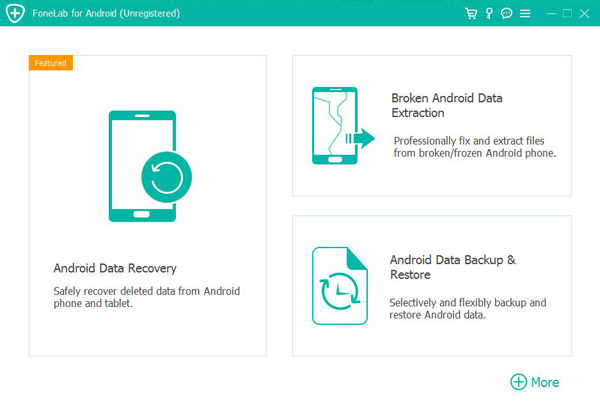
First, head to iDatapp.com and download the Android Data Recovery software. Install it on your computer and run the program.
2.Connect Your POCO Phone
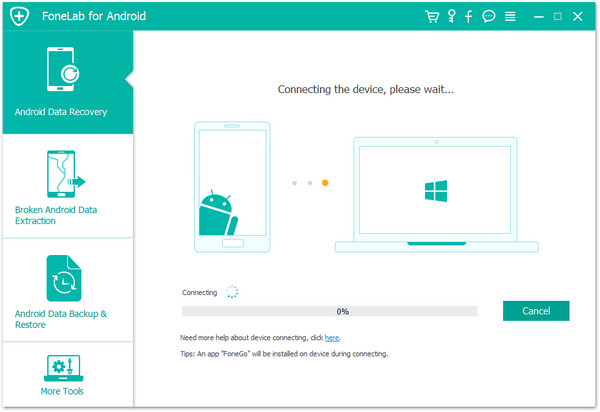
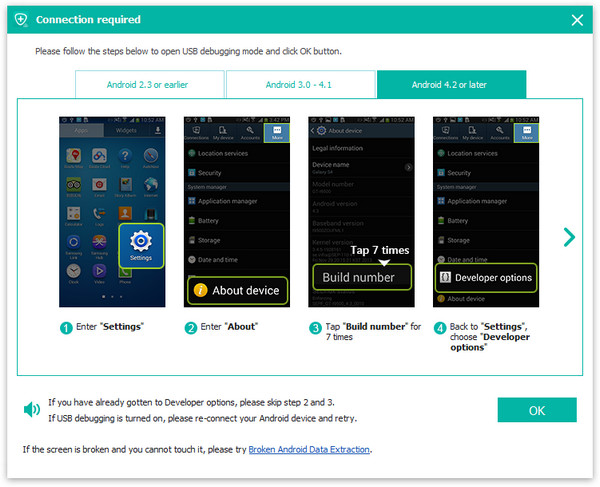
Use a USB cable to connect your POCO phone to your computer. Make sure USB debugging is enabled on your phone (you can enable it by going to Settings > About phone > Tap Build number 7 times, then go to Developer options and enable USB debugging).
3.Select Data Type to Recover
Once your phone is connected, open the software. It will ask you which type of data you want to recover. Select the relevant file types such as Photos, Messages, Contacts, and Videos, or choose "All files" to scan your entire phone.
4.Scan Your POCO Phone
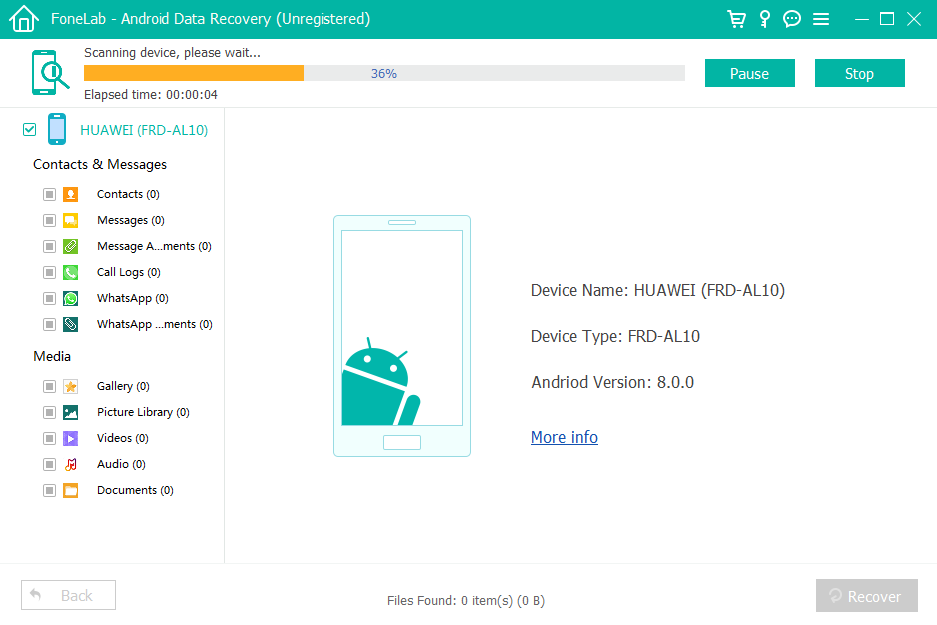
Click the "Scan" button. The software will begin to scan your phone for deleted data. This process may take a few minutes, depending on the amount of data stored on your device.
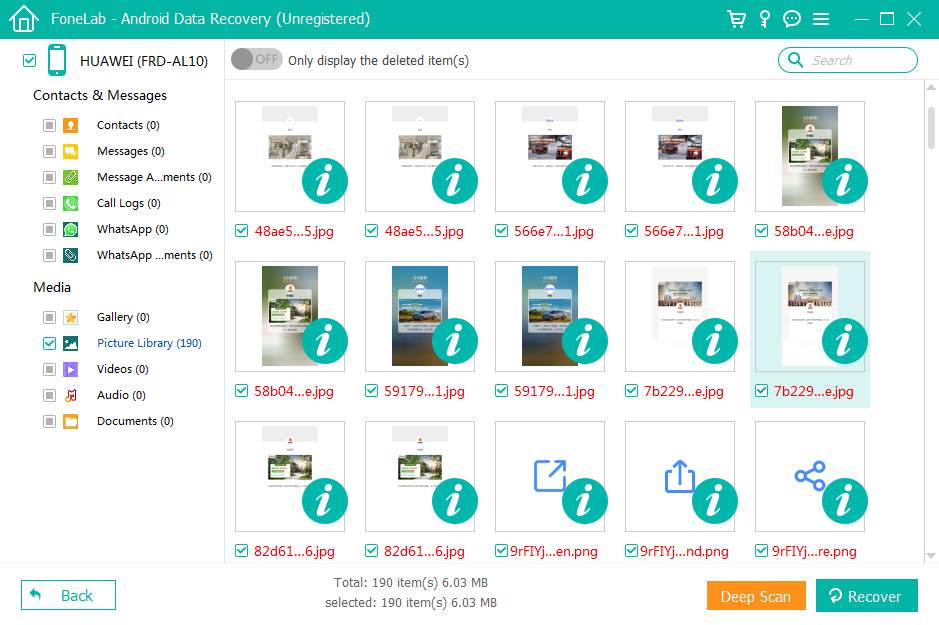
5.Preview and Recover Deleted Data
After the scan is complete, the software will display all the recoverable data. Preview the files, select the ones you wish to restore, and click "Recover". Your deleted data will be saved back to your computer.
6.Save the Recovered Data
Once the recovery process is finished, save the recovered files to your computer or transfer them back to your POCO phone.

With iDatapp Android Data Recovery, you can recover a wide variety of file types and data lost due to different scenarios. It’s a powerful tool, and it’s designed to be simple enough for anyone to use, even if you’re not tech-savvy.
Method 2: Recovering Data via Google Backup (If Available)
If you’ve enabled Google Backup on your POCO phone, there’s a good chance that some or all of your data is stored on Google servers. This backup feature is particularly useful for recovering deleted data such as contacts, photos, and app data.
Steps to Recover Data Using Google Backup:
1.Check Google Photos for Pictures & Videos
Open the Google Photos app on your POCO phone. If you had syncing enabled before the data loss, your deleted photos and videos may be safely stored in the cloud. You can easily restore them to your phone by selecting the photos you want and tapping the "Restore" option.
2.Recover Contacts & Calendar Entries
If you’re missing contacts or calendar events, go to Google Contacts and Google Calendar on your phone or computer. If the data was synced before deletion, you can restore it from the cloud.
3.Restore App Data
For app-related data, you can go to the Google Play Store > Menu > My apps & games > Library. Here, you can reinstall apps that were previously installed, and some of them will restore their data from the cloud if cloud backup was enabled for those apps.
Google Backup is a great option for those who’ve set it up in advance, as it provides a straightforward way to recover deleted data. However, it might not recover all data types (like WhatsApp messages or system files), so it’s often used in combination with other methods.
Method 3: Recovering Data from the POCO Phone’s SD Card
If your POCO phone uses an SD card, your deleted data might still be recoverable from there. SD cards are storage devices that often retain data even after it’s been deleted. Specialized software tools can scan the SD card to recover lost files.
Steps to Recover Data from the SD Card:
1.Remove the SD Card from Your POCO Phone
Power off your phone and remove the SD card. Insert the SD card into a card reader connected to your computer.
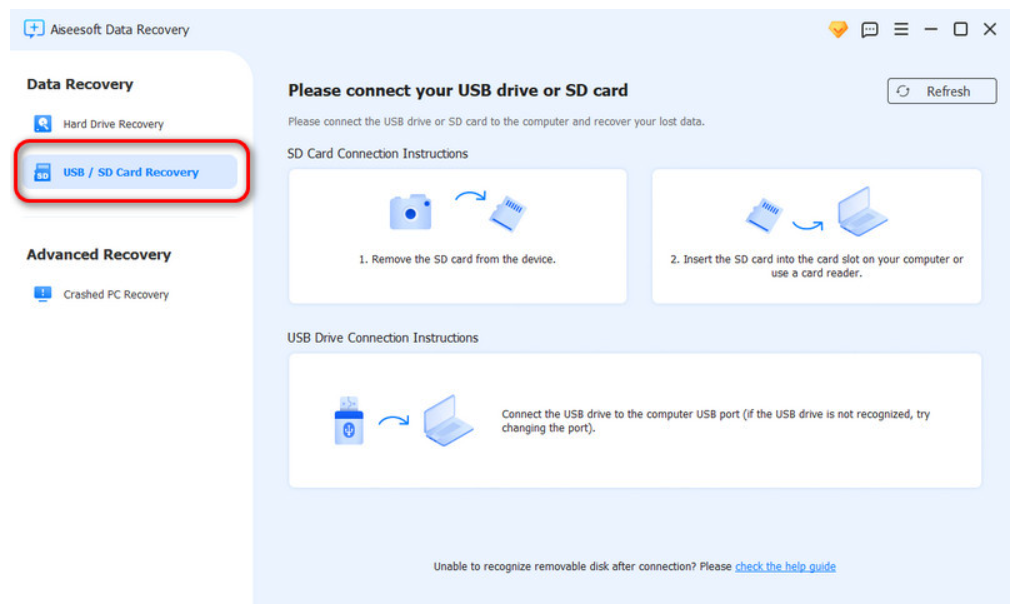
2.Use a iDatapp Data Recovery Tool for SD Cards
Once the SD card is connected to your computer, you can use data recovery software to scan and recover deleted files. There are several third-party software options available, but if you prefer a trusted solution, iDAtapp’s Android Data Recovery software can also scan and recover data from SD cards.
3.Scan the SD Card
Open the recovery software and select your SD card as the target drive for the scan. The software will search for recoverable files, including photos, videos, documents, and more.
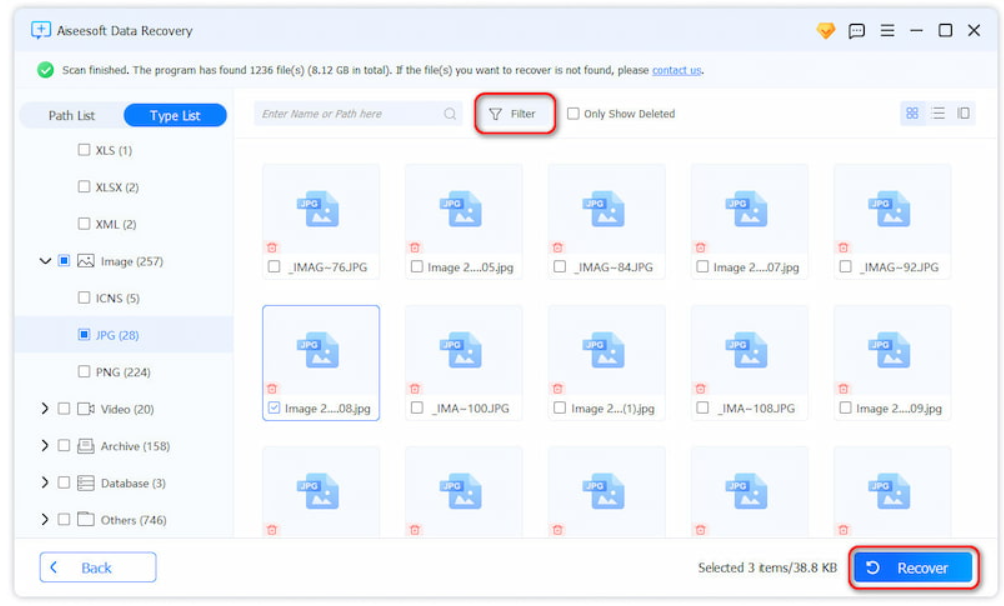
4.Recover the Data
Once the scan is complete, preview the files, select the ones you want to recover, and save them to your computer. You can later transfer the recovered data back to your POCO phone’s SD card.
Data recovery from SD cards can be very effective, especially if the data was deleted recently. However, as with any recovery process, it’s important to stop using the SD card immediately to avoid overwriting the lost data.
Data Recovery from System Failures
If your POCO phone is facing a system crash or is stuck in a boot loop, you may not be able to access your files normally. System failures can result in significant data loss, but don't worry; it’s not the end of the road for your precious data. iDAtapp Android Data Recovery can also help in such cases by recovering data from a device that won’t boot properly.
If your phone is stuck in a boot loop, data recovery software can allow you to access your phone’s internal storage and recover data even before the system is fully functional. The iDAtapp Android Data Recovery tool supports recovery from both rooted and unrooted devices, and it allows you to recover data from phones that are facing software-related issues.
In cases of system crashes or software malfunctions, data recovery tools are indispensable for getting back important files, especially when traditional recovery methods (like Google Backup) aren't effective.
FAQs
Can I recover all my deleted data from a POCO phone?
Not all deleted data can be recovered, especially if it has been overwritten. However, with the right tools like iDatapp Android Data Recovery, the chances of recovery are significantly higher.
Is there any way to recover WhatsApp messages from a POCO phone?
Yes, if you have WhatsApp backup enabled on Google Drive or local storage, you can recover your messages by reinstalling WhatsApp and restoring the backup.
How long does it take to recover deleted data from my POCO phone?
The time it takes depends on the amount of data being scanned and the method you’re using. Using iDatapp Android Data Recovery, the process can take anywhere from a few minutes to an hour.
Can I recover data from a broken POCO phone?
Yes, if your phone is physically damaged but still powers on, software tools like iDatapp Android Data Recovery can help you recover data from the device. However, if your phone doesn’t turn on at all, you may need professional repair services to retrieve your data.
Will using data recovery software harm my phone or void the warranty?
Using data recovery software will not harm your phone or void its warranty, as it’s simply software running on your computer. However, rooting your phone or installing third-party apps without proper knowledge might void the warranty.
Conclusion
Losing data from your POCO phone can be a stressful experience, but it’s not the end of the world. By using methods like iDAtapp Android Data Recovery, you can easily recover lost photos, contacts, and more. Whether you’re dealing with accidental deletion, system crashes, or SD card issues, there are solutions available to help you get your data back. Always act fast and use the right tools to maximize your chances of recovery.
 English
 Nederlands
 Tiếng Việt
 日本
日本 Español
 Português
 Deutsche
 Français
 Italiano
 Norsk
Norsk Suomalainen
 Svenska
 Dansk
Dansk Ελληνικά
 Türk
Türk русский
 हिंदी
हिंदी தமிழ்
தமிழ் Bahasa Melayu
 ไทย
ไทย 한국어
한국어 Română
 Polskie
 қазақ
қазақ Gaeilge
 繁體中文
繁體中文