
 iPhone Data Recovery
 iOS System Recovery
 iOS Backup & Restore
 iOS WhatsApp Transfer
 iOS FoneTrans
 MobieSync
 Android Data Recovery
 Broken Android Data Extraction
 Android Data Backup & Restore
 iPhone Unlocker
 Best Samsung Phone Unlock Tool
 Android Unlocker
 Win/Mac Data Recovery
 iDATAPP Screen Recorder
 2D&3D Video Converter
 Video Repair Software Ai
 AI Video Converter
 Ai Blu-ray Player
 POCO Photos Recovery|Restore Deleted Pictures On POCO Phone
POCO photo loss isn’t permanent in most cases. This guide explains why photos disappear and shows three proven recovery methods, including professional Android data recovery for permanently deleted images.
How to Recover Deleted Photos From POCO Phone?
Photos on a POCO phone are more than pixels—they’re evidence of trips, screenshots of important chats, product images, and memories that can’t be recreated. Yet POCO devices, powered by MIUI or HyperOS, handle storage differently from stock Android, which means deleted photos can sometimes feel impossible to retrieve.
But here’s the truth: deleted photos on POCO phones are often recoverable—if you act strategically and understand how Android storage works.
This article will analyze why photos disappear, explain how POCO stores image data, propose three practical recovery methods, and solve the problem step-by-step. You’ll also learn hidden recovery tips, prevention strategies, and a related POCO-specific issue that often blocks photo recovery.
Guide List
- Why POCO Photos Disappear (And Why Recovery Is Still Possible)
- Method 1: Recover Deleted Photos Using iDATAPP Android Data Recovery
- Method 2: Recover Deleted Photos from POCO Gallery Trash (Built-in Safety Layer)
- Method 3: Recover Deleted POCO Photos from Google Photos Backup
- Forgot POCO Phone Password and Can’t Access Photos?
- Advanced Tips to Increase Photo Recovery Success
- Common POCO Photo Loss Scenarios (And What to Do)
- FAQ
Why POCO Photos Disappear (And Why Recovery Is Still Possible)
POCO phones run on MIUI (or HyperOS in newer models), which manages storage aggressively. When you delete a photo, the system usually:
- Removes the file reference from the gallery
- Flags the storage block as “available”
- Waits for new data to overwrite it
This gap between deletion and overwrite is the recovery window.
Photos can disappear due to:
- Accidental deletion
- Gallery cache corruption
- MIUI/HyperOS updates
- Cloud sync conflicts
- Factory reset
- Storage cleanup tools
- SD card corruption
- App crashes
- System migration during upgrades
What matters most is what happens after deletion.
If you keep using the phone heavily, recording videos, downloading apps, or installing updates, the old data gets overwritten — making recovery impossible.
If you act fast, recovery chances stay high.
Method 1: Recover Deleted Photos Using iDATAPP Android Data Recovery
When photos are deleted and no backups exist, recovery requires direct storage-level scanning. This is where standard phone features fail — and professional recovery tools become necessary.
iDATAPP Android Data Recovery works by scanning the internal storage structure of Android systems (including POCO devices) to locate residual image data that hasn’t been overwritten yet.

How This Works (Conceptually)
- Scans file allocation tables
- Reads raw storage blocks
- Reconstructs fragmented image files
- Extracts cached thumbnails and originals
- Bypasses deleted file indexing
Step-by-Step Recovery Process
1.Install iDATAPP Android Data Recovery on a computer
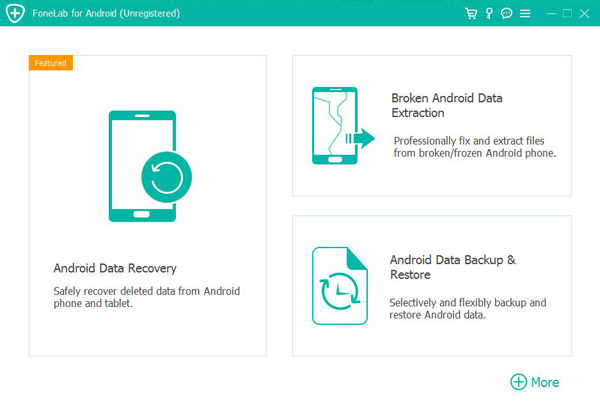
2.Connect your POCO phone via USB
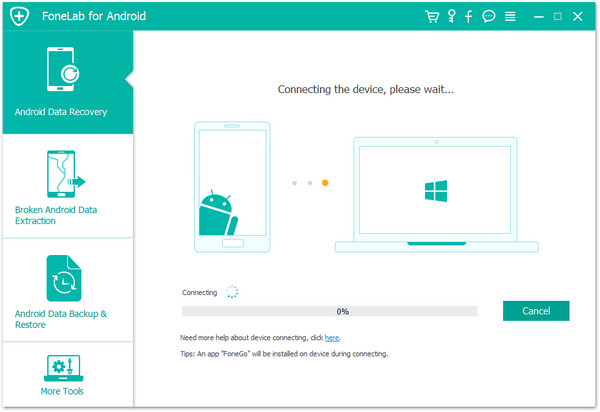
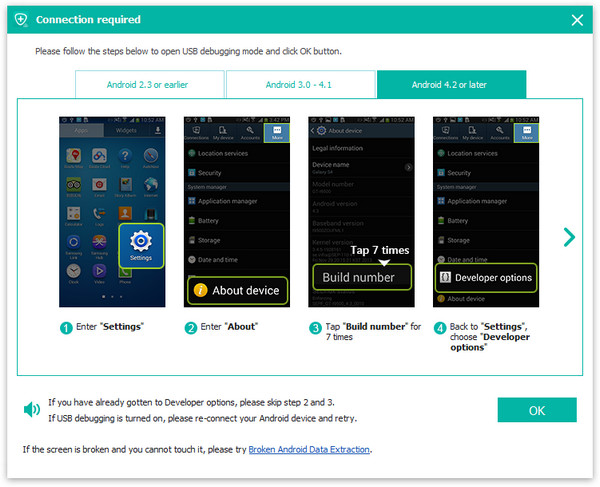
3.Enable USB debugging
4.Select Photos/Gallery for scanning
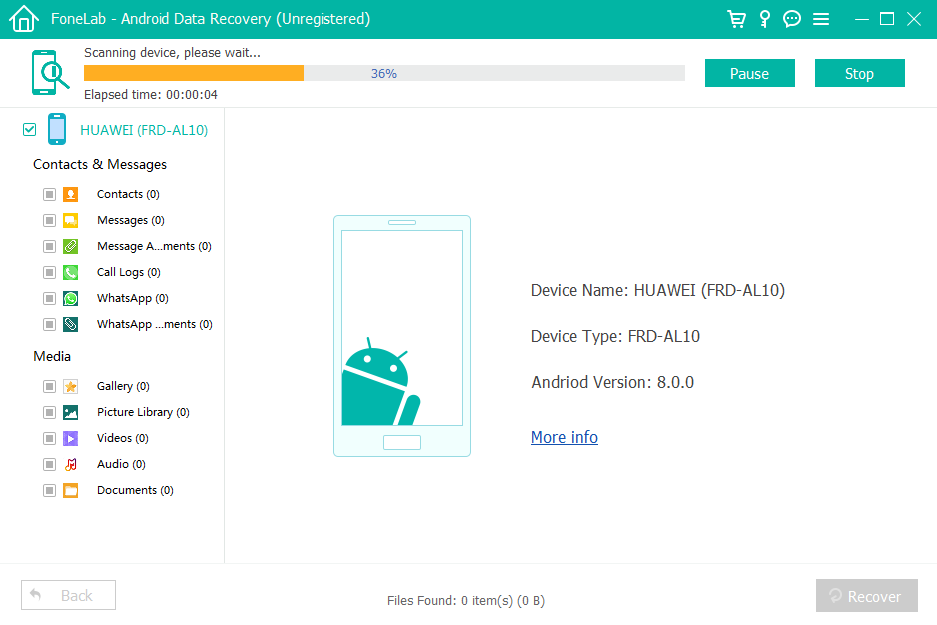
5.Start deep scan and preview recoverable images
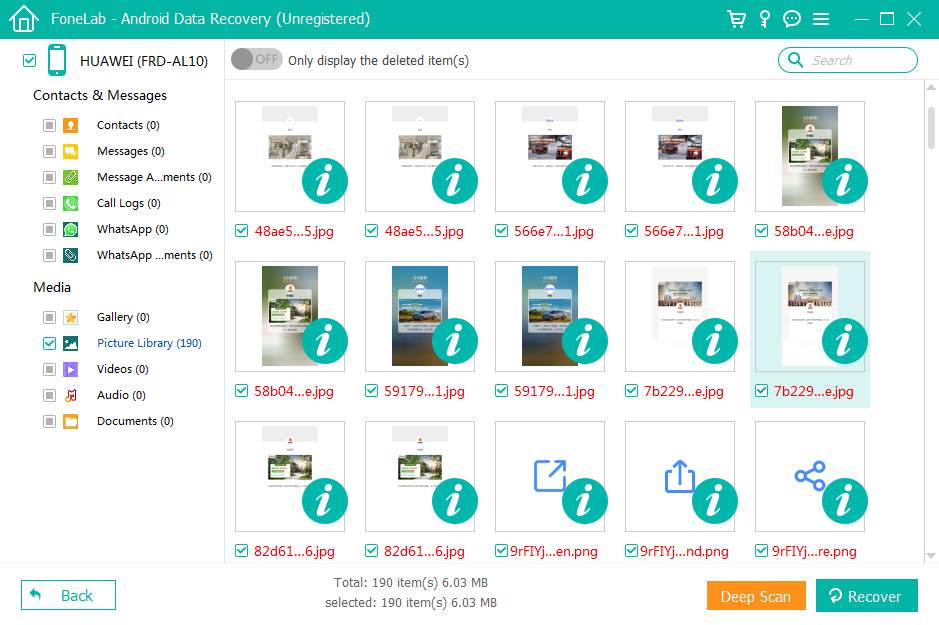
6.Select photos and recover to computer

Why This Method Is Powerful?
- Works without backups
- Recovers permanently deleted photos
- No factory reset
- Selective recovery
- Supports MIUI and HyperOS
- No data overwrite risk
This is the most reliable solution when photos are truly gone from the system interface.
Method 2: Recover Deleted Photos from POCO Gallery Trash (Built-in Safety Layer)
POCO’s Gallery app includes a hidden protection layer similar to a recycle bin. Deleted photos don’t disappear immediately — they go into a Trash / Recycle Bin / Recently Deleted folder, where they stay for a limited time (usually 30 days).
This method works because MIUI doesn’t truly delete the file at first — it just relocates it.
Recovery Steps
- Open Gallery
- Tap Albums
- Scroll and open Trash/Recently Deleted
- Select the photos you want
- Tap Restore
Photos return to their original albums instantly.
Important Details
- Time-limited storage (usually 30 days)
- Manual “empty trash” deletes permanently
- Works offline
- Original resolution preserved
- Metadata stays intact
This is the cleanest and safest recovery method — but only works if you catch the deletion early.
Method 3: Recover Deleted POCO Photos from Google Photos Backup
Most POCO phones come with Google Photos enabled by default. If backup was active, deleted photos might still be stored in Google’s cloud.
Why This Works
Google Photos keeps deleted items in its Trash for 60 days and sometimes retains synced images even if local copies are gone.
Step-by-Step Recovery
1.Open Google Photos
2.Tap Library → Trash
3.Select deleted photos
4.Tap Restore
5.Photos return to Gallery and Google Photos
Extra Recovery Trick
If photos disappeared but aren’t in Trash:
- Go to photos.google.com on a browser
- Search by date or keyword
- Download the original files
- Transfer back to your POCO phone
Important Notes
- Requires Google account login
- Photos deleted over 60 days ago are auto-purged
- Storage saver mode may reduce resolution
- Works even after factory reset
This method is ideal if your POCO phone was lost, broken, or reset.
Forgot POCO Phone Password and Can’t Access Photos?
Sometimes, the problem isn’t just deleted photos. A locked POCO phone can completely block photo recovery.
This happens frequently when:
- You forget the screen lock password
- Fingerprint or face unlock fails
- The phone becomes disabled after multiple wrong attempts
- You bought a second-hand POCO phone with unknown PIN
- The screen is broken and you can’t enter the passcode
Why This Matters for Photo Recovery
Android encrypts user data using the screen lock. Without unlocking:
- Internal storage is encrypted
- Data recovery tools can’t access photo directories
- USB file transfer is blocked
- Google account verification prevents login
In real-world repair scenarios, unlocking the phone is the first step before any photo recovery attempt.
Solution: Unlock POCO Phone Using Specialized Android Unlock Tools
On idatapp.com, there are dedicated tools designed to:
- Remove forgotten screen locks (PIN, pattern, password)
- Bypass disabled phone states
- Handle FRP lock after factory reset
- Restore access without technical knowledge
Once the device is unlocked, Android Data Recovery tools can scan the storage normally and retrieve deleted photos.
Real Case Example
A POCO user factory resets the phone after forgetting the password, losing photos stored locally. The phone becomes Google-locked, blocking setup. Unlocking the device restores access, allowing cloud sync and recovery tools to retrieve old photos.
This workflow is commonly used in professional phone repair shops—and now accessible to everyday users.
Advanced Tips to Increase Photo Recovery Success
These tips are rarely mentioned in typical guides but significantly affect success rates:
1. Stop Using the Phone Immediately
New photos, videos, and apps overwrite deleted photo sectors.
2. Avoid System Cleaners
MIUI Cleaner and third-party cleaners permanently wipe caches and trash folders.
3. Disable Storage Optimization
It may delete local photo copies when synced to cloud.
4. Enable Google Photos Backup
Even if you recover photos, future protection matters.
5. Use a PC-Based Recovery Tool
Mobile apps have limited permissions and lower success rates.
Common POCO Photo Loss Scenarios (And What to Do)
Scenario 1: Photos disappeared after system update
- Use Google Photos sync refresh or recovery software.
Scenario 2: SD card photos missing
- Remove card and use SD card recovery software on PC.
Scenario 3: Phone reset without backup
- Use deep scan recovery tools immediately.
Scenario 4: Photos missing after transferring to PC
- Check DCIM folder and Windows hidden files.
FAQ
Can I recover photos deleted months ago from POCO phone?
Yes, but only if storage sectors haven’t been overwritten. Cloud backups increase recovery chances significantly.
Does rooting POCO phone help photo recovery?
Yes. Rooting allows deeper access to internal storage, improving recovery results.
Are free Android recovery apps reliable?
Most free apps have limited scanning capability. PC-based tools provide deeper file system access.
Will factory reset permanently delete photos?
Factory reset removes file references but not all data immediately. Recovery is possible before overwriting occurs.
How can I prevent losing photos again?
Enable Google Photos backup, use MIUI Cloud, and regularly export photos to a PC or external drive.
Conclusion
Deleted photos on POCO phones can often be recovered through Gallery Trash, Google Photos backup, or advanced Android data recovery software. Acting quickly and avoiding overwriting data significantly increases recovery success.
 English
 Nederlands
 Tiếng Việt
 日本
日本 Español
 Português
 Deutsche
 Français
 Italiano
 Norsk
Norsk Suomalainen
 Svenska
 Dansk
Dansk Ελληνικά
 Türk
Türk русский
 हिंदी
हिंदी தமிழ்
தமிழ் Bahasa Melayu
 ไทย
ไทย 한국어
한국어 Română
 Polskie
 қазақ
қазақ Gaeilge
 繁體中文
繁體中文