
 iPhone Data Recovery
 iOS System Recovery
 iOS Backup & Restore
 iOS WhatsApp Transfer
 iOS FoneTrans
 MobieSync
 Android Data Recovery
 Broken Android Data Extraction
 Android Data Backup & Restore
 iPhone Unlocker
 Best Samsung Phone Unlock Tool
 Android Unlocker
 Win/Mac Data Recovery
 iDATAPP Screen Recorder
 2D&3D Video Converter
 AI Video Converter
 Ai Blu-ray Player
  Video Repair Software Ai
iDATAPP Video Repairer can help fix/restore videos with lost or corrupted data.
How to Disable FRP After Reset Samsung Galaxy?
Samsung FRP protects devices after factory resets. If you're locked out, recover your Google account or use iDATAPP Samsung Unlocker. Proper account management and backups help prevent future FRP issues.

Factory Reset Protection (FRP) is one of Samsung's most important security features. It was introduced to prevent unauthorized access after a device has been reset. While FRP helps protect personal information from theft and misuse, it can also create a frustrating situation for legitimate users who forget their Google account credentials after performing a factory reset.
Imagine resetting your Samsung Galaxy to fix a software issue, improve performance, or prepare the device for resale. After the reset is complete, the phone suddenly asks for the Google account previously synchronized with the device. Without those credentials, access is blocked. This security mechanism is called Samsung FRP Lock.
The good news is that FRP can be disabled legally and safely if you are the rightful owner of the device. In this guide, we'll explore practical solutions, explain why FRP appears after a reset, and provide step-by-step instructions for removing or disabling FRP on Samsung Galaxy devices.
Guide List
- What is Samsung FRP Lock?
- Method 1: Disable Samsung FRP Using iDATAPP Samsung Unlocker
- Method 2: Disable FRP Through Official Google Account Verification
- Why Samsung FRP Problems Are Becoming More Common
- Recovering Lost Samsung Data After a System Crash
- Tips to Avoid FRP Lock in the Future
- Frequently Asked Questions
What is Samsung FRP Lock?
Before jumping into the solutions, it's important to understand why FRP exists.
When a Google account is added to a Samsung phone running Android 5.1 or later, Factory Reset Protection is automatically activated. If someone performs a factory reset through Recovery Mode or device settings, Android requires verification using the previously linked Google account.
Common situations that trigger FRP include:
- Forgotten Google account credentials
- Purchasing a second-hand Samsung device
- Factory reset after software troubleshooting
- System update failures requiring device reset
- Long periods of inactivity causing account confusion
Since FRP is tied directly to Google's security infrastructure, disabling it requires either account verification or specialized removal procedures.
Method 1: Disable Samsung FRP Using iDATAPP Samsung Unlocker
For users who no longer remember their Google account credentials or cannot complete account verification, iDATAPP Samsung Unlocker provides a streamlined solution specifically designed for Samsung devices.
Unlike complicated online tutorials that require numerous workarounds, the software focuses on simplifying the FRP removal process while maintaining compatibility with many Samsung Galaxy models and Android versions.
The advantage of this method is its user-friendly interface. Most users can complete the process without advanced technical knowledge. The software guides you through the necessary steps and significantly reduces the time spent searching for temporary bypass methods that may no longer work after Android updates.
Steps to Remove FRP with iDATAPP Samsung Unlocker
Step 1: Download and install iDATAPP Samsung Unlocker on your computer.
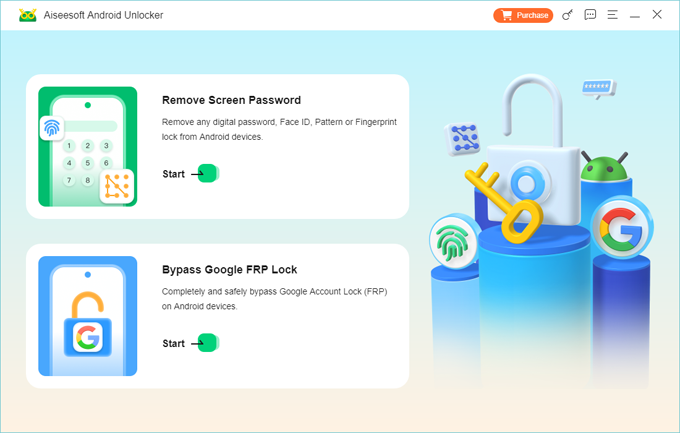
Step 2: Launch the software and select the Bypass Google FRP Lock.
Step 3: Connect your Samsung Galaxy device using a USB cable.
Step 4: Allow the software to detect the device model and Android version.
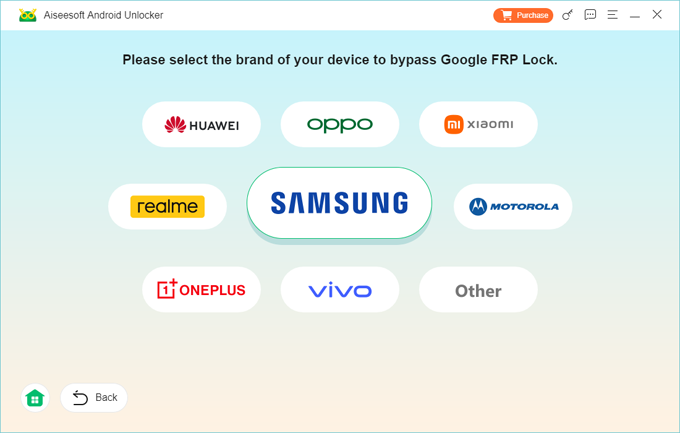
Step 5: Follow the on-screen instructions provided by the software and click Bypass Now.
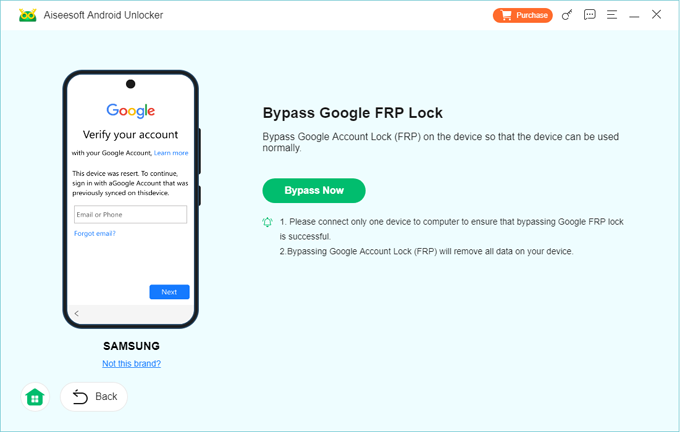
Step 6: Wait for the FRP removal process to complete.
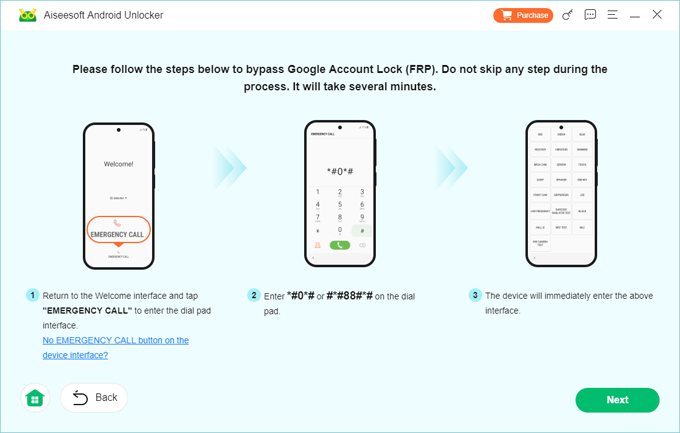
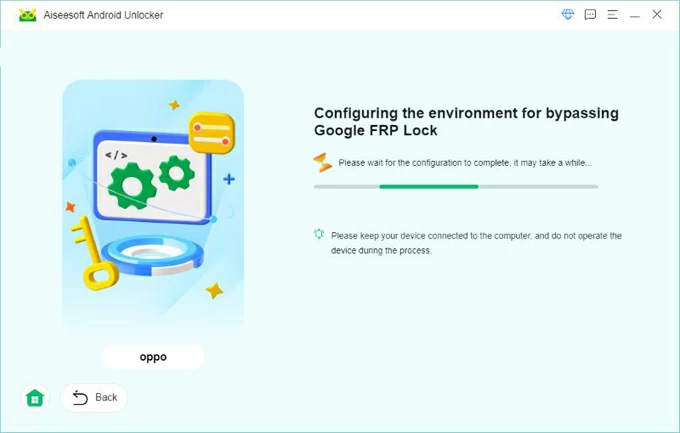
Step 7: Restart the Samsung device.
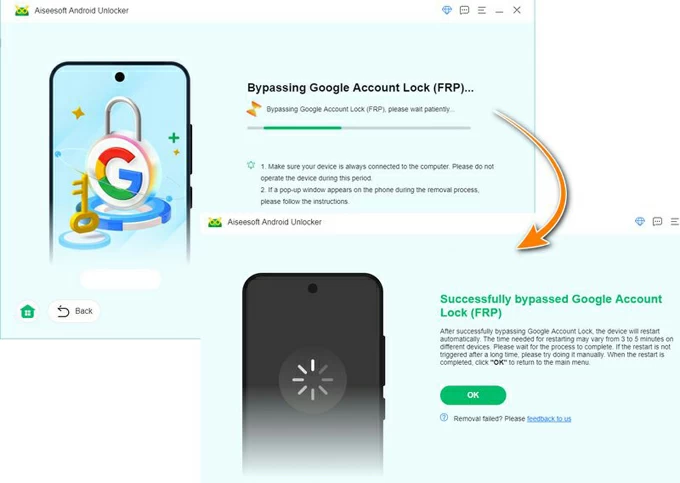
Step 8: Set up the phone normally without encountering the previous Google account verification screen.
Important Notes
- Use an original USB cable whenever possible.
- Ensure sufficient battery power before starting.
- Follow model-specific instructions displayed by the software.
- Do not disconnect the device during the process.
This approach is particularly useful when Google account recovery is no longer practical or when the device was legitimately reset and the original credentials are unavailable.
Method 2: Disable FRP Through Official Google Account Verification
The most direct and officially supported way to disable FRP is by verifying the Google account previously linked to the Samsung device.
If you still have access to your Google account, this method is both safe and recommended. Once verification is completed, FRP protection is removed, and you can configure the device normally.
Many users assume they have forgotten their account permanently when, in reality, Google provides multiple recovery options including recovery email verification, phone number confirmation, and identity verification procedures.
Steps to Disable FRP Using Google Account Recovery
Step 1: Turn on the Samsung Galaxy device.
Step 2: Connect to a stable Wi-Fi network.
Step 3: When prompted, enter the Google account previously associated with the device.
Step 4: If you forgot the password, select "Forgot Password."
Step 5: Complete Google's account recovery verification process.
Step 6: Create a new password if required.
Step 7: Return to the device setup screen.
Step 8: Sign in using the recovered Google account credentials.
Step 9: Complete the setup process.
Notes
- Recovery may take several hours or days depending on Google's verification requirements.
- Use familiar devices and locations during account recovery for faster approval.
- Keep recovery email and phone numbers updated to avoid future issues.
- After successful login, remove unnecessary Google accounts before future resets.
For users who still control their Google account, this remains the most straightforward solution.
Why Samsung FRP Problems Are Becoming More Common
Samsung continues strengthening Android security with every major update. As a result, older bypass techniques found on forums and video tutorials frequently stop working.
Several trends contribute to the increase in FRP-related issues:
- More users own multiple Google accounts.
- Password managers are not universally adopted.
- Second-hand device sales continue growing.
- Security patches regularly close previous bypass loopholes.
- Users often forget which account was originally linked to the phone.
Because of these factors, FRP removal has become one of the most searched Samsung troubleshooting topics worldwide.
Recovering Lost Samsung Data After a System Crash
FRP lock is not the only issue Samsung users encounter. In many cases, a failed update, boot loop, system crash, or accidental factory reset can lead to data loss before users have a chance to back up important files.
This problem frequently occurs on Samsung Galaxy devices when users attempt to fix software issues through hard resets. Although the reset may restore system functionality, valuable photos, videos, contacts, messages, and documents can disappear permanently if no backup exists.
One common scenario involves users who become locked out of their device due to FRP, attempt multiple recovery procedures, and eventually perform additional resets. Each reset increases the risk of overwriting recoverable data.
Fortunately, specialized data recovery solutions on samsung available through the iDATAPP platform are designed to help users retrieve lost information from Android devices under various circumstances.
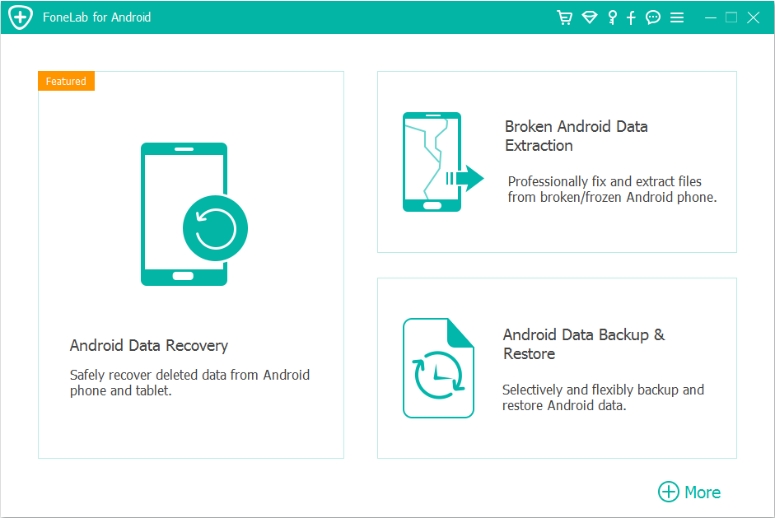
These situations may include:
- Accidental deletion of photos
- Factory reset data loss
- System crashes
- Android update failures
- Virus attacks
- Device freezing
- Rooting errors
- Storage corruption
The recovery process typically involves scanning the device's storage, identifying recoverable data, and restoring selected files to a secure location. Modern recovery technologies can often recover information that users assume is permanently gone.
For Samsung owners, establishing a regular backup routine remains the best prevention strategy. Cloud synchronization, external storage backups, and periodic data exports can significantly reduce the impact of unexpected device failures.
However, when prevention is no longer possible, professional recovery tools can provide a second chance to retrieve valuable memories and business information.
This relationship between FRP issues and data loss is important because many users focus entirely on unlocking the device while overlooking the safety of their personal information. A balanced recovery strategy should always consider both device access and data preservation.
Users facing FRP lock should therefore evaluate whether critical data exists on the device before attempting extensive troubleshooting procedures. In many cases, combining unlocking and recovery solutions produces the best overall outcome.
Tips to Avoid FRP Lock in the Future
A few preventive measures can save significant time and frustration:
Record Your Google Credentials
Store account information securely using a password manager.
Enable Recovery Methods
Keep your recovery phone number and email address current.
Remove Accounts Before Selling
Before transferring ownership, remove all Google accounts and perform a proper factory reset.
Create Regular Backups
Use cloud services or local backups to protect important files.
Verify Ownership Information
Keep proof of purchase for future account verification if needed.
Frequently Asked Questions
1. What is Samsung FRP?
Factory Reset Protection is an Android security feature that requires the previously linked Google account after a factory reset.
2. Can I disable FRP without the original Google account?
Yes. If account recovery is impossible, specialized Samsung FRP removal solutions such as iDATAPP Samsung Unlocker may help legitimate owners regain access.
3. Does a factory reset remove FRP?
No. FRP remains active after a factory reset and requires Google account verification during setup.
4. Is FRP available on all Samsung phones?
FRP is available on most Samsung Galaxy devices running Android 5.1 and newer versions.
5. How can I prevent FRP from activating again?
Remove all Google accounts from the device before performing a factory reset and ensure account credentials are accessible.
Final Summary
Samsung FRP is an effective security feature, but it can become a major obstacle when legitimate users forget their Google account information after a reset. The two most reliable approaches are recovering the original Google account or using iDATAPP Samsung Unlocker to remove FRP when account verification is no longer possible. By understanding how FRP works, maintaining account access, and creating regular backups, Samsung Galaxy users can avoid future lockouts and keep their data secure.
 English
 Nederlands
 Tiếng Việt
 日本
日本 Español
 Português
 Deutsche
 Français
 Italiano
 Norsk
Norsk Suomalainen
 Svenska
 Dansk
Dansk Ελληνικά
 Türk
Türk русский
 हिंदी
हिंदी தமிழ்
தமிழ் Bahasa Melayu
 ไทย
ไทย 한국어
한국어 Română
 Polskie
 қазақ
қазақ Gaeilge
 繁體中文
繁體中文