
 iPhone Data Recovery
 iOS System Recovery
 iOS Backup & Restore
 iOS WhatsApp Transfer
 iOS FoneTrans
 MobieSync
 Android Data Recovery
 Broken Android Data Extraction
 Android Data Backup & Restore
 iPhone Unlocker
 Best Samsung Phone Unlock Tool
 Android Unlocker
 Win/Mac Data Recovery
 iDATAPP Screen Recorder
 2D&3D Video Converter
 Video Repair Software Ai
 AI Video Converter
 Ai Blu-ray Player
 Remove Previously Synced Google Account from Samsung After Reset
Learn how to remove a previously synced Google account from Samsung after reset using official recovery, professional Samsung unlocking software, and preventive steps to avoid FRP lock issues.
How to Remove Previously Synced Google Account from Samsung After Reset?
Resetting a Samsung phone should feel like a fresh start. But for many users, it turns into a frustrating roadblock when the device suddenly asks for a previously synced Google account after reset. This is not a bug—it’s a security feature. However, when you legitimately own the phone and simply forgot the account details or bought a second-hand Samsung device, this protection can lock you out completely.

This article takes a deep, practical look at how to remove a previously synced Google account from Samsung after reset, why this problem exists, and what actually works in real-world scenarios. Instead of repeating generic advice, we’ll break down the logic behind the lock, explain three reliable methods (including one professional-grade solution from our own website), and help you regain access without guesswork.
Guide List
- Why Samsung Asks for the Old Google Account?
- Overview of Practical Solutions
- Method 1: Remove Google Account Lock Using Samsung Unlocker Software (Fast & Reliable)
- Method 2: Recover the Original Google Account (Official and Safest Way)
- Method 3: Remove Google Account Before Reset (Preventive but Often Overlooked)
- Data Loss After System Crash or Reset
- FAQs
Why Samsung Asks for the Old Google Account?
When a Samsung phone is factory reset without first removing the Google account, Android’s Factory Reset Protection (FRP) activates automatically. FRP is designed to prevent theft by requiring the original Google account credentials that were synced to the device before reset.
From Google’s perspective, this makes sense. From a user’s perspective, it becomes a nightmare in common situations:
- You forgot the Google account or password
- The phone belonged to a family member or colleague
- You bought a used Samsung phone that wasn’t properly signed out
- The device was reset after a system crash or boot loop
Once FRP is triggered, the setup process cannot continue unless the original account is verified—or the lock is legitimately removed using an effective method.
Overview of Practical Solutions
There is no single “magic” trick that works for every Samsung model or Android version. The success of removing a previously synced Google account depends on:
- Android OS version
- Samsung security patch level
- Whether you still have access to the original Google account
- Availability of a computer or software tools
Below are three realistic methods, each explained in depth, so you can choose the one that fits your situation.
Method 1: Remove Google Account Lock Using Samsung Unlocker Software (Fast & Reliable)
Best for: Users who cannot access the original Google account
Risk level: Low
Success rate: Very high on supported Samsung models
When account recovery is not an option, professional unlocking software becomes the most practical solution. Our own tool, Samsung Unlocker, is specifically designed to remove FRP locks and previously synced Google accounts from Samsung devices after reset—without needing account credentials.
Unlike generic tricks or outdated workarounds, this method is stable, model-optimized, and regularly updated to match Samsung’s security changes.
How This Method Works?
The software communicates directly with the device system during setup mode, safely disabling the FRP verification layer while preserving the phone’s core functionality.
Step-by-Step Instructions
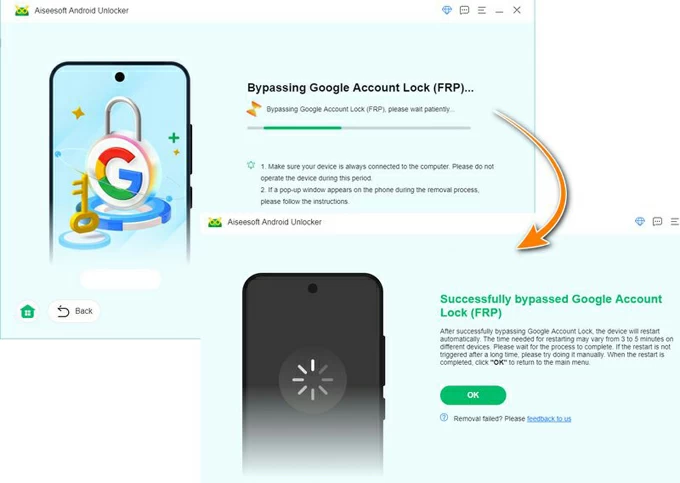
1.Download and install Samsung Unlocker App on a Windows computer. And select “Bypass Google FRP Lock”.

2.Connect your Samsung phone to the computer using a USB cable.
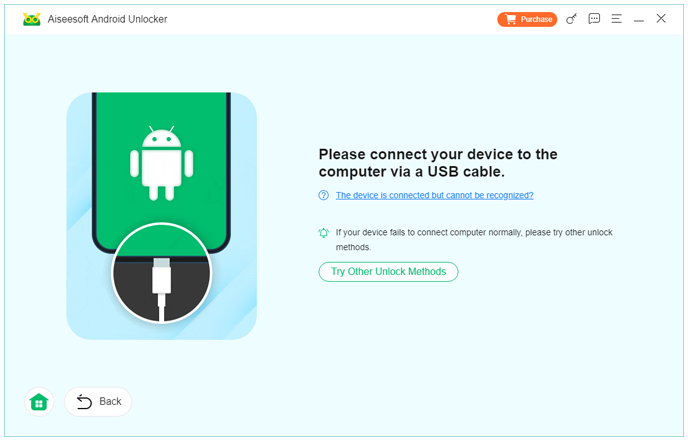
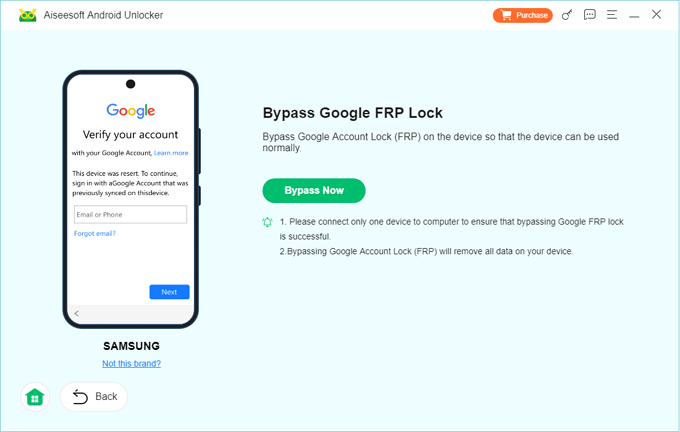
3.Choose the correct Samsung model click Bypass Now.
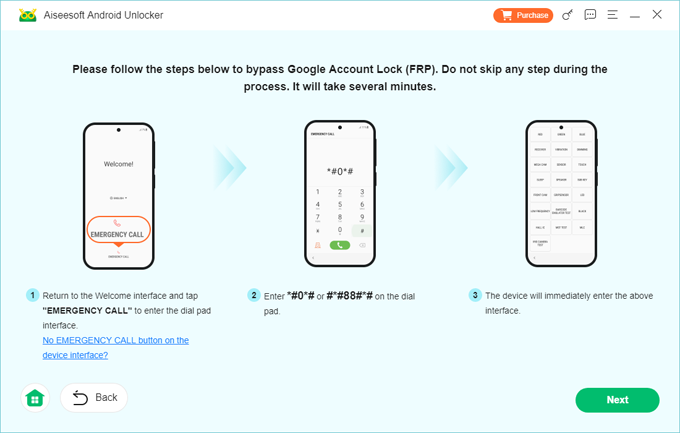
4.Follow the on-screen instructions to bypass Google FRP Lock in minutes.
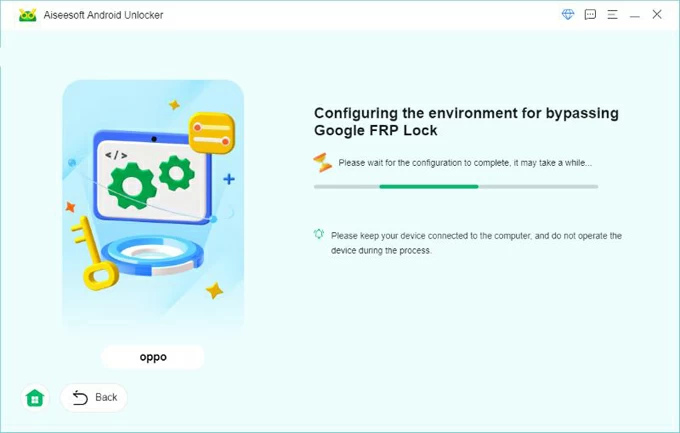
5.Wait for the software to remove the previously synced Google account.
6.Restart the device and complete setup without Google account verification.
Important Notes
- No technical expertise required.
- Works on most Samsung Galaxy series, including newer Android versions.
- Ideal for second-hand devices and forgotten accounts.
- Does not require root access.
Method 2: Recover the Original Google Account (Official and Safest Way)
Best for: Users who may still recover their Google account credentials
Risk level: None
Success rate: High (if recovery is possible)
This is the most straightforward and officially supported solution. If the Google account was yours and you simply forgot the password or email details, account recovery should be your first step. Google allows users to regain access using backup email addresses, phone numbers, or device activity verification.
Once the account is recovered, the FRP lock disappears naturally during setup. This method doesn’t modify the system, doesn’t affect data security, and works across all Samsung models.
Step-by-Step Instructions
- On another phone or computer, visit Google’s account recovery page.
- Enter the email address you think was used on the Samsung device.
- Follow the prompts to verify ownership (SMS code, recovery email, security questions).
- Reset the Google account password.
- Turn on the Samsung phone and connect it to Wi-Fi.
- Sign in using the recovered Google account credentials.
Important Notes
- Account recovery can take several hours or even days.
- If the device hasn’t been used recently with that account, verification may fail.
- This method will not work for second-hand phones if the previous owner’s account is unknown.
Method 3: Remove Google Account Before Reset (Preventive but Often Overlooked)
Best for: Users who still have access to the phone before reset
Risk level: None
Success rate: 100% if done correctly
This method doesn’t help after the reset—but it’s crucial to understand because many FRP issues are completely avoidable. If you still have access to your Samsung phone before resetting it, removing the Google account manually prevents FRP from activating.
This is especially important if you plan to sell, give away, or repair your device.
Step-by-Step Instructions
- Open Settings on your Samsung phone.
- Go to Accounts and Backup > Manage Accounts.
- Select the Google account synced to the device.
- Tap Remove Account and confirm.
- (Optional but recommended) Disable screen lock (PIN, pattern, fingerprint).
- Now perform Factory Reset from Settings.
Important Notes
- Always remove Google accounts before factory reset.
- This method does not apply once the phone is already reset.
- Many second-hand phone issues originate from skipping this step.
Data Loss After System Crash or Reset
One of the most common follow-up problems after FRP removal or factory reset is unexpected data loss. Samsung users often realize too late that important photos, messages, contacts, or documents were never backed up. This situation becomes even worse if the reset happened due to a system crash, boot loop, or failed update.
In real-world usage, Samsung devices frequently experience:
- Sudden system freezes leading to forced reset
- Failed One UI or Android updates
- Boot loops after rooting or flashing firmware
- Accidental deletion during cleanup
When this happens, standard backups may not exist—or may be incomplete. In such cases, specialized Samsung data recovery software becomes essential.
At idatapp.com, there are dedicated recovery solutions designed to scan Samsung internal storage or SD cards and extract recoverable data even after system-level failures. These tools are especially useful when:
- The phone cannot boot normally
- Data was lost after unlocking or reset
- The screen is damaged but storage is intact
- Important files were deleted accidentally
Using professional recovery software significantly improves the chances of retrieving valuable data before it’s permanently overwritten. This is why unlocking and recovery are often two parts of the same real-life Samsung problem.
FAQs
Is removing a Google account lock from Samsung legal?
Yes, if you are the legitimate owner of the device. Removing FRP from stolen devices is illegal.
Will removing FRP delete my data?
Most FRP removal methods are used after a reset, so data is already erased. The process itself does not delete additional data.
Does Samsung Unlocker work on the latest Samsung models?
Yes, it supports a wide range of Samsung Galaxy devices and is regularly updated.
Can I remove Google account lock without a computer?
In most modern Samsung versions, a computer-based solution is required for stable results.
Why does Samsung use Google FRP instead of its own system?
Samsung integrates Google’s Android security framework, and FRP is part of Google’s core anti-theft protection.
Conclusion
Removing a previously synced Google account from a Samsung phone after reset is a common but solvable problem. Whether you recover the original account, use professional Samsung unlocking software, or prevent FRP beforehand, the key is understanding how the lock works and choosing the right method for your situation. With the correct approach, regaining full access to your Samsung device doesn’t have to be complicated.
 English
 Nederlands
 Tiếng Việt
 日本
日本 Español
 Português
 Deutsche
 Français
 Italiano
 Norsk
Norsk Suomalainen
 Svenska
 Dansk
Dansk Ελληνικά
 Türk
Türk русский
 हिंदी
हिंदी தமிழ்
தமிழ் Bahasa Melayu
 ไทย
ไทย 한국어
한국어 Română
 Polskie
 қазақ
қазақ Gaeilge
 繁體中文
繁體中文