
 iPhone Data Recovery
 iOS System Recovery
 iOS Backup & Restore
 iOS WhatsApp Transfer
 iOS FoneTrans
 MobieSync
 Android Data Recovery
 Broken Android Data Extraction
 Android Data Backup & Restore
 iPhone Unlocker
 Best Samsung Phone Unlock Tool
 Android Unlocker
 Win/Mac Data Recovery
 iDATAPP Screen Recorder
 2D&3D Video Converter
 Video Repair Software Ai
 AI Video Converter
 Ai Blu-ray Player
 How to Unlock Fingerprint Lock On Google Pixel?
A complete guide to unlocking Google Pixel fingerprint lock failures using Smart Lock, Google reset options, and iDatapp Android Unlocker—plus solutions for Pixel data loss after updates.
Losing access to your Google Pixel because the fingerprint lock suddenly refuses to recognize your finger is far more common than people think. Pixel phones rely heavily on biometric authentication, and while the system is extremely secure, it can also fail due to moisture, display damage, software glitches, corrupted fingerprint data, or even an unresponsive sensor. That moment when you realize your own phone is locked away from you can create panic—but the truth is, there are practical, reliable, and safe solutions.

In this guide, we dive deep into why fingerprint unlock stops working, what you can realistically do when the Pixel rejects your biometrics, and how to unlock the device and regain full access without losing your mind. We’ll explore three concrete, actionable methods—one of which uses your own in-house unlocking software from iDatapp Android Unlocker.
This isn’t a generic article. Instead, this guide is built on real-world scenarios, unique insights, and carefully structured steps to help Pixel users solve the problem efficiently.
Guide List
- Why Pixel Fingerprint Unlock Fails
- Method 1: Use iDatapp Android Unlocker to Remove Screen Lock When Biometrics Fail
- Method 2: Unlock Using Google’s Smart Lock and Paired Bluetooth Devices
- Method 3: Unlock Through Google Find My Device Reset
- Related Pixel Problem: Data Loss After System Update
- Frequently Asked Questions
Why Pixel Fingerprint Unlock Fails(and Why This Problem Is More Complex Than It Looks)
Before jumping to solutions, it’s crucial to understand why the fingerprint sensor on Google Pixel devices becomes unresponsive or rejects valid fingerprints. Unlike pattern or PIN unlock, biometric authentication is influenced by both hardware and software conditions. Wet fingers, cracked screens, system bugs, or corrupted fingerprint modules can all cause an instant authentication failure.
More importantly, on Pixel phones, after repeated failed fingerprint attempts, Android automatically disables biometrics and asks for the PIN or password instead. If you forget it or never changed the default security option, unlocking becomes significantly harder.
This means the problem is not simply “fingerprint not working”—it’s that you are effectively locked out without a working backup method.
The good news? You still have several ways to unlock your Pixel safely.
Method 1: Use iDatapp Android Unlocker to Remove Screen Lock When Biometrics Fail (Recommended)
When the fingerprint sensor on a Google Pixel stops responding and you don’t remember your PIN, iDatapp Android Unlocker provides the most direct, no-nonsense solution. This tool bypasses screen locks—PIN, fingerprint, pattern, password—without requiring any technical background. It is built to handle a wide range of Pixel models and scenarios, including system crashes, malfunctioning fingerprint modules, and accidental password changes.
What makes this tool so effective is that it automates the unlocking process while maintaining the integrity of your device’s core system. Instead of relying on risky rooting methods, the tool communicates with the phone at system level to safely remove the lock screen. This eliminates guesswork and prevents unnecessary data loss from trial-and-error attempts. For users who can’t afford downtime or can’t access Google services due to lockout, this approach is fast, dependable, and beginner-friendly.
Steps:
1.Install iDatapp Android Unlocker on your computer. And choose “Remove Screen Password” from the main menu.

2.Connect the Pixel phone with USB.
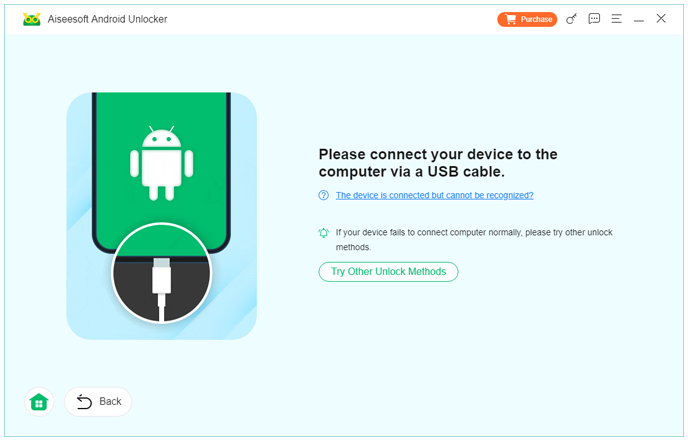
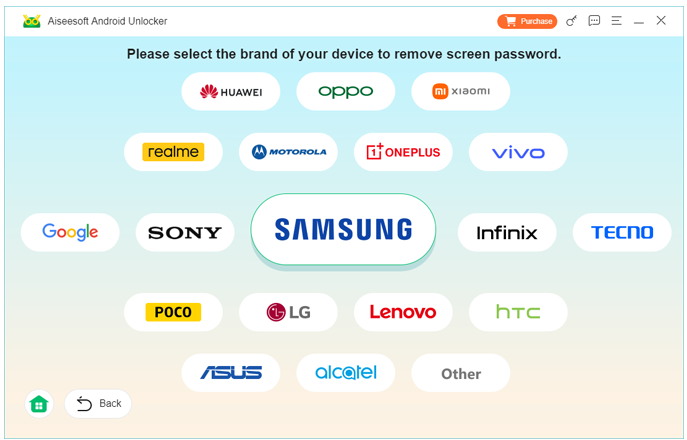
3.Select your Google Pixel model.
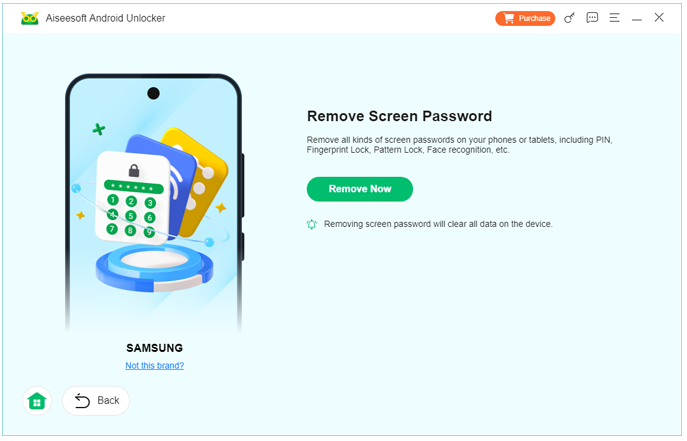
4. Click Remove Now.
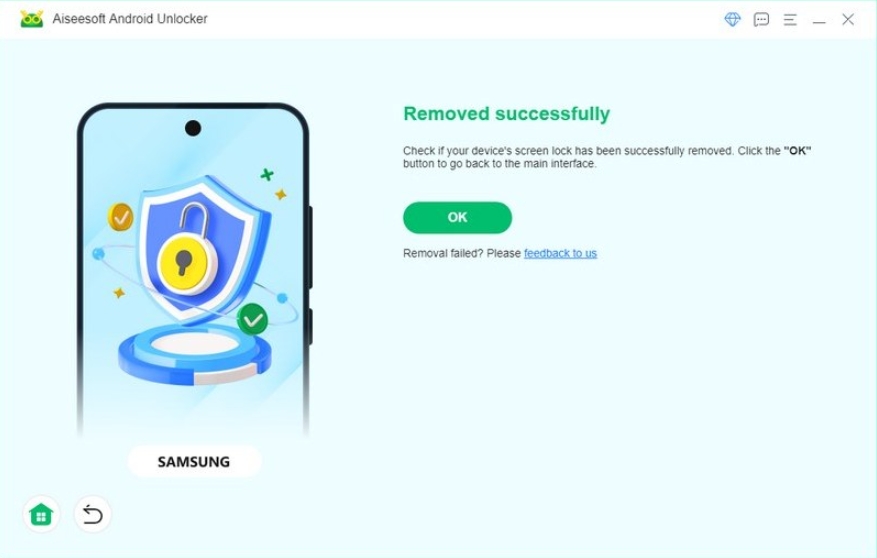
5.Let the tool process the firmware configuration and unlock the device.
6.Reboot—your fingerprint lock is removed instantly.
Important Notes:
- Ensure your Pixel has at least 20% battery.
- Do not disconnect USB during data processing.
- This method is ideal when you forget your PIN or the fingerprint sensor stops completely.
Method 2: Unlock Using Google’s Smart Lock and Paired Bluetooth Devices
This method doesn’t appear in most traditional guides because many users forget that Smart Lock can override biometric locks automatically. If your Pixel was previously paired with a smartwatch, Bluetooth earbuds, or your car’s infotainment system using Smart Lock, the phone may unlock itself once it detects the trusted device nearby.
Google Smart Lock uses a proximity-based authentication system. When enabled, you can unlock your Pixel without fingerprint or PIN as long as a trusted device is connected. Most Pixel owners set it up once and forget about it—making it an overlooked lifesaver in fingerprint lockout situations. Unlike a factory reset or ADB solution, this method requires no technical skills, preserves all your data, and unlocks your phone seamlessly as long as your trusted device is within range.
Steps:
- Power on your Pixel and bring it near a trusted Bluetooth device.
- Wait for the automatic connection to establish.
- Once connected, press the power button and swipe to unlock.
- If Smart Lock was active, the phone will skip fingerprint authentication.
- After unlocking, remove and re-register fingerprints in Settings → Security.
Important Notes:
- Only works if Smart Lock was enabled previously.
- Bluetooth must remain ON for the handshake.
- This bypasses fingerprint lock but not FRP or Google account verification.
Method 3: Unlock Through Google Find My Device Reset (For Users Who Accept Data Loss)
If the Pixel refuses all authentication attempts and you do not have Smart Lock or backup passwords, Google’s Find My Device remains an extreme but effective method. Resetting the device through this official platform erases the lock screen entirely and reboots the phone like new.
This solution makes sense when the device is useless in its current locked state and you prefer a clean, guaranteed reset. Unlike wiping through recovery mode—which requires manual navigation—Find My Device is straightforward and remote. Once erased, all previous fingerprint registrations and lock screens are removed. You only need your Google account credentials afterward. While this method sacrifices local data, it restores full access when no other options remain.
Steps:
- Visit Google Find My Device on any browser.
- Sign in with the same Google account used on the locked Pixel.
- Select your Pixel from the device list.
- Click “Erase Device” → confirm.
- The phone resets, removing all screen locks.
- Reboot and sign into your Google account.
Important Notes:
- All internal data will be erased.
- SD card data (if applicable) remains untouched.
- Requires an active internet connection on the Pixel.
Related Pixel Problem: Data Loss After System Update (Solved with iDatapp Android Data Recovery)
Google Pixel devices frequently face data loss after system updates—especially during major Android version upgrades. Pixel models are known for aggressive system optimization, and occasionally, photos, messages, or app data disappear unexpectedly after reboot. Users often panic because they assume the data is permanently lost; however, most of it is still recoverable at the system partition level.
A strong solution is iDatapp Android Data Recovery (available at idatapp.com), which is designed to scan deleted or inaccessible data on Android devices—even when the loss occurred due to firmware updates, system crashes, or accidental resets. The software uses a deep-scan retrieval engine that carefully reconstructs missing files without harming the existing system structure. For Pixel users who rely heavily on Google services but still store critical information locally, this tool becomes indispensable.
Many mobile phone brands suffer from update-related data loss, but the Pixel community experiences it more due to Google's rapid update cycles. With iDatApp Android Data Recovery, users can retrieve photos, videos, WhatsApp messages, voice memos, documents, downloads, and more with a few simple steps. If your fingerprint issue eventually forces you into a reset or system recovery, this tool can act as a safety net to bring back anything that vanished during the process.
Frequently Asked Questions
Why does my Google Pixel fingerprint stop working suddenly?
Common causes include dirt on the sensor, wet fingers, software errors, corrupted fingerprint data, or a damaged display affecting the under-display sensor.
Can I unlock my Pixel without losing data?
Yes. Methods like Smart Lock or iDatapp Android Unlocker allow unlocking without wiping your phone, depending on your device condition.
Does Find My Device unlock fingerprint but keep my files?
No. Google’s remote erase function deletes all data as part of unlocking.
Can I re-register fingerprints after unlocking?
Absolutely. After regaining access, go to Settings → Security → Fingerprint → Add Fingerprint.
Is it safe to use unlocking software?
Using trusted tools like iDatapp Android Unlocker is safe because it works within the device’s secure system framework and does not expose personal data.
Conclusion
Unlocking a Google Pixel with a failed fingerprint sensor isn’t as hopeless as it seems. Whether you use Smart Lock, Google’s reset function, or the more reliable iDatapp Android Unlocker, you can restore access safely. With additional tools like iDatapp Android Data Recovery, even update-related data loss can be reversed. Understanding the right method for your situation ensures a quick, stress-free recovery.
 English
 Nederlands
 Tiếng Việt
 日本
日本 Español
 Português
 Deutsche
 Français
 Italiano
 Norsk
Norsk Suomalainen
 Svenska
 Dansk
Dansk Ελληνικά
 Türk
Türk русский
 हिंदी
हिंदी தமிழ்
தமிழ் Bahasa Melayu
 ไทย
ไทย 한국어
한국어 Română
 Polskie
 қазақ
қазақ Gaeilge
 繁體中文
繁體中文