
 iPhone Data Recovery
 iOS System Recovery
 iOS Backup & Restore
 iOS WhatsApp Transfer
 iOS FoneTrans
 MobieSync
 Android Data Recovery
 Broken Android Data Extraction
 Android Data Backup & Restore
 iPhone Unlocker
 Best Samsung Phone Unlock Tool
 Android Unlocker
 Win/Mac Data Recovery
 iDATAPP Screen Recorder
 2D&3D Video Converter
 Video Repair Software Ai
 AI Video Converter
 Ai Blu-ray Player
 How to Remove Samsung Factory Reset Protection? Complete FRP Bypass Guide
Locked out of your Samsung phone after a factory reset? This guide explains Samsung FRP, why it appears, and three effective methods to bypass Factory Reset Protection safely and successfully.
Samsung FRP Lock Explained: Why Does It Suddenly Block Access?
You factory reset your Samsung phone, expecting a fresh start. Instead, you're greeted by a screen asking for the Google account previously synced to the device. Without that account, the phone becomes nearly unusable.
This security feature is called Factory Reset Protection (FRP).
Google introduced FRP to reduce smartphone theft. Whenever a Google account is added to an Android device running Android 5.1 or later, FRP automatically activates. If someone resets the phone without first removing the Google account, Android assumes the reset may be unauthorized and requests account verification during setup.
While the security purpose is understandable, FRP often creates problems for legitimate owners:
- Forgotten Google account credentials
- Purchasing a second-hand Samsung phone
- Inheriting a family member's device
- Account recovery taking too long
- Factory reset performed after a software crash
The good news is that Samsung FRP lock can often be removed through legitimate methods depending on your situation.
This article explores three practical solutions and explains which one works best for different scenarios.
Guide List
- Before Attempting Samsung FRP Bypass
- Method 1: Remove Samsung FRP Using Samsung Unlocker (Recommended)
- Method 2: Recover the Original Google Account
- Method 3: Remove FRP Through Samsung Service Support
- Recover Data After a System Crash or Failed Update
- How to Avoid Samsung FRP Lock in the Future
- Frequently Asked Questions
Before Attempting Samsung FRP Bypass
Before starting, check the following:
✓ Device ownership can be verified
✓ Phone has sufficient battery power
✓ Stable internet connection available
✓ USB cable prepared if using a computer
✓ Know the Samsung model and Android version
Different Samsung generations may respond differently to FRP removal techniques, especially newer devices running Android 13, Android 14, and Android 15, Android 16.
Method 1: Remove Samsung FRP Using Samsung Unlocker (Recommended)
For users who no longer remember their Google account credentials, specialized FRP removal tools are often the fastest option. One solution designed specifically for Samsung devices is Samsung Unlocker from iDATAPP.
Unlike manual bypass tricks that may stop working after Android security updates, dedicated unlocking software follows structured procedures tailored for Samsung firmware versions.

This method is particularly useful when:
- Google account recovery fails
- The previous owner cannot be contacted
- The FRP verification screen blocks setup
- The device is personally owned but inaccessible
The software aims to simplify the removal process while reducing the technical knowledge required from the user.
Detailed Steps
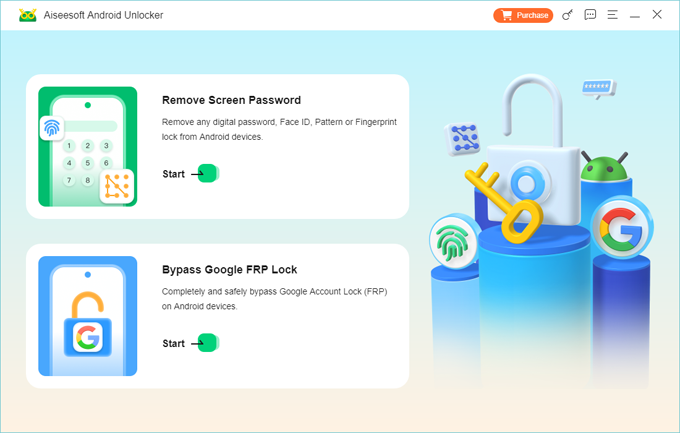
Step 1: Install Samsung Unlocker
Download and install Samsung Unlocker on a Windows computer.
Launch the software after installation.
Step 2: Connect Samsung Device
Use a USB cable to connect the Samsung phone to the computer.
Wait for device detection.
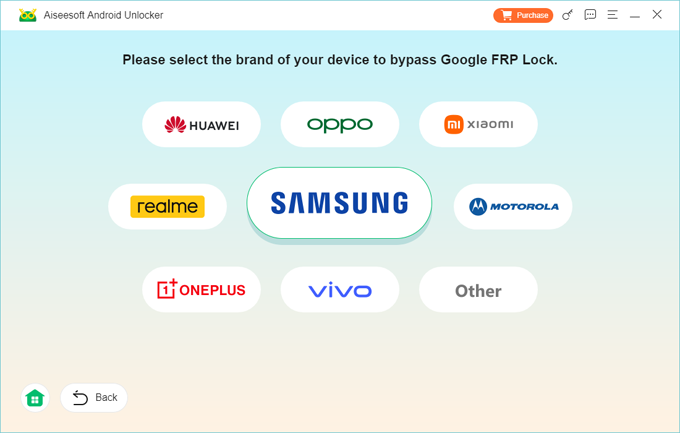
Step 3: Select FRP Removal Mode
From the main interface, choose: Bypass Google FRP Lock
The software will identify the device information.
Step 4: Confirm Device Details
Verify:
- Samsung model
- Android version
- Firmware information
Proceed to the next stage.
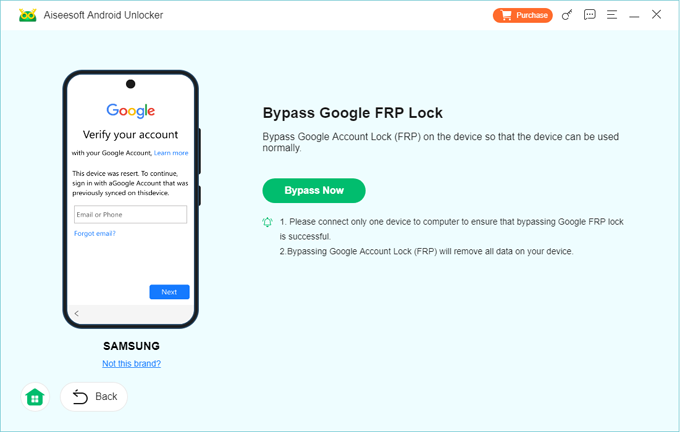
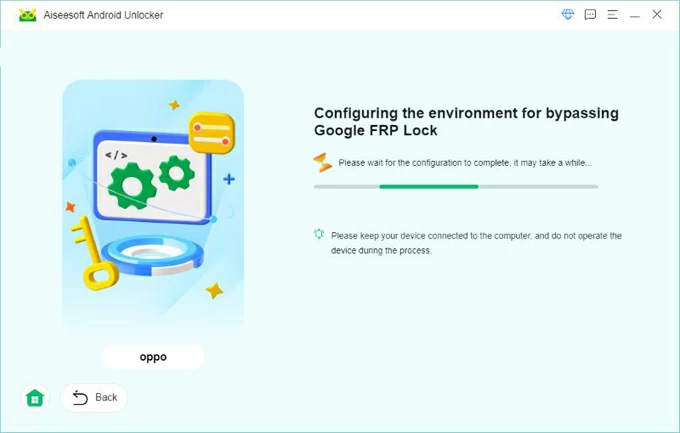
Step 5: Start FRP Removal
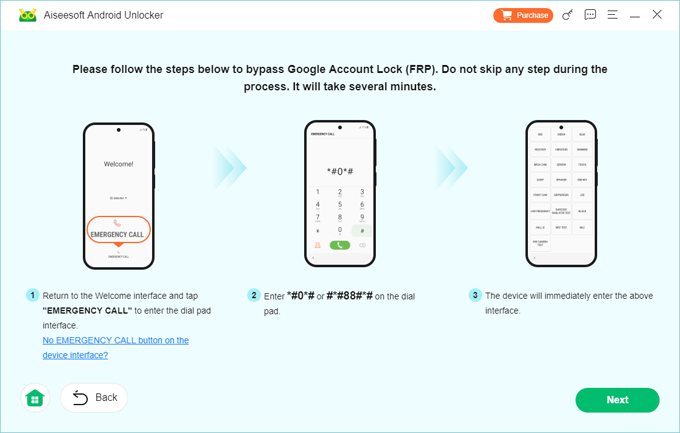
Follow the on-screen instructions provided by the software.
The program will perform the required bypass procedures.
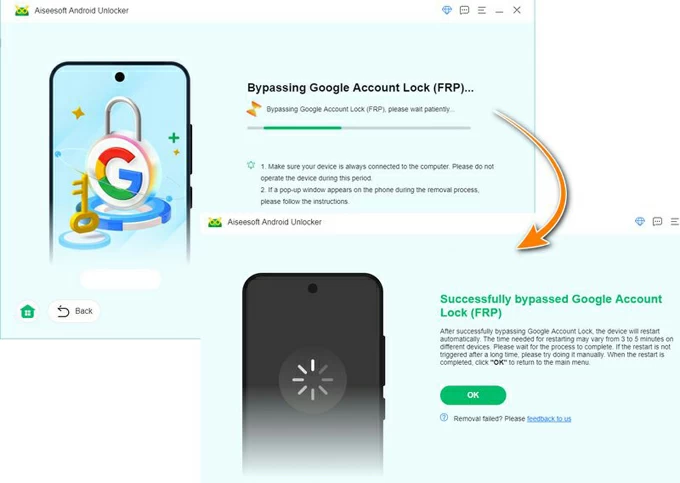
Step 6: Complete Device Setup
Once the process finishes:
Restart the phone
Continue Android setup
Sign in with a new Google account
Important Notes
- Use an original USB cable whenever possible.
- Avoid disconnecting the phone during removal.
- Battery level should remain above 50%.
- Supported Android versions may vary over time.
Method 2: Recover the Original Google Account
Google officially recommends recovering the account originally linked to the Samsung device. This is the safest and most legitimate approach because FRP verification is designed around account ownership.
Many users assume they have permanently lost access, only to discover that account recovery can restore control within minutes.
If you still have access to the recovery phone number, recovery email, or remembered passwords, this method should be attempted first.
Detailed Steps
Step 1: Visit Google's Account Recovery Page
Open a browser on another device.
Navigate to Google's account recovery service.
Step 2: Enter Recovery Information
Provide:
- Gmail address
- Recovery email
- Recovery phone number
Answer verification questions accurately.
Step 3: Reset Password
Create a new password for the account.
Use a strong combination of letters, numbers, and symbols.
Step 4: Wait for Synchronization
In some situations, Google may require a security waiting period.
Typically, waiting 24–72 hours after password recovery improves success rates.
Step 5: Verify on Samsung Device
Return to the Samsung setup screen.
Enter the recovered Google account credentials.
Proceed through activation.
Important Notes
- This is Google's preferred solution.
- Ownership verification may take time.
- Recovery success depends on available account information.
Method 3: Remove FRP Through Samsung Service Support
If you legally own the device and possess proof of purchase, Samsung support may assist with device verification and restoration.
This option is frequently overlooked because users assume service centers only handle hardware repairs. In reality, account-related verification issues are common support requests.
For newer Samsung devices with advanced security patches, official support may be the most reliable path when other solutions fail.
Detailed Steps
Step 1: Gather Ownership Documents
Prepare:
- Original purchase receipt
- Invoice
- Carrier contract
- Device IMEI number
Step 2: Contact Samsung Support
Explain:
- The device is FRP locked
- You are the lawful owner
- Google account access is unavailable
Step 3: Follow Verification Procedures
Samsung representatives may request:
- Identity verification
- Device information
- Purchase evidence
Step 4: Visit a Service Center if Necessary
Some cases require physical inspection of the device.
Step 5: Complete Restoration
After ownership verification, Samsung may provide guidance for restoring access.
Important Notes
- Availability varies by region.
- Ownership proof is typically required.
- This approach avoids unofficial workarounds.
Recover Data After a System Crash or Failed Update
Interestingly, FRP lock isn't the only issue Samsung users face after system problems.
A far more serious situation occurs when a Samsung phone crashes during an update, becomes stuck on the Samsung logo, enters a boot loop, or suddenly refuses to start. Many users panic because years of photos, videos, contacts, messages, and documents seem lost.
This problem often appears after:
- Failed firmware upgrades
- Android system corruption
- Rooting mistakes
- Water damage affecting software stability
- Unexpected power loss during updates
- Malware infections
- Storage corruption
When a Samsung device becomes inaccessible, traditional backup methods frequently stop working because Android can no longer boot normally.
In such situations, data extraction tools become significantly more valuable than FRP bypass tools because the priority shifts from unlocking the phone to preserving important information.
A practical example is Android Data Recovery solutions available through iDATAPP.
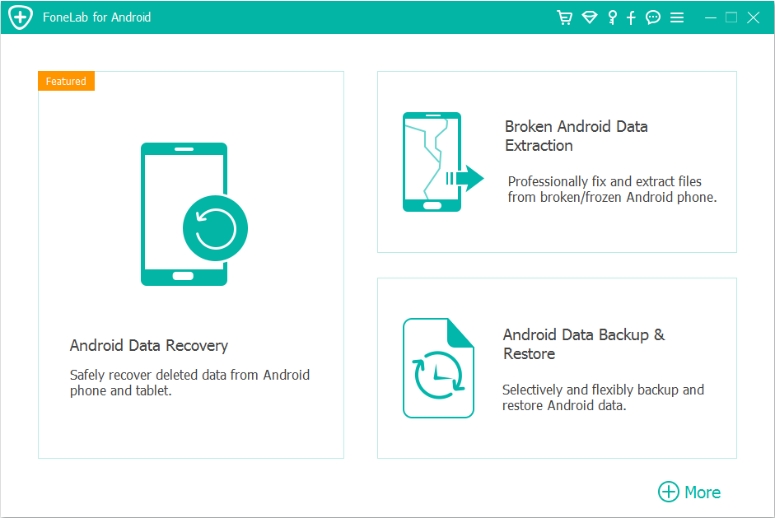
These recovery tools are designed to scan damaged Android devices and retrieve various data types, including:
- Photos
- Videos
- WhatsApp data
- Contacts
- Call history
- Documents
- SMS messages
The recovery process generally follows four stages.
First, connect the Samsung device to a computer and launch the recovery software.
Second, select the categories of information you want to recover.
Third, allow the program to scan internal storage and identify recoverable files.
Finally, preview and export the discovered data to a safe location on the computer.
One major advantage is that users often recover files before attempting risky repair procedures. This reduces the chance of permanent data loss caused by repeated flashing, factory resets, or unsuccessful troubleshooting attempts.
Samsung devices are increasingly used for both personal and business purposes. Losing years of family photos or critical work documents can be far more damaging than dealing with an FRP lock screen.
For this reason, experienced technicians frequently recommend recovering valuable data first whenever a device shows signs of severe system instability.
Preventive habits also help reduce future risks:
- Enable automatic cloud backups
- Regularly export contacts
- Maintain multiple copies of important files
- Avoid interrupting firmware updates
- Keep device software current
While FRP protects devices from unauthorized access, data recovery solutions protect what matters most—the information stored inside the phone.
How to Avoid Samsung FRP Lock in the Future
Many FRP issues can be prevented.
Before performing a factory reset:
- Open Settings.
- Navigate to Accounts.
- Remove all Google accounts.
- Disable screen lock.
- Confirm account removal.
- Perform the factory reset.
Also consider:
- Keeping recovery email updated.
- Maintaining access to recovery phone numbers.
- Recording Google account credentials securely.
- Enabling Samsung account recovery options.
These simple precautions can save hours of frustration later.
Frequently Asked Questions
1. What is Samsung FRP?
Factory Reset Protection is an Android security feature that requires verification of the previously synced Google account after a factory reset.
2. Can Samsung FRP be removed without the Google account?
Yes. Depending on the device model and Android version, dedicated FRP removal tools or official support channels may help remove the lock.
3. Is FRP bypass legal?
Removing FRP from a device you legally own is generally acceptable. Attempting to bypass security on a device that does not belong to you may violate laws and regulations.
4. Which Samsung models support FRP removal?
Many Samsung Galaxy devices support FRP removal procedures, including Galaxy S, Galaxy Note, Galaxy A, Galaxy M, and Galaxy Z series models, depending on Android version compatibility.
Conclusion
Samsung Factory Reset Protection is an important security mechanism, but it can also lock legitimate owners out of their own devices. The most reliable approach is always recovering the original Google account whenever possible. When account recovery is unavailable, Samsung Unlocker offers a dedicated solution for removing FRP restrictions, while Samsung support remains an official alternative for verified owners.
Understanding how FRP works—and how to prepare before resetting a device—can prevent future lockouts and save significant time. Whether you're dealing with a forgotten account, a second-hand phone, or a post-reset verification screen, the methods outlined above provide practical ways to regain access and continue using your Samsung device safely.
 English
 Nederlands
 Tiếng Việt
 日本
日本 Español
 Português
 Deutsche
 Français
 Italiano
 Norsk
Norsk Suomalainen
 Svenska
 Dansk
Dansk Ελληνικά
 Türk
Türk русский
 हिंदी
हिंदी தமிழ்
தமிழ் Bahasa Melayu
 ไทย
ไทย 한국어
한국어 Română
 Polskie
 қазақ
қазақ Gaeilge
 繁體中文
繁體中文