
 iPhone Data Recovery
 iOS System Recovery
 iOS Backup & Restore
 iOS WhatsApp Transfer
 iOS FoneTrans
 MobieSync
 Android Data Recovery
 Broken Android Data Extraction
 Android Data Backup & Restore
 iPhone Unlocker
 Best Samsung Phone Unlock Tool
 Android Unlocker
 Win/Mac Data Recovery
 iDATAPP Screen Recorder
 2D&3D Video Converter
 Video Repair Software Ai
 AI Video Converter
 Ai Blu-ray Player
 ZTE Phone Unlock Tool|Without Password/Pin/Pattern/Face ID/Fingerprint Recognition
Locked out of your ZTE phone? This guide explains three effective ways to unlock ZTE devices without password, PIN, pattern, Face ID, or fingerprint, while minimizing risks and data loss.
How to Unlock ZTE Phone?
Locking yourself out of a ZTE phone is one of those problems that feels small at first, then suddenly becomes huge. A forgotten PIN, a pattern you haven’t used in months, or Face ID and fingerprint recognition failing after a system update can instantly block access to your own device. For many ZTE users, this happens at the worst possible moment: right before travel, after changing a screen, or when urgent data is trapped inside the phone.

Unlike older feature phones, modern ZTE smartphones rely on Android’s layered security system. Passwords, PINs, patterns, biometric authentication, and encryption all work together. That is great for privacy, but it also means a simple mistake can leave you locked out entirely. Factory reset is often suggested online, but it wipes personal data and may still trigger Google FRP (Factory Reset Protection), creating another problem instead of solving the first.
In this guide, we take a deeper look at how to unlock a ZTE phone without password, PIN, pattern, Face ID, or fingerprint recognition. We will first analyze why ZTE lock issues happen so often, then walk through three practical unlocking methods. One of these methods uses a dedicated Android unlocking solution from our own website. The goal is simple: help you regain access while minimizing risk, confusion, and unnecessary data loss.
Guide List
- Why ZTE Phones Get Locked So Easily?
- Method 1: Unlock ZTE Phone Using Android Unlocker Software (Recommended)
- Method 2: Unlock ZTE Phone via Android Recovery Mode (Manual Reset)
- Method 3: Unlock ZTE Phone Using Google Find My Device (Remote Reset)
- Data Loss After Unlocking or System Failure
- Frequently Asked Questions
Why ZTE Phones Get Locked So Easily?
ZTE devices run on customized versions of Android, often with aggressive security policies. After multiple failed unlock attempts, the system enforces time delays or complete lockouts. Biometric methods such as fingerprint recognition and Face ID can also stop working after screen replacements, software updates, or sensor damage. When that happens, Android falls back to the original password, PIN, or pattern.
Another common issue is memory drift. Many users rely on fingerprints or face unlock daily and rarely type their actual lock credentials. Weeks or months later, when biometrics fail, the password is simply gone from memory. Add in system crashes, forced reboots, or phone freezes, and you have a perfect storm.
Understanding this background matters because the correct unlocking method depends on how and why the lock occurred. Let’s move into real solutions.
Method 1: Unlock ZTE Phone Using Android Unlocker Software (Recommended)
When the goal is to unlock a ZTE phone without password, PIN, pattern, Face ID, or fingerprint recognition in a controlled and professional way, dedicated Android unlocking software is the most reliable option. A tool like Android Unlocker from our website is designed specifically to handle Android lock screens across brands, including ZTE, without relying on guesswork or risky system modifications.
This method works by establishing a secure connection between your ZTE phone and a computer, then guiding the device into a compatible unlock mode. The software communicates directly with the Android system layer, removing the active lock mechanism while avoiding unnecessary interference with other components. For users who are not technically inclined, this approach is straightforward, structured, and far safer than experimental manual tricks found online.
Key steps and important details:
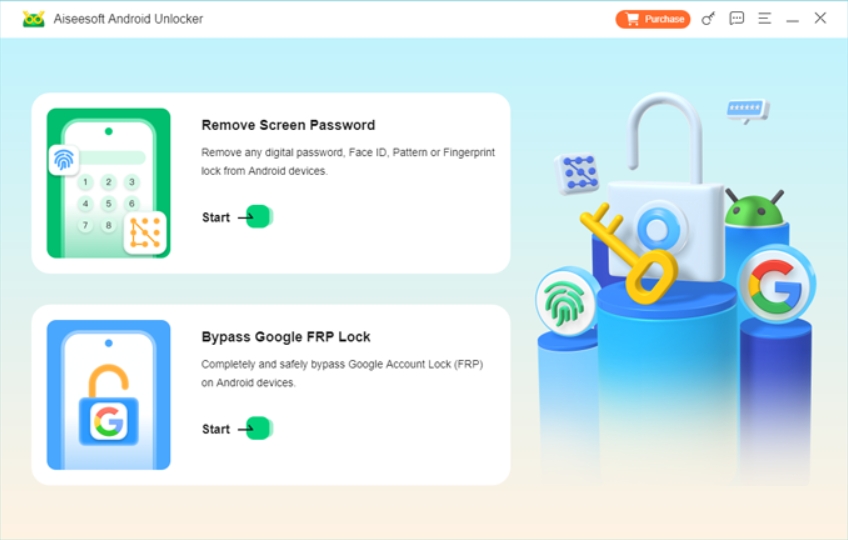
1.Download and install Android Unlocker and launch the software on your computer and select “Remove Screen Password.”
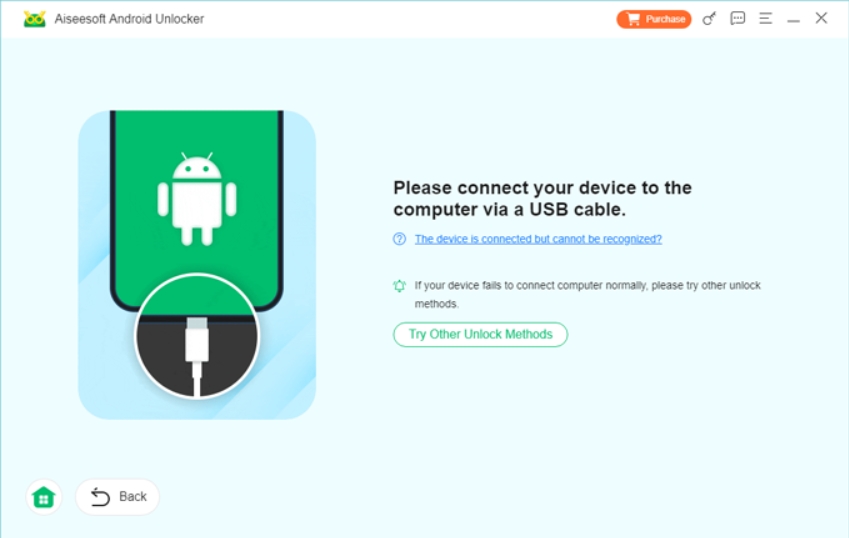
2.Connect your ZTE phone using a USB cable.
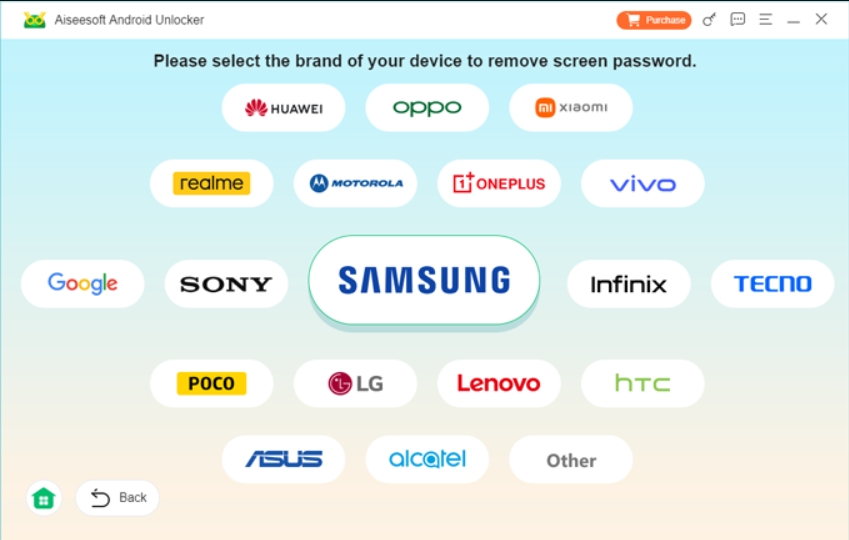
3.Choose the correct device model and follow on-screen instructions to enter recovery or download mode.
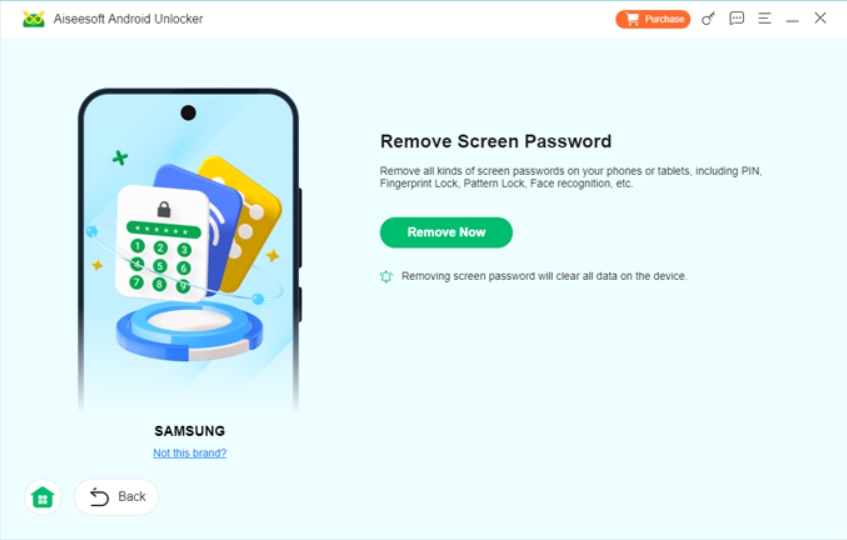
4.Let the software remove the password, PIN, pattern, Face ID, or fingerprint lock.
5.Restart your ZTE phone and set a new lock method.
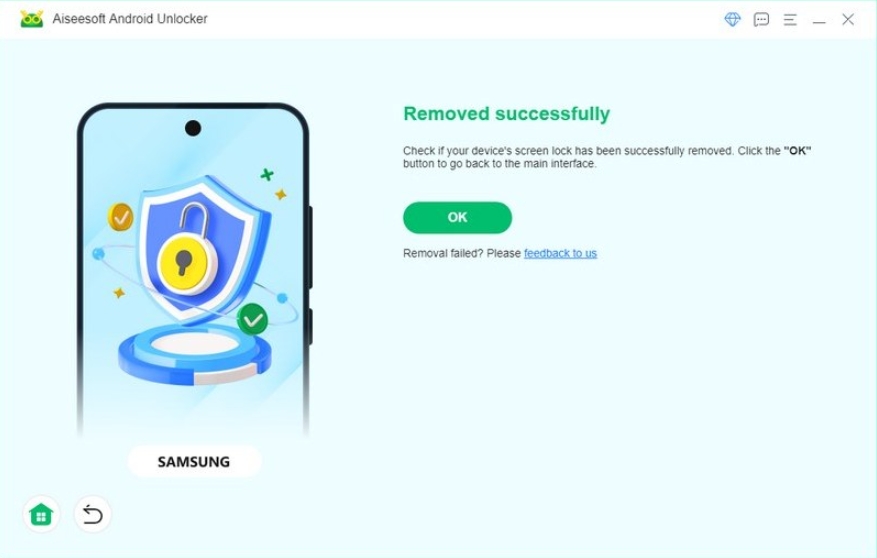
Notes:
- Battery should be above 50% to avoid interruptions.
- Follow instructions carefully to prevent triggering FRP.
- This method is ideal when you want a high success rate with minimal trial and error.
Method 2: Unlock ZTE Phone via Android Recovery Mode (Manual Reset)
Recovery Mode is a built-in Android environment that allows basic system-level actions, including factory reset. Many ZTE users turn to this method when they forget their password or pattern. While it does unlock the phone, it comes with significant trade-offs that should be clearly understood.
This approach removes the lock by erasing user data and restoring the phone to its default state. On newer ZTE models, Google FRP may still require the original Google account credentials after reset. This method is best used only when data loss is acceptable and account details are remembered.
Key steps and important details:
- Power off the ZTE phone completely.
- Press and hold Volume Up + Power until the ZTE logo appears.
- Release buttons to enter Android Recovery Mode.
- Use volume keys to navigate to “Wipe data/factory reset.”
- Confirm with the Power button.
- Reboot the device after the process completes.
Notes:
- All local data will be erased.
- Google account verification may be required after reset.
- This method does not selectively remove lock types; it resets everything.
Method 3: Unlock ZTE Phone Using Google Find My Device (Remote Reset)
Google Find My Device is often overlooked as an unlocking option, but it can help in specific situations. If your ZTE phone is connected to the internet and logged into a Google account, you can remotely reset it. Like Recovery Mode, this method removes the lock by wiping data, but it can be done without physically accessing the phone’s buttons.
This solution is useful when the phone is lost at home, locked, or unresponsive to touch. However, it still leads to data loss and FRP verification.
Key steps and important details:
- Visit Google Find My Device from another phone or computer.
- Sign in with the Google account linked to the locked ZTE phone.
- Select the correct device from the list.
- Choose “Erase Device.”
- Confirm the action and wait for the process to complete.
Notes:
- Internet connection must be active on the ZTE phone.
- Google account credentials are required after reset.
- This is not suitable if data preservation is critical.
Data Loss After Unlocking or System Failure
Unlocking a ZTE phone is often only the first part of the problem. Many users discover that photos, contacts, messages, or app data are missing after a factory reset, system crash, or failed unlock attempt. ZTE phones, especially mid-range models, are known to experience data loss after sudden power failures, OTA update errors, or storage corruption.
This is where data recovery and management become crucial. On our website, you can find software solutions designed to recover lost Android data, export files from damaged devices, or back up critical information before problems escalate. For example, Android data recovery tools can scan internal storage or SD cards to retrieve deleted photos, videos, WhatsApp data, and documents, even when the phone no longer boots normally.
In real-world scenarios, ZTE users often unlock their phone successfully but realize too late that important data was erased in the process. Having a reliable recovery option means the unlock process does not become a permanent loss. Beyond recovery, data management tools also help migrate files to a new device, export data for legal or work purposes, and safeguard information before risky system operations.
If you frequently update your ZTE system, root devices, or store valuable work data on your phone, proactive backup and recovery solutions from idatapp.com can save significant time and stress. Unlocking restores access, but data tools restore peace of mind.
Frequently Asked Questions
Can I unlock a ZTE phone without losing data?
Yes, depending on the method. Professional Android unlocking software offers the best chance to remove the lock without unnecessary data loss, unlike factory reset methods.
Does unlocking a ZTE phone remove Google FRP?
Not always. Some methods only remove the screen lock. FRP depends on Android version and reset method used.
Why does Face ID or fingerprint stop working on ZTE phones?
Common reasons include screen replacement, sensor damage, system updates, or corrupted biometric data.
Is it safe to use third-party unlocking software?
Safety depends on the source. Tools from reputable developers with clear instructions are far safer than random scripts or unofficial hacks.
What should I do after unlocking my ZTE phone?
Immediately set a new lock method, back up your data, and ensure your Google account information is updated and remembered.
Conclusion
Unlocking a ZTE phone without password, PIN, pattern, Face ID, or fingerprint recognition is not just about bypassing security. It is about choosing a method that balances access, data safety, and long-term usability. Whether you use professional unlocking software, built-in recovery options, or Google services, understanding the implications of each method is key.
With the right approach, unlocking your ZTE phone does not have to mean starting over.
 English
 Nederlands
 Tiếng Việt
 日本
日本 Español
 Português
 Deutsche
 Français
 Italiano
 Norsk
Norsk Suomalainen
 Svenska
 Dansk
Dansk Ελληνικά
 Türk
Türk русский
 हिंदी
हिंदी தமிழ்
தமிழ் Bahasa Melayu
 ไทย
ไทย 한국어
한국어 Română
 Polskie
 қазақ
қазақ Gaeilge
 繁體中文
繁體中文