
 iPhone Data Recovery
 iOS System Recovery
 iOS Backup & Restore
 iOS WhatsApp Transfer
 iOS FoneTrans
 MobieSync
 Android Data Recovery
 Broken Android Data Extraction
 Android Data Backup & Restore
 iPhone Unlocker
 Best Samsung Phone Unlock Tool
 Android Unlocker
 Win/Mac Data Recovery
 iDATAPP Screen Recorder
 2D&3D Video Converter
 Video Repair Software Ai
 AI Video Converter
 Ai Blu-ray Player
 OPPO Unlock Tool Online Free Download|Without Password/Face ID/Pattern/PIN
This guide explains why OPPO phones get locked and presents four modern, reliable unlocking methods, plus data recovery insights to help users regain access safely and confidently.
How to Unlock OPPO Phone Without Password?
Smartphone locks are supposed to protect us. But when an OPPO phone suddenly refuses to recognize a password, pattern, fingerprint, or Face ID, that same protection quickly turns into a wall. This situation is more common than most people admit—after system updates, long periods of non-use, sensor failures, or simply because our brains fail us at the worst possible moment.

This article doesn’t recycle outdated tricks or risky shortcuts. Instead, it looks at why OPPO phones get locked, how OPPO’s security actually works under the hood, and which modern, realistic solutions still work today. Some methods are official, some are practical, and one uses a dedicated unlocking tool designed specifically for Android lock scenarios.
Let’s start by understanding the problem before forcing a solution.
Guide List
- Why OPPO Phones Get Locked (Even When You’re the Owner)
- Method 1: Unlock OPPO Phone Using Android Unlocker Software
- Method 2: Unlock OPPO Phone via Google Account Verification
- Method 3: Unlock OPPO Phone Using ColorOS Recovery
- Method 4: Unlock OPPO Phone via OPPO Official Service
- Data Loss After OPPO System Crash or Reset
- How iDATAPP Helps Recover Lost OPPO Data
- Frequently Asked Questions
Why OPPO Phones Get Locked (Even When You’re the Owner)
OPPO uses layered Android security combined with ColorOS enhancements. That means lock data isn’t stored in one simple place—it’s tied to system encryption, user profiles, and sometimes even Google account verification.
Common causes include:
- Forgetting a rarely used PIN or pattern
- Face ID or fingerprint sensor failure after a screen replacement
- ColorOS updates invalidating biometric data
- Buying a second-hand OPPO phone without full credentials
- Children changing lock settings accidentally
- Reboot after a long time triggering password-only verification
Once biometrics fail, OPPO will always fall back to the primary lock (PIN/password/pattern). If that’s forgotten too, you’re officially locked out.
Now let’s walk through four practical methods to unlock an OPPO phone—each with a different trade-off.
Method 1: Unlock OPPO Phone Using Android Unlocker Software
When official options are unavailable or too restrictive, a professional Android unlocking tool becomes the most reliable route. The Android Unlocker from iDATAPP is designed specifically for scenarios like OPPO lockouts caused by forgotten passwords, broken biometric sensors, or system glitches.
Unlike generic “one-click” tools, this software adapts its unlocking logic based on Android version and device structure. It doesn’t rely on outdated exploits and avoids unnecessary system damage. For many OPPO models, it can remove screen locks directly, even when Face ID, fingerprint, and password all fail.
- Supports PIN, password, pattern, fingerprint, and Face ID locks
- Works even when the screen is partially damaged
- Clear guidance reduces user error
- Updated to match modern Android security changes
Steps to unlock OPPO phone with Android Unlocker:
1.Download and install Android Unlocker and launch the program on your computer
2.Select “Remove Screen Password” from the main interface
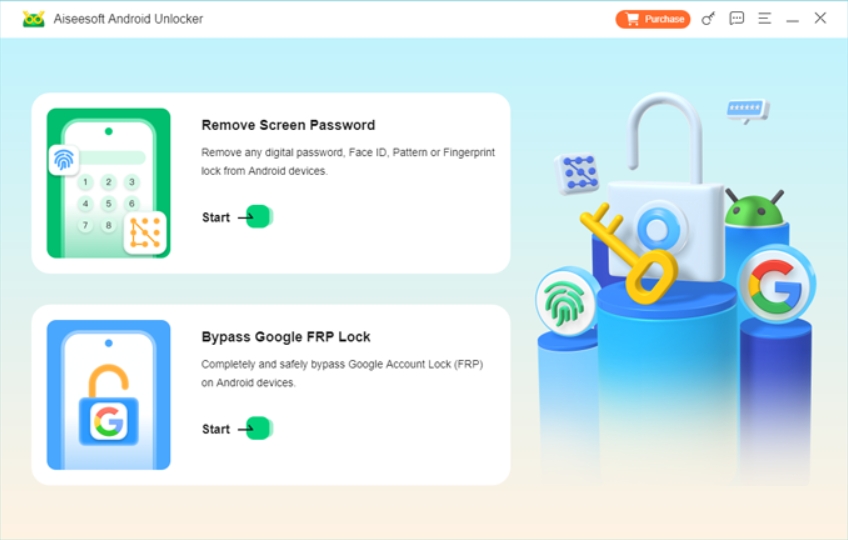
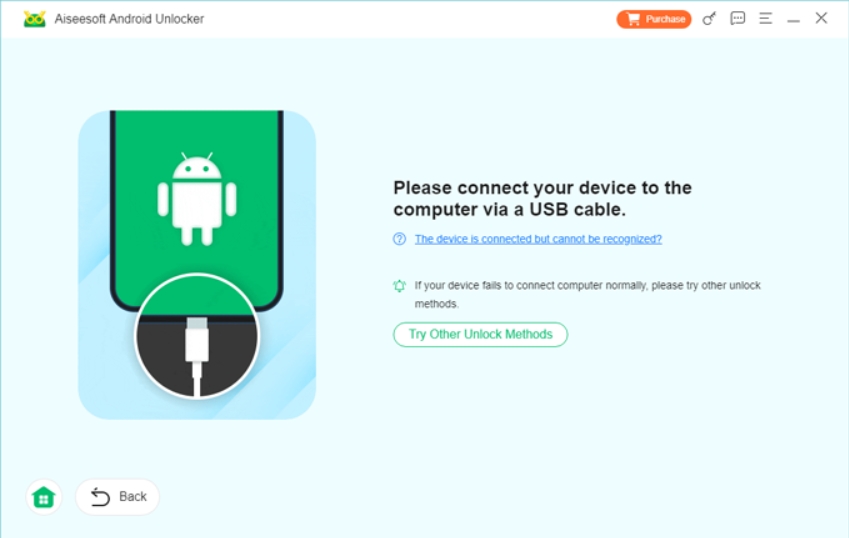
3.Connect your OPPO phone using a USB cable
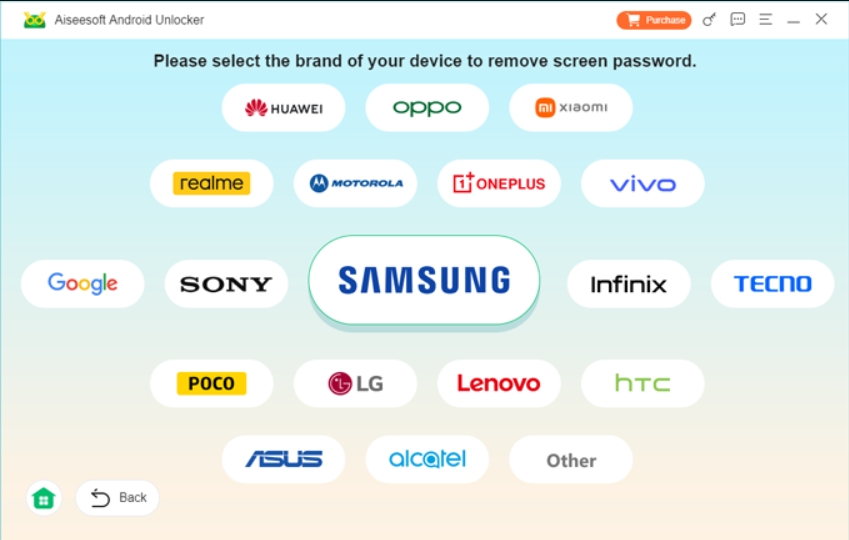
4.Choose OPPO as the device brand
5.Follow the on-screen instructions to click Remove Now
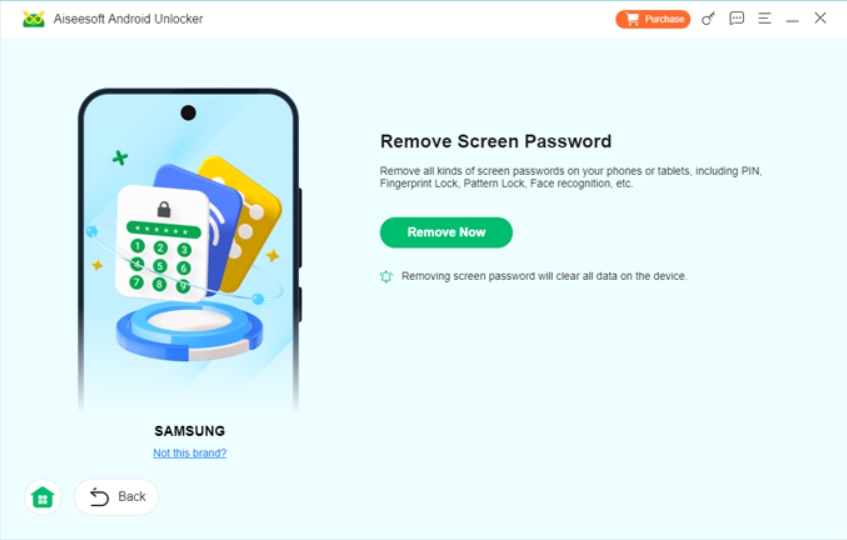
6.Let the software remove the lock automatically
7.Restart the phone and set a new lock
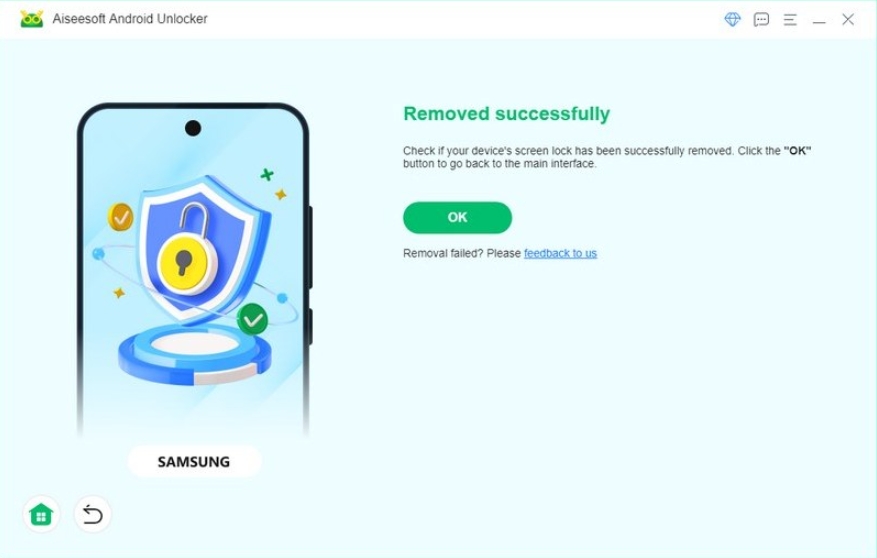
Important notes:
- Some older OPPO models may erase local data during unlocking
- Always use the official cable to avoid connection interruptions
This method is ideal when speed, reliability, and compatibility matter more than preserving outdated lock settings.
Method 2: Unlock OPPO Phone via Google Account Verification
If your OPPO phone runs an older Android version and is linked to a Google account, Google’s built-in verification may still help. This method relies on the phone recognizing the original Google account after repeated failed unlock attempts.
However, it’s not as universal as many guides claim. Newer Android versions have tightened security, and this option may not appear at all.
When this method works best:
- Android 8 or earlier
- Phone was previously logged into a Google account
- Internet connection is active
How to try Google account unlocking:
1.Enter the wrong PIN or pattern multiple times
2.Wait for the “Forgot Password?” or similar option
3.Select it and sign in using the original Google account
4.Verify identity through Google prompts
5.Reset the screen lock
Limitations to consider:
- Won’t work on most modern OPPO models
- Requires remembering Google account credentials
- Internet access is mandatory
This is a clean and official option—but increasingly rare in real-world use.
Method 3: Unlock OPPO Phone Using ColorOS Recovery
ColorOS recovery mode allows users to reset the device to factory settings. This removes the screen lock, but also erases all personal data stored on the phone.
This method is built into OPPO phones and doesn’t require additional tools, making it useful when nothing else is available.
When to use it:
- You don’t need existing data on the phone
- The device is fully yours
- You remember the Google account used on the phone
Steps to reset OPPO phone via recovery mode:
1.Power off the OPPO phone completely
2.Press and hold Power + Volume Down
3.Release when OPPO logo appears
4.Select language
5.Choose Wipe data/Factory reset
6.Confirm the operation
7.Restart the phone
Critical warning:
After reset, the phone will ask for the original Google account due to FRP (Factory Reset Protection). If you don’t know it, the phone will remain locked.
This is a last-resort solution—not a smart one if your data matters.
Method 4: Unlock OPPO Phone via OPPO Official Service
OPPO’s authorized service centers can unlock devices after ownership verification. This method is secure and legitimate, but it’s also time-consuming and sometimes costly.
What OPPO service usually requires:
- Purchase receipt or proof of ownership
- Government-issued ID
- Several days of processing
Typical process:
- Visit an official OPPO service center
- Submit device and documents
- Wait for verification
- Technicians unlock or reset the phone
Downsides:
- Data is often erased
- Not available in all regions
- Long waiting time
This method is best for users who prefer official channels and aren’t in a hurry.
Data Loss After OPPO System Crash or Reset
Unlocking an OPPO phone is often only half the story. Many users realize the real disaster after unlocking—when photos, contacts, messages, or videos are gone due to a factory reset, system crash, or failed unlock attempt.
This happens frequently in situations like:
- Forced factory reset after lockout
- ColorOS update failure
- Boot loop after unlocking
- Accidental wipe during troubleshooting
Once data is deleted at the system level, Android won’t show it anymore—but that doesn’t always mean it’s permanently lost.
How iDATAPP Helps Recover Lost OPPO Data
iDATAPP offers specialized Android Data Recovery solutions designed to scan internal storage and SD cards deeply, even after resets or crashes. Instead of relying on backups (which many users don’t have), the software looks for recoverable data fragments directly.
Commonly recoverable data includes:
- Photos and videos
- WhatsApp attachments
- Contacts and call logs
- Documents and audio files
Why this matters after unlocking:
Unlocking often triggers data loss. Having a recovery plan in place ensures that solving one problem doesn’t create another.
You can explore recovery and data management tools at:
https://idatapp.com
This combination—unlock first, recover second—is often the most realistic path for OPPO users.
Frequently Asked Questions
Can I unlock an OPPO phone without losing data?
Yes, some unlocking methods preserve data, especially software-based solutions. Factory reset methods always erase data.
Does Face ID or fingerprint failure mean the phone is broken?
Not necessarily. Sensor failure often happens after updates or screen replacements and doesn’t indicate hardware damage.
Is it legal to unlock my own OPPO phone?
Yes. Unlocking a device you own is legal in most regions. Ownership verification may be required for official services.
Will unlocking remove Google account protection?
No. FRP remains unless properly removed. You’ll still need the original Google account after a reset.
What’s the safest method for non-technical users?
Dedicated Android unlocking software with guided steps is usually the safest and most user-friendly option.
Final Thoughts
Being locked out of an OPPO phone feels stressful, but it’s rarely the end of the road. Whether you choose a professional unlocking tool, an official method, or a system reset, the key is understanding the consequences before acting.
Unlocking is about regaining control, not creating new problems. Choose wisely, protect your data, and always plan one step ahead.
 English
 Nederlands
 Tiếng Việt
 日本
日本 Español
 Português
 Deutsche
 Français
 Italiano
 Norsk
Norsk Suomalainen
 Svenska
 Dansk
Dansk Ελληνικά
 Türk
Türk русский
 हिंदी
हिंदी தமிழ்
தமிழ் Bahasa Melayu
 ไทย
ไทย 한국어
한국어 Română
 Polskie
 қазақ
қазақ Gaeilge
 繁體中文
繁體中文