
 iPhone Data Recovery
 iOS System Recovery
 iOS Backup & Restore
 iOS WhatsApp Transfer
 iOS FoneTrans
 MobieSync
 Android Data Recovery
 Broken Android Data Extraction
 Android Data Backup & Restore
 iPhone Unlocker
 Best Samsung Phone Unlock Tool
 Android Unlocker
 Win/Mac Data Recovery
 iDATAPP Screen Recorder
 2D&3D Video Converter
 Video Repair Software Ai
 AI Video Converter
 Ai Blu-ray Player
 How to Unlock Samsung A56 Forgot Password?
Forgot your Samsung A56 password? This guide explains three reliable unlocking methods, including Samsung Find My Mobile, recovery reset, and a professional Samsung unlocking tool, plus tips to recover lost data.

Forgetting your phone password can feel surprisingly stressful. You pick up your Samsung Galaxy A56, enter the passcode you’re sure is correct… and the phone refuses to unlock. After several failed attempts, the device locks itself for security reasons. At this point many users start worrying about two things: losing access to their phone and losing their data.
This situation is more common than you might think. Android devices like the Samsung A56 are designed with strong security protections—PIN, password, pattern, fingerprint, and face unlock. These features protect personal data, but they can also become a barrier when the owner forgets the unlock credential.
The key question is simple:
How can you unlock a Samsung A56 if you forgot the password without damaging the device or permanently losing data?
In this guide, we’ll analyze the issue and explore three practical solutions. Each method approaches the problem differently:
- A professional Samsung unlocking tool (recommended for simplicity)
- Samsung’s official Find My Mobile service
- Android recovery mode factory reset
We’ll walk through detailed explanations and step-by-step instructions so you can choose the solution that best fits your situation.
Guide List
- Why Samsung A56 Password Lockouts Happen?
- Method 1: Unlock Samsung A56 Using iDATAPP Samsung Unlocker (Recommended)
- Method 2: Unlock Samsung A56 Using Samsung Find My Mobile
- Method 3: Factory Reset Samsung A56 Through Recovery Mode
- Recovering Lost Samsung Data After System Errors or Lock Issues
- Tips to Avoid Samsung Password Lockouts in the Future
- Frequently Asked Questions
- Final Thoughts
Why Samsung A56 Password Lockouts Happen?
Before jumping into solutions, it’s helpful to understand why this issue occurs.
Common causes include:
- Setting a complex password and forgetting it after a long time
- Changing the lock screen credential recently
- Letting someone else set the lock temporarily
- Fingerprint or face unlock failing repeatedly
- Buying a second-hand phone that still has a screen lock
Samsung intentionally limits the number of incorrect attempts. After several failures, the device enforces security delays or full lockouts.
Fortunately, there are reliable ways to regain access.
Method 1: Unlock Samsung A56 Using iDATAPP Samsung Unlocker (Recommended)
One of the easiest ways to unlock a Samsung A56 when the password is forgotten is to use a dedicated unlocking tool like iDATAPP Samsung Unlocker.
This software is designed specifically to remove Android screen locks including PIN, pattern, password, fingerprint, and face lock. Unlike complicated manual procedures, the program guides users through a simple interface that removes the lock screen in minutes.
It is especially useful when:
- You forgot the password completely
- The phone is locked after too many attempts
- The device has no Samsung account linked
- Find My Mobile cannot be used
The software communicates directly with the device in download mode and safely removes the lock configuration.
Steps to Unlock Samsung A56:
Step 1: Download and install the tool
- Install the program on your computer.

Step 2: Launch the program
- Open the software and select the feature:
- “Remove Screen Lock.”
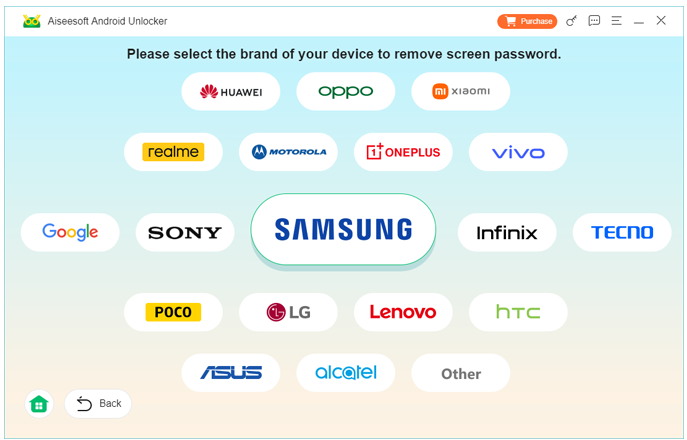
Step 3: Choose SAMSUNG for your device
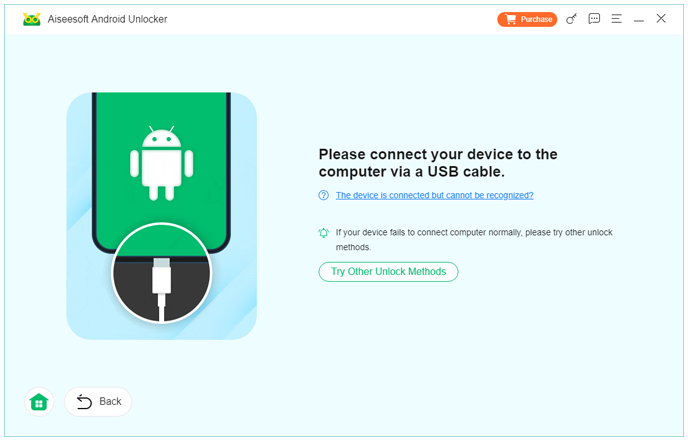
Step 4: Connect your Samsung A56
- Use a USB cable to connect your locked phone to the computer.
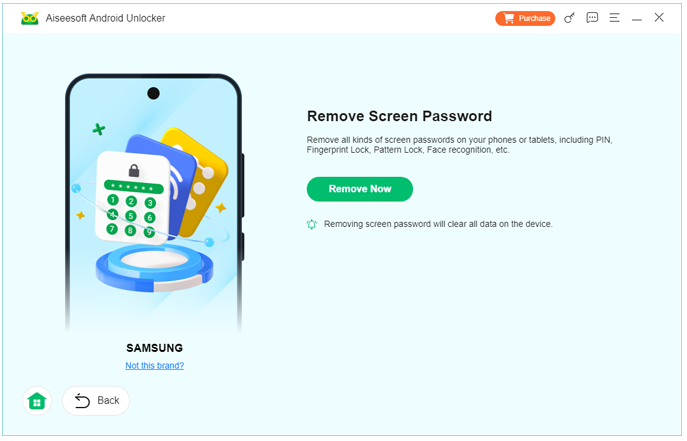
Step 4: Start unlocking
- Click Remove Now and the tool will automatically remove the screen lock.
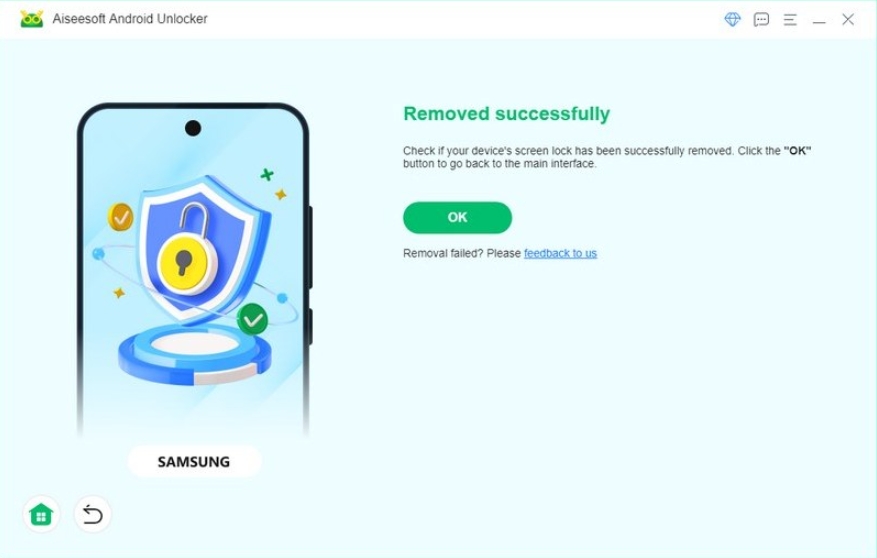
Step 5: Wait for completion
Within a few minutes, your Samsung A56 will restart without the lock screen.
Important notes
- Use the original USB cable for stable connection
- Keep the phone charged above 50%
- Do not disconnect the device during the process
This is usually the fastest and least technical solution for users who cannot access their Samsung account.
Method 2: Unlock Samsung A56 Using Samsung Find My Mobile
Samsung provides its own remote management service called Find My Mobile. Besides locating a lost phone, this service also allows users to remotely unlock their device.
This method works well if the phone was previously connected to a Samsung account and has internet access. The unlocking process happens remotely through Samsung’s servers, meaning you don’t need physical access to the phone’s settings.
However, the method has two requirements:
- The Samsung A56 must be signed in with a Samsung account
- Remote unlock must be enabled before the lockout occurred
If those conditions are met, unlocking takes only a few minutes.
Steps to Unlock Using Find My Mobile:
Step 1: Visit the Find My Mobile website
- Open the service page: https://findmymobile.samsung.com
Step 2: Sign in using the same Samsung account linked to the locked A56.
Step 3: Locate your device
- After logging in, Samsung will display all registered devices. Select Samsung Galaxy A56.
Step 4: From the remote control options, click Unlock
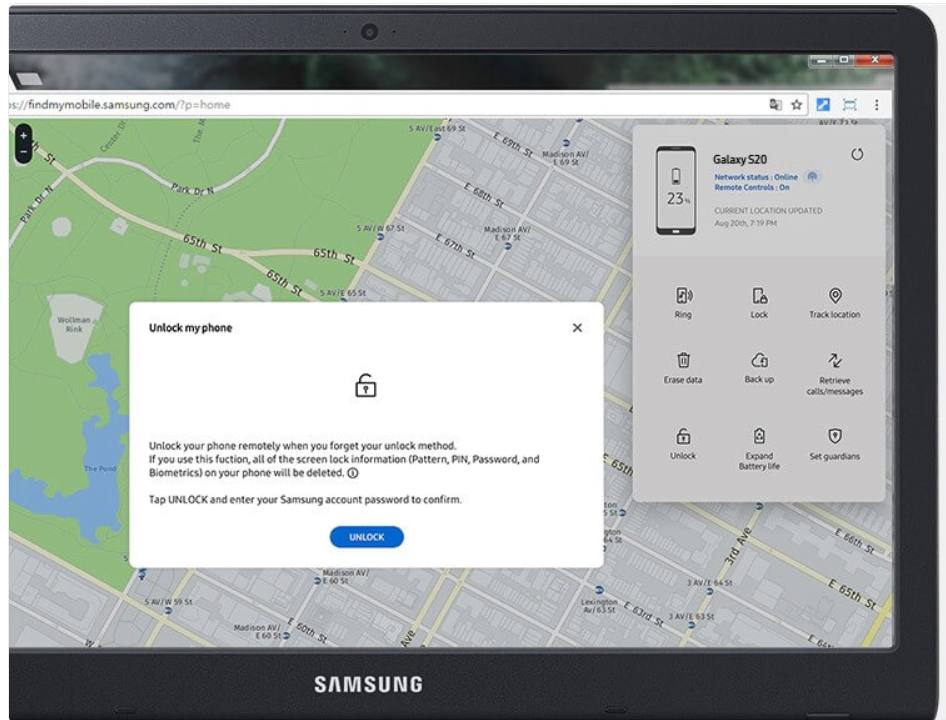
Step 5: Confirm your Samsung password
- Samsung will ask for account verification.
Step 6: Wait for remote unlock
- After confirmation, the system will remove the screen lock automatically.
Important notes
- The phone must be connected to Wi-Fi or mobile data
- If remote unlock was not enabled beforehand, the option may not appear
- This method does not erase your data
For Samsung users who set up their account properly, this is a safe and official unlocking solution.
Method 3: Factory Reset Samsung A56 Through Recovery Mode
If the previous two methods cannot be used, a factory reset through Android recovery mode can unlock the phone. This process removes the screen lock by restoring the device to its original system state.
However, there is one major downside: all data stored on the phone will be erased. That includes apps, photos, messages, and settings.
For users who cannot access their Samsung account or unlocking software, this method remains a reliable last resort.
Steps to Factory Reset Samsung A56
Step 1: Turn off the device
- Press and hold the Power button and choose Power Off.
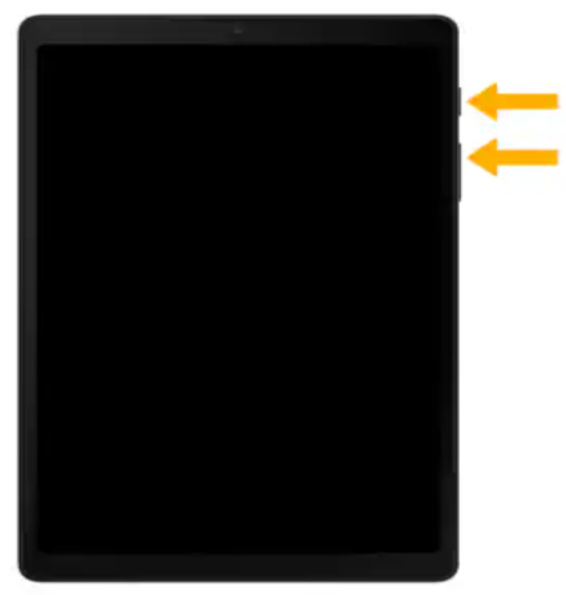
Step 2: Enter recovery mode
- Press and hold: Volume Up + Power
- Continue holding until the Samsung recovery screen appears.
Step 3: Navigate recovery menu
- Use the Volume buttons to move through the menu.
- Select: Wipe data / factory reset
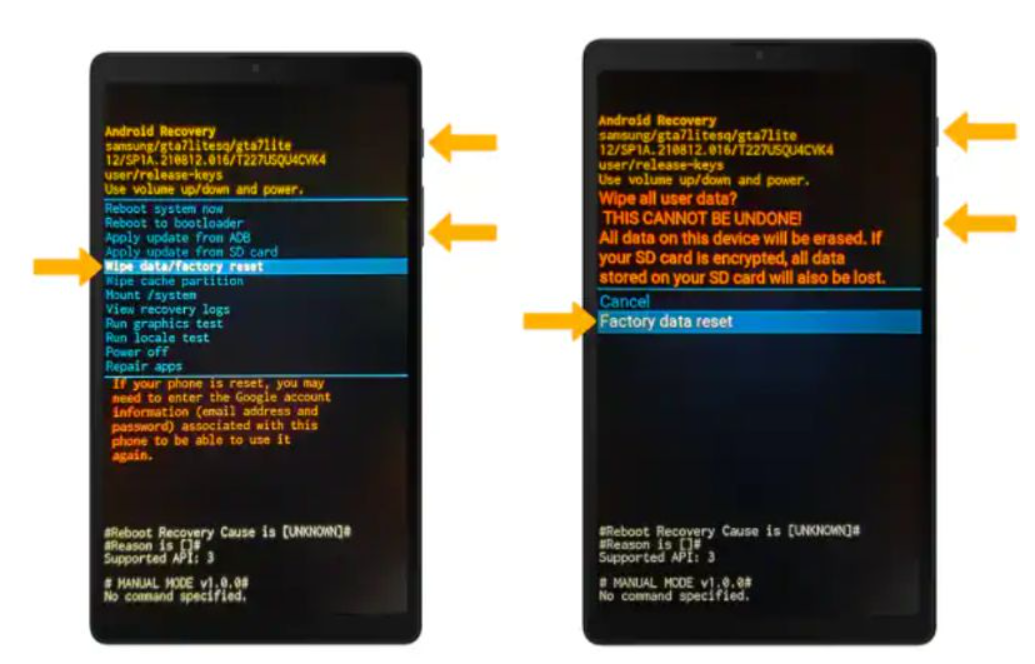
Step 4: Confirm reset
- Press the Power button to confirm.
- Choose Factory Data Reset.
Step 5: Wait for reset
- The system will erase the device and restore default settings.
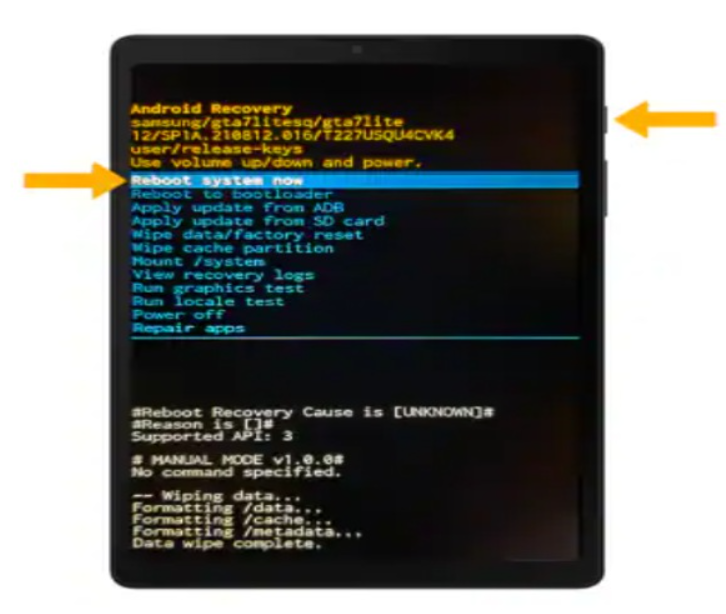
Step 6: Reboot the phone
- Select Reboot System Now.
- Once the device restarts, the screen lock will be gone.
Important notes
- All personal data will be deleted
- If the phone previously had a Google account, FRP verification may appear
- Always back up your data when possible
This method works even when the phone is completely locked, but it should be considered the last option.
Recovering Lost Samsung Data After System Errors or Lock Issues
A problem closely related to unlocking a Samsung A56 is data loss after system errors or accidental resets. Many users discover that after fixing a lock screen problem—especially when performing a factory reset—their important files are gone.
This is particularly common in situations such as:
- Factory resetting the phone to remove a forgotten password
- System crashes after failed firmware updates
- Rooting errors
- Virus attacks or malicious apps
- Sudden phone malfunctions
When these problems occur, photos, contacts, videos, and messages may appear permanently deleted. Fortunately, in many cases the data is still recoverable.
Professional Android recovery software from idatapp.com can help restore lost data directly from the phone’s internal storage.
These tools are designed to scan deep system partitions where deleted files may still exist before being overwritten.
Typical recoverable data types include:
- Photos and videos
- SMS messages and call logs
- Contacts and WhatsApp chats
- Documents and media files
- App data
How Samsung Data Recovery Works?
- Install the recovery software on your computer
- Connect the Samsung device via USB
- Enable USB debugging
- Perform a deep scan of the device storage
- Preview recoverable files
- Restore selected data to the computer
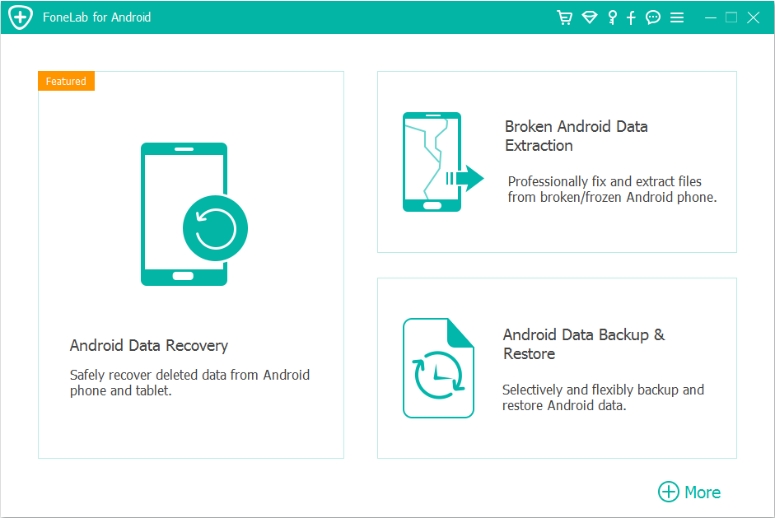
This process is especially useful after factory reset unlocking procedures, where users suddenly realize their data disappeared.
Another benefit is selective recovery. Instead of restoring everything, you can preview and export only the files you need.
For Samsung users who rely heavily on their devices for photos, work documents, or personal communication, having a recovery solution ready can make a huge difference.
In other words, unlocking your phone is only part of the problem—protecting and restoring data is just as important.
Tips to Avoid Samsung Password Lockouts in the Future
Once you regain access to your device, consider these precautions:
- Register a Samsung account and enable Find My Mobile
- Write down important passwords in a secure manager
- Enable fingerprint or face unlock as backup methods
- Perform regular cloud backups
These simple steps reduce the risk of being locked out again.
Frequently Asked Questions
Can I unlock Samsung A56 without losing data?
Yes. Methods such as Samsung Find My Mobile or a dedicated unlocking tool can remove the lock without erasing data. Factory reset will delete everything.
Is it safe to use Samsung unlocking software?
Yes, as long as the tool comes from a legitimate developer and is designed for Samsung devices. Always download from the official website.
What happens if I enter the wrong password too many times?
The Samsung system temporarily locks the device and increases the waiting period between attempts. Eventually, only unlocking methods will work.
Will factory reset remove the Samsung account?
No. After resetting, the device may request the previous Google or Samsung account due to Factory Reset Protection (FRP).
Can a locked Samsung phone still be backed up?
Usually no. Backup features require device access. If the phone is locked, unlocking it first is necessary before creating a backup.
Final Thoughts
Forgetting the password on a Samsung A56 is frustrating but completely fixable. Whether you choose professional unlocking software, Samsung’s remote unlock service, or recovery mode reset, each method provides a reliable way to regain access.
The key is selecting the method that fits your situation and minimizing the risk of data loss.
 English
 Nederlands
 Tiếng Việt
 日本
日本 Español
 Português
 Deutsche
 Français
 Italiano
 Norsk
Norsk Suomalainen
 Svenska
 Dansk
Dansk Ελληνικά
 Türk
Türk русский
 हिंदी
हिंदी தமிழ்
தமிழ் Bahasa Melayu
 ไทย
ไทย 한국어
한국어 Română
 Polskie
 қазақ
қазақ Gaeilge
 繁體中文
繁體中文