
 iPhone Data Recovery
 iOS System Recovery
 iOS Backup & Restore
 iOS WhatsApp Transfer
 iOS FoneTrans
 MobieSync
 Android Data Recovery
 Broken Android Data Extraction
 Android Data Backup & Restore
 iPhone Unlocker
 Best Samsung Phone Unlock Tool
 Android Unlocker
 Win/Mac Data Recovery
 iDATAPP Screen Recorder
 2D&3D Video Converter
 AI Video Converter
 Ai Blu-ray Player
  Video Repair Software Ai
iDATAPP Video Repairer can help fix/restore videos with lost or corrupted data.
Easily Unlock Face ID Recognition On Google Pixel
This guide explains why Google Pixel Face ID locks occur and provides four effective solutions—including Google account recovery, Find My Device, Android Unlocker software, and factory reset—to regain access safely.
How to Unlock Face ID Recognition Lock On Google Pixel?
Smartphones have evolved into highly secure personal devices, and facial recognition is now one of the most convenient unlocking technologies. Devices such as the Google Pixel 8, Google Pixel 8 Pro, and other Pixel models rely on advanced biometric authentication to verify identity instantly. However, situations sometimes arise where Face ID recognition fails or locks you out, leaving you unable to access your phone.
This problem can occur for several reasons. A failed facial scan caused by lighting changes, camera obstruction, or a software glitch may trigger repeated authentication errors. In some cases, Android security protocols temporarily disable biometric unlocking after multiple failed attempts. More serious scenarios include forgotten backup PINs or patterns, system updates that corrupt biometric data, or device resets that invalidate stored facial profiles.
When facial recognition fails and the backup password is also unavailable, users may feel stuck. Being locked out means losing access to important contacts, photos, messages, and apps. For professionals who rely on their Pixel devices daily, even a few hours without access can disrupt productivity.
Fortunately, there are several effective methods to unlock a Google Pixel when Face ID recognition fails or becomes inaccessible. Some solutions rely on Google's built-in security recovery tools, while others involve advanced system resets or professional unlocking utilities. In this guide, we will explore four reliable methods—from simple account recovery to professional unlocking software—so you can regain access safely and efficiently.
Guide List
- Method 1: Unlock Google Pixel Face ID Lock with Android Unlocker Software
- Method 2: Unlock Google Pixel Using Google Account Verification
- Method 3: Unlock Pixel Face Lock Using Android Device Manager
- Method 4: Factory Reset the Google Pixel in Recovery Mode
- Understanding Why Face Unlock Fails on Google Pixel
- Preventing Future Face Unlock Lockouts
- Frequently Asked Questions
- Conclusion
Method 1: Unlock Google Pixel Face ID Lock with Android Unlocker Software
If you cannot remember your backup password or Google account credentials, a professional unlocking utility can help bypass the lock screen. Tools like Android Unlocker are designed to remove Android lock screens—including facial recognition locks, PINs, patterns, and fingerprints—without requiring the original credentials. The software works by placing the device into a specialized recovery mode and rewriting the security configuration responsible for screen locks.
This method is particularly useful when Face ID errors occur after system crashes, firmware bugs, or biometric database corruption. Compared to manual resets, dedicated unlocking tools simplify the process with guided instructions and device-specific compatibility.

Steps to Unlock Pixel Face Lock with Android Unlocker
1.Download and install Android Unlocker on your computer.

2.Launch the program and select Remove Screen Password from the main interface.
3.Connect your locked Google Pixel phone to the computer using a USB cable.
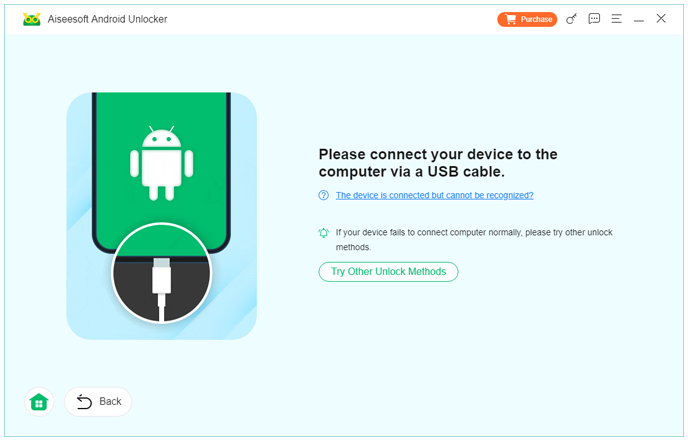
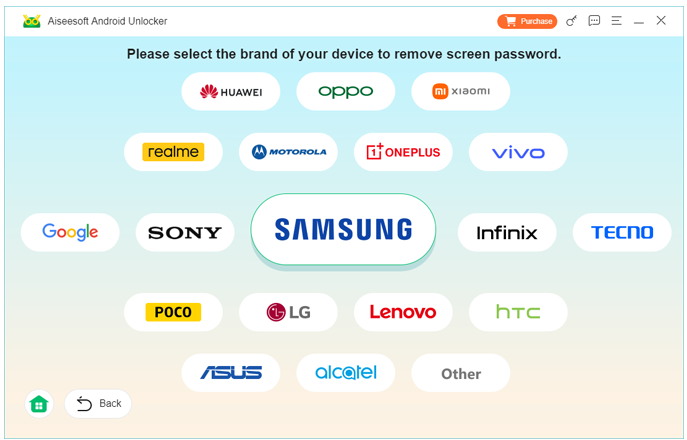
4.The software will detect your device model automatically.
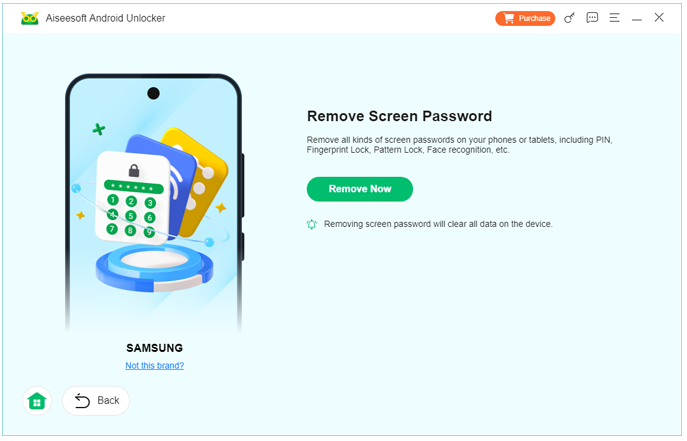
5.Click Remove Now to begin the unlocking process.
6.The program will remove the Face ID lock and other screen security settings.
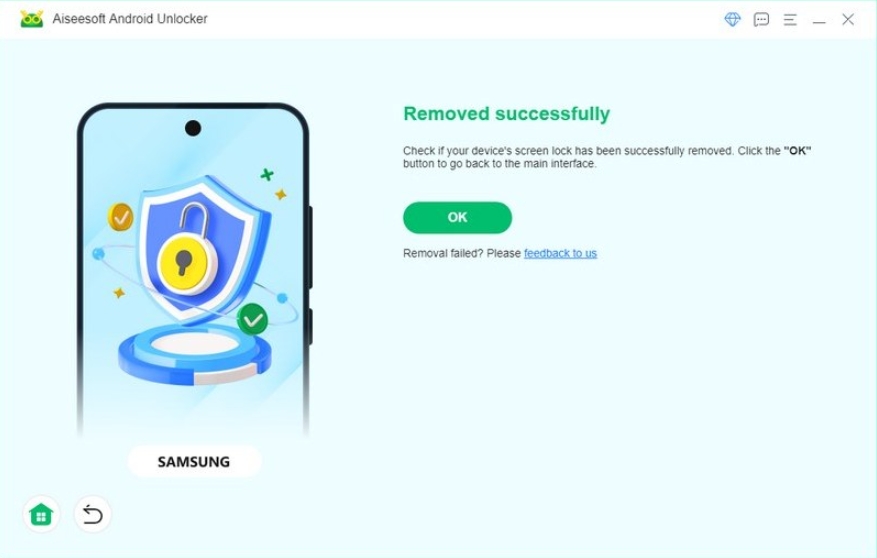
7.After completion, restart the device and create a new unlock method.
Method 2: Unlock Google Pixel Using Google Account Verification
Google integrates account verification into Android’s security system. When biometric authentication fails multiple times, the system may allow users to unlock the device using their Google account credentials. This works because the phone is linked to your Google profile during setup, and the system can verify ownership through your email and password. For many users, this is the fastest and safest recovery option, as it avoids factory resets or data loss. However, this option usually appears only after several failed unlock attempts and requires the device to be connected to the internet.
Steps to Unlock Using Google Account
- Turn on your locked Google Pixel device.
- Attempt Face ID recognition several times until the device requests an alternative unlock method.
- Tap Forgot Pattern / Forgot PIN / Use Google Account (wording may vary depending on Android version).
- Enter the Google account email linked to the device.
- Type the correct Google account password.
- Verify your identity if prompted with two-factor authentication.
- Once verified, the device will unlock.
- Go to Settings → Security → Face Unlock and reconfigure your facial recognition profile.
Method 3: Unlock Pixel Face Lock Using Android Device Manager
Another reliable approach involves Google’s remote device management service, Find My Device. This tool allows users to locate, secure, or erase their Android phones remotely through their Google account. While the main function is tracking lost devices, it can also help unlock a locked phone by resetting the screen lock. If the phone is connected to Wi-Fi or mobile data and the correct Google account is used, this method can quickly remove the lock screen and allow you to set a new one.
Steps to Unlock via Find My Device
- Open Android Find Hub on a computer or another smartphone.
- Visit the Find My Device website and sign in with the Google account linked to your Pixel.
- Select your locked Pixel device from the list of connected devices.
- Click the Erase Device option.
- Confirm your choice to wipe the device remotely.
- Wait for the remote reset process to complete.
- Restart the Pixel device.
- Set up the phone again and create a new Face ID profile.
Note: This method will erase data on the device unless backups are available.
Method 4: Factory Reset the Google Pixel in Recovery Mode
A factory reset is the most traditional method for unlocking a device when biometric authentication and passwords fail. Resetting the phone removes all system configurations—including screen locks and stored biometric profiles—returning the device to its original factory state. This method is effective but comes with a major drawback: all local data will be erased unless it has been backed up to cloud storage. Nevertheless, when no other option works, a recovery mode reset can restore full device access.
Steps to Perform a Recovery Mode Reset
- Power off the Google Pixel device completely.
- Press and hold the Power + Volume Down buttons simultaneously.
- Release the buttons when the Fastboot Mode screen appears.
- Use the volume buttons to navigate to Recovery Mode.
- Press the power button to confirm.
- When the Android recovery screen appears, select Wipe Data / Factory Reset.
- Confirm the reset using the power button.
- Wait for the process to finish and restart the device.
Understanding Why Face Unlock Fails on Google Pixel
Unlike earlier Android devices that relied solely on the front camera, newer Pixel models use AI-based facial recognition algorithms. The system compares real-time facial geometry with encrypted biometric data stored in the device’s secure hardware environment.
However, several factors can disrupt this process:
1. Environmental Changes
Lighting conditions, facial hair growth, glasses, or masks can reduce recognition accuracy.
2. Camera or Sensor Issues
Dust on the camera lens or damage to the front sensor may prevent proper scanning.
3. Android System Updates
Occasionally, firmware updates modify biometric security frameworks, causing stored facial data to become invalid.
4. Security Lockouts
After multiple failed attempts, Android temporarily disables biometric unlock to prevent unauthorized access.
5. Corrupted Biometric Data
Rare system errors can damage the database storing facial recognition profiles.
Understanding these causes helps users choose the most appropriate unlocking method.
Preventing Future Face Unlock Lockouts
Once you regain access to your device, implementing a few preventive strategies can significantly reduce the risk of future lockouts.
Enable Multiple Unlock Methods
Always keep a backup PIN or password enabled in case biometric authentication fails.
Regularly Update Face Recognition
Re-register your facial profile after significant appearance changes such as new glasses, beard growth, or hairstyle changes.
Maintain System Updates
Install official Android updates promptly to maintain biometric security stability.
Back Up Your Device Frequently
Use Google cloud backup so that even if a reset becomes necessary, your data remains safe.
Keep Camera Sensors Clean
A simple wipe of the front camera can often restore recognition accuracy.
Frequently Asked Questions
Why does Face ID suddenly stop working on my Google Pixel?
This usually happens due to lighting changes, system updates, camera obstructions, or corrupted biometric data. Re-registering your face profile often resolves the issue.
Can I unlock my Pixel if I forgot both Face ID and the backup PIN?
Yes. You can use Google account verification, remote device reset, or professional unlocking software to regain access.
Will unlocking tools damage my Pixel device?
Reliable unlocking tools are designed to modify lock screen configurations without harming hardware. However, always download software from official sources.
Does factory resetting remove Face ID lock?
Yes. A factory reset deletes all biometric data and screen locks, allowing you to set up the phone again.
Is Face Unlock safe on Google Pixel devices?
Yes. Google stores biometric data in a secure hardware environment, making unauthorized access extremely difficult.
Conclusion
Being locked out of a Google Pixel due to Face ID recognition failure can be frustrating, but it’s far from irreversible. From simple Google account verification to advanced recovery options like professional unlocking software or factory resets, there are several reliable ways to restore device access.
The best approach depends on your situation. If you remember your Google credentials, account verification is the quickest solution. When those credentials are unavailable, tools such as Android Unlocker provide a more direct path to removing the lock. As a last resort, recovery mode resets can always restore access.
After unlocking your phone, remember to update your security settings, create a strong backup unlock method, and maintain regular backups. Taking these precautions ensures your Pixel device remains both secure and accessible in the future.
 English
 Nederlands
 Tiếng Việt
 日本
日本 Español
 Português
 Deutsche
 Français
 Italiano
 Norsk
Norsk Suomalainen
 Svenska
 Dansk
Dansk Ελληνικά
 Türk
Türk русский
 हिंदी
हिंदी தமிழ்
தமிழ் Bahasa Melayu
 ไทย
ไทย 한국어
한국어 Română
 Polskie
 қазақ
қазақ Gaeilge
 繁體中文
繁體中文