
 iPhone Data Recovery
 iOS System Recovery
 iOS Backup & Restore
 iOS WhatsApp Transfer
 iOS FoneTrans
 MobieSync
 Android Data Recovery
 Broken Android Data Extraction
 Android Data Backup & Restore
 iPhone Unlocker
 Best Samsung Phone Unlock Tool
 Android Unlocker
 Win/Mac Data Recovery
 iDATAPP Screen Recorder
 2D&3D Video Converter
 AI Video Converter
 Ai Blu-ray Player
  Video Repair Software Ai
iDATAPP Video Repairer can help fix/restore videos with lost or corrupted data.
How to Recover Lost Data from Vivo Y600 Turbo?
Lost photos, videos, contacts, or messages on Vivo Y600 Turbo? This guide explains realistic recovery methods, practical recovery steps, and useful tips in a more natural, human-centered way.

There’s something uniquely frustrating about losing data on a phone.
Not because the files themselves are always valuable in a financial sense, but because smartphones quietly become storage boxes for everyday life. A Vivo Y600 Turbo might hold vacation photos, work screenshots, old voice recordings, chat history, notes, or videos you never backed up because you simply assumed they would always be there.
Guide List
- Method 1: Recover Vivo Y600 Turbo Data with Android Data Recovery Software
- Method 2: Restore Data from Google Backup
- Method 3: Use Vivo’s Built-In Recovery Features
- Another Common Vivo Problem: Forgotten Passwords After a System Crash
- Why Vivo Data Loss Happens So Frequently
- Frequently Asked Questions
Then one day they’re gone.
Sometimes the problem starts after deleting files too quickly. Other times it appears after a failed update, a frozen screen, accidental formatting, or one of those “storage cleaning” apps that promise to optimize the phone but end up removing important content instead.
The first reaction for most people is panic. They immediately restart the device repeatedly, install random recovery apps, or even perform a factory reset. Ironically, those actions often reduce the chance of successful recovery.
What actually matters most is staying calm and reducing phone activity as much as possible. Deleted Android data is not always erased instantly. In many cases, the system simply marks the storage space as reusable. Until new files overwrite it, recovery may still be possible.
The Vivo Y600 Turbo gives users several possible recovery paths depending on how the data disappeared. Some solutions are simple and built directly into Android, while others require deeper scanning tools.
Below are three realistic methods that people commonly use to recover lost data from Vivo devices.
Method 1: Recover Vivo Y600 Turbo Data with Android Data Recovery Software
If the missing files are truly important and there’s no usable backup available, recovery software is usually the most reliable place to start.
Unlike simple recycle-bin recovery, Android recovery software scans hidden storage areas where deleted data may still exist. This is especially helpful when photos, videos, messages, or WhatsApp files disappeared days ago and no longer appear anywhere on the phone itself.
One useful option is: Android Data Recovery by iDatapp
The process is not as complicated as many people expect.
Step 1: Install the Program on Your Computer
Start by downloading the Android recovery software onto a Windows PC or Mac. After installation, open the program normally.
At this stage, nothing changes on your Vivo phone yet, which is important because minimizing phone activity helps preserve recoverable data.
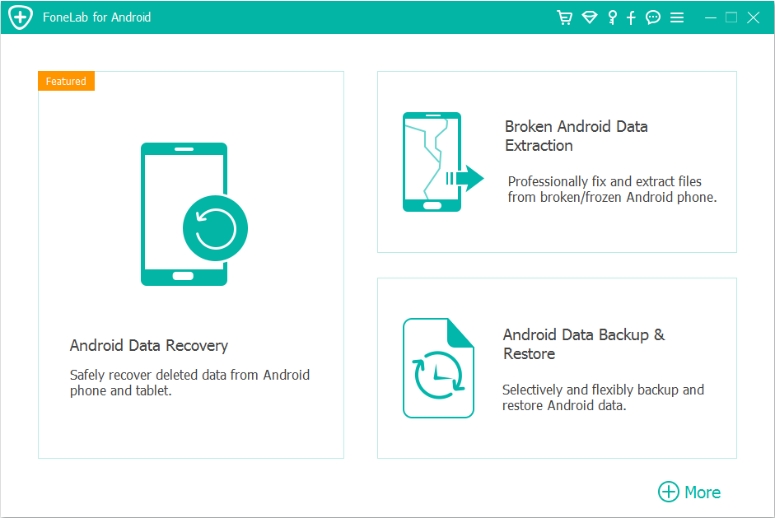
Step 2: Connect the Vivo Y600 Turbo
Use a stable USB cable to connect the phone to the computer.
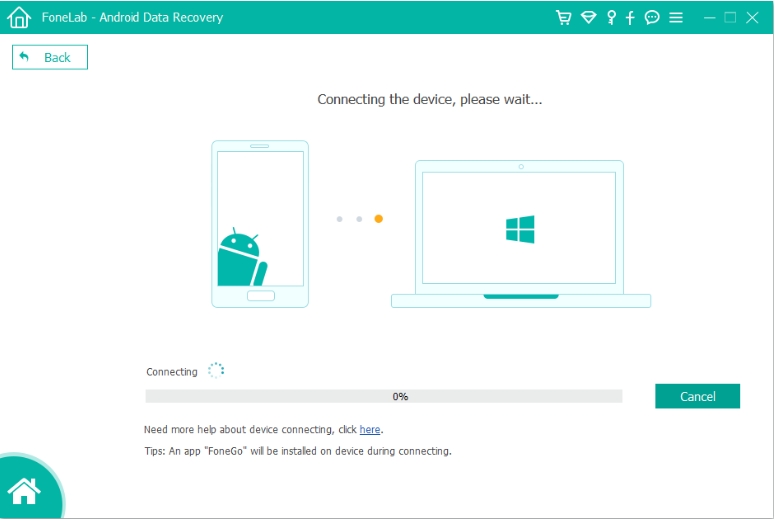
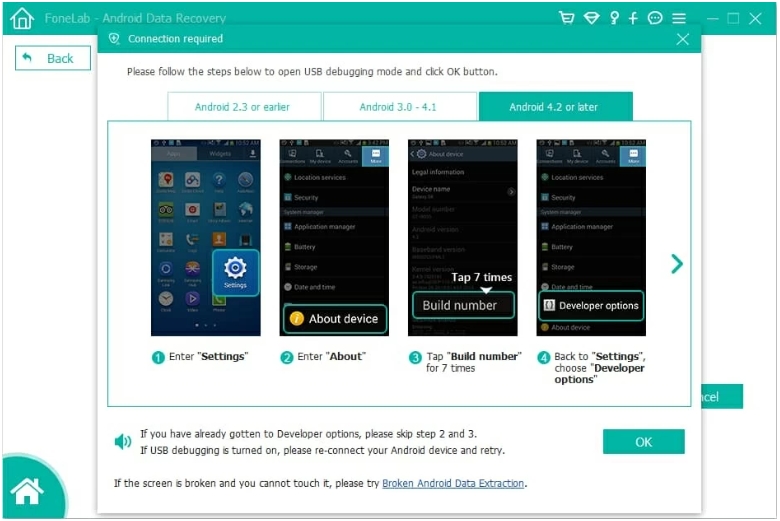
The software will usually ask for USB debugging permission. If Developer Options are hidden, simply open the phone settings, tap “About Phone,” and press the build number several times until developer settings become available.
Once USB debugging is enabled, the computer should recognize the device properly.
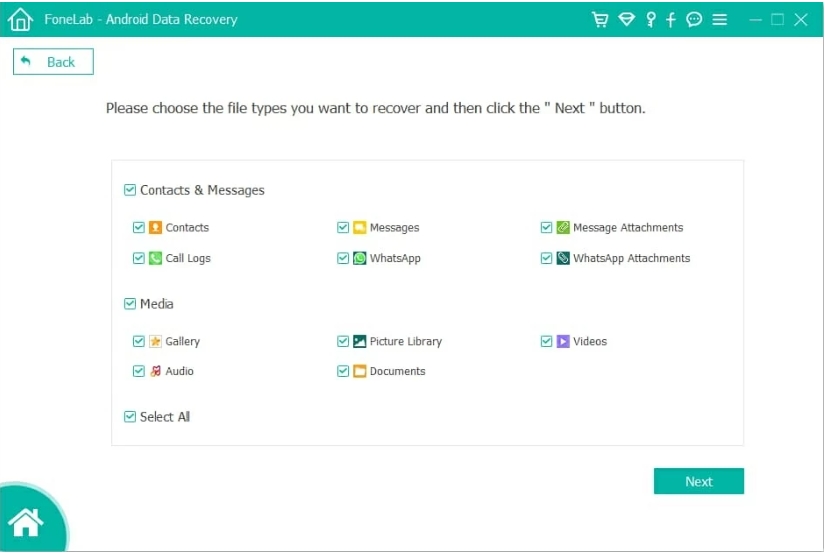
Step 3: Scan the Device for Lost Files
After the connection succeeds, the program lets you choose what you want to search for. Most people select photos, videos, contacts, or messages first.
The scan may take several minutes depending on how full the storage is. During this process, the software searches for deleted file traces that Android no longer displays normally.
This part often surprises users because files they thought were permanently erased may still appear in preview results.
Step 4: Preview and Recover the Data
Once the scan finishes, you can browse recoverable files before restoring them.
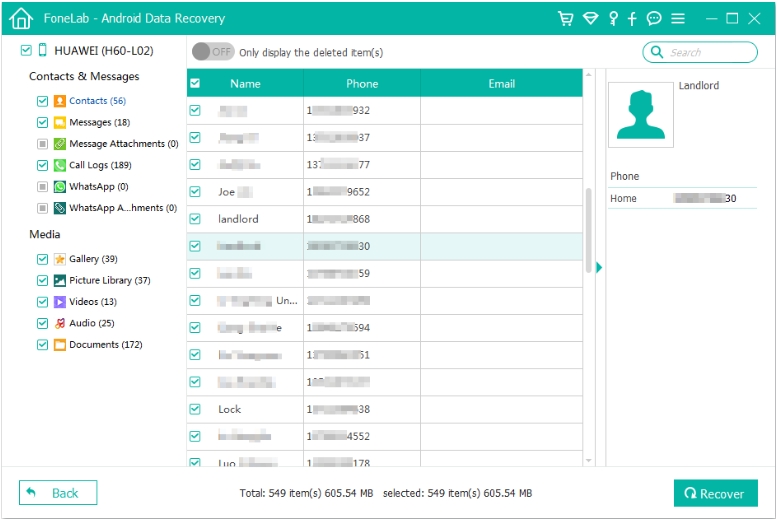
Instead of restoring everything blindly, it’s better to select only the files you actually need. Saving the recovered data directly to the computer is usually safer than placing it immediately back onto the phone.
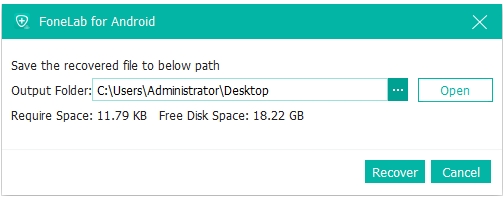
This method works especially well after accidental deletion, failed updates, formatting issues, or sudden system crashes.
Method 2: Restore Data from Google Backup
Not every recovery situation requires deep scanning tools.
A lot of Vivo users discover later that Google has already backed up part of their data automatically without them paying much attention to it. That’s why checking cloud synchronization should always be one of the first things you try.
This method is especially useful for photos, contacts, calendars, notes, and some application data.
Step 1: Check Google Photos First
Open Google Photos using the same Google account connected to the Vivo Y600 Turbo.
If the missing pictures or videos were previously synchronized, they may still exist inside the Trash folder. Google usually keeps deleted items there temporarily before removing them permanently.
In many cases, users think their gallery is empty when the files are actually sitting safely inside cloud storage.
Step 2: Restore Contacts and Other Synced Data
For contacts, sign into the Google account connected to the device and check the synchronization settings.
If backup was enabled before the problem happened, your contacts and app information may automatically return once the account sync finishes.
Sometimes recovery feels almost instant because Android quietly restores information in the background.
Step 3: Reinstall Backup During Device Setup
If the Vivo Y600 Turbo was factory reset recently, Android may offer an older backup during the setup process.
After signing into the original Google account, the system usually displays available backups linked to the device. Choosing one can restore apps, settings, and certain synchronized content.
Of course, this method has limitations. Files stored only locally on the phone may never have reached Google’s servers. Large videos and temporary app files are especially easy to miss.
Still, cloud recovery remains one of the simplest recovery options available, and it’s often overlooked during stressful situations.
Method 3: Use Vivo’s Built-In Recovery Features
Sometimes the easiest solution is already sitting inside the phone itself.
Modern Vivo devices include temporary storage areas for deleted content, but many users never think to check them. They assume that once a file disappears from the gallery, it’s gone forever.
That isn’t always true.
Step 1: Open the Album App
Start by checking the photo album carefully.
Most Vivo systems include a “Recently Deleted” folder where removed images remain for a period of time before permanent deletion happens.
If the photos were deleted recently, recovering them may be as simple as tapping “Restore.”
Step 2: Check File Manager and Notes
Next, open Vivo’s File Manager and browse through recently deleted sections if available.
Documents, recordings, and downloads sometimes remain stored temporarily even after removal from their original folders.
The Notes app may also contain a recovery section depending on the software version installed on the Vivo Y600 Turbo.
Step 3: Look Through Messaging Apps
Apps like WhatsApp occasionally keep cached copies of images and videos longer than expected.
Even if media disappears from the gallery, certain files may still exist inside chat storage folders or conversation history.
This method obviously cannot recover everything. If the storage has already been overwritten or damaged, deeper recovery tools are still necessary. But for recent deletions, Vivo’s built-in recovery areas are often enough.
And honestly, this should always be checked before downloading random third-party apps from the internet.
Another Common Vivo Problem: Forgotten Passwords After a System Crash
Data loss is not the only issue Vivo users struggle with.
A surprisingly common situation happens after a failed update or repeated system restart. The phone finally powers on again, but the user suddenly cannot remember the screen password, pattern lock, or PIN code.
At that point, people often panic and perform a factory reset immediately.
Unfortunately, that can make recovery much harder because the reset process may overwrite important storage sectors containing recoverable files.
That’s why unlocking the Vivo phone first is often the smarter approach.
The official iDatapp website also provides Android unlocking solutions designed for situations involving forgotten passwords, inaccessible screens, or system-related lock problems.
You can explore the platform here: iDatapp Official Website-Android Unlock Tool.
This matters because access and recovery are closely connected. If users regain access to the Vivo Y600 Turbo before resetting it, the chances of successful data recovery improve significantly.
A lot of short tutorials online skip this detail entirely, even though it can determine whether important photos survive or disappear permanently.
Why Vivo Data Loss Happens So Frequently
After looking at enough Android recovery situations, certain patterns become obvious.
One major issue is storage cleaning software. Some apps remove cached data aggressively without explaining what’s actually being deleted in the background.
System interruptions also cause problems. If the phone shuts down during updates or storage optimization, file structures may become unstable afterward.
But honestly, human behavior plays a role too.
Many users continue recording videos, downloading apps, and taking screenshots immediately after losing data. Unfortunately, every new file increases the risk of overwriting recoverable storage space.
That’s why quick but careful action matters so much.
Frequently Asked Questions
Can Vivo Y600 Turbo data really be recovered after deletion?
Yes, in many cases. If the deleted storage sectors haven’t been overwritten yet, recovery software may still detect the missing files.
Should I stop using the phone after data loss?
Absolutely. The less activity on the phone, the better the recovery chances usually become.
Can I recover files without a backup?
Yes. Recovery software can often retrieve deleted files directly from the device storage even when cloud backup was never enabled.
Why are some recovered videos damaged?
Large files are more likely to become partially overwritten, especially if the phone continued being used after deletion.
Is factory reset a good recovery solution?
Not usually. Factory reset may erase or overwrite recoverable data, making recovery much more difficult afterward.
Conclusion
Recovering data from a Vivo Y600 Turbo is often possible, especially when users react quickly and avoid unnecessary phone activity after the loss happens.
Some situations can be solved through Google backup or Vivo’s built-in recovery folders, while more serious cases may require professional Android recovery software.
The important thing is not rushing into drastic actions like repeated resets or random app installations. In many cases, the missing files are still there longer than people expect.
 English
 Nederlands
 Tiếng Việt
 日本
日本 Español
 Português
 Deutsche
 Français
 Italiano
 Norsk
Norsk Suomalainen
 Svenska
 Dansk
Dansk Ελληνικά
 Türk
Türk русский
 हिंदी
हिंदी தமிழ்
தமிழ் Bahasa Melayu
 ไทย
ไทย 한국어
한국어 Română
 Polskie
 қазақ
қазақ Gaeilge
 繁體中文
繁體中文