
 iPhone Data Recovery
 iOS System Recovery
 iOS Backup & Restore
 iOS WhatsApp Transfer
 iOS FoneTrans
 MobieSync
 Android Data Recovery
 Broken Android Data Extraction
 Android Data Backup & Restore
 iPhone Unlocker
 Best Samsung Phone Unlock Tool
 Android Unlocker
 Win/Mac Data Recovery
 iDATAPP Screen Recorder
 2D&3D Video Converter
 Video Repair Software Ai
 AI Video Converter
 Ai Blu-ray Player
 How to Recover Lost Data from Vivo X300 Ultra?
Lost data on Vivo X300 Ultra can often be recovered. This guide explains three practical recovery methods, including professional software, cloud backups, and built-in tools to restore important files safely.

Smartphones like the Vivo X300 Ultra are designed to handle massive amounts of data—photos, videos, contacts, documents, messages, and more. However, despite the powerful hardware and advanced camera system, data loss can still happen unexpectedly. A mistaken tap on the delete button, system crashes, failed software updates, malware infections, or accidental factory resets can wipe valuable files within seconds.
For many users, the moment they realize important files are gone is stressful. Vacation photos disappear, work documents vanish, or crucial contacts become inaccessible. Fortunately, Android data recovery technology has advanced significantly, and in many cases, deleted files are not immediately erased from the device storage.
Before jumping into solutions, it helps to understand how Android storage works. When data is deleted on a device like the Vivo X300 Ultra, the system typically marks the storage space as available rather than permanently erasing the data immediately. Until new data overwrites that space, recovery tools and built-in backup systems may still restore those files.
This article explores three practical and effective methods to recover lost data from Vivo X300 Ultra. The solutions range from professional recovery software to built-in Android backup systems and manual recovery techniques. Each method is explained in detail so you can choose the best option depending on your situation.
Guide List
- Common Reasons for Data Loss on Vivo X300 Ultra
- Method 1: Recover Vivo X300 Ultra Data with Android Data Recovery Software
- Method 2: Restore Deleted Files from Google Backup
- Method 3: Recover Files from Vivo Cloud Backup
- What If You Forget the Screen Lock on Vivo?
- Tips to Prevent Future Data Loss on Vivo X300 Ultra
- Frequently Asked Questions
- Article Summary
Common Reasons for Data Loss on Vivo X300 Ultra
Understanding the cause of data loss can help determine the best recovery method. Here are several typical scenarios:
- Accidental deletion of photos, videos, or documents
- Factory reset performed without backup
- System crash or firmware update failure
- Water damage or screen malfunction
- Virus or malicious app attack
- SD card corruption or internal storage issues
If you notice missing files, stop using the phone immediately. Continuing to record videos, download apps, or take photos could overwrite recoverable data.
Method 1: Recover Vivo X300 Ultra Data with Android Data Recovery Software
One of the most reliable solutions is using professional Android data recovery software designed to scan the internal storage deeply. Tools like Android Data Recovery from iDATAPP are specifically developed to retrieve deleted files from Android devices, including Vivo models.
This software can recover various file types such as photos, contacts, messages, WhatsApp chats, call logs, videos, and documents. The advantage of this method is its ability to scan hidden system partitions where deleted data fragments remain. Even when there is no backup available, the tool can reconstruct lost files through advanced scanning algorithms.
Another useful feature is selective recovery, allowing users to preview files before restoring them. This prevents unnecessary data clutter and ensures that only the needed files are recovered.
Steps to Recover Data Using Android Data Recovery
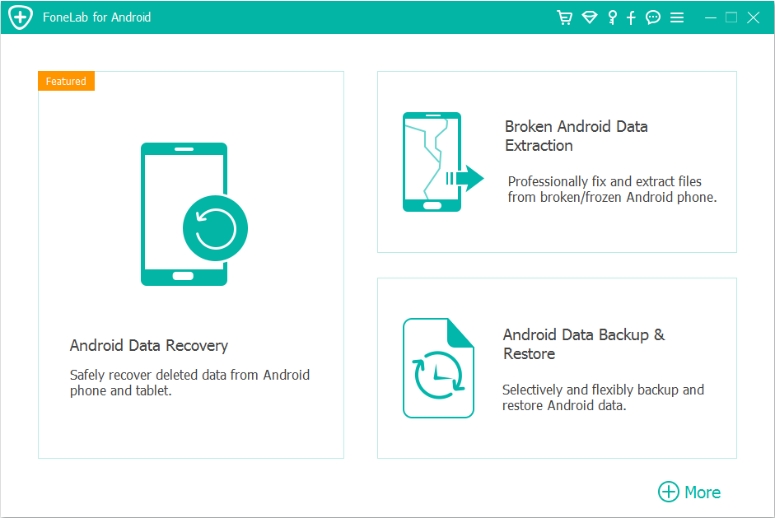
Step 1: Install the software
Download and install Android Data Recovery on your computer from the official website.
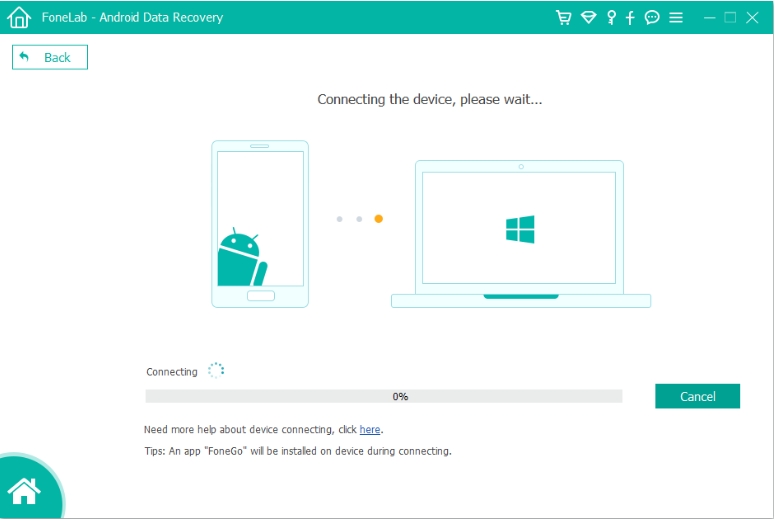
Step 2: Connect your Vivo X300 Ultra
Use a USB cable to connect the device to the computer.
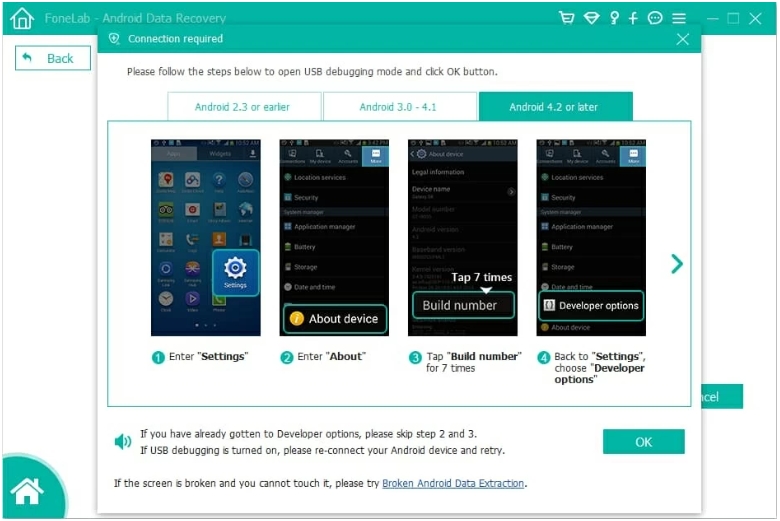
Step 3: Enable USB debugging
Go to Settings → Developer Options → USB Debugging and enable it.
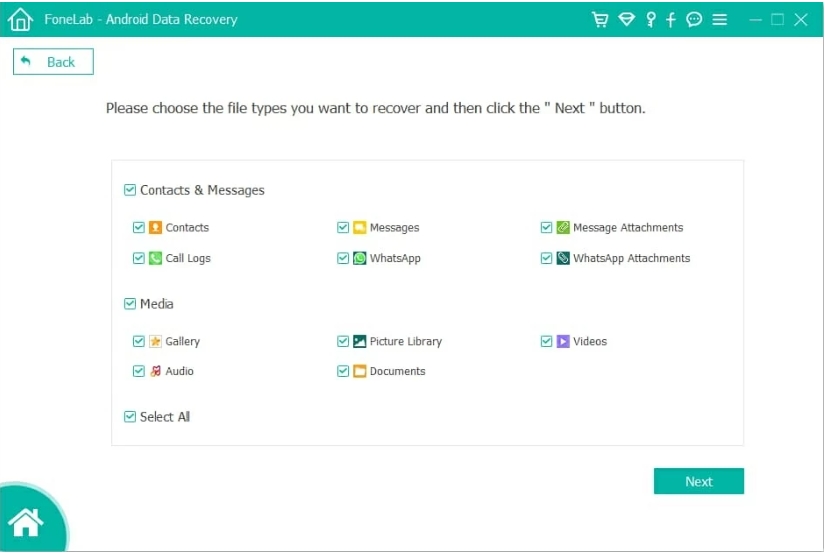
Step 4: Select file types
Choose the data categories you want to recover, such as photos, contacts, or messages.
Step 5: Start scanning
The software will scan the phone’s internal storage to locate recoverable files.
Step 6: Preview recoverable files
After scanning, preview the files found by the software.
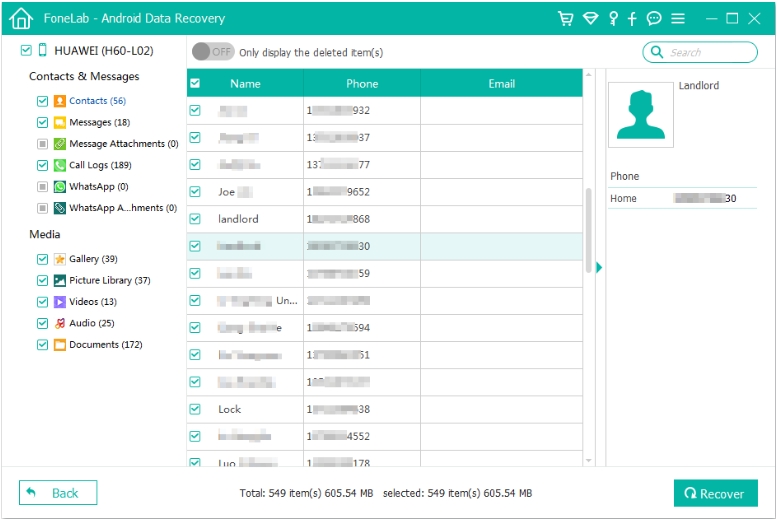
Step 7: Recover the selected files
Select the files you want and click Recover to restore them to your computer.

Important Tips
- Avoid using the phone during recovery.
- Ensure the battery is above 50%.
- Use the original USB cable for stable connection.
Method 2: Restore Deleted Files from Google Backup
Many Android users unknowingly benefit from Google’s automatic backup system, which may already store their important files in the cloud. If the Vivo X300 Ultra was synced with a Google account, there’s a good chance your contacts, photos, and app data were backed up automatically.
Google Photos, Google Drive, and Google Contacts often keep deleted files temporarily before permanent removal. This means users can restore data without installing additional software.
This method works best if automatic backup was enabled before the data loss occurred. Although it may not recover everything, it is a quick and safe way to retrieve common file types.
Steps to Recover Data from Google Backup
Step 1: Check Google Photos
Open Google Photos and navigate to the Trash folder.
Step 2: Restore deleted photos
Files remain in the trash for up to 60 days before permanent deletion.
Step 3: Recover contacts
Go to contacts.google.com and check the restore option.
Step 4: Restore device backup
During device setup after a factory reset, choose Restore from Google Backup.
Step 5: Download files from Google Drive
Visit Google Drive and download stored documents or media.
Important Notes
- Ensure you log in with the correct Google account.
- Some backups only sync when connected to Wi-Fi.
- Deleted files may only remain recoverable for a limited time.
Method 3: Recover Files from Vivo Cloud Backup
Many Vivo smartphones include Vivo Cloud services, which automatically back up contacts, notes, photos, and other personal data. If the cloud backup feature was activated on the Vivo X300 Ultra, recovering lost files can be relatively simple.
Unlike third-party cloud storage, Vivo Cloud is integrated directly into the phone’s operating system. This means backups may occur in the background without the user noticing. As long as the account is active and the backup completed before the data loss, restoring files becomes straightforward.
Steps to Restore Data from Vivo Cloud
Step 1: Open Vivo Cloud
Go to Settings → Vivo Account → Vivo Cloud.
Step 2: Log in to your account
Use the same account used on the phone.
Step 3: Choose the data type
Select the category you want to restore (contacts, notes, photos).
Step 4: Download the backup
Tap the restore option to retrieve files to your device.
Step 5: Verify recovered files
Check the phone gallery or contact list to confirm successful restoration.
Important Notes
- Ensure internet connectivity during restoration.
- Check the last backup date to confirm data availability.
What If You Forget the Screen Lock on Vivo?
Data recovery is not always the only issue Vivo users face. Another common problem is being locked out of the device due to forgotten passwords, PINs, or patterns. This situation becomes especially frustrating if important files are stored on the phone but cannot be accessed.
In many cases, users attempt multiple incorrect passwords and trigger Android’s security protection. Some Vivo devices also enable FRP (Factory Reset Protection), which can prevent access even after a reset.
When this happens, a specialized unlocking solution may be required.
One effective solution is using Android Unlocker software from iDATAPP, which is designed to remove various Android lock screens safely. The tool can help bypass forgotten PIN codes, passwords, patterns, and sometimes fingerprint locks without requiring technical expertise.
How Android Unlocker Works
The unlocking tool communicates with the phone through a computer and removes the lock screen configuration stored in the system files. After the unlocking process, users can regain access to the device interface and manage their data normally.
Basic Unlocking Steps
- Install the Android Unlocker software on a computer.
- Connect the locked Vivo phone via USB.
- Select the Remove Screen Lock function.
- Follow the on-screen instructions to enter recovery mode.
- The program removes the lock screen configuration.
- Restart the device and access it normally.

When Is This Useful?
- Forgotten screen password
- Used phone with unknown lock screen
- Pattern lock failure after too many attempts
- Fingerprint sensor malfunction
This type of solution can be extremely useful for repair technicians or users who need to regain device access before performing data recovery operations.
Tips to Prevent Future Data Loss on Vivo X300 Ultra
Data recovery is possible, but prevention is always better. Consider these practices:
- Enable Google Backup and Vivo Cloud synchronization
- Regularly transfer photos and videos to a computer
- Avoid installing suspicious applications
- Keep system updates stable and official
- Use antivirus tools for Android security
Creating multiple backup layers ensures that even if one system fails, your data remains safe elsewhere.
Frequently Asked Questions
Can deleted photos from Vivo X300 Ultra be recovered after factory reset?
Yes, recovery is sometimes possible. If the storage sectors have not been overwritten, professional recovery software may still retrieve deleted photos.
Is root required for Android data recovery?
Some deep scanning features may require root access, but many tools can recover partial data without rooting the device.
How long do deleted files remain recoverable?
It depends on device usage. Once new data overwrites the deleted storage space, recovery becomes impossible.
Does Google Photos permanently delete files immediately?
No. Deleted photos usually remain in the Trash folder for 60 days, allowing easy restoration.
What is the safest way to avoid losing phone data?
Maintain regular backups using Google Drive, Vivo Cloud, and external storage.
Article Summary
Recovering lost data from Vivo X300 Ultra is possible through professional Android recovery software, Google backups, and Vivo Cloud restoration. Acting quickly and using the right tools significantly increases the chances of successful data recovery.
 English
 Nederlands
 Tiếng Việt
 日本
日本 Español
 Português
 Deutsche
 Français
 Italiano
 Norsk
Norsk Suomalainen
 Svenska
 Dansk
Dansk Ελληνικά
 Türk
Türk русский
 हिंदी
हिंदी தமிழ்
தமிழ் Bahasa Melayu
 ไทย
ไทย 한국어
한국어 Română
 Polskie
 қазақ
қазақ Gaeilge
 繁體中文
繁體中文