
 iPhone Data Recovery
 iOS System Recovery
 iOS Backup & Restore
 iOS WhatsApp Transfer
 iOS FoneTrans
 MobieSync
 Android Data Recovery
 Broken Android Data Extraction
 Android Data Backup & Restore
 iPhone Unlocker
 Best Samsung Phone Unlock Tool
 Android Unlocker
 Win/Mac Data Recovery
 iDATAPP Screen Recorder
 2D&3D Video Converter
 Video Repair Software Ai
 AI Video Converter
 Ai Blu-ray Player
 [Official]Recover Voice Notes from Samsung Galaxy
We’ll walk through three proven methods to recover voice notes from Samsung Galaxy phones. Each method suits a different situation, from simple deletion to complex system-level data loss.
How to Recover Voice Notes from Samsung Galaxy?
Voice notes often carry information that text cannot replace — meeting reminders, interviews, personal thoughts, or sudden creative ideas. On Samsung Galaxy phones, the built-in Voice Recorder app makes recording effortless, but recovering lost voice notes is not always as simple. Accidental deletion, system crashes, failed updates, or storage corruption can make important recordings disappear in seconds.

This article takes a deeper, practical look at how voice notes are lost on Samsung Galaxy devices, what actually happens behind the scenes, and — most importantly — how to recover voice notes from Samsung Galaxy phones using reliable, realistic methods. Instead of recycled advice, this guide explains recovery from a technical and user-focused perspective, offering three carefully designed solutions that work under different data-loss scenarios.
Guide List
- Why Do Voice Notes Disappear on Samsung Galaxy?
- Method 1: Recover Deleted Voice Notes Using Android Data Recovery Software
- Method 2: Restore Voice Notes from Samsung Cloud Backup
- Method 3: Manually Recover Voice Notes from Internal Storage or SD Card
- Voice Notes Lost After Samsung System Crash or Update Failure
- Frequently Asked Questions
Why Do Voice Notes Disappear on Samsung Galaxy?
Before rushing into recovery, it’s essential to understand why voice notes vanish. Samsung voice notes are usually stored in internal storage, often under folders like Voice Recorder or Sounds. When you delete a recording, it is not immediately erased; the system simply marks the storage space as reusable. That’s why quick action matters.
Common reasons for Samsung voice note loss include:
- Accidental deletion during cleanup
- App cache clearing or data reset
- System update failure or OS crash
- File corruption caused by sudden shutdown
- Storage migration or SD card errors
Knowing the cause helps you choose the most effective recovery method — and avoid overwriting the lost files.
Method 1: Recover Deleted Voice Notes Using Android Data Recovery Software
When voice notes are deleted and no backup exists, professional Android data recovery software is often the only realistic option. This method works by scanning the phone’s internal storage for recoverable audio fragments before they are overwritten by new data.
The Android Data Recovery tool from iDatapp is designed specifically for Android systems, including Samsung Galaxy models. Unlike generic solutions, it recognizes Samsung’s file structures and audio formats used by the Voice Recorder app. This approach is especially effective after accidental deletion, system crashes, or failed updates where the phone still turns on.
Why this method works:
Deleted voice notes remain on the storage level until replaced. Advanced scanning algorithms locate these hidden audio files and rebuild them into playable recordings.
Steps to Recover Voice Notes with Android Data Recovery:
1.Download and install the software on your computer.
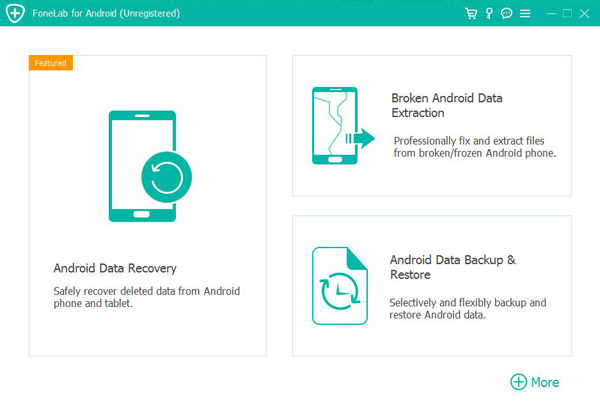
2.Connect your Samsung Galaxy phone using a USB cable.
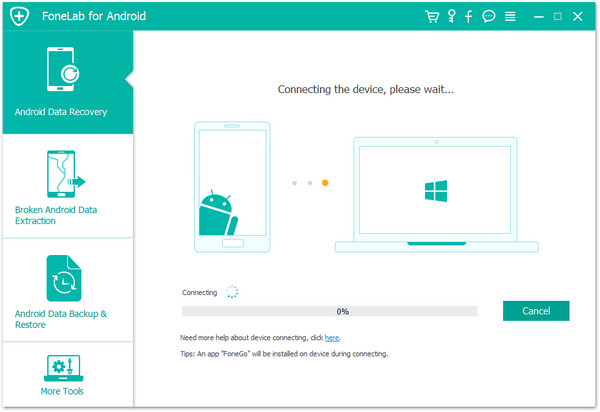
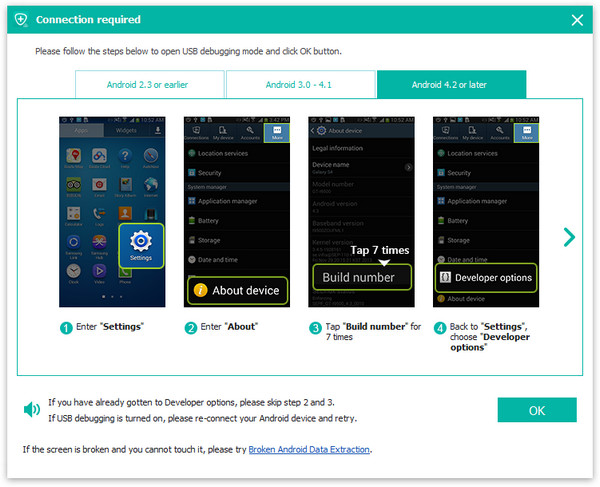
3.Enable USB debugging when prompted on the phone.
4.Select Audio/Voice Recordings as the scan target.
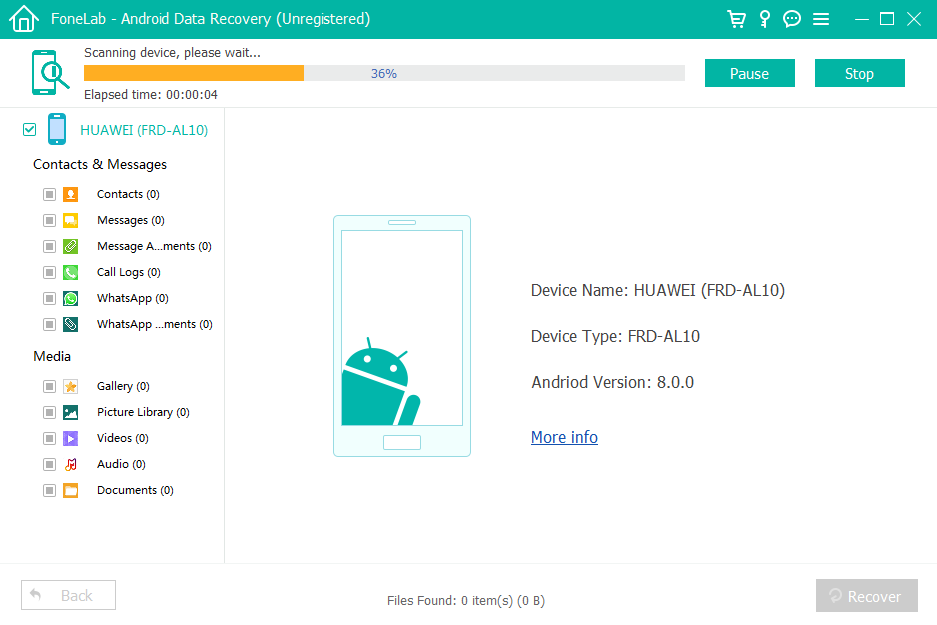
5.Run a deep scan to detect deleted voice notes.
6.Preview the recovered recordings.
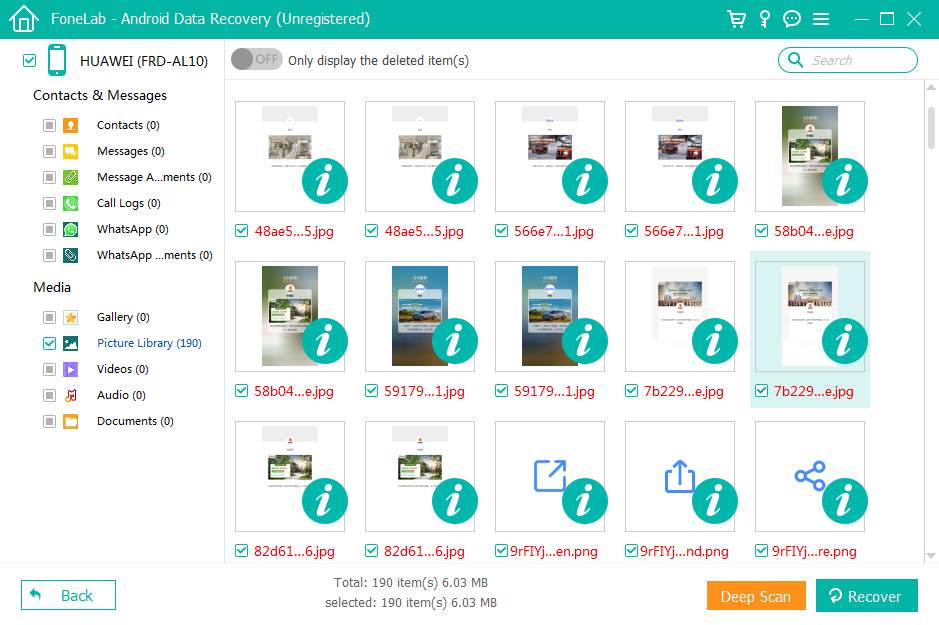
7.Export and save the recovered voice notes to your computer.

Important Tips:
- Stop using your phone immediately after deletion.
- Avoid installing new apps before recovery.
- Deep scan takes longer but yields better results.
Method 2: Restore Voice Notes from Samsung Cloud Backup
If you previously enabled Samsung Cloud, your voice notes may already be backed up without you realizing it. Samsung Cloud automatically syncs app data, including Voice Recorder files, depending on your settings. This method is safe and does not require third-party tools, but it only works if the backup existed before the deletion.
This recovery approach is best for users who regularly sign in with a Samsung account and keep cloud sync active. However, restoring from Samsung Cloud may overwrite newer data, so careful review is necessary.
Steps to Recover Voice Notes from Samsung Cloud:
- Open Settings on your Samsung Galaxy phone.
- Tap Accounts and backup.
- Select Samsung Cloud.
- Tap Restore data.
- Choose Voice Recorder or Audio files.
- Confirm and start the restore process.
- Wait for the phone to finish syncing data.
Important Notes:
- Requires the same Samsung account used during backup.
- Internet connection is mandatory.
- New recordings made after the backup may be replaced.
Method 3: Manually Recover Voice Notes from Internal Storage or SD Card
Sometimes voice notes are not deleted — they are simply misplaced, renamed, or moved. This happens frequently after system updates or file manager operations. Samsung voice notes may exist in unexpected folders, especially if you use an SD card or third-party file manager.
This method involves manually searching internal storage or the SD card using a computer or file manager. It won’t recover permanently deleted files, but it’s effective for hidden or unindexed recordings.
Steps to Locate Missing Voice Notes Manually:
1.Connect your Samsung Galaxy phone to a computer.
2.Choose File Transfer (MTP) mode.
3.Open Internal Storage or SD Card.
4.Navigate to folders like:
- Music
- Sounds
- Voice Recorder
- Android > data
5.Sort files by date or file type (.m4a, .aac, .amr).
6.Copy found recordings to a safe location.
Key Details:
- Works best if files weren’t deleted.
- SD card users should check both storage locations.
- File names may be changed automatically by the system.
Voice Notes Lost After Samsung System Crash or Update Failure
Samsung Galaxy devices are known for frequent system updates, and while updates usually improve performance, they sometimes cause unexpected data loss. One common scenario is a system crash or failed firmware update that results in missing voice notes, photos, or documents.
In these cases, the phone may still power on, but data becomes inaccessible due to damaged system indexes. Traditional recovery methods like cloud restore or manual browsing often fail because the files are still there — just unreadable.
This is where specialized Android data recovery and system-level extraction tools become essential. Solutions available at idatapp.com are designed to handle deeper recovery scenarios such as:
- Data loss after OTA update failure
- Voice recordings missing after system crash
- Files inaccessible due to Android system errors
For Samsung Galaxy users, system-related data loss is especially common after major Android version upgrades. Using a recovery tool that understands Samsung’s system structure can help extract voice notes, audio, and other files even when the system cannot fully load them.
This approach minimizes data loss without forcing a factory reset, making it a safer alternative for users who value their recordings.
Frequently Asked Questions
Can I recover voice notes from Samsung Galaxy without a backup?
Yes. If the recordings were deleted recently, Android data recovery software can retrieve them before they are overwritten.
Where are Samsung voice notes stored internally?
They are usually stored in folders like Voice Recorder, Sounds, or internal app directories depending on Android version.
Does factory reset permanently delete voice notes?
A factory reset makes recovery harder, but in some cases, deep scanning tools may still detect residual audio data.
Are Samsung voice notes saved automatically to Samsung Cloud?
Only if Samsung Cloud sync is enabled before deletion. It depends on user settings.
Should I stop using my phone after losing voice notes?
Yes. Continued use increases the chance that deleted files will be overwritten.
Final Thoughts: Choosing the Right Recovery Method
Recovering voice notes from a Samsung Galaxy phone depends largely on how the data was lost and how quickly you act. Cloud backups are convenient but limited. Manual searches help in minor cases. For serious data loss, professional Android recovery tools provide the highest success rate.
The key takeaway is simple: stop using the device immediately and choose a recovery method that matches your situation. With the right approach, even deleted voice notes can often be brought back intact.
 English
 Nederlands
 Tiếng Việt
 日本
日本 Español
 Português
 Deutsche
 Français
 Italiano
 Norsk
Norsk Suomalainen
 Svenska
 Dansk
Dansk Ελληνικά
 Türk
Türk русский
 हिंदी
हिंदी தமிழ்
தமிழ் Bahasa Melayu
 ไทย
ไทย 한국어
한국어 Română
 Polskie
 қазақ
қазақ Gaeilge
 繁體中文
繁體中文