
 iPhone Data Recovery
 iOS System Recovery
 iOS Backup & Restore
 iOS WhatsApp Transfer
 iOS FoneTrans
 MobieSync
 Android Data Recovery
 Broken Android Data Extraction
 Android Data Backup & Restore
 iPhone Unlocker
 Best Samsung Phone Unlock Tool
 Android Unlocker
 Win/Mac Data Recovery
 iDATAPP Screen Recorder
 2D&3D Video Converter
 Video Repair Software Ai
 AI Video Converter
 Ai Blu-ray Player
 Can I Recover Deleted Notes On Samsung S24?
Accidentally deleted Samsung S24 notes? Learn three proven recovery methods—from Trash and cloud sync to deep Android data recovery—plus expert tips to prevent permanent data loss.
How to Recover Deleted Notes On Samsung S24?
Losing important notes on a brand-new Samsung Galaxy S24 can feel more painful than losing photos or videos. Notes often contain half-finished ideas, meeting records, passwords, sketches, or sudden inspirations that were never backed up anywhere else. When they disappear—whether due to accidental deletion, a system glitch, or a failed update—the frustration is real.
The good news? Deleted notes on a Samsung S24 are not always gone forever.
This article takes a problem-first approach. We’ll start by understanding why Samsung notes get deleted, where they are actually stored, and what recovery paths still exist. Then we’ll walk through three practical recovery methods, ranging from built-in Samsung features to a deeper data-level solution using professional recovery software from our own website. Each method is explained in detail, with step-by-step guidance and important warnings so you don’t make the situation worse.
Finally, we’ll extend the discussion to a related but different real-world problem many Samsung users face, answer common questions, and wrap everything up with a clear summary.
Guide List
- Why Samsung S24 Notes Disappear?
- Method 1: Recover Deleted Notes from Samsung Notes Trash (Fastest & Safest)
- Method 2: Restore Samsung S24 Notes from Samsung Cloud or OneDrive Sync
- Method 3: Recover Deleted Samsung S24 Notes Using Android Data Recovery Tool
- Samsung S24 Data Loss After System Crash or Update Failure (Related but Different Problem)
- Frequently Asked Questions
Why Samsung S24 Notes Disappear?
Before jumping into solutions, it’s important to understand what “deleted” really means on Android—especially on Samsung’s One UI system.
On the Samsung Galaxy S24, notes are usually created and stored in Samsung Notes, which can sync data across Samsung Cloud, Samsung Account, or even Microsoft OneDrive depending on your settings. When a note is deleted, it typically enters a temporary recycle bin first. Only after that bin is emptied—or after a retention period—does the system mark the note’s storage space as “available.”
Here’s the key insight:
Available does not mean overwritten.
Until new data replaces that space, recovery may still be possible.
Common causes of deleted notes on Samsung S24 include:
- Accidental deletion or emptying the trash
- System updates or One UI upgrades
- Sync conflicts between Samsung Cloud and local storage
- Factory reset without proper backup
- App crashes or forced app clearing
- Malware or system instability
The recovery strategy depends entirely on how and when the notes were deleted. That’s why no single solution fits everyone—and why the three methods below are designed to cover different scenarios.
Method 1: Recover Deleted Notes from Samsung Notes Trash (Fastest & Safest)
- Best for: Notes deleted recently (within the retention period)
- Risk level: Very low
- Success rate: High (if conditions are met)
Samsung Notes includes a built-in Trash (Recycle Bin) feature, and many users forget it exists. When you delete a note, it usually stays in Trash for up to 15–30 days, depending on your system version and settings. During this time, recovery is instant and does not affect other data.
This method should always be your first attempt before trying anything more advanced.
Step-by-Step Instructions
- Open Samsung Notes on your Galaxy S24.
- Tap the Menu icon (☰) or three dots in the corner.
- Select Trash or Recycle Bin.
- Browse through the deleted notes list.
- Long-press the note(s) you want to restore.
- Tap Restore.

Details to Know
- Restored notes return to their original folders.
- Formatting, images, and handwriting are preserved.
- If the Trash was manually emptied, this method will not work.
- Trash retention time may vary by region and One UI version.
Why this method matters:
It’s fast, free, and doesn’t require technical skills. Unfortunately, it only works if the deletion was recent—which is why many users need the next solutions.
Method 2: Restore Samsung S24 Notes from Samsung Cloud or OneDrive Sync
- Best for: Users who enabled cloud sync before deletion
- Risk level: Low
- Success rate: Medium to high (depends on sync timing)
Samsung Notes can automatically sync with Samsung Cloud or Microsoft OneDrive when you’re logged into a Samsung account. If syncing was enabled, your deleted notes may still exist in a previous cloud version—even if they’re gone from the phone.
This method focuses on restoring notes from cloud backups or sync history.
Step-by-Step Instructions (Samsung Cloud)
- Go to Settings → Accounts and Backup.
- Tap Backup and Restore.
- Select Samsung Notes.
- Choose the most relevant backup date.
- Tap Restore Data and wait for completion.
Step-by-Step Instructions (OneDrive Sync)
- Open Samsung Notes.
- Go to Settings → Sync with Microsoft OneDrive.
- Log into your Microsoft account.
- Check synced notes or restore older versions via OneDrive web.
Details to Know
- Restoring from cloud backup may overwrite current notes.
- Sync conflicts can sometimes hide notes rather than delete them.
- If sync was disabled before deletion, this method won’t help.
- Internet stability is critical during restoration.
Why this method works:
Cloud backups often preserve earlier states of your data, giving you a second chance even after local deletion.
Method 3: Recover Deleted Samsung S24 Notes Using Android Data Recovery Tool
Best for:
- Trash emptied
- No cloud backup
- Notes deleted permanently
Risk level: Controlled (when done correctly)
Success rate: Depends on device usage after deletion
When built-in and cloud-based options fail, you need to look deeper—at the device storage level. This is where professional Android data recovery software becomes essential.
Using Android Data Recovery from our website allows you to scan the internal storage of your Samsung Galaxy S24 and retrieve deleted note data that is no longer visible to the system.
How This Method Works
Deleted notes are not immediately erased from storage. Instead, the system marks their space as reusable. Android Data Recovery scans this space and reconstructs recoverable note data before it’s overwritten.
Step-by-Step Recovery Process
1.Download and install Android Data Recovery on your computer.
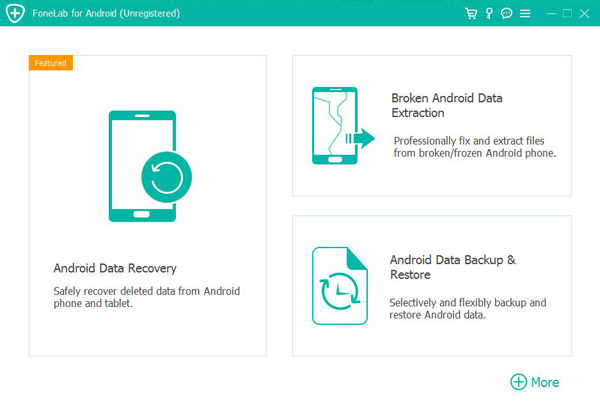
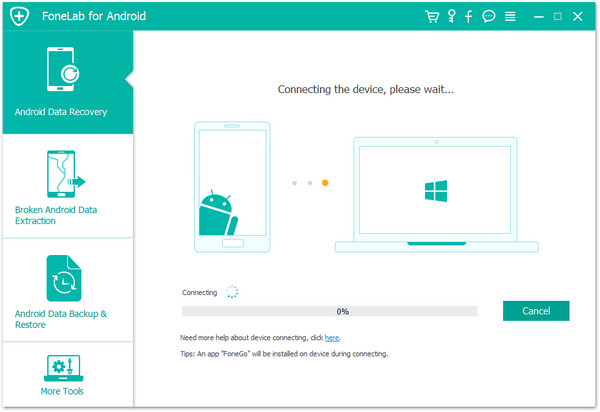
2.Connect your Samsung Galaxy S24 using a USB cable.
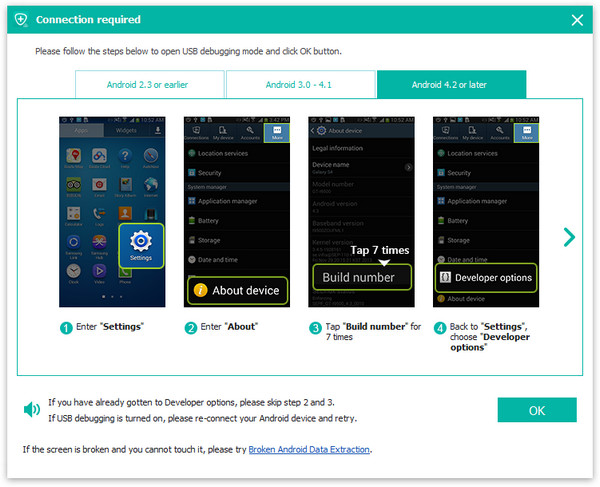
3.Enable USB Debugging on the phone when prompted.
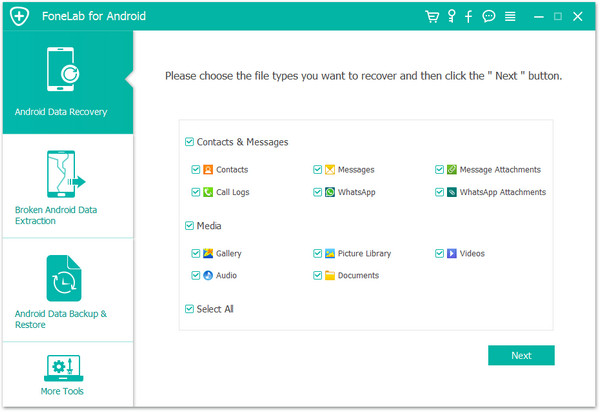
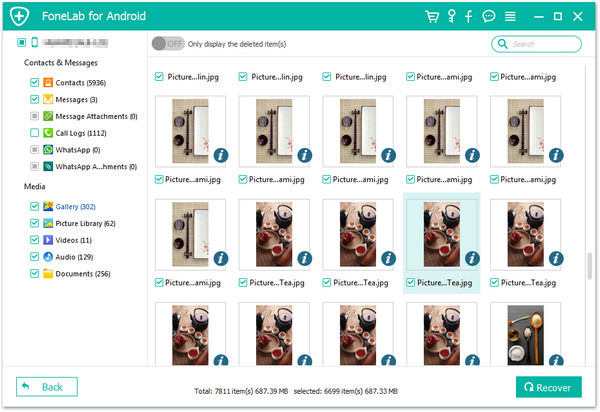
4.Select Notes/Documents as the scan target.
5.Start a deep scan of the device storage.
6.Preview and recover the notes to your computer.
Critical Recovery Tips
- Stop using your phone immediately after data loss.
- Avoid installing new apps or system updates.
- The sooner you scan, the higher the success rate.
- Root access may improve deep-scan results on some devices.
Why this method is powerful:
It doesn’t rely on backups or sync—it recovers data directly from the device itself, making it the last and strongest option.
Samsung S24 Data Loss After System Crash or Update Failure (Related but Different Problem)
A common Samsung Galaxy S24 issue that goes beyond deleted notes is data loss caused by system crashes or failed One UI updates. This often happens after a major Android version upgrade, beta firmware installation, or interrupted system update.
In these cases, users may notice:
- Notes missing entirely
- Apps crashing or refusing to open
- Storage showing used space but no accessible data
- Phone stuck in boot loop or safe mode
What makes this situation tricky is that the data isn’t always “deleted” in the traditional sense—it’s often inaccessible due to system corruption. Samsung Cloud restore may fail, and factory reset becomes risky because it can permanently erase recoverable data.
This is where broader Android recovery tools from idatapp.com become highly relevant. Android Data Recovery software is designed not only for accidental deletion, but also for:
- System crash recovery
- Data extraction from malfunctioning devices
- Recovering data after rooting errors
- Salvaging files before factory reset
- Exporting data when the screen is partially unresponsive
For Samsung users, this approach offers a controlled exit strategy: recover critical data first, then fix or reset the system later. It’s especially valuable for business users, students, and professionals who rely heavily on notes, documents, and personal records stored locally.
Frequently Asked Questions
Can I recover Samsung Notes without a backup?
Yes. If the Trash is emptied and no cloud backup exists, recovery is still possible using Android data recovery software that scans internal storage directly.
How long do deleted notes stay in Samsung Notes Trash?
Typically 15–30 days, depending on your One UI version and settings. After that, they are permanently removed from the app interface.
Will restoring from Samsung Cloud overwrite my current notes?
It can. Always check backup dates carefully and consider exporting current notes before restoring older data.
Does Android Data Recovery work on Samsung Galaxy S24?
Yes. It supports modern Samsung devices, including the Galaxy S24, and can recover notes, documents, messages, and more.
What should I do immediately after losing important notes?
Stop using the phone, disable auto-updates and syncing, and attempt recovery as soon as possible to avoid data overwriting.
Conclusion
Recovering deleted notes on a Samsung Galaxy S24 is absolutely possible if you choose the right method. Start with Samsung Notes Trash, move to cloud backups, and rely on deep recovery tools when all else fails. Timing matters—act fast.
 English
 Nederlands
 Tiếng Việt
 日本
日本 Español
 Português
 Deutsche
 Français
 Italiano
 Norsk
Norsk Suomalainen
 Svenska
 Dansk
Dansk Ελληνικά
 Türk
Türk русский
 हिंदी
हिंदी தமிழ்
தமிழ் Bahasa Melayu
 ไทย
ไทย 한국어
한국어 Română
 Polskie
 қазақ
қазақ Gaeilge
 繁體中文
繁體中文