
 iPhone Data Recovery
 iOS System Recovery
 iOS Backup & Restore
 iOS WhatsApp Transfer
 iOS FoneTrans
 MobieSync
 Android Data Recovery
 Broken Android Data Extraction
 Android Data Backup & Restore
 iPhone Unlocker
 Best Samsung Phone Unlock Tool
 Android Unlocker
 Win/Mac Data Recovery
 iDATAPP Screen Recorder
 2D&3D Video Converter
 Video Repair Software Ai
 AI Video Converter
 Ai Blu-ray Player
 [Official]Recover Data on Google Pixel After Factory Reset
Lost files after resetting your Google Pixel? This guide explains why data disappears, how Android recovery works, and three proven methods to restore photos, messages, videos, and documents safely.

Factory resetting a phone feels clean and refreshing—until you realize your photos, contacts, WhatsApp chats, or work files are gone forever. Many Google Pixel users only discover the real impact of a reset after the setup screen appears and their storage looks completely empty.
The good news? A factory reset does not always erase data immediately beyond recovery.
On modern Android systems like Google Pixel devices, deleted files often remain hidden inside the storage structure until new data overwrites them. That means recovery is still possible if you act quickly and avoid continuing to use the device heavily.
This article goes deeper than typical “try this backup” guides. Instead of repeating generic advice, we’ll explain:
- Why Pixel data disappears after factory reset
- What happens internally during Android wiping
- Which files are realistically recoverable
- Three practical recovery methods
- How to improve success rates
- Common recovery mistakes
- Extra solutions for Pixel system-related data disasters
Whether you lost family photos, work PDFs, app data, recordings, or years of messages, the following methods can help you recover lost data on Google Pixel after factory reset.
Guide List
- Why Does Data Recovery Sometimes Work After a Factory Reset?
- Method 1: Recover Google Pixel Data Using iDATAPP Android Data Recovery
- Method 2: Restore Pixel Data Through Google Backup and Google Photos
- Method 3: Recover Files from Local Computer Backups or External Storage
- Why Google Pixel Recovery Is Harder Than Older Android Phones
- Data Loss After a Failed Android Update
- Tips to Improve Google Pixel Recovery Success
- Frequently Asked Questions
Why Does Data Recovery Sometimes Work After a Factory Reset?
A factory reset removes user access to files and rebuilds Android system partitions, but storage sectors are not always physically destroyed immediately.
Think of it like removing a book from a library index. The book may still exist on the shelf until something else replaces it.
On Google Pixel phones, recovery chances depend on several factors:
- Android version
- Whether encryption was enabled
- How much new data has been written
- Whether cloud sync existed
- Reset type
- Storage condition
Google Pixel devices use advanced encryption, which makes recovery more difficult than older Android phones. However, partial recovery is still possible in many real-world cases—especially for media files, cached data, exported documents, and synchronized app information.
The biggest mistake users make is continuing to use the phone after the reset. Installing apps, recording videos, or downloading updates can overwrite recoverable sectors permanently.
Before trying any recovery method:
Important Recovery Preparation
- Stop using the Pixel immediately
- Disable mobile data and Wi-Fi
- Avoid installing unnecessary apps
- Do not take new photos or videos
- Charge the device above 50%
- Use a stable USB cable during recovery
These simple actions significantly improve recovery success rates.
Method 1: Recover Google Pixel Data Using iDATAPP Android Data Recovery
When backup restoration fails or important files were never synced to Google services, specialized Android recovery software becomes the most effective option.
iDATAPP Android Data Recovery is designed specifically for Android devices including Google Pixel phones. Unlike simple backup viewers, it scans internal storage for recoverable traces of deleted files after factory reset, accidental deletion, crashes, or formatting.
One advantage is selective recovery. Instead of restoring the entire phone blindly, you can preview photos, messages, videos, call logs, WhatsApp content, and documents before recovering them. This saves time and prevents unnecessary overwriting.
The software also supports damaged-system extraction scenarios, which is useful if the Pixel reset occurred after a system crash or boot loop.
Supported Recoverable Data
- Photos
- Videos
- Contacts
- SMS
- WhatsApp messages
- Documents
- Audio recordings
- Call history
- App files
Steps to Recover Data Using iDATAPP
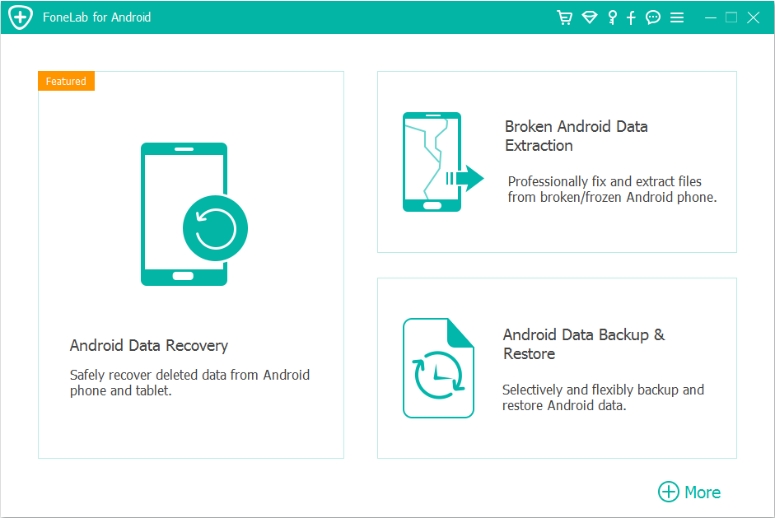
Step 1: Install the Software
Download and install the Android recovery tool from the official website on your computer.
Step 2: Connect the Google Pixel
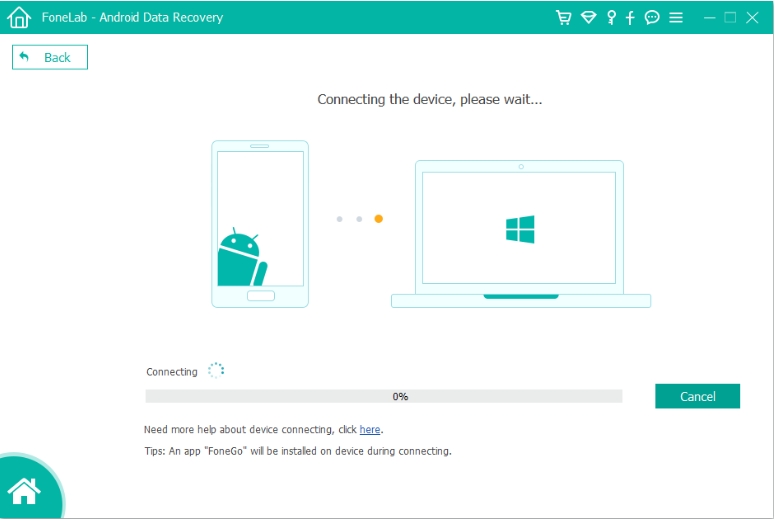
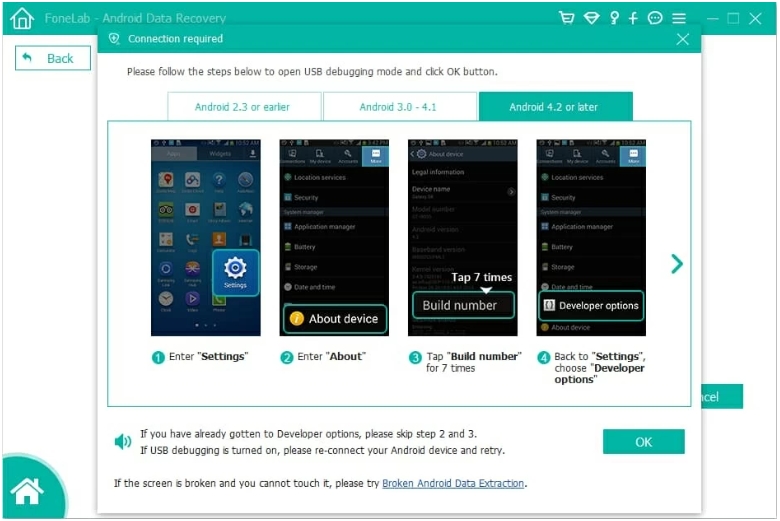
Use a USB cable to connect the phone to the computer. Enable USB debugging if Android setup is accessible.
Step 3: Choose Scan Mode
Select the recovery module for deleted Android data.
Step 4: Deep Scan the Device
The software analyzes internal storage for recoverable content fragments.
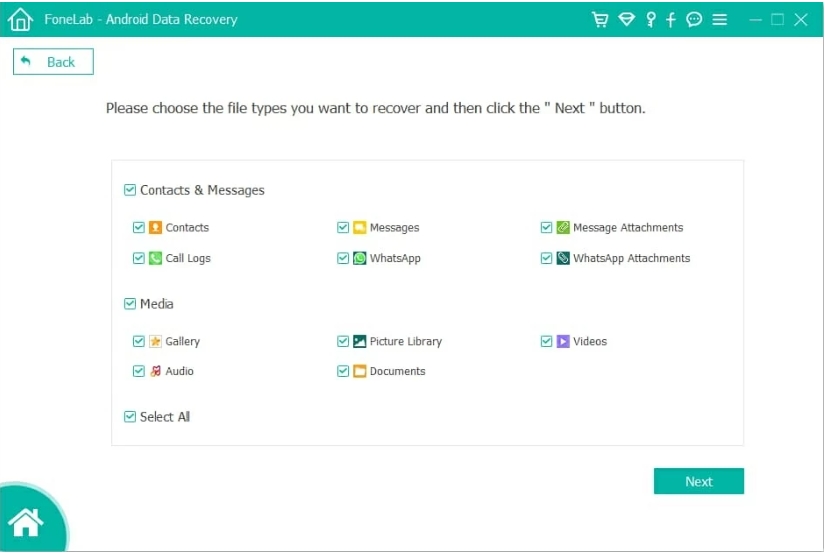
Step 5: Preview Recoverable Files
Browse categories such as photos, contacts, or messages.
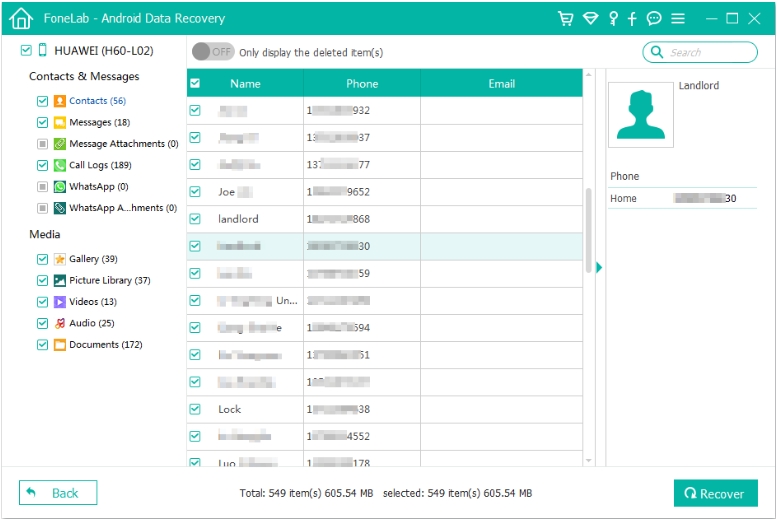
Step 6: Recover Selected Data
Choose the files you want and export them safely to your computer.

Note:
- Recovery success is higher if the reset happened recently
- Root access may improve deep scanning on some devices
- Avoid saving recovered files back onto the same Pixel device immediately
This method is ideal for users without reliable backups and those needing targeted recovery rather than full-device restoration.
Method 2: Restore Pixel Data Through Google Backup and Google Photos
Many users forget that Google Pixel phones continuously synchronize data behind the scenes. Even after a factory reset, a surprising amount of information may still exist inside your Google account.
Google services can restore:
- Contacts
- Calendar events
- App lists
- SMS backups
- Device settings
- Photos and videos
- Google Drive documents
This recovery path is especially effective if automatic sync was enabled before the reset.
Unlike deep storage recovery tools, this method restores cloud-saved copies rather than deleted storage fragments. That makes it safer and faster, although limited to previously synced content.
Steps to Restore Using Google Backup
Step 1: Reconnect to Wi-Fi
Complete the Pixel setup process and connect to the internet.
Step 2: Sign In to Your Google Account
Use the same Gmail account previously connected to the device.
Step 3: Select Restore Backup
During setup, Android displays available backups associated with the account.
Step 4: Choose the Latest Backup
Select the most recent backup before the factory reset occurred.
Step 5: Restore Google Photos
Open Google Photos and enable sync to recover cloud-stored media.
Step 6: Wait for Synchronization
Large photo libraries and app data may take several hours to reappear completely.
Details
- Backup availability depends on previous sync settings
- Videos stored locally but never uploaded cannot be restored
- Some app data may not fully restore due to Android security restrictions
For many casual users, Google Backup is the quickest solution after factory resetting a Pixel device.
Method 3: Recover Files from Local Computer Backups or External Storage
Not all recoveries depend on cloud services or recovery software. Many Google Pixel users unknowingly create secondary backups through USB transfers, SD card exports, or desktop synchronization tools.
If you previously copied files manually to a computer, external SSD, or NAS storage, recovery may be easier than expected.
This approach is often overlooked because users focus entirely on the phone itself instead of checking connected devices.
Commonly recoverable files include:
- DCIM camera folders
- Downloaded PDFs
- Screen recordings
- Music libraries
- Exported contacts
- Work presentations
- Chat exports
Steps to Restore from a Computer Backup
Step 1: Check Previous Sync Locations
Search your PC or Mac for Pixel-related folders.
Step 2: Inspect Cloud Desktop Apps
Review Dropbox, OneDrive, or Google Drive desktop sync folders.
Step 3: Connect the Pixel via USB
Allow file transfer mode after setup.
Step 4: Copy Important Files Back
Transfer media and documents carefully onto the device.
Step 5: Rebuild Contacts or Messages
Import exported VCF or backup files if available.
Step 6: Verify File Integrity
Ensure transferred files open correctly before deleting original copies.
Important Details
- Old laptop backups often contain forgotten phone exports
- Some messaging apps create automatic desktop archives
- Recovery from external storage avoids overwrite risks entirely
This method works especially well for creators, office workers, and students who routinely transfer files between devices.
Why Google Pixel Recovery Is Harder Than Older Android Phones
Modern Pixel devices prioritize security heavily. Features such as file-based encryption and secure wipe mechanisms reduce unauthorized data access—but they also complicate legitimate recovery.
Here’s why:
Encryption
Google Pixel phones encrypt storage by default. After reset, encryption keys may become inaccessible.
Android Security Policies
Recent Android versions restrict deep file access.
TRIM Command
Android may automatically clear deleted storage sectors in the background.
Seamless Updates
Pixel partition structures differ from older Android systems, affecting recovery workflows.
Still, partial recovery remains possible in many cases, especially immediately after the reset.
Data Loss After a Failed Android Update
Factory resets are not the only reason Pixel users lose files. Another increasingly common issue involves failed Android updates or boot-loop crashes after system upgrades.
Some users experience:
- Endless Google logo loops
- Black screens after updates
- Sudden app crashes
- Storage corruption
- Missing photos after firmware installation
- Device freezes during optimization
These situations often trigger panic resets, which can worsen data loss.
In reality, many system-related failures can be addressed before performing a factory reset.
iDATAPP Official Website provides additional Android-focused solutions designed for broader device problems beyond ordinary deletion recovery.
For example, when a Pixel becomes inaccessible after a system crash, Android recovery tools can sometimes extract data directly from unstable devices before repair attempts begin. This is especially valuable for users with irreplaceable work files, family photos, or business conversations stored locally.
Another common scenario involves failed rooting attempts. Enthusiast users modifying Pixel firmware occasionally encounter partition corruption, boot failures, or inaccessible storage. In such cases, recovery-focused Android tools may help export remaining files before reflashing the operating system.
There are also situations where malware or rogue applications damage media folders or encrypt documents unexpectedly. Advanced recovery scanning can sometimes identify recoverable remnants before overwritten sectors disappear permanently.
Many Pixel owners also underestimate the importance of preventative backup management. A single automated sync failure can leave users with no usable restore point after a reset. Establishing regular encrypted backups to a PC or cloud account dramatically reduces future recovery stress.
The broader lesson is simple: recovery should not begin only after disaster happens. Google Pixel devices are powerful, but even premium Android phones remain vulnerable to crashes, formatting mistakes, update conflicts, and accidental deletion.
Preparing recovery pathways before problems occur is ultimately more effective than emergency repair afterward.
Tips to Improve Google Pixel Recovery Success
Act Quickly
The longer you use the phone, the lower the recovery chances.
Avoid Installing Apps
New app installations overwrite deleted sectors.
Use Airplane Mode
Prevent automatic downloads and updates.
Save Recovered Files Elsewhere
Export recovered data to a computer first.
Maintain Future Backups
Enable Google One or manual exports regularly.
Frequently Asked Questions
Can factory reset data really be recovered on Google Pixel?
Yes, partial or full recovery is sometimes possible, especially if storage sectors have not been overwritten and backups exist.
Does Google Photos automatically restore deleted images?
Only if cloud synchronization was enabled before the reset occurred.
HIs recovery possible without root access?
Yes. Many recovery operations work without root, although deep scans may be more effective on rooted devices.
How long after a factory reset can files still be recovered?
Recovery chances are highest immediately after reset. Continued phone usage lowers success rapidly.
Can WhatsApp messages be restored after reset?
Yes, if WhatsApp Google Drive backup was enabled previously or recoverable local data still exists.
Final Summary
Recovering lost data on a Google Pixel after factory reset is challenging but far from impossible. The key is understanding how Android deletion works and acting before overwritten storage destroys remaining traces.
Cloud restoration through Google services is the easiest path when backups exist. Local backups from PCs or external storage can also save important files quickly. For deeper recovery needs, Android-focused tools such as iDATAPP Android Data Recovery provide a more advanced solution capable of scanning for deleted content directly.
Most importantly, future-proof your Pixel by maintaining regular backups before the next unexpected reset occurs.
 English
 Nederlands
 Tiếng Việt
 日本
日本 Español
 Português
 Deutsche
 Français
 Italiano
 Norsk
Norsk Suomalainen
 Svenska
 Dansk
Dansk Ελληνικά
 Türk
Türk русский
 हिंदी
हिंदी தமிழ்
தமிழ் Bahasa Melayu
 ไทย
ไทย 한국어
한국어 Română
 Polskie
 қазақ
қазақ Gaeilge
 繁體中文
繁體中文