
 iPhone Data Recovery
 iOS System Recovery
 iOS Backup & Restore
 iOS WhatsApp Transfer
 iOS FoneTrans
 MobieSync
 Android Data Recovery
 Broken Android Data Extraction
 Android Data Backup & Restore
 iPhone Unlocker
 Best Samsung Phone Unlock Tool
 Android Unlocker
 Win/Mac Data Recovery
 iDATAPP Screen Recorder
 2D&3D Video Converter
 Video Repair Software Ai
 AI Video Converter
 Ai Blu-ray Player
 Recover Deleted Videos From Samsung S24 Series[2026 Update]
Deleted videos on Samsung S24 aren’t always lost forever. This guide explains three effective recovery methods, including professional Android data recovery, plus tips to prevent future video loss.
How to Recover Deleted Videos From Samsung S24 Series?
Losing videos on a brand-new Samsung Galaxy S24, S24+, or S24 Ultra feels especially painful. These devices are often used to record high-quality memories—4K family videos, travel clips, work footage, or even content for social media. When those videos suddenly disappear, panic usually follows. But here’s the good news: deleted videos are often recoverable, even on the Samsung S24 series, if you act correctly and choose the right method.
This article doesn’t recycle generic advice. Instead, it analyzes why video loss happens on Samsung S24 devices, explains how Android storage actually works, and then walks you through three original, practical recovery methods, including one reliable solution using our own professional recovery software. Finally, we’ll expand into a closely related Samsung data problem many S24 users face—and how to solve it.
Guide List
- Why Videos Disappear on Samsung S24?
- Method 1: Recover Deleted Videos from Samsung Gallery Trash (Fastest Option)
- Method 2: Restore Deleted Videos from Samsung Cloud or Google Backup
- Method 3: Recover Deleted Videos Using Android Data Recovery Software (Most Powerful)
- Data Loss After System Crash or Update Failure
- How iDatapp helps in system-related data loss
- FAQs
Why Videos Disappear on Samsung S24?
Before jumping into recovery, it’s important to understand what actually happens when videos are deleted on the Samsung S24 series.
Samsung S24 phones run on Android 14 with One UI, using modern file systems and aggressive storage optimization. When you delete a video, it is usually not immediately erased. Instead, the system marks the storage space as “available.” The video still exists in memory until new data overwrites it. This is the recovery window.
Common causes of video loss on Samsung S24 include:
- Accidental deletion from Gallery or Google Photos
- Clearing storage to free space
- System updates or One UI glitches
- Camera app crashes while recording
- Restoring factory settings without proper backup
- Virus or rogue app behavior
The biggest mistake users make? Continuing to use the phone, which increases the chance of overwriting deleted video data.
With that context in mind, let’s move into real solutions.
Method 1: Recover Deleted Videos from Samsung Gallery Trash (Fastest Option)
Samsung quietly provides a built-in safety net many users forget exists: Gallery Trash. When you delete a video from the Gallery app, it’s usually moved to the Trash folder instead of being erased immediately.
Why this works
Samsung stores deleted videos in Trash for up to 30 days. During this time, recovery is instant and lossless. This method works best if the deletion happened recently and no manual trash cleanup occurred.
Steps to recover videos from Samsung Gallery Trash:
- Open the Gallery app on your Samsung S24
- Tap the Menu (≡) icon
- Select Trash
- Browse deleted videos
- Long-press the video you want
- Tap Restore

Important details
- Original resolution and metadata are preserved
- Works without internet or third-party apps
- Trash auto-empties after 30 days
- Does not work if Trash was manually cleared
If the video isn’t in Trash, don’t worry—the data may still be recoverable.
Method 2: Restore Deleted Videos from Samsung Cloud or Google Backup
Samsung S24 devices heavily integrate with Samsung Cloud and Google Photos, often backing up videos automatically without users realizing it. This makes cloud recovery one of the safest non-technical options.
Why this method is effective
Cloud backups exist independently of your phone’s internal storage. Even if the video is permanently deleted locally, it may still exist online—especially if backup was enabled before deletion.
Steps to check Samsung Cloud
- Go to Settings > Accounts and Backup
- Tap Samsung Cloud
- Choose Gallery > Videos
- Look for deleted or older versions
- Restore selected videos
Steps to check Google Photos
- Open Google Photos
- Tap Trash
- Restore videos within 60 days
- Check Archive and Search
Important details
- Requires the same Samsung or Google account
- Internet connection required
- Video quality depends on backup settings
- Some videos may be compressed
If cloud backup wasn’t enabled—or the video is missing—you’ll need deeper recovery.
Method 3: Recover Deleted Videos Using Android Data Recovery Software (Most Powerful)
When videos are permanently deleted and not backed up, professional recovery software becomes essential. This is where Android Data Recovery from iDatapp proves especially effective for Samsung S24 devices.
Why this method works when others fail
Android doesn’t immediately wipe deleted data. iDatapp Android Data Recovery scans the phone’s internal storage at a deeper level, identifying recoverable video fragments before they’re overwritten.
Unlike generic tools, this solution is optimized for modern Samsung devices, including the S24 series, and focuses specifically on media recovery.
Step-by-step recovery process
1.Download and install Android Data Recovery on your computer
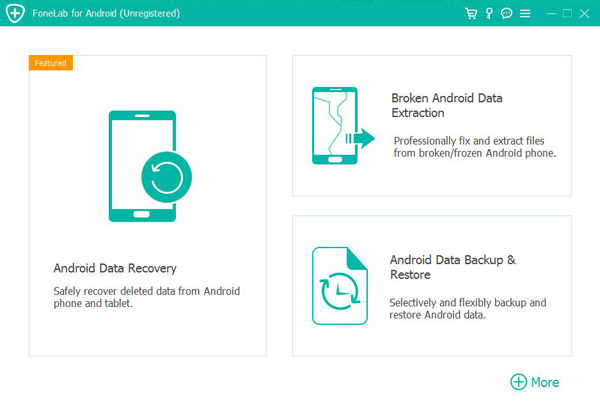
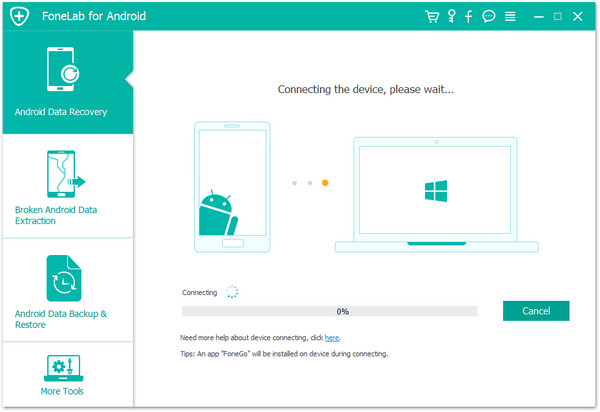
2.Connect your Samsung S24 via USB cable
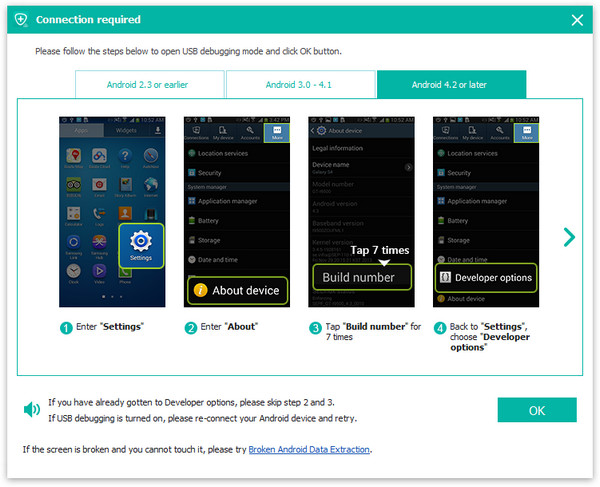
3.Enable USB debugging when prompted
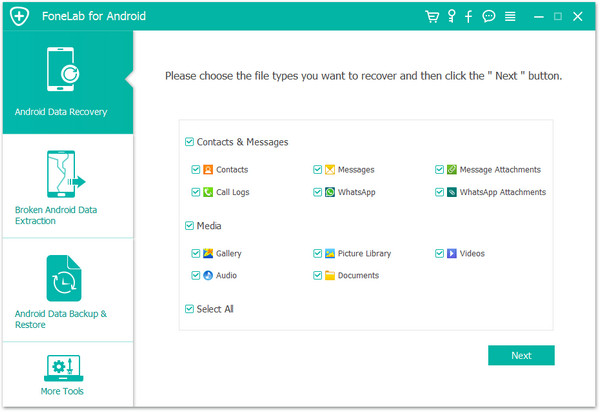
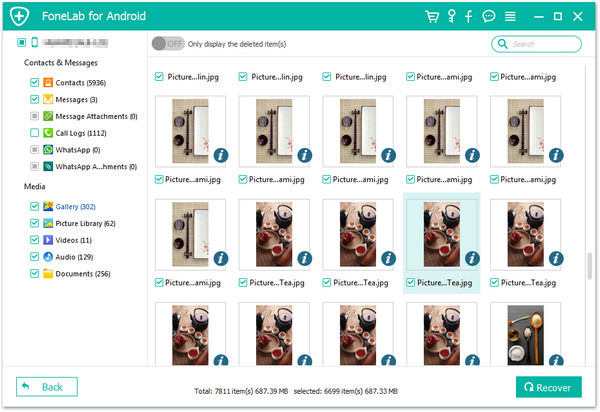
4.Select Videos as the target file type
5.Preview recoverable videos
6.Export selected videos safely to your computer
Important recovery tips
- Stop using the phone immediately after deletion
- Avoid installing new apps
- Use original USB cable for stable connection
- Recover videos to a computer, not back to the phone
This method is ideal for permanently deleted, unbacked-up videos, and offers the highest recovery success rate.
Data Loss After System Crash or Update Failure
Video deletion isn’t the only nightmare Samsung S24 users encounter. A surprisingly common issue is data loss after a system update or One UI crash.
Why this happens on Samsung S24
Samsung S24 devices receive frequent firmware and One UI updates. While usually safe, system updates can fail due to:
- Low battery during update
- Interrupted internet connection
- Storage conflicts
- Incompatible third-party apps
When this happens, users may experience:
- Missing videos, photos, and messages
- Phone stuck in boot loop
- Forced factory reset
- Corrupted media files
This kind of data loss feels more serious because it happens without user error. Many people assume the data is gone forever—but that’s not always true.
How iDatapp helps in system-related data loss
The tools available at idatapp.com are designed not only for accidental deletion, but also for system-level data recovery. In cases of update failure or system crash, Android data may still exist in protected storage areas.
Using professional recovery solutions, users can:
- Extract videos even if the system won’t fully boot
- Recover data after failed updates
- Export important files before repair or reset
- Safely migrate data to a new Samsung device
This is especially valuable for Samsung S24 users dealing with expensive hardware and irreplaceable content.
FAQs
Can I recover videos deleted months ago from Samsung S24?
Yes, but success depends on whether the storage space has been overwritten. Deep recovery software offers the best chance.
Does factory reset permanently delete videos?
Not always. Data may still be recoverable if no new data overwrote the storage sectors.
Is rooting required to recover deleted videos?
In most cases, no. Modern recovery tools can scan Samsung devices without rooting.
Will recovered videos lose quality?
No. If recovery is successful, original resolution and format are preserved.
How can I prevent video loss in the future?
Enable Samsung Cloud or Google Photos backup, and regularly export important videos to a computer.
Conclusion
Recovering deleted videos from the Samsung S24 series is absolutely possible—but only if you understand how Android storage works and act quickly. Built-in Trash folders and cloud backups solve many cases, while professional recovery software handles the toughest scenarios.
The key takeaway? Deleted doesn’t always mean destroyed—especially on modern Samsung devices.
 English
 Nederlands
 Tiếng Việt
 日本
日本 Español
 Português
 Deutsche
 Français
 Italiano
 Norsk
Norsk Suomalainen
 Svenska
 Dansk
Dansk Ελληνικά
 Türk
Türk русский
 हिंदी
हिंदी தமிழ்
தமிழ் Bahasa Melayu
 ไทย
ไทย 한국어
한국어 Română
 Polskie
 қазақ
қазақ Gaeilge
 繁體中文
繁體中文