
 iPhone Data Recovery
 iOS System Recovery
 iOS Backup & Restore
 iOS WhatsApp Transfer
 iOS FoneTrans
 MobieSync
 Android Data Recovery
 Broken Android Data Extraction
 Android Data Backup & Restore
 iPhone Unlocker
 Best Samsung Phone Unlock Tool
 Android Unlocker
 Win/Mac Data Recovery
 iDATAPP Screen Recorder
 2D&3D Video Converter
 AI Video Converter
 Ai Blu-ray Player
  Video Repair Software Ai
iDATAPP Video Repairer can help fix/restore videos with lost or corrupted data.
How to Recover Data from Dead Computer Won't Boot?
When a computer won’t start, data is often still recoverable. This guide explains why, explores three proven recovery methods, and shows how to protect files before fixing the system.
When a computer refuses to boot, the panic usually isn’t about the machine itself—it’s about what’s trapped inside it. Family photos, business files, unfinished work, years of data… all seemingly locked away behind a black screen. The good news is this: a computer that won’t start does not automatically mean your data is lost. In most cases, the storage device is still intact, and with the right approach, recovery is absolutely possible.

This article breaks the problem down from the ground up. We’ll analyze why computers fail to start, what risks to avoid, and how to recover data safely. Then, we’ll walk through three proven recovery methods, including one using professional-grade software from our own website. Finally, we’ll expand the discussion to a related and surprisingly common data-loss scenario that many users overlook.
Guide List
- Why a Computer Won’t Start (and Why Data Is Still There)
- Method 1: Recover Data Using Bootable Data Recovery Software (Recommended)
- Method 2: Recover Crashed Computer Data from Hard Drive
- Method 3: Use a Live System (Linux or Recovery Environment) to Copy Files
- Phone Data Loss After System Crashes (Extended Topic)
- Frequently Asked Questions
Why a Computer Won’t Start (and Why Data Is Still There)
A “computer won’t start” situation can look dramatic, but technically, it falls into a few predictable categories:
- The system powers on but fails to load Windows or macOS
- The screen stays black with error messages
- The computer restarts endlessly
- The device shows signs of power, but the OS never loads
In most of these cases, the operating system is damaged, not the data itself. Files are stored on a hard drive or SSD that works independently from the OS. Boot files, system registries, drivers, or firmware may be corrupted, while personal data remains untouched.
The biggest mistake people make is rushing into repairs—reinstalling the OS, formatting the drive, or running risky commands. These actions can overwrite data and make recovery far more difficult.
So the golden rule is simple:
Recover the data first. Fix the system later.
Method 1: Recover Data Using Bootable Data Recovery Software (Recommended)
Best for: Non-booting systems, corrupted OS, blue screen errors
Skill level: Low to Medium
Risk level: Very Low
This is the most balanced and user-friendly approach for modern systems. Instead of removing hardware, you create a bootable recovery environment that runs independently of the damaged operating system.
Using professional data recovery software from our website, you can boot the computer from a USB drive and scan the internal disk safely—without installing anything or overwriting data.
This software is designed specifically for scenarios where the computer won’t start. It supports Windows-based systems, multiple file systems, and both HDDs and SSDs.
How This Method Works
The recovery software runs in a lightweight environment loaded from a USB drive. It communicates directly with the storage device, ignoring damaged system files and focusing only on recoverable data.
Step-by-Step Breakdown
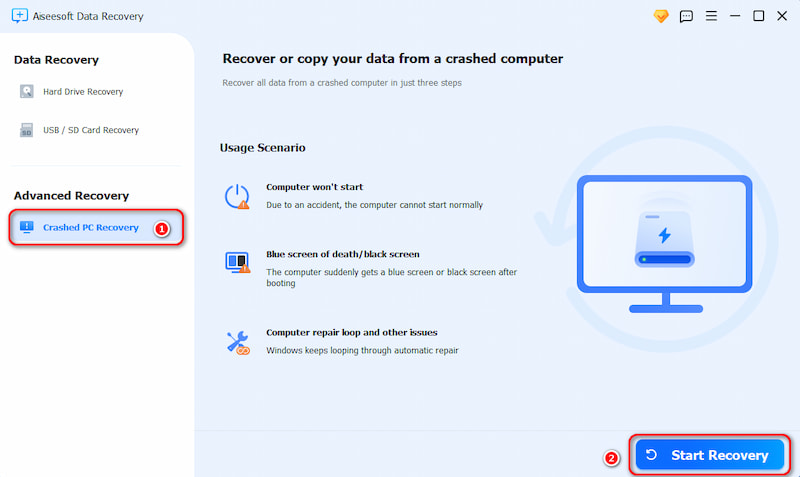
1.Install the data recovery software on a working computer and click Crashed PC Recovery
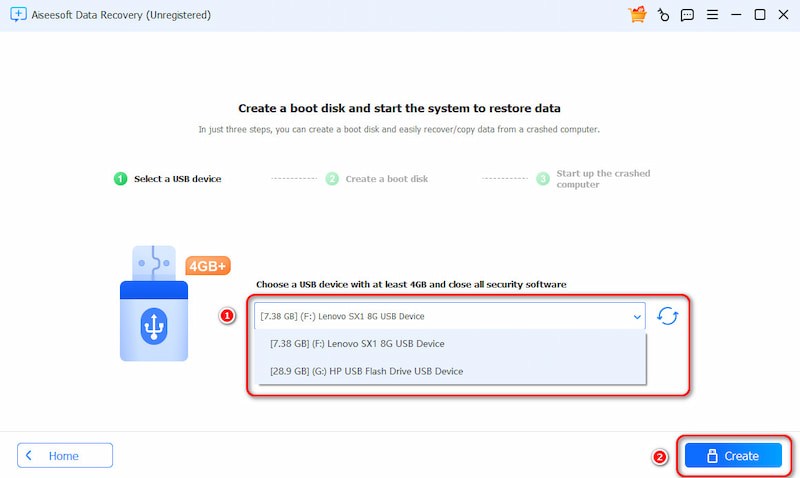
2.Create a bootable USB drive using the built-in tool and click Create
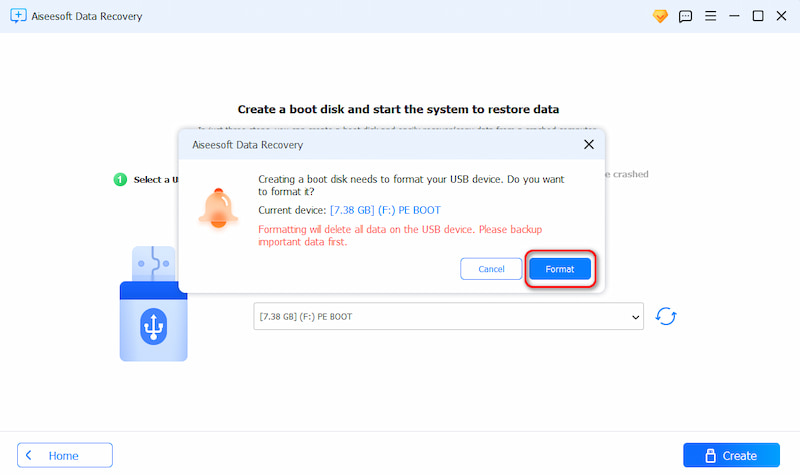
3.The interface will prompt you that the USB device will be formatted. Simply confirm and click "Format" to continue.
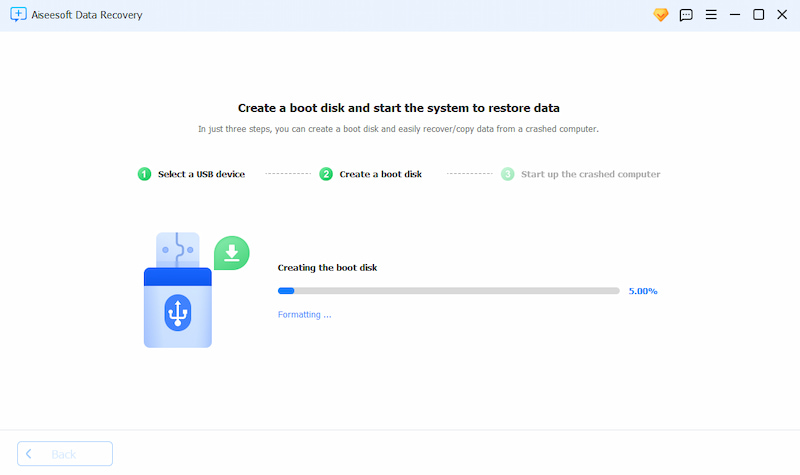
4.Finished to create a boot disk.
5.Finally, insert the boot disk into the computer that cannot boot and restart it.
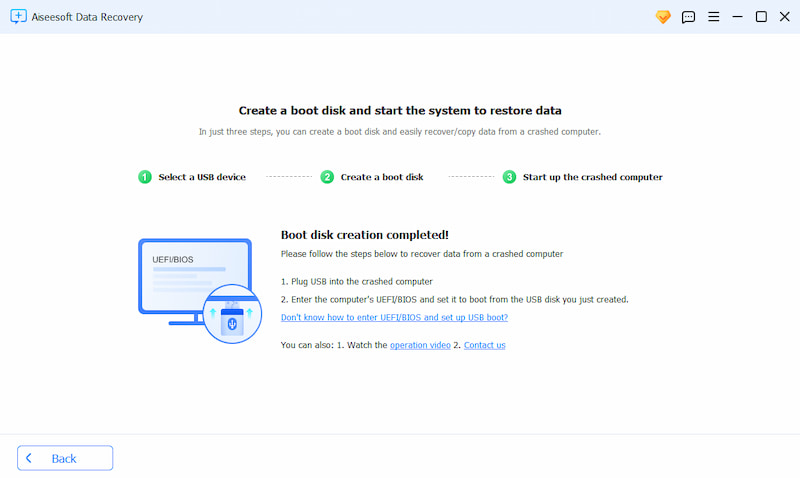
6.Change BIOS/UEFI boot order to boot from USB
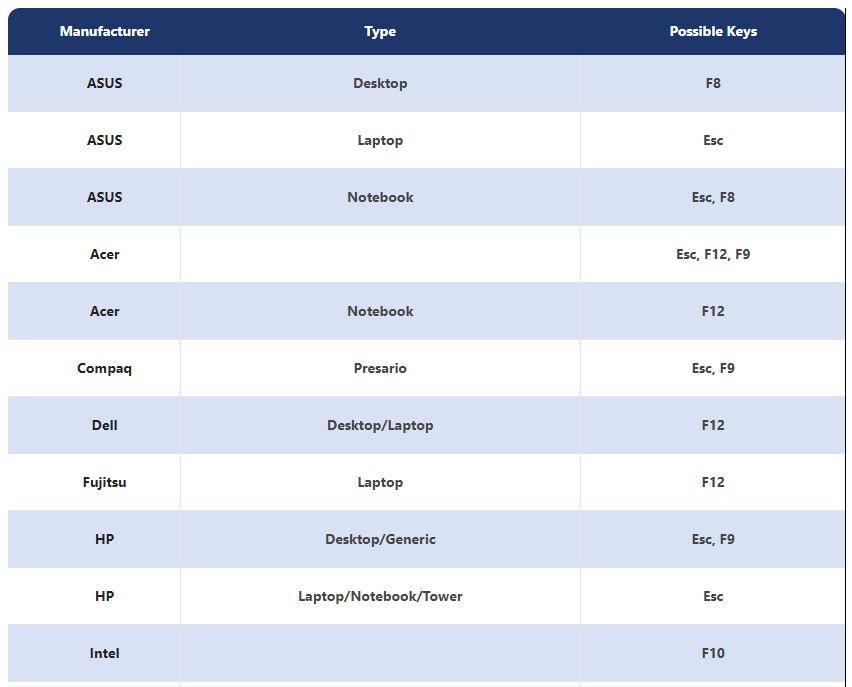

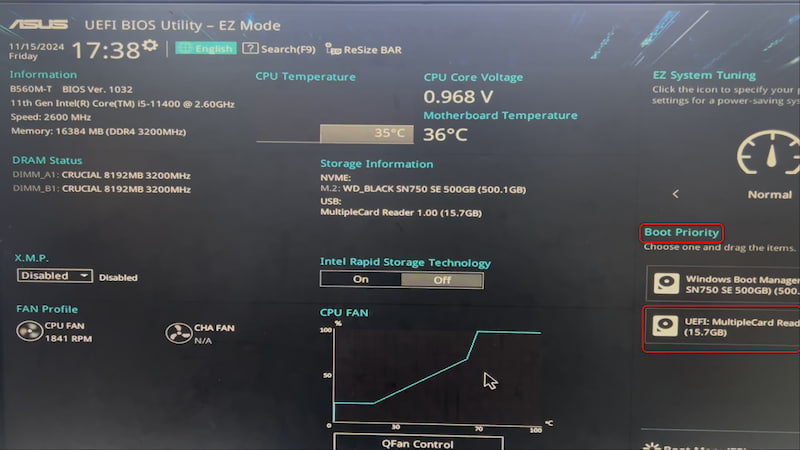
7.Enter BIOS settings, use the arrow keys to switch to the Boot tab, and then select USB boot device. If you cannot find the created boot disk in the Boot tab, you can also try using the rear USB port.
8.Preview and recover files to an external storage device
Notes
- Do not save recovered files back to the same disk
- Works even if Windows won’t load or crashes repeatedly
- Ideal for users who don’t want to open hardware
Method 2: Recover Crashed Computer Data from Hard Drive
Best for: Computers that won’t boot at all but have a physically healthy drive
Skill level: Medium
Risk level: Low if done carefully
When a computer fails to start, the fastest way to confirm whether your data is safe is to access the drive externally. Hard drives and SSDs don’t need the original computer to function—they just need power and a data connection.
By removing the storage device and connecting it to a working computer using a USB adapter or external enclosure, you can often browse and copy files directly. This method bypasses the broken operating system entirely, making it extremely effective for system-level failures.
When manual access fails or files are missing, software-based recovery is the most reliable option—especially when done correctly. This method uses specialized scanning algorithms to locate recoverable data directly from the hard drive sectors, even when the file system is damaged or missing.
Step-by-Step Breakdown
1.Install the software on a healthy drive (not the affected one)
2.Launch the program and select the Hard Drive Recovery
3.Choose a scan mode based on the data loss scenario
4.Allow the scan to complete fully (this may take time)
5.Preview recoverable files by type or folder structure
6.Recover selected files to an external storage location
Important Details
- Never save recovered files back to the same hard drive
- Deep scans find more data but require more time
- Early recovery significantly improves success rates
Method 3: Use a Live System (Linux or Recovery Environment) to Copy Files
Best for: Advanced users, partial system failures
Skill level: Medium to High
Risk level: Low
A live system allows you to run a complete operating system directly from a USB drive—without touching the installed OS. Linux distributions like Ubuntu are popular for this because they’re free, stable, and can read Windows file systems easily.
This approach works well when the internal drive is readable, but Windows fails due to driver conflicts, corrupted updates, or startup errors.
Step-by-Step Breakdown
- Create a bootable Linux USB drive on another computer
- Insert it into the non-starting computer
- Boot from USB and choose “Try without installing”
- Access the internal drive through the file manager
- Copy files to an external hard drive or USB stick
Notes
- File permissions can sometimes block access
- Encrypted drives may not be readable
- Not ideal for severely corrupted file systems
Phone Data Loss After System Crashes (Extended Topic)
While computer startup failures are stressful, phone system crashes cause data loss far more often, especially on Android devices. Many users experience data loss after failed system updates, boot loops, rooting errors, or sudden crashes that leave the phone unresponsive.
For example, Android phones commonly enter a boot loop after:
- Interrupted OS updates
- Failed rooting or ROM flashing
- Malware or virus attacks
- Storage corruption
When this happens, users often factory reset the phone—instantly wiping all data. But just like computers, phone data often remains recoverable if handled correctly.
Our website, idatapp.com, provides specialized software tools designed to handle these mobile data recovery scenarios. These tools can extract photos, messages, contacts, and documents from Android phones even when the system fails to load properly.
What makes this especially relevant is that many people rely on their phones as primary data storage. Losing phone data can be more devastating than losing computer files. The key lesson is the same across devices:
System failure does not equal data loss—panic does.
By using the right recovery tools before resetting or repairing, users can preserve valuable data across computers and mobile devices alike.
Frequently Asked Questions
Can I recover data if my computer won’t power on at all?
Yes, in most cases. As long as the storage drive isn’t physically damaged, data can be recovered by removing the drive or using bootable recovery tools.
Will reinstalling Windows erase my files?
Yes. Reinstalling or resetting the OS can overwrite existing data. Always recover files first before attempting repairs.
What if my hard drive is making strange noises?
That may indicate physical damage. Stop using it immediately and avoid DIY recovery attempts, as they can worsen the damage.
Is data recovery safe for SSDs?
Yes, but SSDs behave differently due to TRIM technology. Acting quickly improves the chances of successful recovery.
Should I try multiple recovery methods?
Yes—but carefully. Start with the least invasive method and avoid actions that write new data to the affected drive.
Final Thoughts: Data First, Fix Later
A computer that won’t start feels like a disaster, but in reality, it’s often just a system failure—not a data failure. The difference between permanent loss and full recovery usually comes down to what you do next.
By staying calm, avoiding risky repairs, and choosing the right recovery method—especially bootable recovery software—you dramatically increase your chances of success. Remember: your data is usually still there, waiting to be retrieved.
 English
 Nederlands
 Tiếng Việt
 日本
日本 Español
 Português
 Deutsche
 Français
 Italiano
 Norsk
Norsk Suomalainen
 Svenska
 Dansk
Dansk Ελληνικά
 Türk
Türk русский
 हिंदी
हिंदी தமிழ்
தமிழ் Bahasa Melayu
 ไทย
ไทย 한국어
한국어 Română
 Polskie
 қазақ
қазақ Gaeilge
 繁體中文
繁體中文