
 iPhone Data Recovery
 iOS System Recovery
 iOS Backup & Restore
 iOS WhatsApp Transfer
 iOS FoneTrans
 MobieSync
 Android Data Recovery
 Broken Android Data Extraction
 Android Data Backup & Restore
 iPhone Unlocker
 Best Samsung Phone Unlock Tool
 Android Unlocker
 Win/Mac Data Recovery
 iDATAPP Screen Recorder
 2D&3D Video Converter
 Video Repair Software Ai
 AI Video Converter
 Ai Blu-ray Player
 How to Bypass Google Lock on Samsung Galaxy A?
This guide explains why Google lock affects Samsung Galaxy A phones and presents three practical bypass methods, including a professional Samsung unlocking solution and expert insights on data recovery.
If you’ve ever picked up a Samsung Galaxy A15/A14/A13/A11/A05/A03/A11/A51 only to be stopped cold by the Google lock (FRP – Factory Reset Protection) screen, you already know how frustrating it can feel. The phone turns on, the screen works, everything looks fine—yet it’s effectively unusable. This article takes a deep, practical look at why Google lock happens on Samsung Galaxy A devices, what options really work in the real world, and how to safely regain access without relying on shady tools or questionable shortcuts.

This isn’t a copy of what you’ve read a hundred times. We’ll break the problem down, explain what’s actually happening behind the scenes, then walk through three original, proven methods—including one professional-grade solution from our own website—so you can choose what fits your situation best.
Guide List
- Understanding Google Lock on Samsung Galaxy A (What’s Really Going On?)
- Method 1: Bypass Google Lock on Samsung Galaxy A Using Samsung Unlocker (Recommended)
- Method 2: Bypass Google Lock via Samsung Emergency Setup Access
- Method 3: Bypass Google Lock Using Samsung Smart Switch Account Rebinding
- Data Loss After Google Lock or System Reset on Samsung Galaxy A
- Frequently Asked Questions
Understanding Google Lock on Samsung Galaxy A (What’s Really Going On?)
Google lock, officially known as Factory Reset Protection (FRP), is not a bug—it’s a security feature built into Android. Once a Google account is added to a Samsung Galaxy A phone, Android silently links that account to the device’s system identity. If the phone is factory reset without first removing the Google account, Android assumes the reset may be unauthorized.
That’s when FRP activates.
After reset, the phone demands the previously synced Google account credentials. No password? No access.
This usually happens in situations like:
- Buying a second-hand Galaxy A phone
- Forgetting the Google account after a reset
- Resetting the phone due to system crashes or boot loops
- Repair shop resets without account removal
- Accidental factory reset via recovery mode
The key point: FRP is account-based, not screen-lock-based. Removing a PIN or pattern does not remove Google lock.
Now let’s solve it.
Method 1: Bypass Google Lock on Samsung Galaxy A Using Samsung Unlocker (Recommended)
Best for: Users who want a stable, guided, and time-efficient solution
Skill level: Beginner-friendly
Success rate: High across most Galaxy A models
When FRP blocks access and account details are unavailable, the safest and most consistent approach is to use a purpose-built unlocking tool. iDATAPP Samsung Unlocker is designed specifically for Samsung devices, including Galaxy A series models, and focuses on removing Google lock without requiring the original Google account.
Unlike generic tools, this solution understands Samsung’s firmware logic and FRP layers, which significantly reduces failure rates.
How It Works (Behind the Scenes)
The software communicates directly with the device’s system partition, bypassing FRP verification modules during the setup phase. It does not brute-force accounts or exploit risky vulnerabilities, which helps keep the device stable after unlocking.
Step-by-Step Instructions
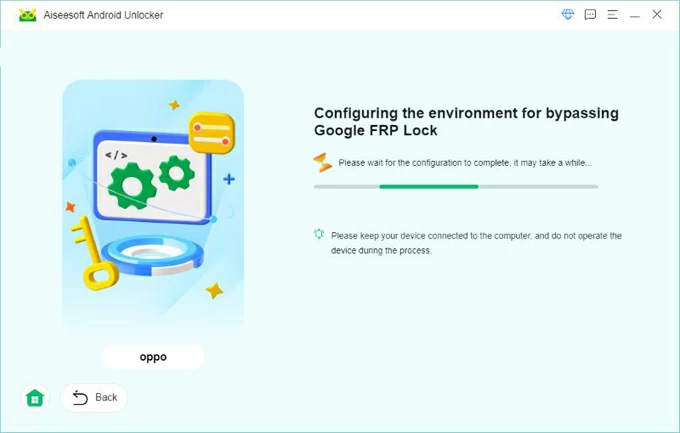
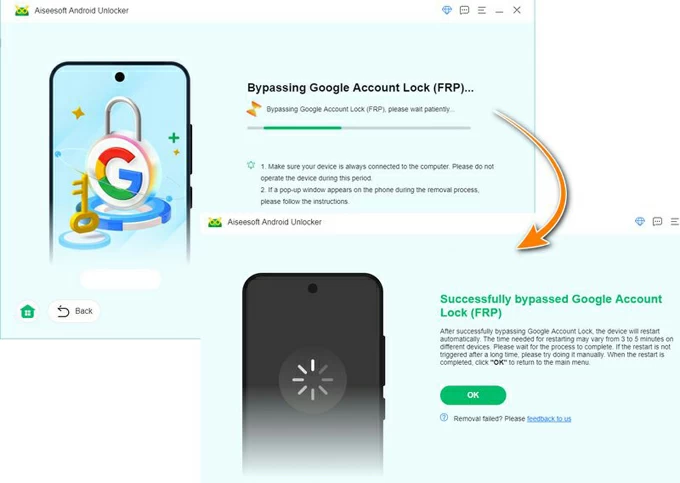
1.Download and install Samsung Unlocker on a Windows PC.
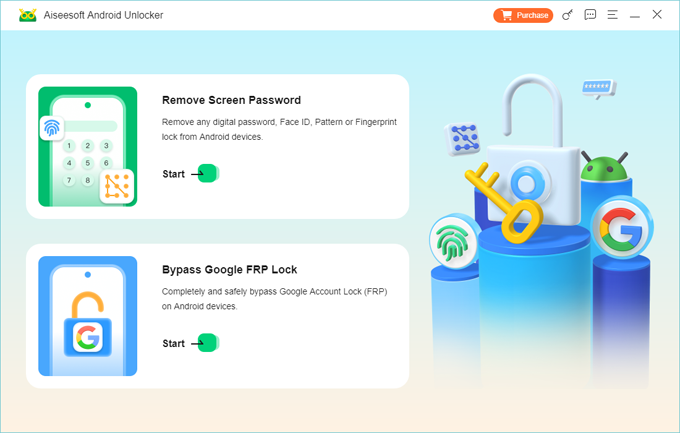
2.Launch the program and select “Bypass Google FRP Lock”.
3.Connect your Samsung Galaxy A phone using a USB cable.
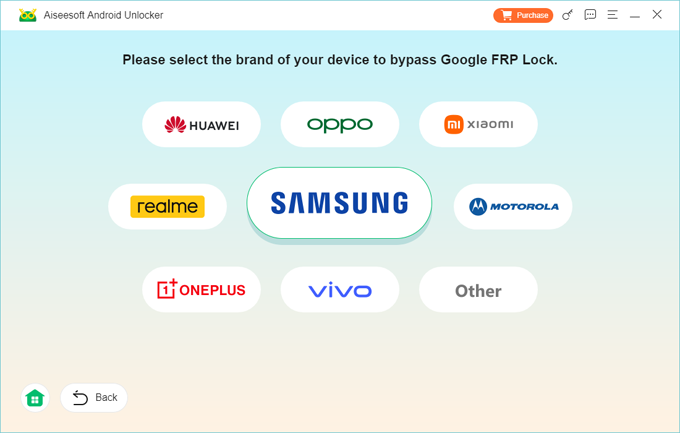
4.Click Bypass Now
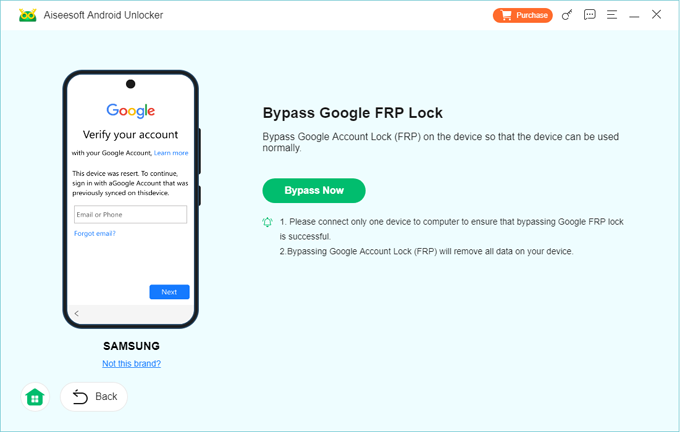
6.Start the unlocking process and wait for completion.
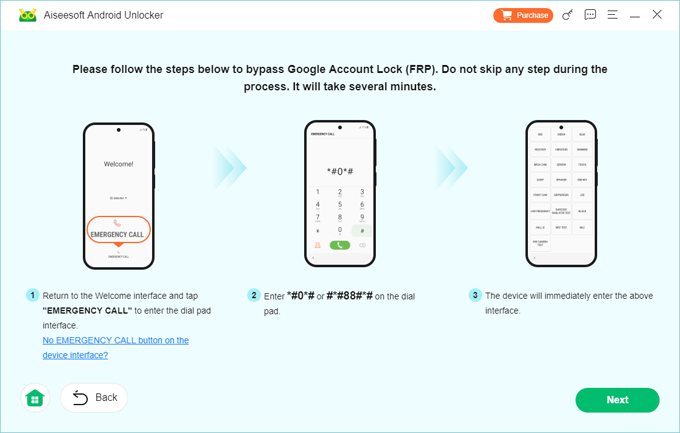
7.Restart the phone and complete setup without Google account verification.
Notes
- Supports multiple Galaxy A models (A10, A20, A30, A50, A70, A-series newer releases).
- No technical commands or risky flashing required.
- Internet connection recommended during the process.
This method is ideal if you value time, safety, and reliability over experimentation.
Method 2: Bypass Google Lock via Samsung Emergency Setup Access
Best for: Users without a PC who are comfortable navigating system menus
Skill level: Intermediate
Success rate: Medium (depends on Android version and security patch)
Samsung Galaxy A phones include several accessibility and emergency features meant for user support—but in some versions, these can also provide limited system access before Google verification is complete.
This method relies on redirecting system settings during the initial setup.
Core Idea
By triggering accessibility features at the right moment, you may gain access to settings that allow you to add a new Google account, effectively replacing the old one.
Step-by-Step Breakdown
- Power on the Galaxy A phone and connect to Wi-Fi.
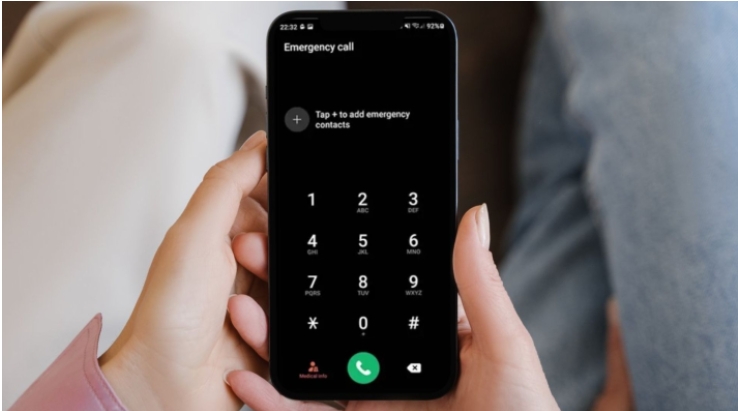
- On the Google verification screen, tap Emergency Call.
- Dial a special character sequence (such as *#0*# or open emergency info repeatedly).
- Trigger TalkBack or Accessibility Menu.
- Navigate to Settings > Accounts via accessibility shortcuts.
- Add a new Google account.
- Restart the device and proceed with setup.
Important Details
- Works best on older Galaxy A models (Android 8–10).
- Samsung frequently patches these access points.
- Requires patience and precise timing.
This approach is useful if software tools aren’t available, but results vary depending on firmware updates.
Method 3: Bypass Google Lock Using Samsung Smart Switch Account Rebinding
Best for: Users with partial account access or backups
Skill level: Intermediate
Success rate: Medium to low (scenario-dependent)
Samsung Smart Switch is typically used for data migration, but under certain conditions, it can help rebind account information during setup.
This method doesn’t remove FRP directly—it works around it by re-establishing account trust.
How It Works
If the phone detects a legitimate Samsung account session or backup during setup, Android may allow limited access before enforcing Google verification.
Step-by-Step Instructions
- Install Samsung Smart Switch on a PC.
- Connect the Galaxy A phone during setup.
- Choose Restore Backup or Transfer Data.
- Sign in with a Samsung account (not Google).
- Allow the restore process to complete.
- Restart the phone and continue setup.
Key Considerations
- Requires an existing Samsung account.
- Not guaranteed on newer Android versions.
- More effective when restoring from the same device lineage.
This method is situational, but worth trying before more invasive solutions.
Data Loss After Google Lock or System Reset on Samsung Galaxy A
Google lock problems often don’t come alone. In many Galaxy A cases, users reset their phone multiple times trying to bypass FRP—only to discover important data is gone afterward.
Photos, messages, contacts, WhatsApp chats, documents—once a factory reset is done, data loss becomes a real risk.
This is especially common with Samsung Galaxy A phones due to:
- System crashes during updates
- Boot loops after failed unlock attempts
- Forced resets from recovery mode
- Virus-infected apps triggering system instability
The Real Problem
FRP blocks access before Android fully loads. That means traditional backup methods often fail, and cloud sync may be outdated or incomplete.
Practical Solution from iDATAPP
For Galaxy A users facing data loss due to system issues or accidental resets, iDATAPP offers Android data recovery solutions that can scan device storage and SD cards—even when the system won’t boot properly.
These tools are commonly used to:
- Recover photos and videos from Samsung phones after reset
- Extract contacts and messages from damaged systems
- Recover files from SD cards removed from Galaxy A devices
- Handle data loss caused by rooting errors or crashes
This becomes especially useful after FRP removal, when users realize they regained access—but lost what mattered most.
Frequently Asked Questions
Is it legal to bypass Google lock on Samsung Galaxy A?
Yes, if you are the rightful owner of the device or have permission. FRP bypass should never be used on stolen phones.
Will bypassing Google lock delete my data?
Some methods may involve resets. Professional tools minimize risk, but data loss is possible if the phone was already reset.
Does Samsung Unlocker work on the latest Galaxy A models?
It supports a wide range of Galaxy A devices and Android versions. Always check the supported list on the official site.
Can Google lock be removed without a PC?
Some manual methods work on older Android versions, but success is inconsistent and often patched.
Will the Google lock return after bypass?
If a new Google account is added correctly and the setup completes, FRP will not return unless the phone is reset again.
Conclusion
Bypassing Google lock on a Samsung Galaxy A phone isn’t about tricks—it’s about understanding FRP and choosing the right solution. Whether you use professional unlocking software, manual system access, or account rebinding, the key is safe, informed action.
 English
 Nederlands
 Tiếng Việt
 日本
日本 Español
 Português
 Deutsche
 Français
 Italiano
 Norsk
Norsk Suomalainen
 Svenska
 Dansk
Dansk Ελληνικά
 Türk
Türk русский
 हिंदी
हिंदी தமிழ்
தமிழ் Bahasa Melayu
 ไทย
ไทย 한국어
한국어 Română
 Polskie
 қазақ
қазақ Gaeilge
 繁體中文
繁體中文